
Some users have reported that when they boot their Windows computer, it freezes and becomes unusable. This may happen before the login screen appears or after reaching the desktop. If you face this issue, this post will help you.

Windows 11 freezes on Startup
If Windows 11/10 freezes or is unresponsive on startup, maybe even before the login screen, follow these suggestions to resolve the issue:
- Check the start-up entries
- Disable Indexing Service
- Update device drivers
- Disable Fast Startup
- Disconnect connected devices and see
- Check if your hardware is the cause
- Troubleshoot in Clean Boot State.
1] Check the start-up entries
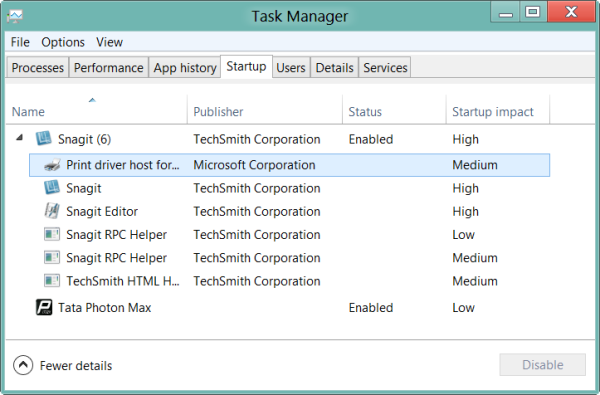
Maybe a startup program is causing this problem. To try and identify the offender, press Ctrl+Shift+Esc to open Task Manager and go to Startup Apps.
Here, right-click and Disable all enabled apps.
After this, restart your PC and then enable one app at a time, till you are able to find the offender.
Incidentally, you can also manage Startup Apps via Windows Settings.
Read: Windows freezes at Login Screen
2] Disable Indexing Service
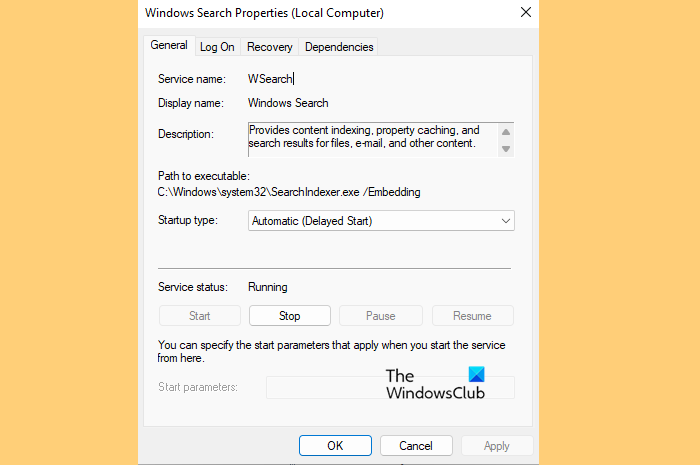
Next, you should disable Indexing Service and see it it resolves the issue.
- Open Run by Win + R, type “services.msc”, and click Ok.
- Double-click on Windows Search to open its properties.
- Now, you can either Stop the service or set it to Delayed Start.
- Press Apply, restart your PC and see.
Read: Computer freezes or crashes when closing Programs or Games
3] Update device drivers
You can update Drivers via Windows Settings or download the drivers from the manufacturer’s website.
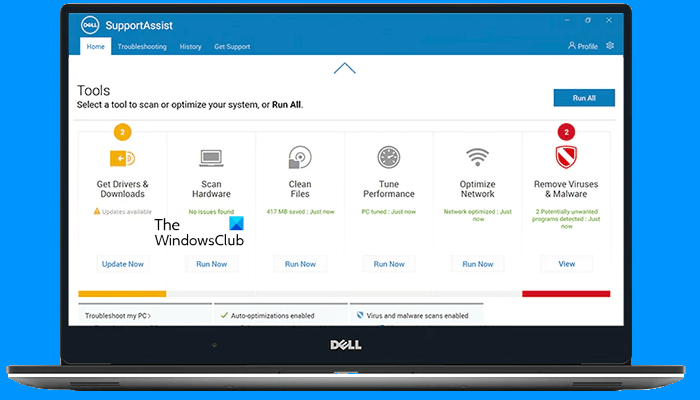
Manufacturers have also released special driver download software for their brands:
- Dell Update utility will help you download or update Dell Drivers
- HP users can use the bundled HP Support Assistant.
- MyASUS app on ASUS computers
- Lenovo System Update helps you download Lenovo Drivers, Software, Firmware, Update BIOS.
- AMD users may use AMD Driver Autodetect.
- Intel users may use Intel Driver & Support Assistant.
Read: Computer Freezes and makes Buzzing or High Pitched Noise
4] Disable Fast Startup
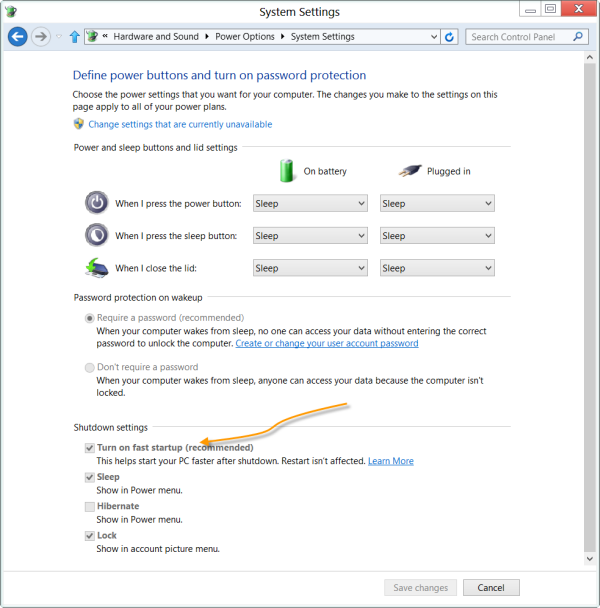
Open Control Panel > Power Options using the Search bar. In the left pane, you will see the option: Choose what the power buttons do. Click on it.
Here, you will see that the default recommended setting box Turn on fast startup (recommended) is checked. Uncheck this box to disable Fast Startup and save the changes.
Read: Windows crashes or freezes even in Safe Mode
5] Disconnect connected devices and see
Devices can create delays during system startup. You should disconnect connected devices and see if that makes a difference.
Read: Computer becomes unresponsive when idle
6] Check if your hardware is the cause
A Windows computer freezing due to hardware problems is often a sign that something deeper is wrong, and you may see the message “A problem with your hardware caused Windows to stop working correctly.” So you must rule out these possibilities.
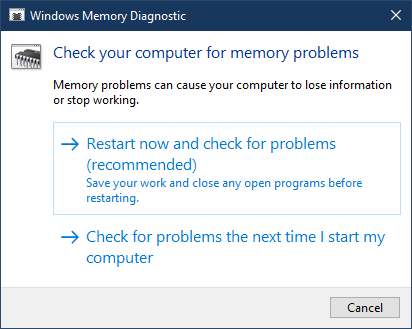
Memory issues and faulty RAM can cause freezes during startup. So it’s important to check faulty RAM using built-in tools. For example, the Windows Memory Diagnostic Tool can help identify issues, while the DirectX Diagnostic Tool can help spot graphics-related errors.
In addition, outdated or corrupted drivers can trigger startup freezes, so you need to troubleshoot & fix device driver problems to restore stability.
Read: Windows computer freezes, hangs or crashes randomly
7] Troubleshoot in Clean Boot State
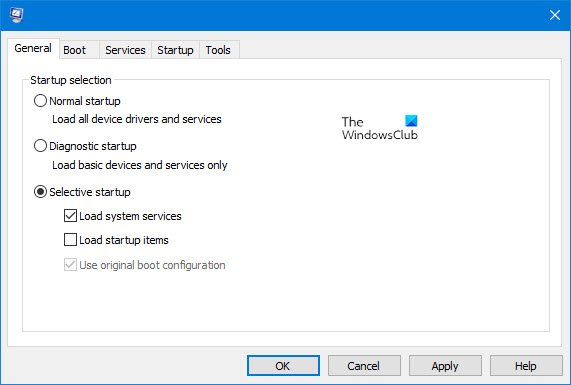
A third-party process may be causing freezing issues during system startup, and to identify the culprit, you need to perform a Clean Boot.
Once in Clean Boot State, you may need to disable one item at a time to pinpoint the one causing the problem. Once you have identified the offender, you can consider removing or disabling it.
Hope something here helps you.
You may want to check these links too:
- Windows computer freezes while installing Graphics driver
- Computer freezes when printing
- Computer freezes when watching videos.
