
This post shows you how to control, change, manage and disable Startup programs in Windows 11/10. Stop apps from opening or running at Windows startup using Task Manager, WMIC, MSCONFIG, GPEDIT, Task Scheduler, Settings, free startup manager software, etc. It is important to manage startup programs in Windows 11/10 so they do not start up every time Windows boots. It is common for most programs to add themselves to the startup list as a result of which, your computer tends to waste resources and perhaps make it run slowly.
How to disable Startup Programs and Apps in Windows 11
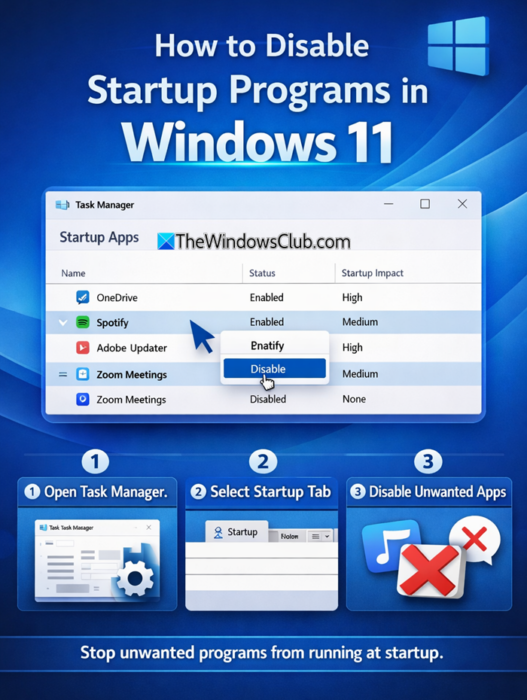
To disable startup programs in Windows 11/10, do the following:
- Right-click on the Taskbar
- Select Task Manager to open it
- Click on More details
- Next, select the Startup tab
- Here you can select the process and press the Disable button.
This was the procedure, in brief.
Stop apps from opening or running at startup in Windows 11
Let’s now look at the various ways to disable Startup Programs and stop apps from opening or running at startup in Windows 11/10.
Ways to manage Startup programs in Windows 11
- Using Task Manager
- Using Windows Settings
- Using WMIC
- Using Group Policy
- Using Task Scheduler
- Using Free software.
1] Using Task Manager
In Windows 11/10, if you open msconfig or the System Configuration utility, under the Startup tab, you get to see this.
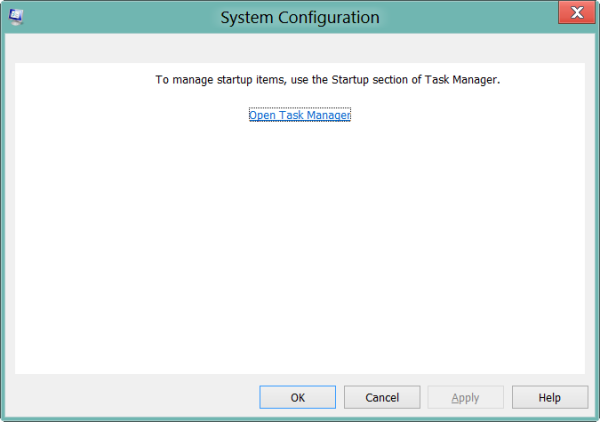
You have to click on the link to open the Task Manager. In the Task Manager interface, you can now disable and enable startup items. You no longer need to open msconfig. Simply open Task Manager and manage your startup items under the Startup tab.
In Windows 11 or Windows 10, to disable or manage startup programs, you have to open Task Manager and click on the Startup tab.
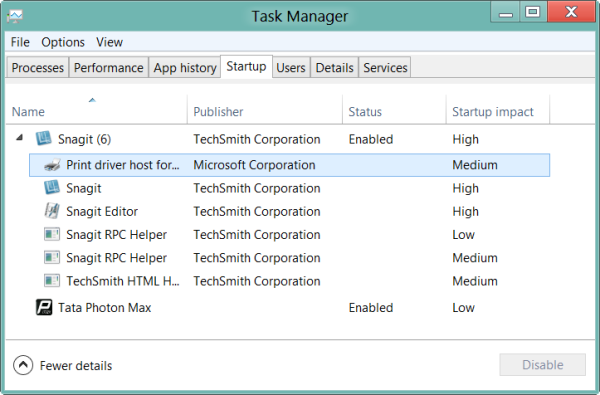
Here you can see the list and right-click on any entry to Disable it. Here, you can find out Startup programs slowing down Windows Boot.
Read: Remove dead Startup programs from Task Manager.
2] Using Windows Settings
In Windows 11/10 you can now also manage Startup Apps via Windows Settings. Some installed software and apps start automatically when you log in because they add items to the startup list. This can slow down your computer, and so it is always a good idea to disable the ones you do not need.
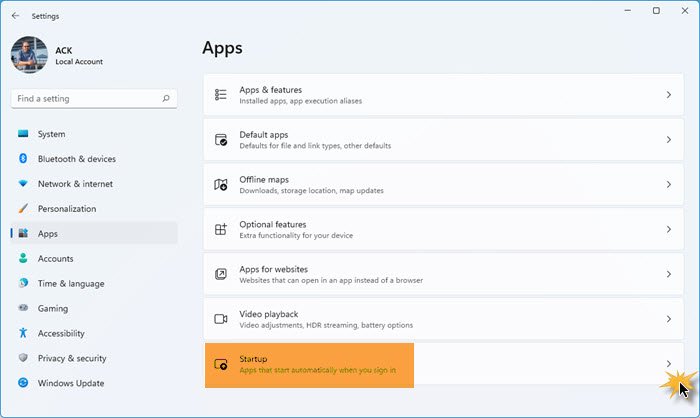
To disable or stop programs and apps at startup in Windows 11, do the following:
- Launch Windows 11 Settings
- Select Apps settings
- Click open Startup
- You will see the list of all your apps populated
- Toggle the switch to Off to disable the app from starting up at every boot.
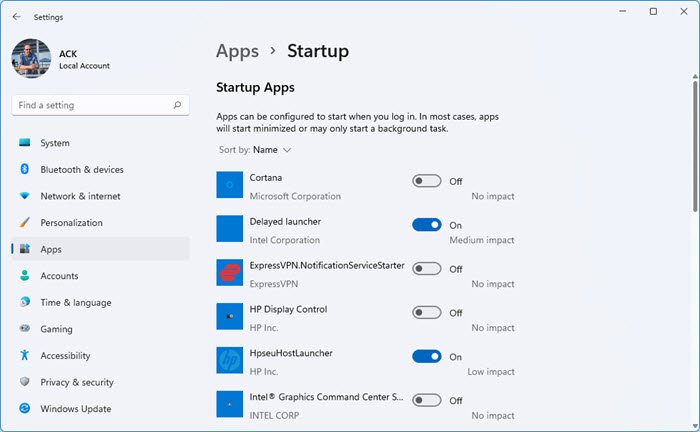
That’s it.
You can also find the impact of these apps on system startup. For example, you can see High, Medium, Low, No impact under the toggle button. If your system has not measured the impact, it will display Not measured.
TIP: Get notified when a program adds itself to the Startup list in Windows 11
3] Using WMIC
In case you did not know, you can also use the Windows Management Instrumentation command-line or WMIC to see the list of startup programs in Windows. To do so, open a command prompt window.
Type wmic and hit Enter. Next, type startup and hit Enter.
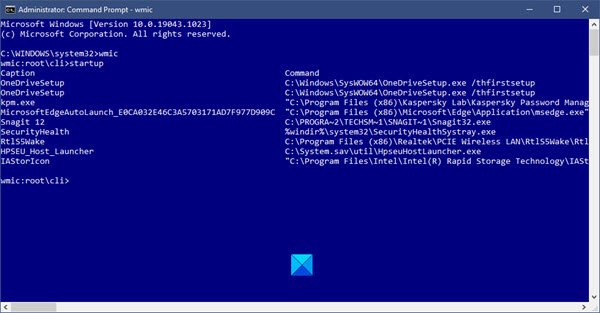
You will see the list of programs that start with your Windows.
NOTE: Microsoft has deprecated the WMIC feature and disabled it by default on Windows 11. But if you want to use it, you can still install WMIC in Windows 11 using Settings, PowerShell, or CMD.
4] Remove Startup Programs using Group Policy Editor
If you use the Pro or Enterprise version of Windows 11/10, you can also remove startup programs with the help of the Group Policy Editor app. Home Edition users can add Group Policy Editor and then disable startup programs using it. You can simply follow the below steps to do so:
Firstly, open the Run dialog by hitting Windows + R hotkey. Then, enter gpedit.msc in the box and press the OK button. It will open up the Group Policy Editor app on your PC.
Now, in the left panel, just go to the following address:
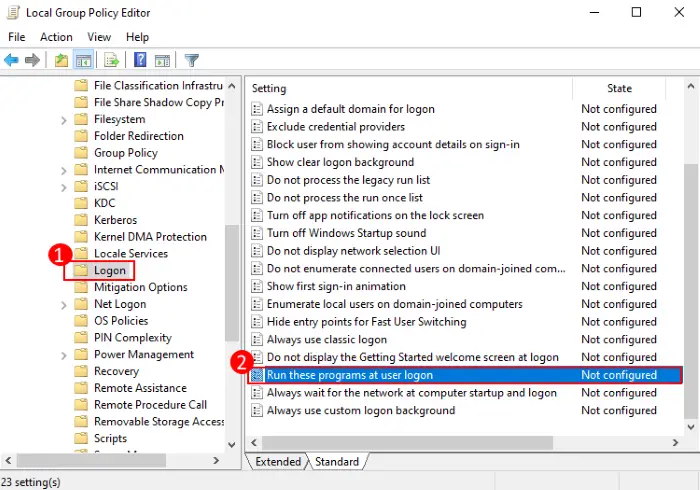
Computer Configuration -> Administrative Templates -> System -> Logon
Next, from the right panel, you will see various Logon policies. From here, locate the policy called Run these programs at user logon and double-click on it.
A new dialog window will open up where you need to select the Disabled option and then click on the OK button.
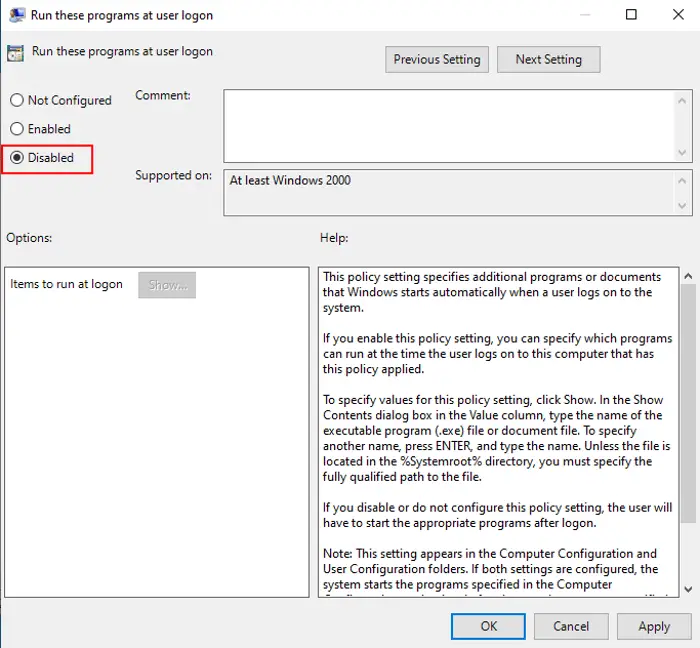
To disable certain startup programs, from the Run these programs at user logon policy, click on the Show button. Then, select the startup program that you want to disable from the Show Contents dialog box and then tap on the Remove button.
5] Remove Startup Programs using Task Scheduler
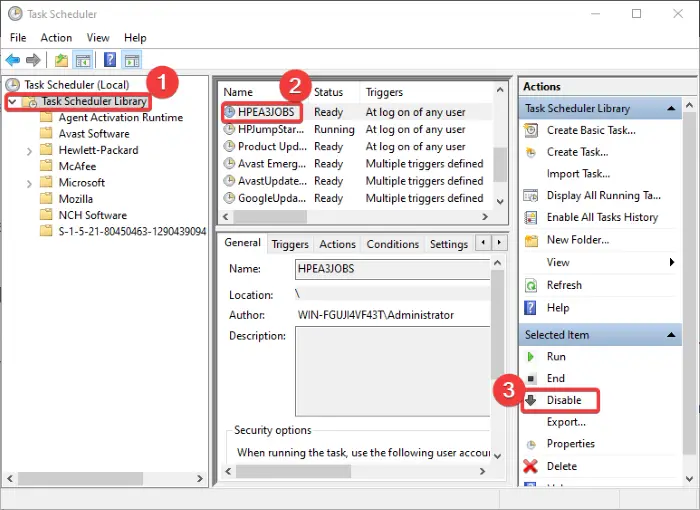
Windows 11/10 has this built-in task creation, scheduling, and management utility called Task Scheduler. Using it, you can also disable startup tasks or programs using Task Scheduler. Here are the steps to do so:
- Open the Task Scheduler app by going to the taskbar search option and typing Task Scheduler in the search box.
- Now, double-click on the Task Scheduler Library option and you will see various tasks in the middle pane including startup items.
- Select the startup program that you want to disable.
- After that, go to the extreme right pane and press the Disable option to disable the startup program.
Also read: How to disable Startup Delay using StartupDelayInMSec Registry key.
6] Free software to manage startup programs
There also several good free Startup manager software that are available like:
- Microsoft Autoruns
- CCleaner
- MSConfig Cleanup Tool
- Malwarebytes StartUpLITE
- Startup Sentinel
- Quick Startup
- Startup Delayer
- Startup Helper
- HiBit Startup Manager
- Autorun Organizer
- Quick Startup
- WhatsInStartup
- WinPatrol
- Starter startup manager program.
You might want to take a look at them:
These freeware can help you manage your startup programs easily, and thereby make Windows start faster. The last two even let you add startup programs along with their launch parameters.
BONUS TIP: Using MSCONFIG
In Windows 7, you can use the System Configuration Utility or MSConfig to manage start-up applications. This tool allows us to enable or disable startup items. To run this built-in utility, we type msconfig in the Start search and hit Enter. Under the Startup tab, you will be able to enable, disable or remove the startup entries.
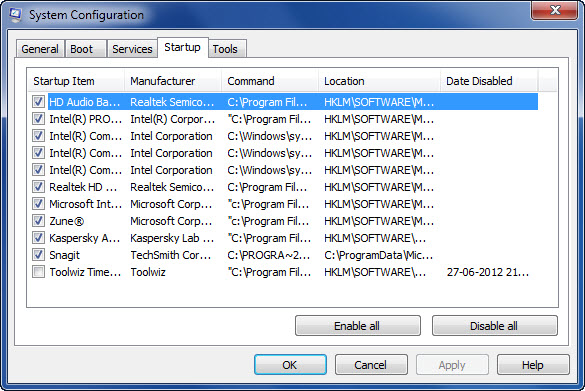
Here, under the Startup tab, one can uncheck an entry to prevent the item from starting at every boot. Of course, one can only enable or disable the entries.
What should I disable in MSConfig?
If you are experiencing performance issues, you can use MSConfig to disable unwanted startup apps and third-party services. Startup apps and services continue to run in the background, consuming your system’s memory. Hence, if you do not require these startup apps and third-party services, you can disable them. Be careful when disabling third-party services, as disabling the wrong ones can get you in trouble.
Can I disable all services in MSConfig?
You can disable all the services using MSConfig but it will break your computer. If you disable all the services, you will not be able to log in to your system and other problems will also start occurring. This action will put you in trouble. Therefore, it is not recommended to disable all services. However, if you have accidentally disabled all the services using MSConfig, you have to boot into Windows Recovery Environment to fix this problem. If nothing works, clean install Windows.
Also read:
- Location or path of the startup folder in Windows
- Windows Registry Startup Paths
- How To Delay Startup Programs in Windows
- Disabled startups do not run after re-enabling them in Windows.
