
Does your Windows 11/10 PC freeze when idle and become unresponsive? Multiple reasons can cause Windows 11/10 to hang after a period of inactivity. It can be due to insufficient RAM, too many processes running on your computer, outdated device drivers, or an errant process!
Windows 11/10 freezes when Idle
Here are the suggestions that you can try to resolve the issue where your Windows may be freezing or hanging after remaining idle for a while:
- Restart Computer
- Tweak Sleep Mode Settings
- Close Unwanted Programs
- Check for Driver Updates
- Update BIOS
- Check Scheduled Tasks
- Troubleshoot in Clean Boot State.
Let’s discuss these methods in detail.
1] Restart Computer
Rebooting your PC may help you resolve this error. It is a general method to fix various problems on your computer and hopefully, it fixes this issue as well.
- If even your mouse or touch is frozen, then you have no choice but to power down and power on the system.
- If you are able to move your mouse, then restart Explorer and Start Menu and see if that helps; else click on Restart to reboot your PC.
Related: Computer freezes when printing.
2] Tweak Sleep Mode Settings
If your PC keeps on freezing after being idle, consider changing your sleep mode options by using the Power Options.
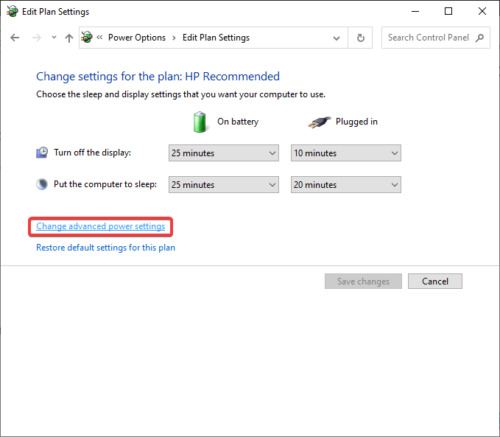
Open Control Panel > Power Options > Edit Power Plans.
Now, click on the Change plan settings option and then the Change advanced power settings option.
Next, navigate to Sleep > Hibernate after menu item and set its value to ‘Never‘ for both On-battery and Plugged-in options.
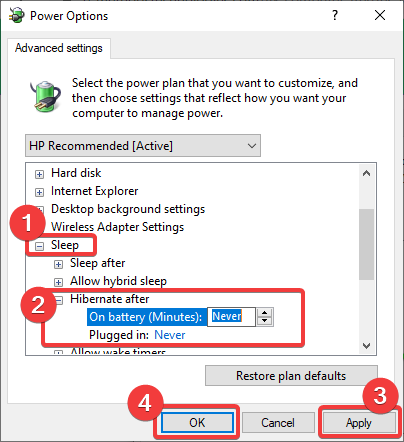
Tap on the Apply option and then click the OK button to save modified sleep settings.
Related: Print Screen button freezes Windows computer
3] Close Unwanted Programs
Too many unwanted software and background applications running on your PC can also make Windows freeze after being idle. Hence, you should consider shutting down all the unnecessary processes and programs that are not currently being used. Also, processes associated with web browsers generally cause this freezing issue. So, close down multiple instances of your browser and see if the problem still persists.
You can close unwanted programs from Task Manager. Simply press the CTRL+Shift+Esc shortcut key to open up Task Manager and then close all the software that you think are not needed at the time using the End Task button.
Read: Windows freezing or rebooting due to Hardware problems.
4] Check for Driver Updates
Out-of-date device drivers can also cause Windows 11/10 to freeze when idle. So, consider updating outdated drivers on your computer.
Microsoft has now made it easier for you to discover the available Windows feature updates, monthly non-security quality updates, and driver updates. You will now no longer need to use the Device Manager to search for device driver updates. Consequently, the Device Manager will no longer search the internet for available updates. You will able to use it only if you have the driver update file on your computer.
To check the Driver Updates available to your system:
Windows 11
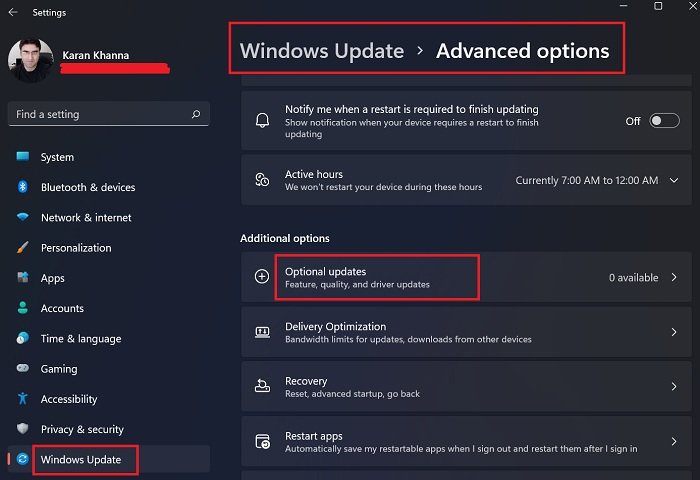
- Open Windows 11 Settings (Win + I)
- Navigate to Settings > Windows Update > Additional options
- Right under it, look for a clickable link— Optional updates.
- Under Driver Updates, a list of updates will be available, which you can choose to install if you are facing an issue manually.
Windows 10
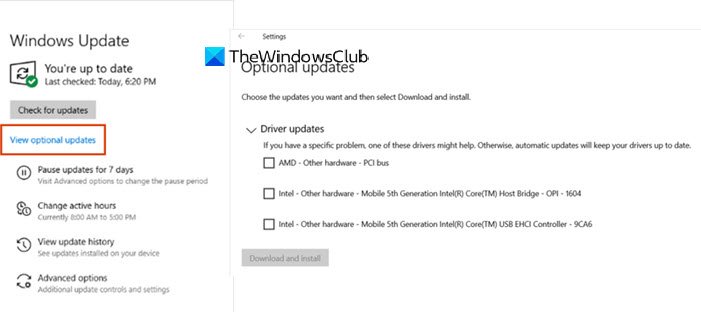
- Open Windows 10 Settings (Win + I)
- Navigate to Settings > Update & Security > Windows Update
- Right under it, look for a clickable link – View optional updates.
- Under Driver Updates, a list of available updates will be displayed; you can choose to install them manually if you are experiencing an issue.
Related: Windows hangs when Debug Mode is enabled.
5] Update BIOS
You may want to also update your BIOS and Windows OS.
You can check for any updates available and then install them.
Read: Windows freezes at Login Screen.
6] Check Scheduled Tasks
A task that is scheduled to run when the system is idle could also potentially cause your computer to freeze.
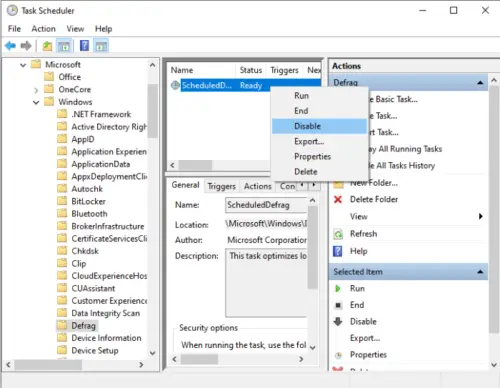
Particularly, you may want to check for any scheduled defrag task from Task Scheduler. To do so, open the Task Scheduler app by searching for the app and then locate the Windows > Microsoft > Defrag option. You will see a ScheduledDefrag task which you can disable by right-clicking on it and tapping on Disable option from the context menu.
Read: Windows crashes or freezes even in Safe Mode.
7] Troubleshoot in Clean Boot State
If it is an errant background third-party process that is causing your system to hang, then it is best identified by performing Clean Boot. When you start the computer in clean boot, the computer starts by using a pre-selected minimal set of drivers and startup programs.
To perform clean-boot troubleshooting, you must take several actions and then restart the computer after each one. You may need to manually disable items one at a time to pinpoint the one causing the problem. Once you have identified the offender, you can consider removing or disabling it.
Windows 11 crashing when idle
If your Windows 11 computer is crashing when idle, the causes could be any of these:
- Windows 11 may crash when idle due to outdated drivers or system conflicts, so update your drivers.
- Power settings like Sleep or Hibernate can trigger instability on some hardware, so consider restoring your Power Plan to Balanced or Default.
- Background apps or scheduled tasks might cause memory leaks or system hangs. Please take a look at them in Clean Boot State.
- BIOS or firmware issues can interfere with idle state transitions, so set BIOS settings to default. You may also update BIOS.
- Updating Windows, drivers, and disabling fast startup often resolves the problem.
Laptop slow after not using for a long time
If a laptop is not used for an extended period, the CMOS battery may leak, potentially damaging the motherboard and connected components, such as the hard drive. This leakage can cause serious hardware issues, rendering the laptop slow or even inoperable. Regular use or maintenance can help prevent such problems.
Why is my computer so slow after not using it for a while?
Your laptop may be running slowly because of too many background programs or too many browser tabs open. Outdated software or drivers can also cause performance issues. Regularly updating your system and managing active applications can help improve speed. It is a good idea to restart the PC, say, once a week.
Now Read: Computer freezes or crashes when closing Programs or Games.
