
If the SD card is slowing down or freezing your Windows computer, this article will help. Multiple causes can trigger this issue, like a faulty SD card or card reader, a faulty USB port, faulty drivers, or a conflicting application. Sometimes, Windows may freeze while reading the corrupted sectors on an SD card. This article lists some of the most effective solutions to fix this problem.
SD card is slowing down or freezing the computer
Use the following fixes if the SD card is slowing down or freezing your Windows computer:
- Preliminary fixes
- Uninstall the SD card driver
- Reinstall the USB Controller drivers
- Disable search indexing for the SD card
- Run the Chkdsk scan
- Check the issue in the Clean Boot state
- Scan your system and SD card for viruses
All these fixes are explained in detail below.
1] Preliminary fixes
Before moving towards the advanced troubleshooting steps, it is better to apply these preliminary fixes and see if they help.
- The issue may be with a specific USB port. Verify this by connecting the SD card reader to another available USB port.
- You should also check your SD card by inserting it into your mobile phone or connecting it to another computer.
- If another SD card reader is available, use it and see what happens.
2] Uninstall the SD card driver
One possible cause of this issue is the corrupt SD card driver. To verify this, uninstall the SD card driver.
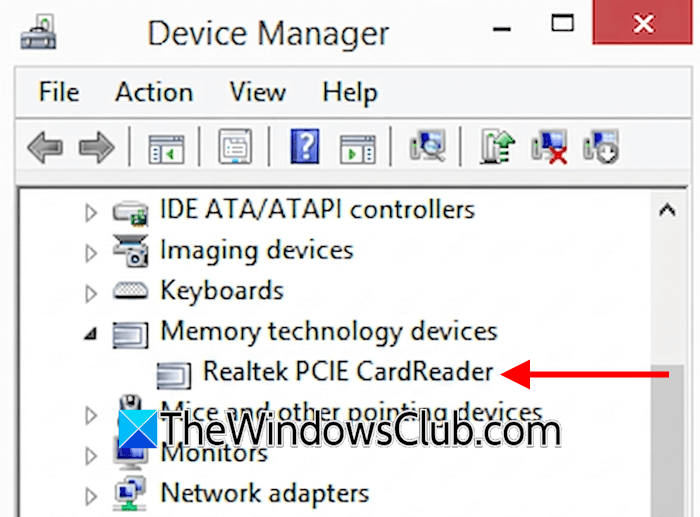
Follow these steps:
- Open the Device Manager.
- Expand the Memory technology devices branch. You will see your SD card driver there.
- Right-click on your SD card driver and select Uninstall device.
- Close the Device Manager and restart your computer.
Now, insert the SD card reader into the USB port and see if the issue persists.
3] Reinstall the USB Controller drivers
If the issue persists, try reinstalling the USB Controller drivers. Before proceeding, create a system restore point. Now, follow the steps provided below:
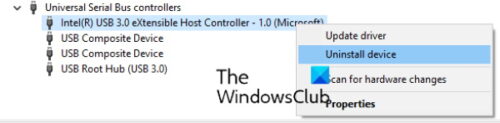
- Open the Device Manager.
- Expand the Universal Serial Bus controllers branch
- Right-click on the USB Host Controller driver and select Uninstall device.
- Uninstall all available USB Host controller drivers.
When you are done, restart your computer. Windows will automatically install the missing drivers on restart. Now, check if the issue persists.
4] Disable search indexing for the SD card
If your system is slowing down when connecting an SD card, the background indexing process might be responsible. To confirm this, disable search indexing for your SD card.
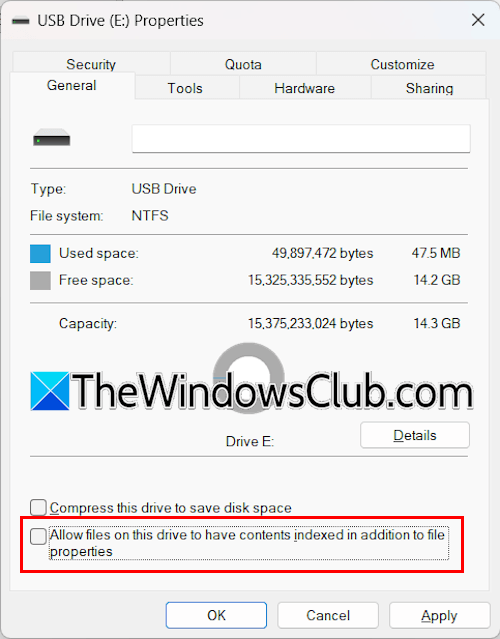
Go through the following instructions:
- Connect the SD card reader and open File Explorer.
- Right-click on your SD card and select Properties.
- Under the General tab, uncheck the “Allow files on this drive to have contents indexed in addition to file properties” checkbox.
- Click Apply and then click OK.
Now, check if the issue persists.
5] Run the Chkdsk scan
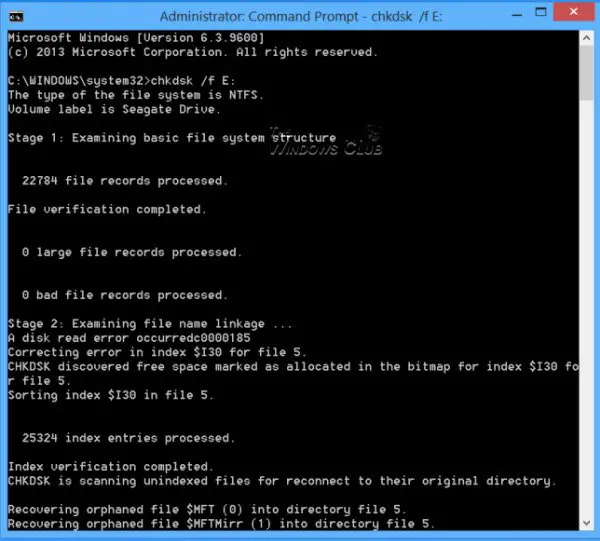
Your SD card might have bad sectors. You can run Chkdsk on internal and external drives, including an SD card. Run a Chkdsk scan on your SD card to repair any bad sectors (if any).
6] Check the issue in the Clean Boot state
A third-party program or service might slow down your system when you insert the SD card. To verify this, troubleshoot in a Clean Boot state. Launch MSConfig, disable all the third-party services, and restart your system. You will be in the Clean Boot State. Be careful while using MSConfig to enter the Clean Boot state. If you disable all the services by mistake, you will put yourself in trouble.
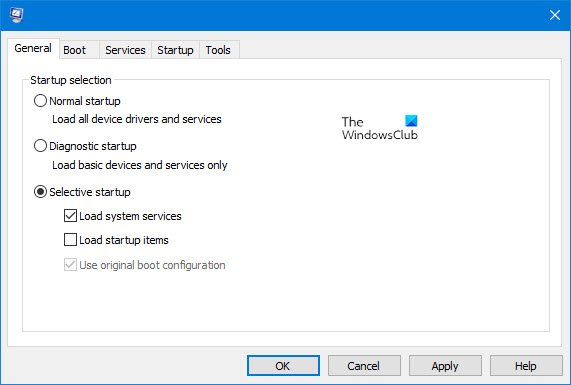
Once you are in Clean Boot state, insert the SD card reader into a USB port and monitor your system’s performance. If your system is working normally, your next step is to identify the service causing this issue. For this, you need to use a trial-and-error approach by enabling some of the disabled services and monitoring your computer’s performance. Once you find the problematic service, consider uninstalling its respective program.
7] Scan your system and SD card for viruses
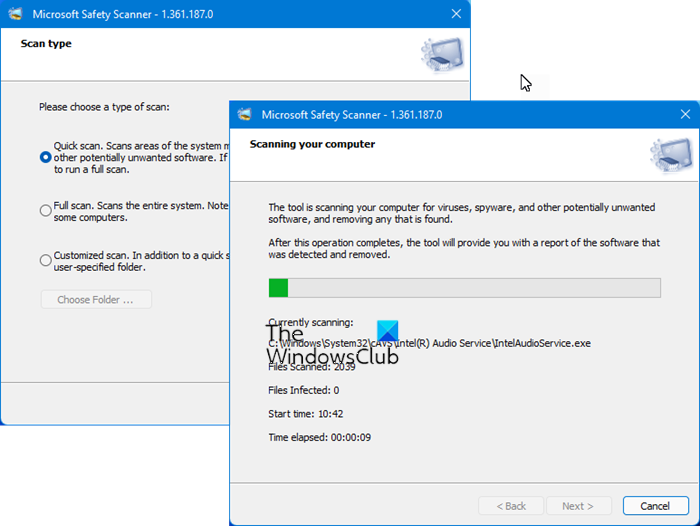
Your system and SD card might be infected. Scan your system and the SD card with a good antivirus. You can use Microsoft Safety Scanner or another free third-party antivirus software.
That’s it. I hope this helps.
How to repair a corrupted SD card on a PC?
If your SD card is corrupted, you can repair it using Check Disk, a built-in tool on Windows computers. The chkdsk scan will scan your SD card for file system corruption and bad sectors. If it finds any bad sectors or logical errors, it will fix them.
Why is my PC so slow and keeps freezing?
The main cause of the freezing issues on a PC is insufficient RAM. When your PC has less RAM than required, it will struggle performing multiple tasks at the same time, resulting in slow performance. The installation of Windows on an HDD or an SSD is also a big factor in a PC’s performance. You should also monitor your PC’s temperature.
Read next: SD card automatically deletes files and photos on PC.
