
Windows 11 comes with new promises and claims about improved performance. However, some Windows 11 settings can enhance performance, which we will discuss in this article.
Improve Windows 11 Performance
The following are some of the best Windows 11 Settings to improve performance and ensure you don’t end up waiting for a simple task. These suggestions are in addition to our detailed posts on how to make Windows run faster.
- Disable VBS
- Disable Game Mode
- Disable Background Apps
- Use Storage Sense
- Disable Restartable Apps
- Tweak Performance Options.
Let us talk about them in detail.
1] Disable VBS
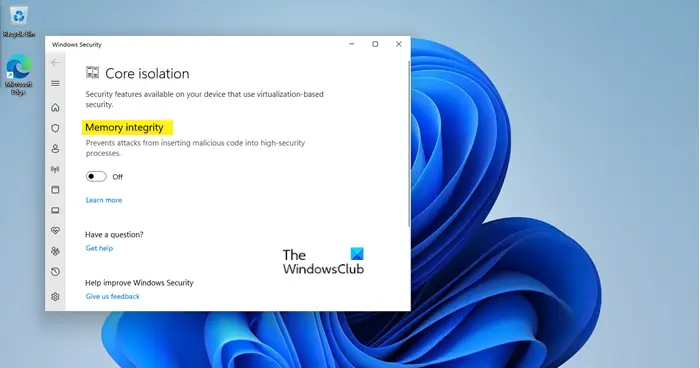
VBS or Virtualization-based Security, with the help of Hardware Virtualization, creates a separate secure region for the memory. Even though it is implemented to secure your computer from malware and virus attacks, many systems that create that segregated memory tend to drop their performance, especially gaming performance. So, you may want to disable VBS to get better performance. Follow the given steps to do the same.
- Search for “Core Isolation” from the Start Menu.
- Now, use disable the toggle of Memory integrity to disable VBS.
Because of this, you will definitely see some bump in performance – but remember that this is a security setting that you are disabling!
Read: Beginner’s tips to optimize Windows for better performance.
2] Disable Game Mode
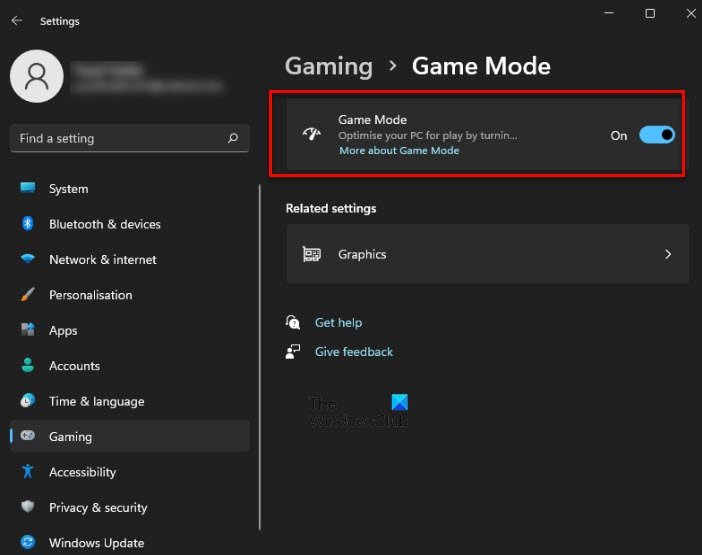
Game Mode is optimized for gamers and should be enabled only when you are playing a game. Hence, you need to enable it only when trying to play the game. So, you need to make sure that when you are not playing a game disable Game Mode, and enable it while gaming.
Read: How to increase Hard Drive speed & improve performance in Windows.
3] Disable Background Apps
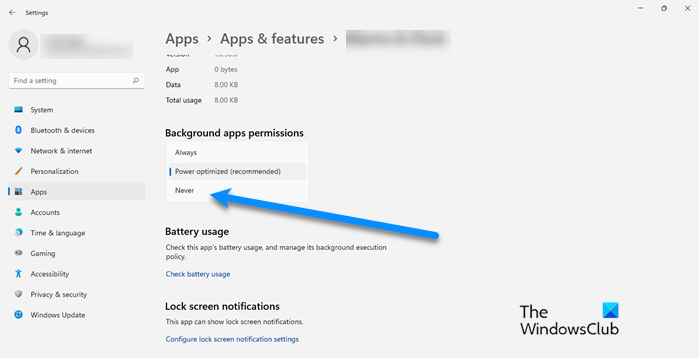
There are some applications that run in the background in order to keep themselves updated. But if you are seeing some performance issue, you can forbid some applications from performing in the background. Before doing that, make sure to not stop important apps such as Calendar, Clock, etc. Follow the given steps to do the same.
- Open Settings by Win + I.
- Go to Apps.
- Click Apps & Features.
- Search the application that you don’t want to perform in the background, click on the three dots next to it and select Advanced options.
- From the Background apps permission, select Never.
Now, that app won’t run in the background and won’t put pressure on your CPU.
Read: How to fix Windows Performance issues?
4] Use Storage Sense
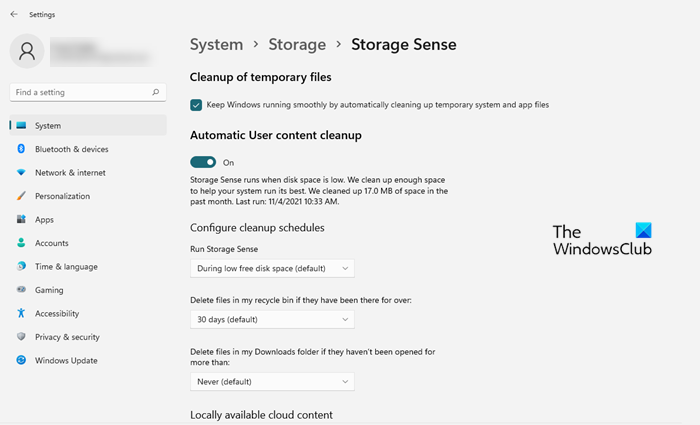
Storage Sense is a great way to keep tabs on your temporary files, junk, and other bloat that can fill up your system’s storage. You can configure Storage Sense on your system and use it to clean your computer.
Read: Windows 11 hidden features.
5] Disable Restartable Apps
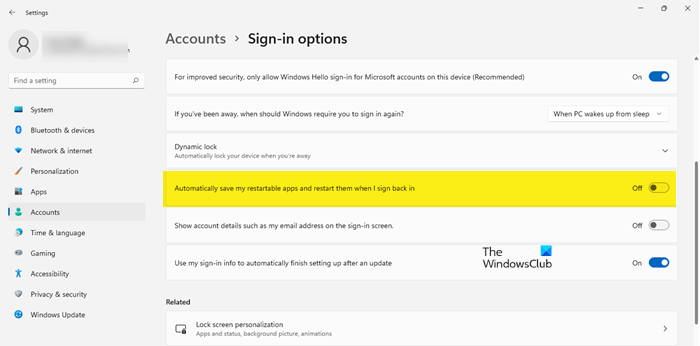 Windows 11 has by which it restarts apps after your sign in to your computer in order to improve their performance. Now, this feature is good in systems with decent hardware but if you have an old or inferior computer, you should disable Restartable Apps as it can cause issues for you. Follow the given steps to do the same.
- Open Settings.
- Click Accounts > Apps & features.
- Use disable Automatically save my restartable apps and restart them when I sign back in.
That’s it.
6] Tweak Performance Options
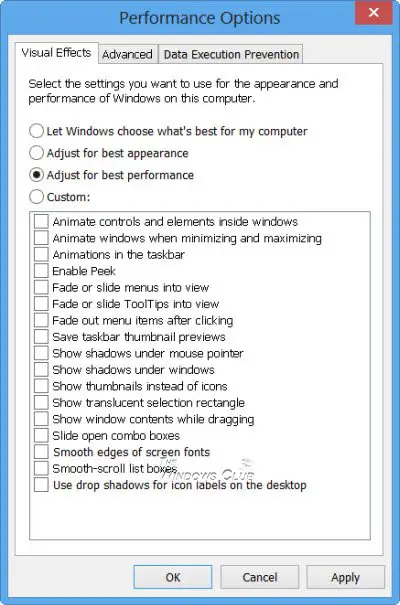
Windows 11/10 includes special effects and visual features, such as animations and shadows, which consume processing power. If your computer is running slowly, you may want to reduce some of the visual effects to improve your PC’s performance.
TIP: You can also enable and use Edge Clarity Boost in Windows 11 to improve Xbox Cloud gaming performance.
Read: Improve performance using Eco Mode in Windows Task Manager.
How can I speed up Windows 11?
You can speed up Windows 11/10 by carrying out the following suggestions:
- Restrict the number of start-ups
- Remove pre-installed Crapware and Bloatware
- Turn on Fast Startup
- Reduce Visual Effects
- Delete Junk Files, Clean Registry & optimize Windows
- Use High-Performance Power Plan
- Restart PC regularly
- Use SSD
- And more!
Read: Tips to improve gaming performance in Windows
Does Windows 11 boost performance?
Windows 11 is well-optimized for PCs that meet the minimum installation requirements. However, the jump in performance is not noticeable in most cases. There are smoother animations, but that’s not a sufficient reason to upgrade to Windows 11.
Many users have also reported that their computers began to lag after installing Windows 11. And that’s expected, the new UI is a bit more GPU-intensive. So, there is no clear-cut winner here, but as time progresses, we will likely see a performance boost in Windows 11. However, for the time being, if your computer barely meets the minimum requirement, you should not upgrade to Windows 11.
Read: Optimize Windows computer for Online Gaming.
How do I Tune-up my Windows PC?
To tune up your Windows PC, follow these basic suggestions and you will have a tuned-up & optimized computer running fast.
- Uninstall unwanted and unused software
- Disable Startup programs you don’t need
- Reduce visual effects for best performance
- Use a good security suite.
- Restart PC regularly
- Occasionally run SFC, Defrag and ChkDsk
- Use a good free PC tune-up software.
How do I change Power Mode in Windows 11?
To change Power Mode in Windows 11, follow the given steps.
- Open Settings.
- Go to System > Power & battery.
- Scroll down to Power mode and then change it accordingly.
- using High-Performance Power Mode will speed up your Windows.
That’s how you can change Power Mode in Windows 11.
Read next: Windows Registry tweaks to improve performance and experience.
