
Task Manager Efficiency Mode is a new Windows 11 feature that’s designed to limit the usage of system resources (primarily CPU) by background processes that are either idle or not used actively by application programs. It is similar to the Eco mode introduced by Microsoft in Windows 10. On your computer, certain apps can sometimes take huge chunks of CPU power; by easing those apps’ resource consumption, Eco mode ensures equitable distribution to other apps.
When idle processes keep using system resources, fewer resources are available for the applications that need them, resulting in slower foreground responsiveness, shorter battery life, louder fan noise, and higher temperatures. Efficiency Mode attempts to fix this issue by reducing the CPU priority and power consumption of individual processes. It also helps in identifying programs that may already be running in efficiency mode, such as Microsoft Edge, which runs on Efficiency mode by default.
What is Efficiency mode in Windows Task Manager?
Efficiency mode is a new Windows 11 feature that lets users run idle background processes at low priority while using less CPU power to improve foreground responsiveness, extend battery life, reduce thermal noise, and lower CPU stress. It is similar to Eco mode, which is available in Windows 10 OS. Both of these features are part of Microsoft’s Sustainable Software initiative.
In this article, we will see how to use Efficiency Mode in Windows 11 to reduce resource utilization. This feature is available in the new Task Manager of Windows 11.
How to use Efficiency Mode in Windows 11
All Windows processes have a ‘priority’, which determines their importance and how much CPU they receive. When Efficiency Mode is turned on for a process, its base priority is reduced to prevent it from interfering with other active processes that have a higher priority. Efficiency mode also puts the process in ‘EcoQoS’ mode to run it in a power-efficient manner. With EcoQoS, the process uses the least CPU energy. This ensures that a ‘thermal headroom’ is saved for other important processes that need to run first.
How to enable Efficiency mode in Task Manager
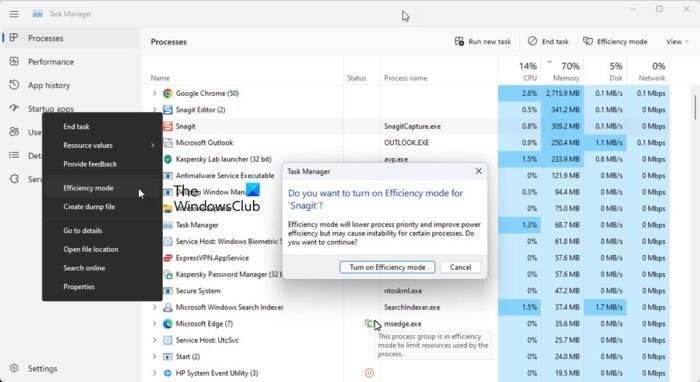
Here’s how you can enable Efficiency Mode on your Windows 11 PC:
-
- Open Task Manager.
- Go to the Processes tab.
- Expand the process tree for the desired app by clicking on the expand/collapse (>) icon.
- Select a process and click on the Efficiency Mode option on top of the Task Manager window. Alternatively, you can right-click on the desired process and select Efficiency Mode.
- Click on the Turn on Efficiency mode button in the confirmation window that appears.
This will enable Efficiency Mode for the selected process.
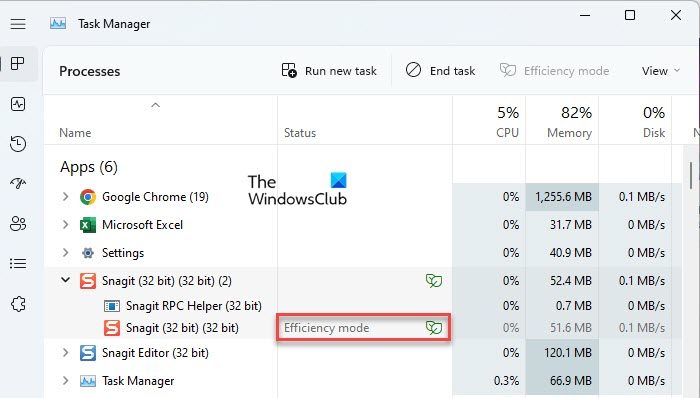
You can also check which processes are using Efficiency Mode by looking at the ‘Status’ column. Those processes that have this feature enabled will show an ‘Efficiency Mode’ label next to them. The parent process will also show a leaf icon in case any of its child processes have the Efficiency Mode turned on.
Note: For some processes, the Efficiency Mode option may be greyed out. These are core Windows processes and changing the default priority of such processes may negatively impact your PC.
How to disable Efficiency mode in Task Manager
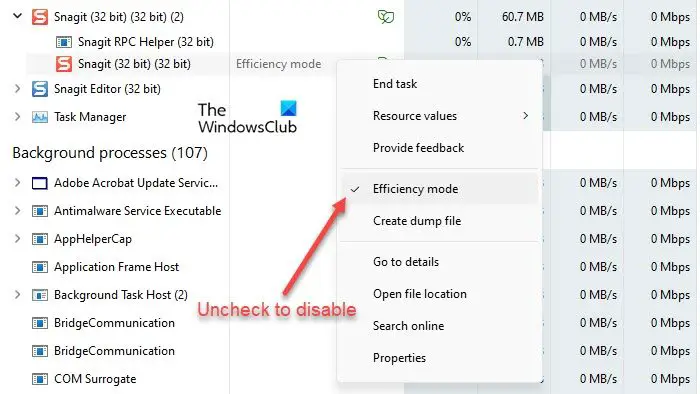
The Efficiency mode option in the Task Manager works as a toggle button. You can turn it off for any process by selecting it and clicking Efficiency mode in the Task Manager command bar. You can also do this by unchecking the Efficiency mode option in the context menu of the process.
This is how you can use Efficiency Mode in Windows 11 to reduce resource utilization. Hope you find this post useful. Keep following this space for more Windows tips and tricks.
If you are interested in knowing more about the Efficiency Mode, read on since we will talk about how it works and what it entails.
Most Windows users are aware that there are certain high-resource utilization apps and processes that eat up system resources even when they’re not running, and since the resources are only a handful to give out, this leaves lesser for the other apps than are needed for them to run properly. Consequences of this include your fans and computer temperature shooting up, even a hampered battery performance.
With the Efficiency Mode, Microsoft is mainly playing around with two of its tweaks: a process’s base priority and its QoS (Quality of Service). Every time the Efficiency Mode is enabled on a process, its base priority is toned down to low and the QoS switches to EcoQoS. Threads of a system process run based on the scheduling priority allotted to them. Giving a process low priority ensures that the ones running on high priority aren’t interfered with. Similarly, EcoQoS ensures that the process is executed as smoothly as it can be. . This could mean running the processor at a lower frequency to save power or help keep your computer’s temperature to an optimal level.
Suppose you open your Task Manager and find your Chrome or Edge running on Efficiency Mode despite you not turning it on. In that case, they may be experimenting by running on a low base priority and trying to accommodate other apps to run efficiently.
Read next: How to improve Windows 11 performance.
How do I reduce the number of processes running in Windows 11?
Efficiency mode reduces CPU stress and extends battery life on Windows 11 devices. If you have several processes running on your system, placing some of the idle background processes in efficiency mode may improve your system’s performance. However, for a few processes, you may not notice any significant change. Some programs may even crash – like it did for me with SnagIt. So you’ll have to check on your end whether Efficiency mode works with a given process.
How do I turn off Efficiency cores in Windows 11?
You can turn Efficiency mode on or off for individual apps or processes in Windows 11 through Task Manager. Right-click on the Start button to launch the WinX menu and select the Task Manager option. Then go to the Processes tab. Expand the process tree for an app by clicking on the expand/collapse (>) icon. Select the desired process and then click on the Efficiency mode option in the command bar area. You can also right-click on a process and select the Efficiency mode option to turn it on for the process.
