
Most of us might have experienced computers suddenly shutting down on its own. While there are ample reasons for this, the most common cause of a computer turning off on its own is CPU overheating. CPU overheat problems are quite common among PC gamers and users who run high intensive programs like animation and video editing.
How to check the CPU Temperature in Windows?
The Windows system also gets too hot many a time when you have opened too many browser tabs. Like early computers, modern-day computers still experience CPU overheating, which can cause a Windows PC to shut down on its own. CPU overheating is something you can’t ignore, and excessive increases in CPU temperature can damage the motherboard and other hardware components over time.
Why do you need CPU temperature alerts?
To safeguard your Windows computer from overheating, it is necessary to constantly monitor the CPU temperature and reduce it when it rises. Some games and graphics-intensive programs would seek your attention and want you to keep an eye on your system’s CPU temperature. If you are disappointed with the temperature fluctuations of your PC components and are looking for a program that notifies you when the CPU exceeds a specific temperature, you are in the right place.
Best CPU monitoring software
There are many temperature monitoring programs that can measure your computer’s temperature, but only a few applications can alarm you when the CPU temperature increases beyond a threshold. When the CPU temperature increases, you will be notified at regular intervals that the CPU is running hotter than usual.
CPU Temperature Monitor and Checker software for PC
In this article, we round up some of the applications that can alert you when your Windows laptop or desktop heats up.
1] RealTemp
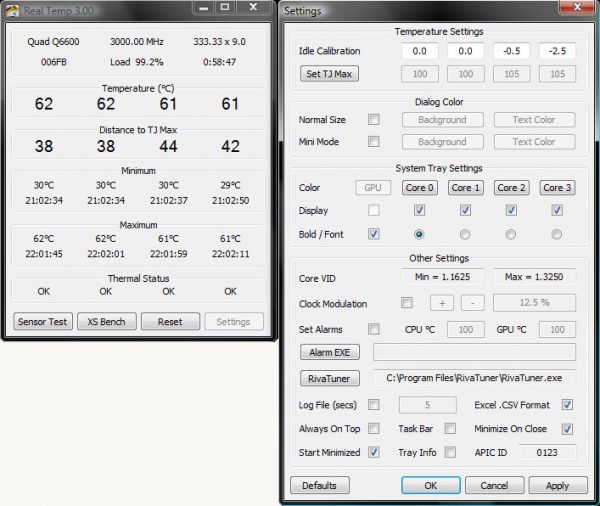
RealTemp is a popular CPU temperature monitoring application that reports the minimum and maximum temperatures for each CPU core. The free program is reliable, quick and accurate and is supported by Windows 10 and most of its older versions. It is available for Intel single-core, dual-core, quad-core, and Core i7 processors. One feature that sets it apart from other temperature monitoring programs is that it lets you enable the Alarm option to notify you when the temperature reaches the maximum. The program maintains minimum and maximum temperatures with logging features.
The applications will sound a siren when your CPU temperature exceeds the threshold and will continue to do so at regular intervals. The application can be added to a single system tray that triggers an alarm when the core temperature reaches its maximum. Follow the below steps to enable the Alarm options in RealTemp program.
- Download and install Real Temp here.
- Navigate to Settings option at the bottom of the window.
- Enter the CPU and GPU Temperature limit value, to trigger the alarm when your system exceeds the set limit.
- Select the option Set Alarm.
- Click Apply to save the settings.
Read: What are CPU cores? How many CPU cores do I need?
2] CPU Thermometer
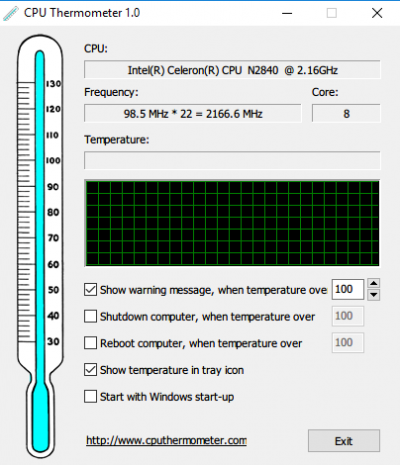
CPU Thermometer is a CPU temperature monitor that tracks your system temperature in real-time. It displays live CPU temperature and gives a reliable temperature report right at your desktop tray icon. The program is free to download and supports most of the AMD and Intel processors. Apart from displaying live temperature reports, it also displays CPUID, core number, current temperature, and frequency. It also displays a warning message when the CPU temperature exceeds the threshold. To enable the alarm message, follow the steps below.
Download and install the program here.
Launch the application.
Click the option Show warning message to trigger alert message when the system overheats.
Read: How to check the GPU Temperature in Windows.
3] CPU Monitor and Alert
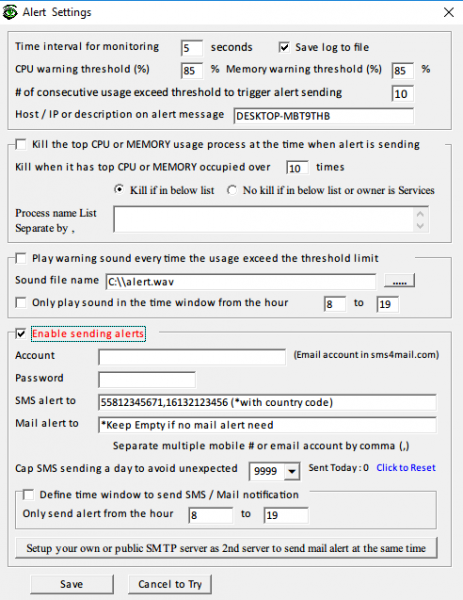
CPU Monitor and Alert is a free program that constantly monitors the processor and system memory. It notifies of its use if either CPU or Memory Usage exceeds the threshold. The program enables you to set a time interval for monitoring and ser the warning threshold for CPU and memory.
One feature that distinguishes this program from other applications is that it tracks CPU temperature and sends instant SMS or email notifications if the temperature exceeds the maximum limit for a period of time. Follow the steps below to receive notifications through SMS or email when the CPU overheats.
- Download and install the program here.
- Launch the program.
- Navigate to Files and click Setup from the drop-down menu.
- In the Alert Settings that pops up, select the option Enable sending alerts
- Give the email account and the password. Note that the email account is in sms4mail.com
- In SMS alter box, enter your phone number tagged with country code.
- Enter the Mail alert to option. This is optional, and you can select this if no mail alert is needed.
- Once you have given all the necessary details click Save to apply changes.
4] Core Temp

Core Temp is specially designed to measure and display system temperature. This tool is based on the working of the Digital Thermal Sensor (DTS), which is an in-built component embedded in the system. The DTS can provide a highly sensitive and accurate temperature reading compared to thermal sensors. Core Temp can work with all leading processors, including Intel, AMD, and VIA.
TIP: Also check out Speed Fan | HWMonitor | Open Hardware Monitor | Moo0 System Monitor | HWiNFO32.
Any suggestions.
