
Windows 11 comes with an attractive UI and fluid windows. Microsoft slowly redesigned all the major apps in it like Photos, Media Player, and others. The new one to add to that revamped and redesigned list is the Task Manager, which behaves in the native system style like Light or Dark modes and glossy UI. In this guide, we show you how to use the new Task Manager in Windows 11.
How to use the new Task Manager in Windows 11
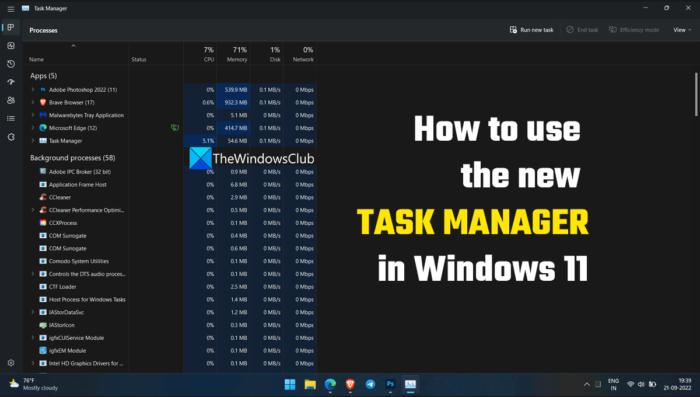
We all have used the Task Manager before and know how to end or run processes. The new Task Manager comes with a new UI that we need to understand to use as efficiently as the earlier Task Manager. To understand and use the new Task Manager, you can follow this guide.
- Overview of tabs in the Task Manager
- Run Task or End Task
- Use Efficiency Mode
- See and Delete App History
- Disable Startup apps
- User tab
- Details tab
- Use Task Manager to Stop, Restart or Start Services
- See Last BIOS time
- Customize the new Task Manager
Let’s get into the details of each one. To open the Task Manager press Win+X and then press T. You can also press Ctrl+Shift+Esc on the keyboard. The first thing you will notice is that the menu and tabs have been moved from the top to the left side.
1] Overview of tabs in the Task Manager
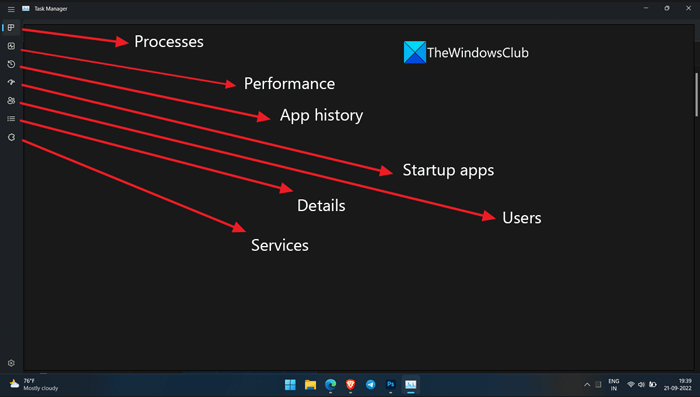
We used to have tabs on the top bar of the old Task Manager. In the new Task Manager on Windows 11, the tabs are limited to icons in the left sidebar. We need to know each one of them to use the Task Manager efficiently. There are seven tabs available on the new Task Manager. They are:
- Processes: It shows all the running programs and their processes on your computer. You can see them and their disk usage and end them if you choose to.
- Performance: In the Performance tab, you can see the visual aspects of the CPU, Memory, Disk, GPU, etc through graphs dedicated to each one, updating in real-time.
- App history: It shows the apps used by the current user account you’re logged in with from the time, you set in the Settings of the Task manager.
- Startup apps: It shows the list of apps that run in the System startup. You can disable them, enable them, see their impact, their publisher, etc.
- Users: The users’ tab in the new Task Manager shows the list of user accounts available on the computer. You can see their CPU, RAM, and memory usage. You can disconnect them or manage user accounts from that tab.
- Details: The details tab in the new Task Manager shows all the available processes on your computer and their details like Process ID (PID), Status, Username, CPU, Memory, etc.
- Services: The Services tab contains the list of all the services available on your computer. You can start, stop, or customize them from the Task Manager or the Services window.
2] Run Task or End Task
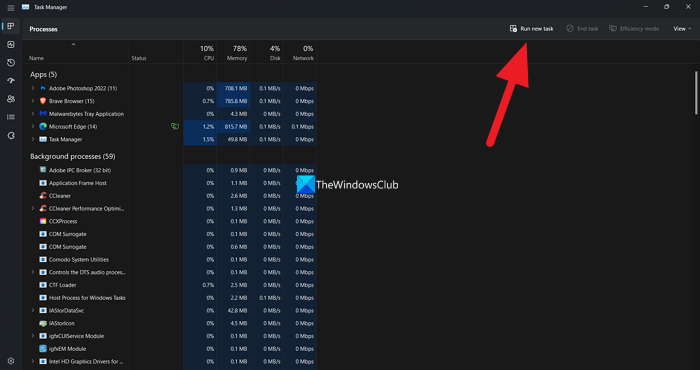
It is a no-brainer to run or end a task on the new Task Manager. You will see the Run new task button on the top right of the Processes tab. You just have to click on it and it opens the Run command box. Type the name of processes like devmgmt.msc or regedit and press Enter.
To end a process on the new Task Manager, you just have to select the Program or Process. Then, you will see the End task button right beside the Run new task button. You have to click on it to end the program or process you have selected.
One of the main advantages of this new Task Manager is that you can now see the child processes running under the parent. You don’t have to close the entire Process. You can just kill the process that’s frozen.
You can also restart a service, which is really handy. For instance, if your Windows explorer.exe freezes, you don’t have to kill the service and start the service again, just right-click on the service and click on “Restart”.
The figures appear in different color shades. This is the Heat Map
3] Turn on Efficiency Mode
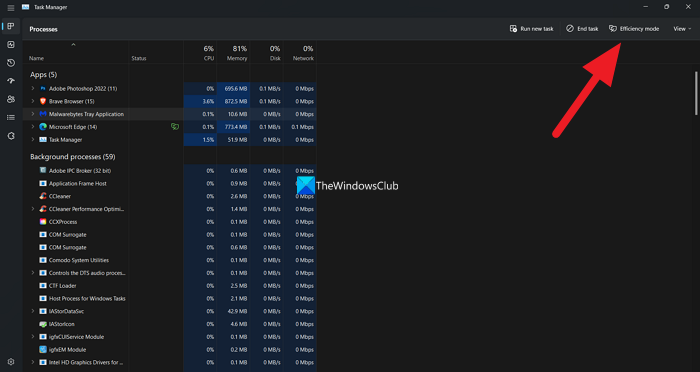
The Efficiency mode that is available on the new Task Manager is a great feature that helps you manage system resources and make processes that seem unnecessary use fewer resources. Currently, the Efficiency mode is not available to every program and process on your PC. But most Microsoft programs can be put into Efficiency mode.
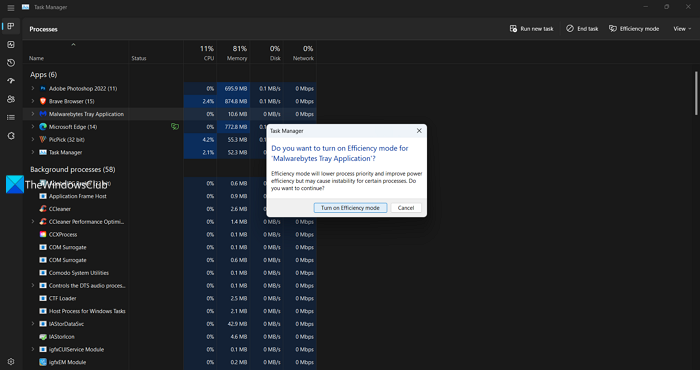
To enable the Efficiency mode, select the program that you want to enable efficiency mode to make it use fewer resources and send it to the background. If the program or process supports the efficiency mode, you will see the Efficiency mode button. If not. it will be greyed out. Click on the Efficiency mode button to put the supported program in the efficiency mode. You will see a dialog box to confirm. Confirm it by clicking on the Turn on Efficiency mode button. If the Efficiency mode is enabled for a program or process, you will see a green leaf icon next to it in the Task Manager list.
4] See and Delete App History
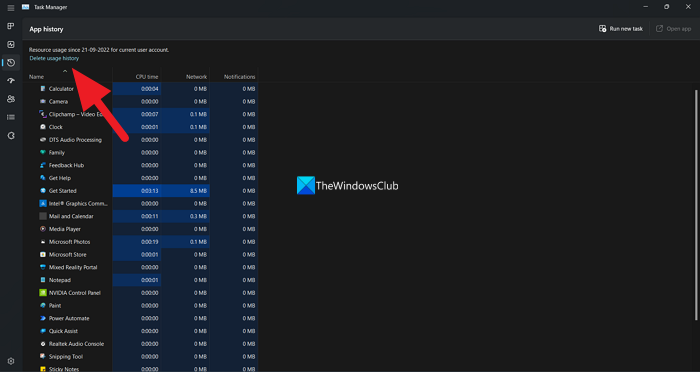
You can see the apps you’ve used and the amount of resources and network they have used on that particular user account from the time period the Task manager has started collecting the details. It will be accessible in the App history tab where you can view all of them and even delete the app usage history just by clicking on the Delete usage history button on the top. Generally, you will see the App usage history from the time you have updated to the new Task Manager. Go here to see how to delete the apps usage history.
5] Disable Startup apps
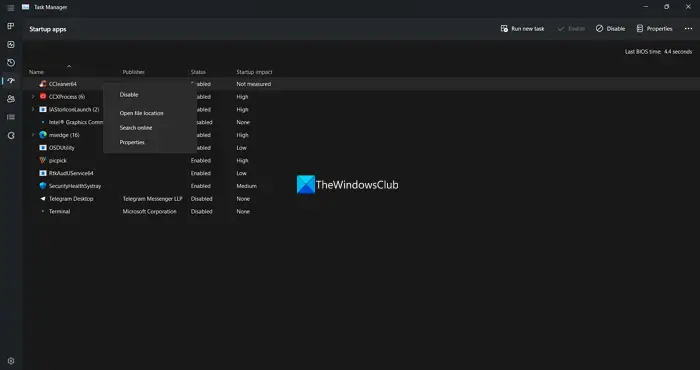
Startup tab is one of the cool features of Windows Task Manager. You don’t have to go to MSCONFIG to tweak your startup items you can do it right in the Task Manager.
You can see the list of apps available in the Startup folder and their status. You can right-click the program in the process and select Enable or Disable to enable or disable it. Alternatively, you can use the buttons at the top of the Task Manager to carry out the same functions as the right-click context options. You can also see their file location and properties, and search them online if you find them doubtful, etc.
Read: Task Manager is not responding, opening, or disabled by administrator
6] Users Tab
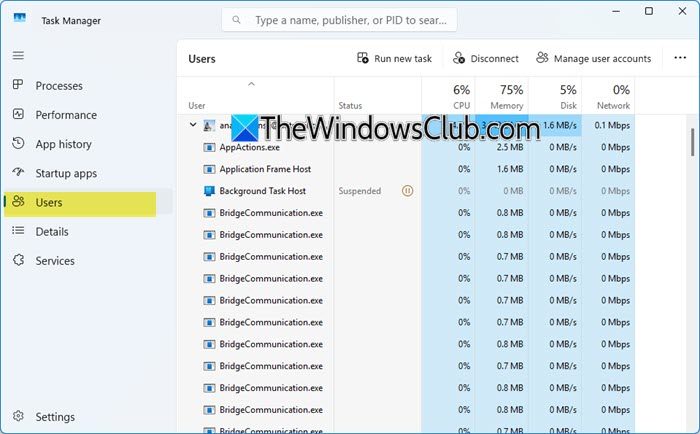
The next tab is “Users” which most of them are familiar with. It shows the processes run by that logged in user.
7] Details Tab
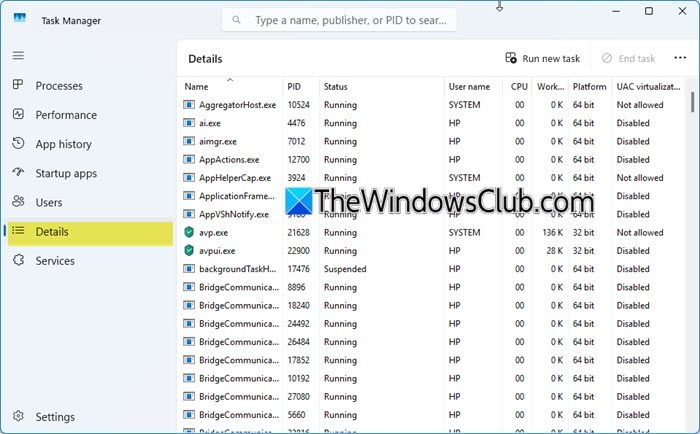
The next Tab is Details, which is the new feature. As the title says, it has detailed information about the process that’s running on your computer.
When you right-click, you’ll get the options that most of them are the same, but a new one I noticed is “Analyze Wait Chain…” Wait Chain Traversal (WCT) enables debuggers to diagnose application hangs and deadlocks. A ‘wait chain’ is an alternating sequence of threads and synchronization objects; each thread waits for the object that follows it, which is owned by the subsequent thread in the chain.
8] Use Task Manager to Stop, Restart or Start Services
You can also Stop, Restart or Start Services using the Task Manager.
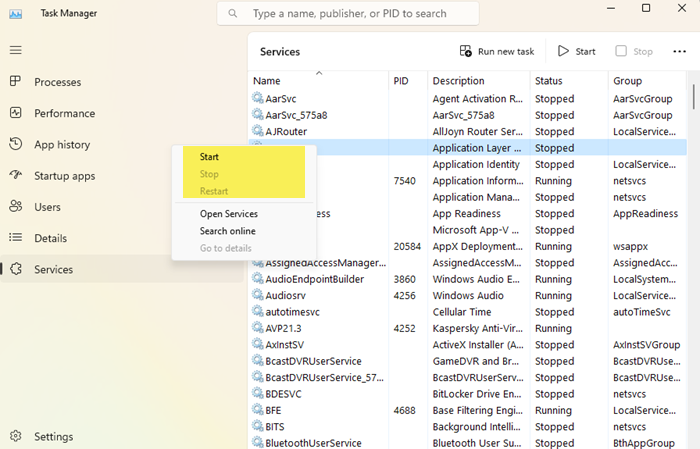
Open the Services tab, right-click on the Service and you will see the available options.
9] See Last BIOS time
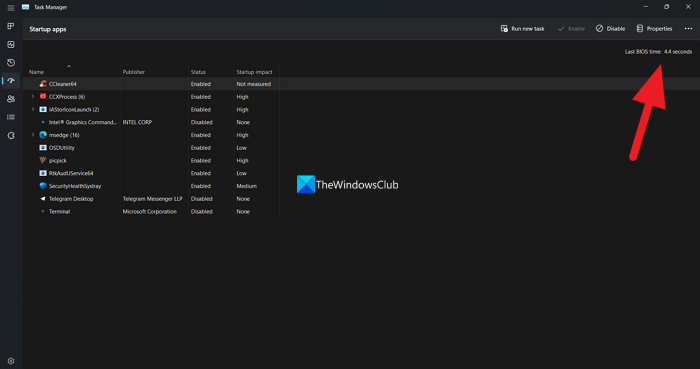
If you are curious to know how much it took BIOS to enable all the hardware on your PC and to make processes start, you can see the precise time in the Task manager app. You can find the Last BIOS time in the Startup apps tab of the new Task manager.
10] Customize the new Task Manager
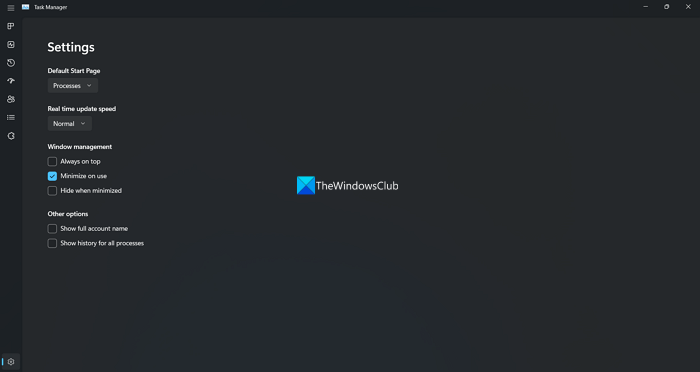
You can customize a few things about the new Task manager on Windows 11. You will find the gear icon or Settings icon at the bottom left of the Task manager window. In the settings, you can change the Default Start Page to any of the 7 tabs available in the left sidebar, Real-time update speed, Windows management, and Other options. They are pretty simple to use and customize.
Read: How to add columns to Task Manager
What happened to Task Manager in Windows 11?
The Task Manager in Windows 11 has been redesigned to match the Windows 11 UI. An efficiency mode is added to the Task Manager to put high-resource-consuming apps to sleep or put them in the background. The tabs are replaced with icons in the left sidebar, and there are other changes like that.
Is there a better Task Manager for Windows 11?
Windows 11/10 Task Manager has almost all the features and options that a regular user and IT pro might need. From checking running apps, background processes, or memory consumption, you can check everything with the help of Task Manager. However, if you need more options and features to manage something else, you can use any other third-party tool such as Process Explorer.
Is Task Manager accurate for CPU usage?
Yes, Task Manager is pretty accurate for CPU usage details on Windows 11 and Windows 10. Whether you need to monitor CPU usage, Memory usage, disk usage, or anything else, you can rely on Task Manager. However, it would be even better if you installed a third-party tool and compared it side by side.
Read: Use the Task Manager like a desktop widget with its Summary View!
How do I edit Task Manager in Windows 11?
You can customize which tab or page appears on the Task Manager’s home screen when you open it, change how the Task Manager window behaves when you minimize it, and adjust how data updates in real time in the Settings of the new Task Manager on Windows 11.
Related read: Windows Task Manager Tips and Tricks you may not be aware of.
