
Task Manager is the most important program you will have access to when everything else has either crashed or is not responding. The post lists some of the best tips and tricks of the Windows Task Manager. I am sure this will be helpful.
Most of this set of tips and tricks was posted by Dave Plummer, on Reddit. He was the developer who wrote the Task Manager Program in 1994 during the Windows XP days at home. He added all these essential keyboard shortcuts, which still work.
Windows Task Manager Tips and Tricks
Power users must know most of the Task Manager tricks here, but those who don’t will find this extremely helpful in case of issues on their Windows 11/10:
- Launch Task Manager if it crashes
- Kill a Task Manager if is not responding
- Fix the missing Title bar in Task Manager
- Launch Task Manager without File Explorer
- Find location or more information online about a program
- Add more columns
- Change the default tab
- Track Power usage
- Directly open an elevated CMD
- Freeze the Task Manager values
- Change Task Manager Data Update speed
Some of the changes you make in Task Manager might require admin privileges.
1] How to launch the Task Manager if it crashes?
When Task Manager freezes, you can’t launch another copy using the usual methods. To start another press Ctrl + Shift + Esc. This method will try to revive the stuck task manager, or else launch a new copy. However, here is a key. If the resources are low, it will only load the processes page.
TIP: You can press Win+X and then press T to open the Task Manager.
2] How to kill Task Manager if it is not responding?
Ctrl+Alt+Shift is useful when the Task Manager is corrupt, or you can not kill or close it. Using this keyboard shortcut resets all internal settings of the task manager.
3] Do you see Task Manager with a missing title bar or just a graph?
Double-click the dead client space to switch back to normal mode. You can recreate this scenario by switching to CPU or GPU mode, and then double-clicking on the graph.
4] Launch Task Manager & programs without Explorer or Shell
If you have lost access to File Explorer, then first launch Task Manager using Ctrl + Shift + Esc. Then click on File > Run, and then type the short name of the program, like CMD to open Command Prompt, or you can browse, and then launch the program. The flip side, it will reset the file explorer.
5] Find the Location of any running program
Right-click on the process in the list, and then select Show File Location. You can also search it online if the file location option is missing.
6] Add additional columns in Task Manager
Right-click on any of the columns, and you can add few more columns which are usually hidden such as Command-Line, Battery, and so on. You can also reorder them and remove what is not useful for you.
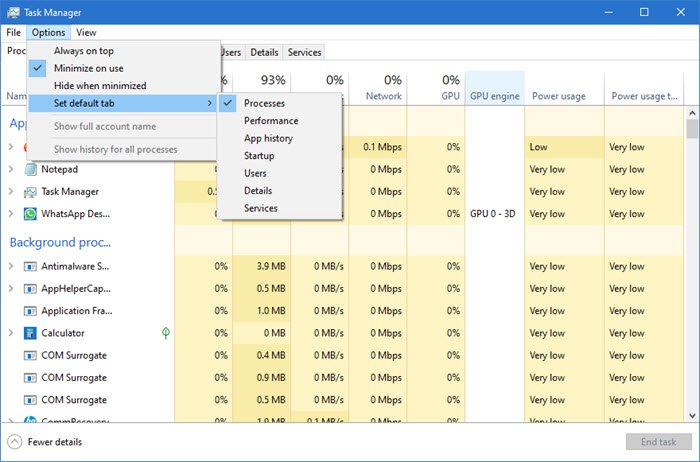
7] Change the Default Tab of Task Manager
If you need to keep a particular tab open all the time, it is best to change the default tab from the process to one you prefer.
Available under the Options menu, you can change it to app history, startup, and so on.
Read: How to Reset Task Manager to Default.
8] Track Power Usage and monitor trends
These are available as additional columns, and a great way to keep an eye on Power Usage & monitor Trends
9] Directly open an elevated CMD
If you hold the CTRL key and click Run new task from Task Manager > File tab, it directly opens an elevated command prompt.
10] Freeze the Task Manager values
You can freeze the Task Manager values by holding down the CTRL key. This can be useful in many ways. For instance, to identify the process that is using high CPU, switch to the Details tab in Task Manager, hold down the CTRL key, and click the CPU tab. You can catch the offending process right away.
11] Change Task Manager Data Update speed
Sometimes you might want to get updated faster and sometimes slower than usual. You can change the Task Manager Data Update speed.
Lastly, there is nothing that Windows Task Manager cannot kill. It goes the extra mile to escalate privilege, and enable debug privilege to attach to and kill apps if needed. If Task Manager can’t kill it, then there is an issue with the Kernel.
If you are even more curious about Dave Plummer then here are a few more things. He wrote/ported Space Cadet Pinball, worked on Zip folders, and worked on the Start menu, Shell, Calc, OLE32, Product activation, and other stuff. He was also in MS-DOS before. For now, he volunteers to teach kids to Program at school and also to code and work on his YouTube channel, “Dave’s Garage”.
What processes can I stop in Task Manager?
You can stop the third-party services and startup apps using Task Manager. Task Manager shows all the processes and services running in the background. All Microsoft services are essential for the proper functioning of your system. Hence, terminating any of the Microsoft Services may make your system unstable.
What should I check in the Task Manager?
The Task Manager is a built-in app in Windows computers that is used to run new tasks and manage the running tasks. You can also monitor your resource usage, like CPU and RAM consumption using the Task Manager. If you are experiencing 100% CPU, Disk, or RAM usage, you should check which program or service is using most of your system resources.
Read: Task Manager crashes or freezes on startup.
