
One of the toughest issues to resolve with Windows 11/10 is when you see a 100% Disk Usage message and your PC suddenly stops responding or responds slowly. While it could have many reasons, it’s usually caused when the Disk Usage is at 100% in the Task Manager. This post also helps you face constant high CPU, uyPower or high Memory usage issues.
Why is my CPU, memory, and disk so high?
When we run programs, they consume some amount of RAM. High CPU, memory, and disk usage can be caused by many reasons. Most commonly, heavy graphics games and software consume more CPU, RAM, and disk. Moreover, running multiple programs at the same time also consumes a lot of RAM and can sometimes show high CPU usage. If a lot of apps are running in the background, you may see high CPU, memory, and disk usage in the Task Manager.
Disk, CPU, Memory, Power usage spikes
Fix 100% Disk, High CPU, Memory or Power usage in Task Manager of Windows 11/10
In this guide, we have covered a step-by-step procedure to troubleshoot the mentioned issue after studying and implementing methods discussed by others as well as our own experimentation. Many forums mention methods like disabling Superfetch, Prefetch, and BITS services, but we would not recommend doing so. I mean, what and how much can you really disable to fix an issue!

If you are facing such an issue, here are a few troubleshooting steps that may help you resolve the issue. Create a system restore point first and then go through the entire list and decide which one or more of the suggestions you want to try.
- Uninstall 3rd-party browsers
- Run Chkdsk
- Disable Cloud-delivered protection in Windows Defender
- Disable Windows Search Indexer
- Disable Print Spooler Service
- Adjust the Visual Effects
- Update Device Drivers
- Run SFC & DISM
- Run the Performance Troubleshooter
- Upgrade your firmware or upgrade your RAM
- Run Power Troubleshooter
- Examine System Health Report
- Troubleshoot using Process Tamer
- Is Message Signaled Interrupt enabled?
- Turn off Windows write-cache buffer flushing on the device
- Reset Windows.
Since the reasons can be many, the solutions can be many – so go through the entire list first and see which may apply in your case.
1] Uninstall 3rd-party browsers
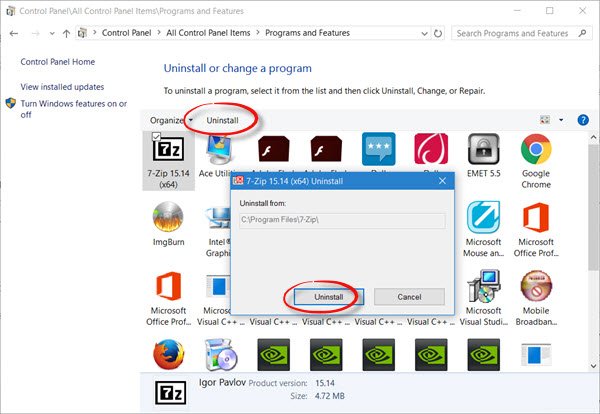
Using the Control Panel, uninstall all browsers – except Edge, of course. This is to isolate the issue with the plugins. The other suggestion is to remove the plugins one by one from each browser and test. Adobe Flash and Shockwave Player are the usual culprits. But knowing that the browsers could be reinstalled in seconds, this option seems easier. After uninstalling the browsers, please delete the ‘Temp’, ‘%Temp%’ and ‘Prefetch’ files. Restart the system and check if it solves the issue. If it does, wait for 10-15 minutes to verify that it doesn’t recur. Then reinstall the browsers.
Read: Why is my RAM usage so high when nothing is running?
2] Run Chkdsk
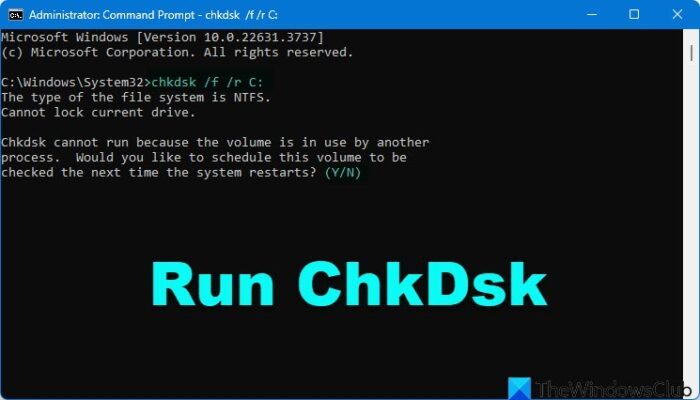
Run ChkDsk and see if that helps. Open an elevated CMD window, type the following command and hit Enter:
chkdsk.exe /f /r
The ChkDsk parameters do the following work:
- /f Fixes errors detected.
- /r Identifies Bad Sectors and attempts recovery of information.
3] Disable Cloud-delivered protection in Windows Defender
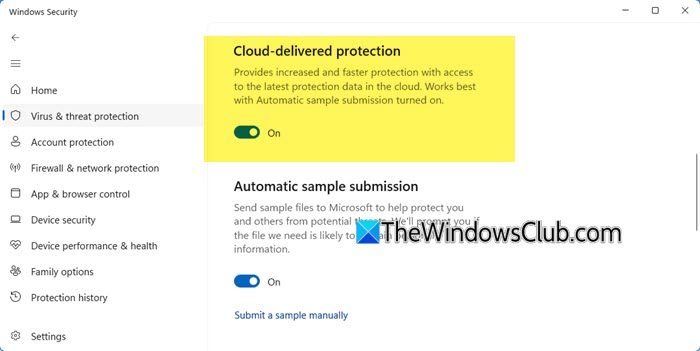
Open Windows Defender and disable Cloud-delivered protection and see.
4] Disable Windows Search Indexer
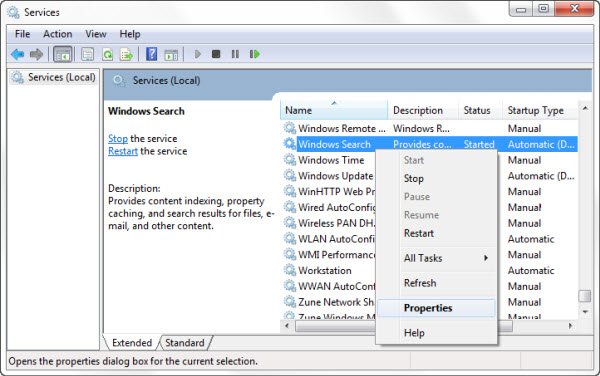
The Windows Search Indexer is one process that is known to cause this. If you do not use Windows Search, you can disable Windows Seach Indexer.
Read: What is Bottlenecking my PC?
5] Disable Print Spooler Service
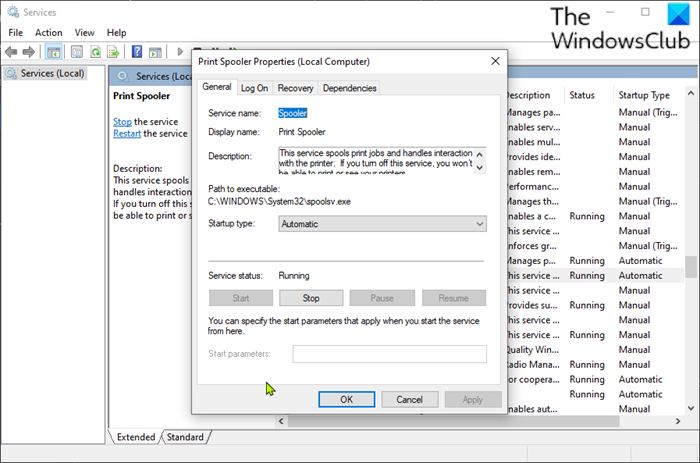
If this doesn’t fix the issue, Run services.msc and disable the ‘Print Spooler’. Your printer will stop working after this. But at least it helps isolate the issue. Disabling the Print Spooler service has worked for many users.
Once the Services Manager opens, scroll down to ‘Print Spooler’ and click the option to stop the service. If it works, you could decide if your work actually needs a printer. If you need the service, a technician-level repair is required.
6] Adjust the Visual Effects
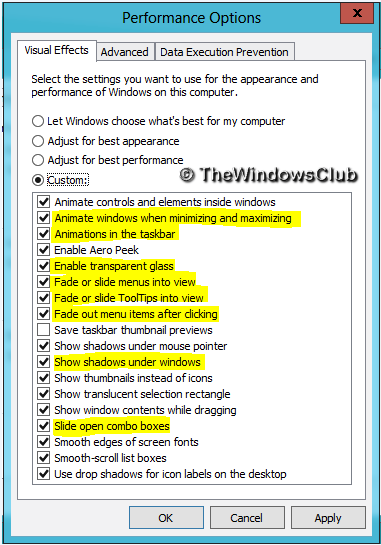
Adjust the Visual Effects in Windows. This post will show you how to tweak Visual Effects to optimize Windows performance.
7] Update Device Drivers
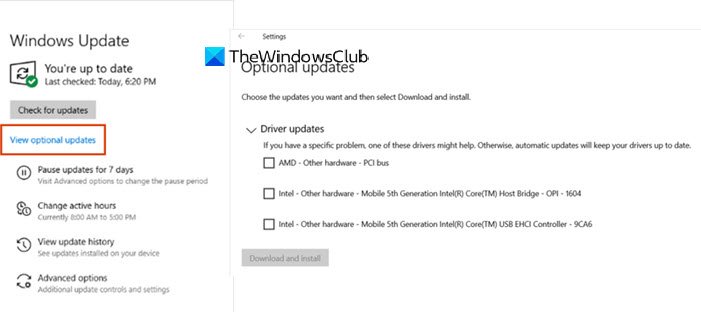
Sometimes, Device Drivers can be the culprit. So update your Drivers and see if that helps. You could use Windows Update, download it from the manufacturer’s website or use a free Driver Update software.
8] Run SFC & DISM
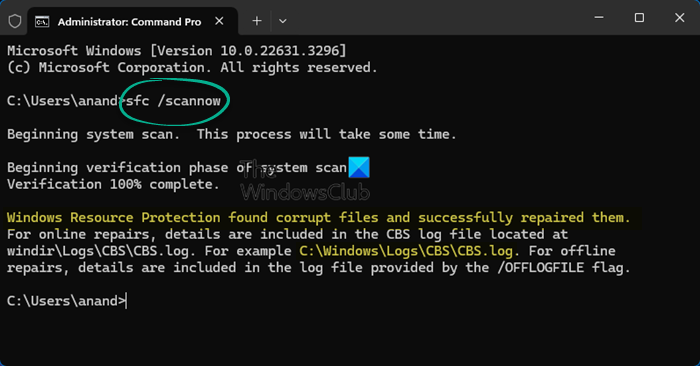
Run System File Checker as well as DISM to repair the system image.
9] Run the Performance Troubleshooter
Open an elevated Command Prompt, type the following and hit Enter to run the Performance Troubleshooter.
msdt.exe /id PerformanceDiagnostic
This troubleshooter helps the user adjust settings to improve operating system speed and performance. Here are more suggestions that can help you troubleshoot Performance issues.
10] Upgrade your firmware or upgrade your RAM
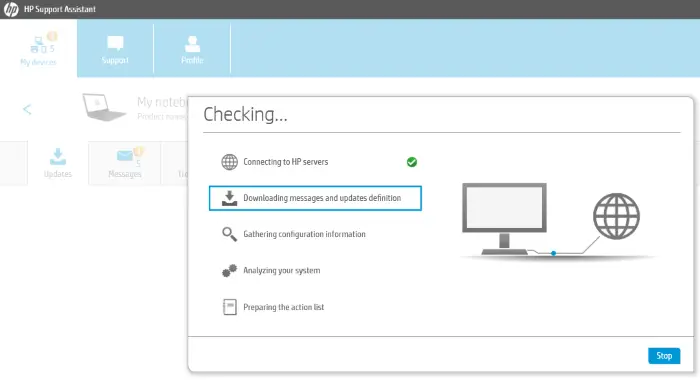
You may want to check if you need to upgrade your firmware or upgrade your RAM.
Read: High Disk & Memory Usage when playing PC Games
11] Run Power Troubleshooter
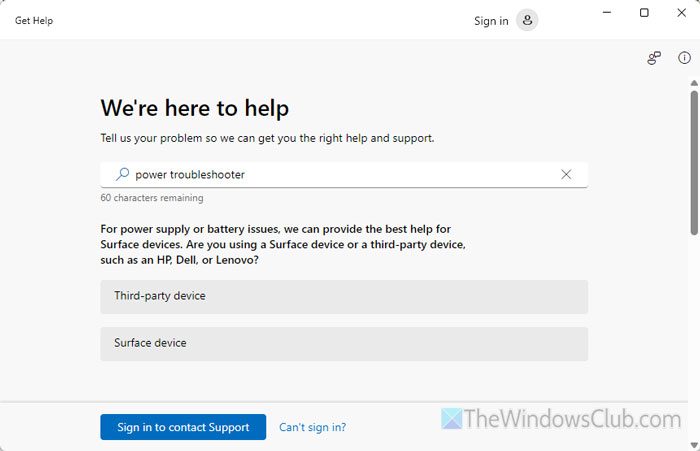
Run Power Troubleshooter and see if that helps you.
12] Examine System Health Report
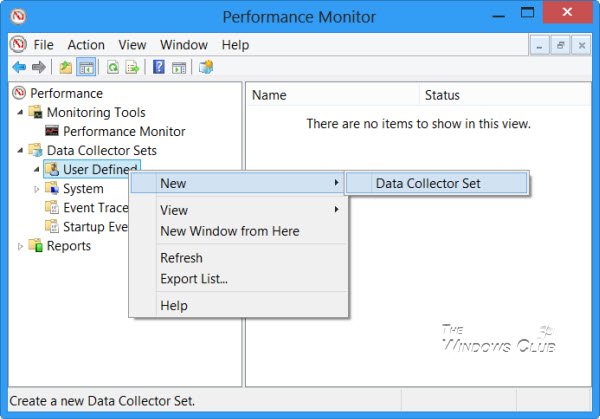
The Performance Monitor is a good built-in tool that lets you monitor and study how applications you run affect your computer’s performance, both in real-time and by collecting log data for later analysis. It is quite useful in identifying and troubleshooting high resource utilization by processes and in generating a System Health Report of your Windows.
13] Troubleshoot using Process Tamer
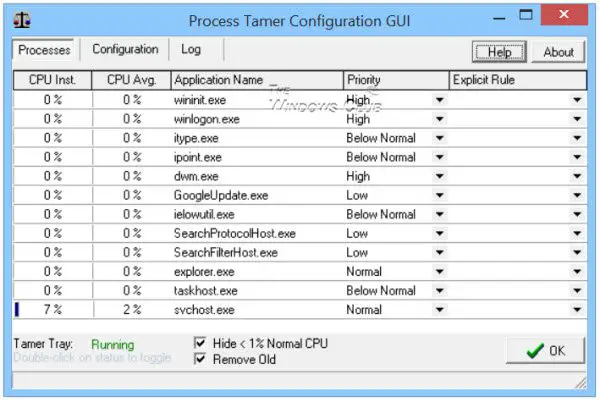
Process Tamer is a tiny utility that runs in your system tray and constantly monitors the CPU usage of other processes. When it detects a process overloading your CPU, it temporarily reduces that process’s priority until its CPU usage returns to a reasonable level.
TIP: You can use Windows Boot Performance Diagnostics to detect Windows Boot Performance problems.
14] Is Message Signaled Interrupt enabled?
In a special scenario, if your Task Manager shows 100% disk utilization on Windows 10 devices with Message Signaled Interrupt (MSI) mode enabled, then to solve this install Intel’s Chipset and Management Engine Interface driver and see.
This post will help you if you see Random Disk Usage Spikes.
15] Turn off Windows write-cache buffer flushing on the device
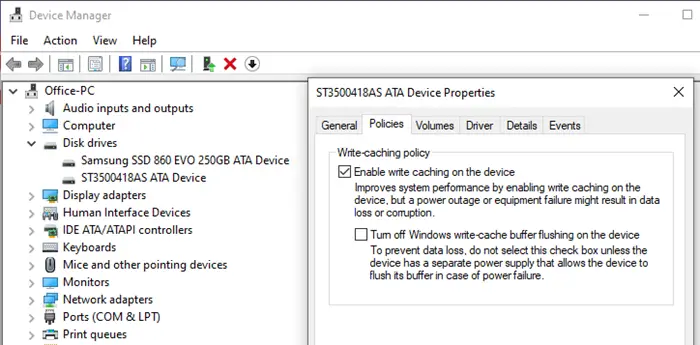
Pijal recommends in the comments below.
Go to Device Manager > Disk drives. Right-click on your HDD/SSD to shown Properties > Policies. Select “Turn off Windows write-cache buffer flushing on the device” and click OK. See if this helps some of you.
11] Reset Windows
If nothing helps, you may Reset Windows and see if that finally helps.
If you have any ideas that may help resolve this issue, please post them in the comments. Your suggestions may help others facing this problem.
How do I know if my RAM is faulty in Windows 11?
There are some signs that tell a RAM is faulty. The first sign is decreasing performance. Your computer will have difficulty running applications. You will also experience frequent Blue Screen of Death errors on your computer. There are many causes of BSOD errors. Hence, if you experience frequent BSOD errors, you cannot conclude that your RAM is faulty. Use the Windows Memory Diagnostic tool to check the health of your RAM.
Posts about processes using high resources:
