
If you are a gamer, you probably have heard the term Bottlenecking. It’s been thrown a lot to the user, especially when talking about customizable computers. In this post, we are going to see how you can find out what is Bottlenecking your Windows PC. We will also know everything about Bottlenecking in gaming.
What is Bottlenecking my PC?
Bottlenecking occurs in a component and that stops your CPU and GPU from attaining their maximum performance. More often than not, you will find that the disparity between the limits of two components causes bottleneck issues. Where the saturation point for the performance of one component exceeds the other, as a result of which, your computer starts performing worse, and the game starts experiencing lag and stutter, and FPS drops.
As you may have guessed, you cannot just add a powerful component to an inferior system and expect it to run all high-end games. You will see a performance bump from that powerful component, but its maximum capacity will be limited by other components in your system.
You can not blame your manufacturer for Bottlenecking, this happens to all computers, especially if you decide to go to the custom realm. That’s why it is important to attach similar components when building a custom PC. You want all the components to work harmoniously without limiting their capabilities.
What is Bottlenecking in PC gaming?
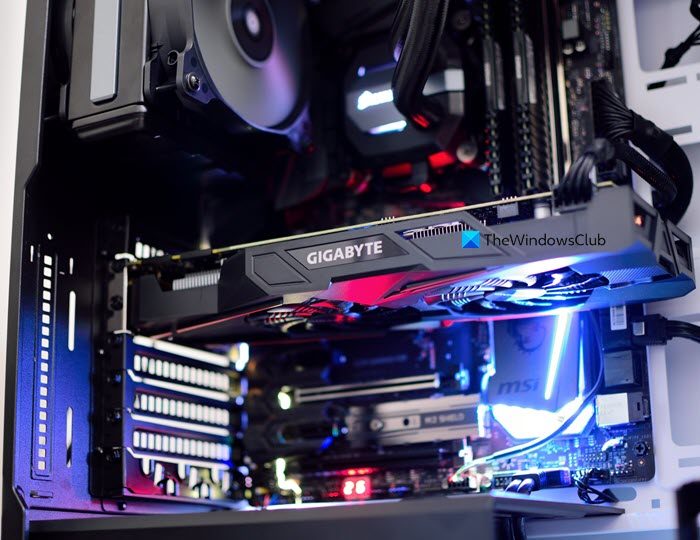
Bottlenecking most affects your game’s FPS, preventing it from running at a consistent frame rate. FPS, as you may already know, is frames per second. The higher the FPS, the smoother your game will run. A respectable FPS nowadays is 60, and 30 FPS is a bare minimum.
Each frame is produced by Render Pipeline, here, your frames are drawn and then rendered. That is why high-end titles require a high-quality GPU engine; they render images quickly, delivering smooth, high FPS. But you can’t have a good GPU and a poor CPU.
Let us understand this with an example: to create a car, you need several experts. If you have a slow mechanic and a good painter, the painter will have to wait for the mechanic to complete this job. As a result, it will take more time to build a car.
Similarly, a powerful GPU has to wait for the CPU to complete its job. So, your GPU can produce 60 FPS, but the CPU is not; this creates frame drops, and you end up reducing maximum FPS to have a decent experience. That is why it is always recommended to create a balanced system.
Read: Improve Windows 11 Performance by tweaking these five settings
How can I avoid the Bottleneck on PC?
Bottleneck happens when there is a disparity in the level of performance of your components. To avoid this, you need to make sure your computer strikes a balance between CPU and GPU performance. This may not help your current performance, but keep this in mind when you are out looking to build a custom PC.
As for your current computer, you can try putting some extra load on your overpowered component. For example, if your CPU is powerful, put some extra load on it so your GPU has some breathing room.
Also, while you are in-game, try an FPS limit. You can do that from your game’s settings. While it doesn’t guarantee a constant frame rate, it sets a bar for your internals to meet, which will prevent them from throttling.
Read: DIY PC: Build your own Computer using these online tools
How do I know if my PC is bottlenecking?
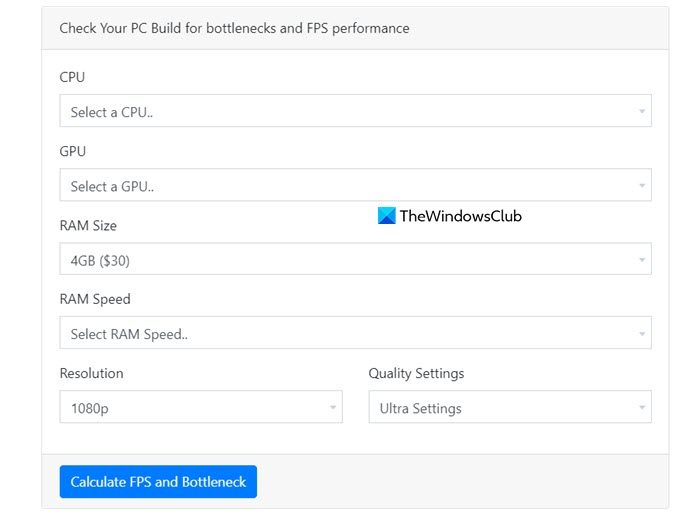
There are various Bottleneck Calculator tools to identify bottlenecks.
You can use CPU Agent’s FPS and Bottleneck Calculator. All you have to do is enter your PC’s information in the given field and it will give you the required result. If you don’t know what to enter in those fields, find your hardware specification.
You can also try PC Builds Bottleneck Calculator. It is a similar tool, you need to enter the required data and check the results. You can use any of those tools to check Bottlenecking. Hopefully, these tools will do the job for you.
Read: 5 System Information Tools in Windows
Can Bottlenecking damage GPU?
Bottlenecking doesn’t really damage any component of your computer, be it CPU or GPU. It just limits their performance. However, many users try to overvolt their CPU and GPU, which can damage them. So, if your computer is bottlenecking, try adjusting your game’s settings, but don’t increase the voltage to the point where your components start to overheat.
Read: Optimize Windows for gaming; Improve PC gaming performance.
How to detect RAM Bandwidth Bottleneck on a Windows PC?
Detecting a RAM bandwidth bottleneck on a Windows PC starts with monitoring memory usage and throughput in Task Manager during demanding workloads. If you notice the CPU sitting idle while memory usage spikes or latency climbs, that’s a clear warning sign. For deeper insights, advanced tools like Windows Performance Recorder (WPR) and Windows Performance Analyzer (WPA) can capture detailed traces of memory activity. Complement these with free utilities such as CPU-Z or HWInfo, which help verify RAM speed, timings, and whether your system is running in single- or dual-channel mode. Together, these checks reveal whether sluggish performance is tied to insufficient memory bandwidth.
We hope that now you know everything about Bottlenecking and how you can avoid them the next time.
