
If you do not remember the model number of your motherboard, processor capacity, etc. or you want to find the hardware specifications of your computer, you can find this information using built-in tools or 3rd-party software in Windows 11/10.
Where to find computer hardware specs
To find system information and computer hardware specs in Windows 11/10, you can use built-in system information tools or a free software:
- Using the msinfo32 tool
- Find system information using Command Prompt
- Using free software to find hardware specs.
Let us see this in detail.
1] Using msinfo32 tool
Windows comes with an in-built tool called System Information. As the name defines, you can find every kind of information related to the hardware configuration of your computer. From the graphics card to the motherboard to the processor, this is possible to get the information on your screen.
To open the msinfo32 tool using Run prompt, you need to press Win+R, and type the following command-
msinfo32
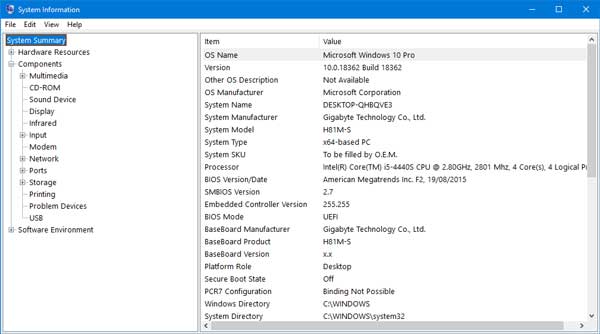
Now, you can find the necessary information on your screen.
If you want to know about the graphics card, the network adapter, or anything specific, you can navigate to that section from your left-hand side and get that accordingly.
You can also open the System Information panel using the Taskbar search box. You need to search for “system information” in the search box and click on the correct tool in the search results.
Read: What are the main components of a Computer system?
2] Find system information using Command Prompt
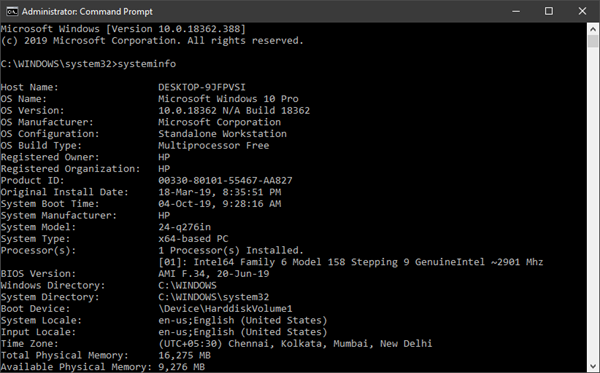
You can use Command Prompt to use the systeminfo tool.
Open Command Prompt with administrator privileges and execute this command-
systeminfo
It takes a couple of seconds to show some basic information in the Command Prompt window.
Read: How to find out Processor Brand and Model on a Windows Laptop?
3] Using free software to find hardware specs
The best free software to find hardware specs in Windows 11/10 are:
- BGInfo
- CPU-Z
- Free PC Audit.
BGInfo shows the computer configuration in the background of your Desktop. That means the hardware information is always visible unless you manually close the app. Thus, you can always keep an eye on hardware and some software information if you want to.
CPU-Z can provide information about the processor, process, cache levels, motherboard, chipset, and much more.
Free PC Audit is desktop software that lets you find hardware and software information about your personal computer.
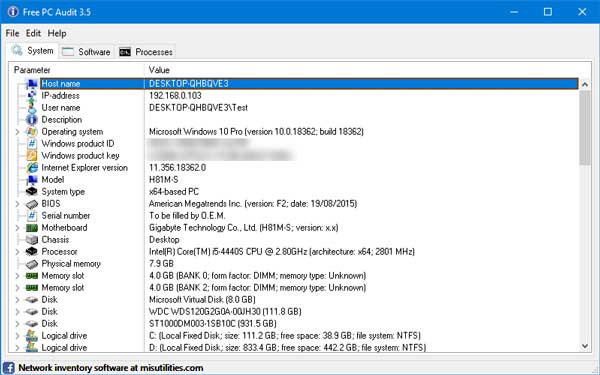
Using it on your PC is very easy as it doesn’t come with any complicated settings. After opening this tool, you can find some basic information, and that expands if you click on a particular hardware type such as motherboard, RAM, etc. You can download it from the official website.
Read: How to check Intel processor generation in Windows
How do I find out how big my Hard Drive is in Windows 11?
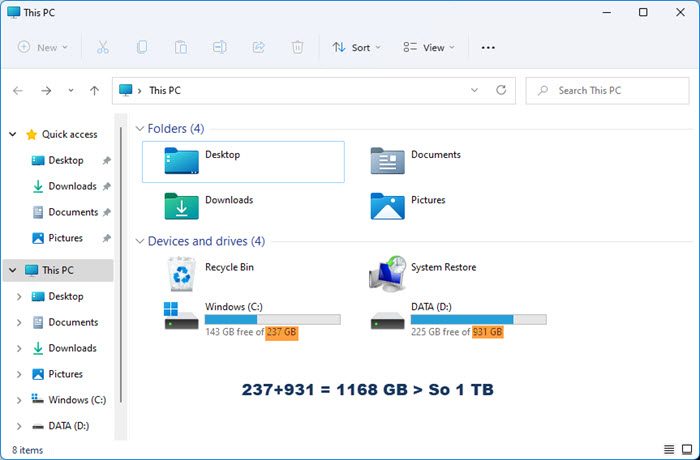
The easiest way to find the size of your Hard Drive is to open File Explorer, see the figures listed for each partition, and add them. You will learn how big your Hard Drive is.
Other tools that can provide hardware configuration information about your computer easily:
Sandra Lite | MiTeC System Information X | HiBit System Information | Speccy | Hardware Identify | GFXplorer.
Read next: How much Computer RAM does my PC have?
