
The Bottleneck is the stage at which the output reaches its maximum value. In computing, a bottleneck is a situation in which a computer component reaches its maximum output capacity and limits the output of other components. For example, if you have a high-end graphics card but an underperforming CPU, your CPU will limit your graphics card’s ability to deliver maximum performance. In this article, we will talk about some best free Bottleneck Calculators for Windows PC.
Gamers view the bottleneck as the most crucial element. Because CPU and GPU pairing can affect efficiency, it is determined by whether there is a bottleneck. Bottlenecking occurs whenever one component in your computer, typically the CPU and GPU, is significantly weaker than the other. Due to this disparity, the weaker element is fully stressed, whereas the stronger component is generally underutilized, reducing your PC’s overall capability.
Bottleneck affects gaming performance and you will experience FPS lag. How does bottlenecking decrease FPS? A bottleneck situation occurs when there is an underperforming component, CPU, RAM, or GPU. As a result, other components fail to deliver maximum output, leading to reduced gaming performance and FPS.
If you want to prevent bottlenecks on a computer, a bottleneck calculator will help you identify weak points. It will help you to determine the bottleneck in your computer. One will be better able to judge what improvements are required if one uses the computed bottleneck percentage.
How do I check my PC bottleneck?
Bottlenecking is the major issue in gaming. Therefore, if you are going to purchase a new computer or gaming hardware, you can calculate potential bottlenecks in your computer system to avoid problems. You can use free Bottleneck Calculators to calculate the bottleneck of your computer. Calculating a Bottleneck for a computer system is not an easy task. Also, these free calculators are not 100% correct. However, the results given by these calculators will help you know the possible issues that may arise due to your system’s component(s).
Best free Bottleneck Calculators for Windows PC
These two free Bottleneck Calculators for Windows PC will help you analyze the performance of your computer system:
- Bottleneck Calculator from PC builds
- FPS and Bottleneck Calculator from CPU Agent
- MSI Afterburner
1] Bottleneck Calculator from PC builds
The Bottleneck Calculator from PC builds is a simple tool to calculate the Bottleneck of your system. To proceed, you have to fill in the following required fields and then click on the Proceed to Calculation button.
- Processor
- Graphics Card
- Screen Resolution
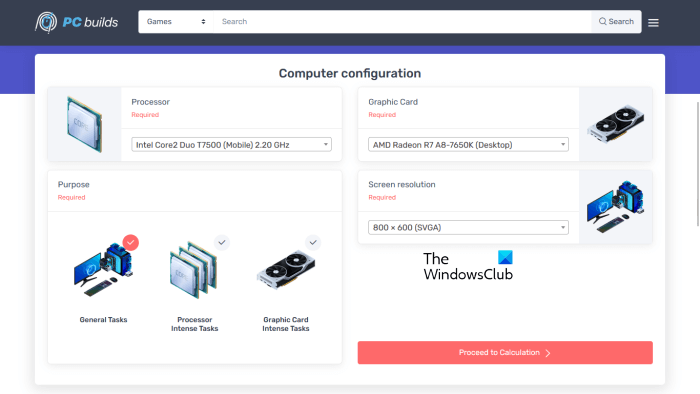
There is a drop-down menu for each of the above fields. Click on the menu and select the desired option. In addition to this, you also have to select the purpose for Bottleneck calculation, like you want to calculate the bottleneck for general tasks, processor-intensive tasks, or graphics card-intensive tasks.
It displays the calculation result, utilization, and solutions to resolve bottlenecks. The Calculation Result shows which component is weaker than which component. For example, the X graphics card is weaker for the Y CPU at the Z screen resolution. It also displays the percentage of the bottleneck at the selected configuration.
The Utilization section shows the components’ utilization. For example, the X graphics card will be A% utilized and the Y CPU will be B% utilized for running the particular tasks.
You can resolve the bottleneck issues either by upgrading the affected component or by downgrading the other component. The Solutions section shows you both options for your components so that you could select the right one.
Visit pc-builds.com to use this free calculator.
2] FPS and Bottleneck Calculator from CPU Agent
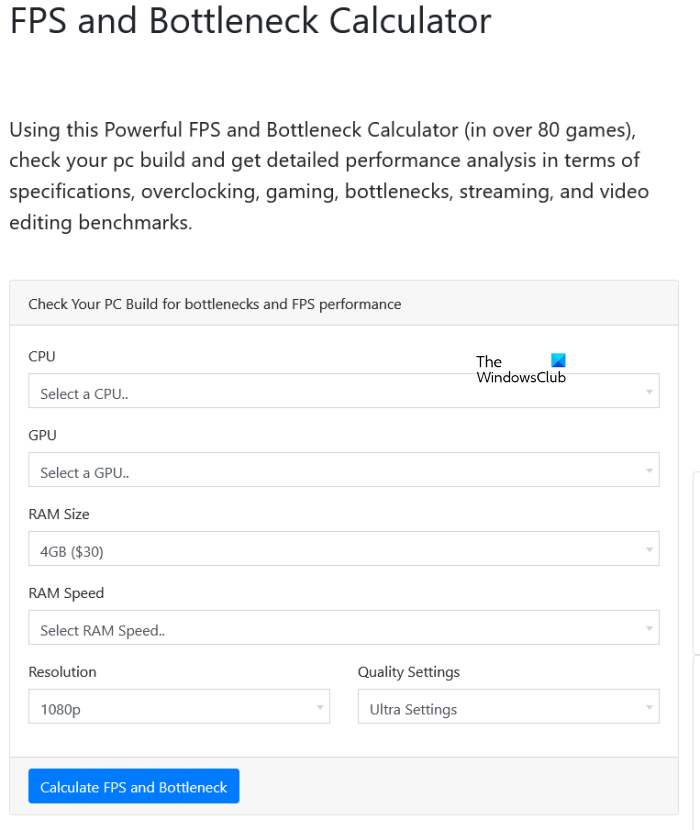
FPS and Bottleneck Calculator from CPU Agent is a free tool that provides a detailed performance analysis of your computer components, including overclocking, bottlenecks, benchmarking and more. Using this calculator is easy. After visiting the website, you have to select your hardware components (CPU, GPU, and RAM) and other details (screen resolution and quality settings) from the drop-down list. The list will appear when you click on a particular field.
When you are done, click on the Calculate FPS and Bottleneck button to see the result. The result contains detailed specifications of hardware components, bottleneck analysis, and benchmarks. It also shows benchmark analysis for popular games such as Grand Theft Auto V, Shadow of the Tomb Raider, Apex Legends and Battlefield V.
This free bottleneck calculator is available on cpuagent.com.
Read: Why are games crashing on my PC?
3] MSI Afterburner
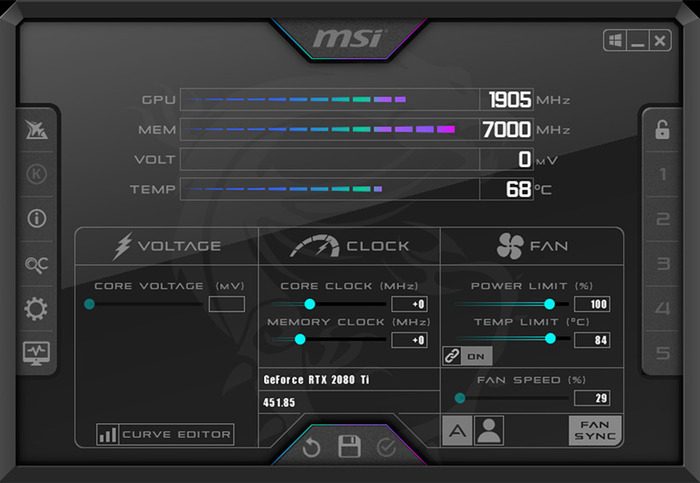
MSI Afterburner is a live monitoring utility that shows statistics on the CPU, GPU, RAM and other computer components. It is revered in the Tech world for its long-standing commitment to making overclocking simple. Not only is it dependable for computations, but it may also assist you in getting the best out of the system in a more impressive way. The instructions below will assist you in identifying a potential bottleneck using the MSI Afterburner utility:
After installing MSI Afterburner, go to the MSI Afterburner settings and activate on-screen statistics. Ensure that the CPU, GPU, and RAM use percentages are enabled.
Finally, play your preferred game. Throughout the gaming, keep an eye on the CPU, GPU, and RAM utilization percentages.
If any element is fully utilized, this signals a bottleneck. For instance, if the GPU is at 100% utilization and the CPU is at 21-26% utilization, this suggests that the GPU is bottlenecking the CPU.
Does Bottlenecking decrease FPS?
A bottleneck occurs when a component, such as the CPU, RAM, or GPU, is underperforming. Due to this, other components fail to give a maximum output which results in a decrease in gaming performance and FPS. Hence, if you experience a decrease in FPS, you should also consider identifying your computer’s bottleneck.
Is 100% GPU usage a bottleneck?
During gameplay, the GPU being constantly at 100%, indicates that nothing in your PC is causing a bottleneck on your graphics cards. Because GPU consumption is a very situational statistic, it varies greatly between games.
Read next: Best free FPS Counter Software for Windows PC.
