
GenOffice is an AI-powered, free desktop office suite that combines multiple productivity tools in one workspace. It supports popular Microsoft Office file formats, including DOCX, XLSX, and PPTX, making it another option for users looking for alternatives to Microsoft Office.
Unlike traditional office suites that focus primarily on document creation and editing, GenOffice puts AI at the centre of the office experience, allowing users to create, rewrite, analyse, and modify content using natural-language prompts. But how does it compare with other office suites, and can it serve as a practical alternative to Microsoft Office? Let’s explore its features, see how to use it, and find out what makes it different.
GenOffice AI Office Suite Review
GenOffice is developed by Genspark (MainFunc.ai), the team behind the Genspark AI platform. It is an open-source project released under the Apache 2.0 licence. The office applications are free to download and use, without advertisements or watermarks. However, AI features use Genspark credits or your own API key, and charges may apply depending on the AI provider you choose.
Download and Install GenOffice
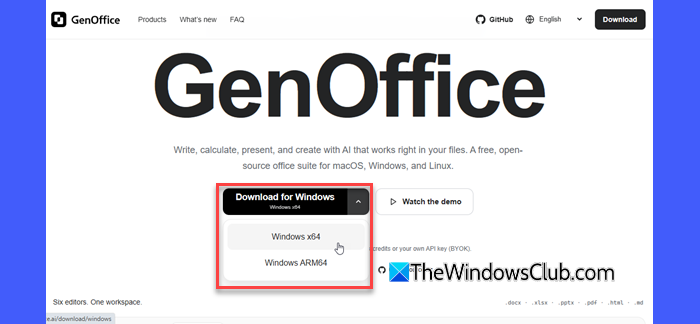
You can download GenOffice directly from its official website. It offers separate installers for Windows x64 and ARM64 devices. Follow these steps to download and install GenOffice on Windows 11:
- Visit the official GenOffice website.
- Click the Download for Windows dropdown and choose the appropriate version:
- Windows x64: For most PCs powered by Intel or AMD processors.
- Windows ARM64: For ARM-based Windows PCs, such as those powered by Snapdragon processors.
- Once the download is complete, open the installer file.
- If prompted by User Account Control, click Yes to allow the installation.
- Follow the on-screen instructions to complete the installation.
After installation, you can launch GenOffice from the installer or search for It in the Windows Start menu and open it.
How to use GenOffice AI Office Suite
GenOffice Interface
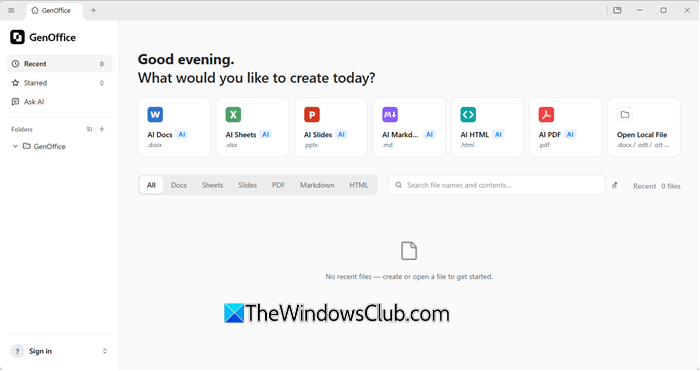
When you launch GenOffice, you will see its home screen, which provides quick access to its editors and file management options. The interface is divided into a left navigation pane and a main workspace, where you can create new files, open existing documents, and access recently used files. The left pane contains the following options:
- Recent: Displays recently opened files.
- Starred: Provides quick access to files you have marked as favourites.
- Ask AI: Opens the AI assistant.
- Folders: Lets you browse your GenOffice folders.
The main workspace displays shortcuts to the six primary editors available in GenOffice. Below these shortcuts, you will find filters to view files by category, a search box to find files by name or content, and a list of recently opened files.
You can also sign in to your Genspark account from the bottom-left corner. This allows you to access Genspark’s built-in AI services and use the credits associated with your account for AI-powered tasks.
Working with GenOffice
GenOffice includes six productivity tools: Docs, Sheets, Slides, PDF, Markdown, and HTML. You can use them to create and edit different types of files from a single workspace. However, to make the most of its AI features, you first need to configure an AI model.
Connect an AI model to GenOffice
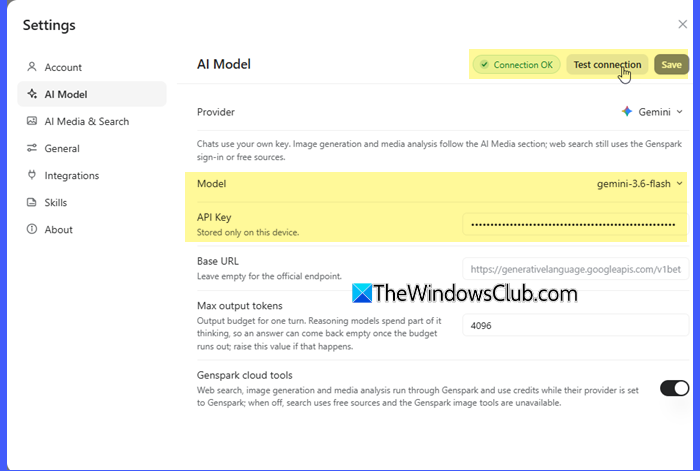
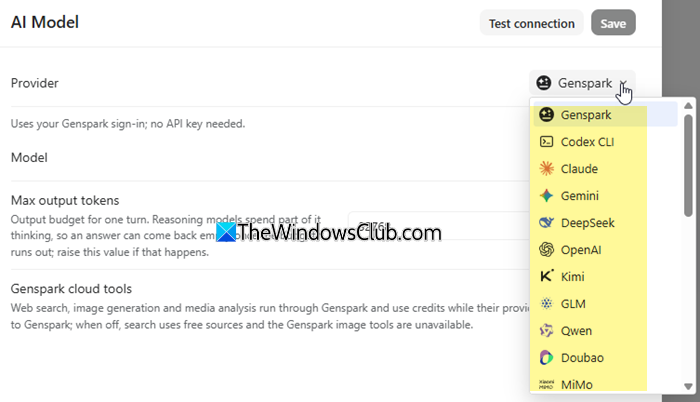
GenOffice offers built-in AI access through a Genspark account, but you can also connect your own API key (BYOK).
During my testing, I signed in with a free Genspark account, but the available free-plan credits could not be used with the Genspark API/LLM proxy. I therefore connected GenOffice to Google’s Gemini API using my own API key.
You can connect an AI model by following these steps:
- Open GenOffice and go to Settings.
- Select AI Model from the left pane.
- Choose your preferred provider from the Provider dropdown. For this demonstration, I selected Gemini.
- Enter the model name supported by your API key. I used gemini-3.6-flash.
- Enter your API key in the API Key field.
- Leave the Base URL field empty when using the official Gemini endpoint.
- Click Test connection to verify the configuration.
- If the connection is successful, click Save.
Once configured, you can use the selected model for AI-assisted tasks in GenOffice. Note that AI media generation, media analysis, and web search have separate provider settings under AI Media & Search.
GenOffice Docs
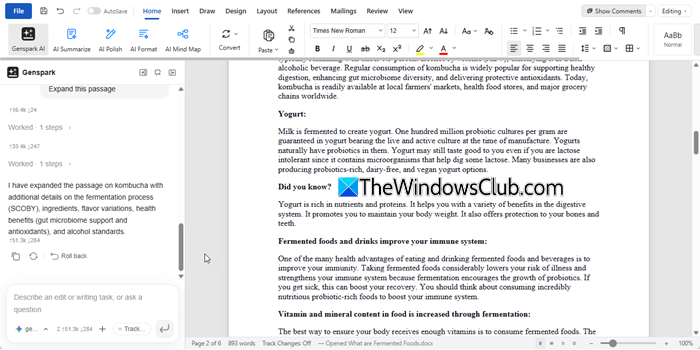
Docs is GenOffice’s word processor for creating, opening, and editing Microsoft Word documents in .docx format. What makes it different from a traditional word processor is its integrated AI assistant. You can select a passage and ask the AI to rewrite it, expand it, make it more concise, or fix grammar and spelling.
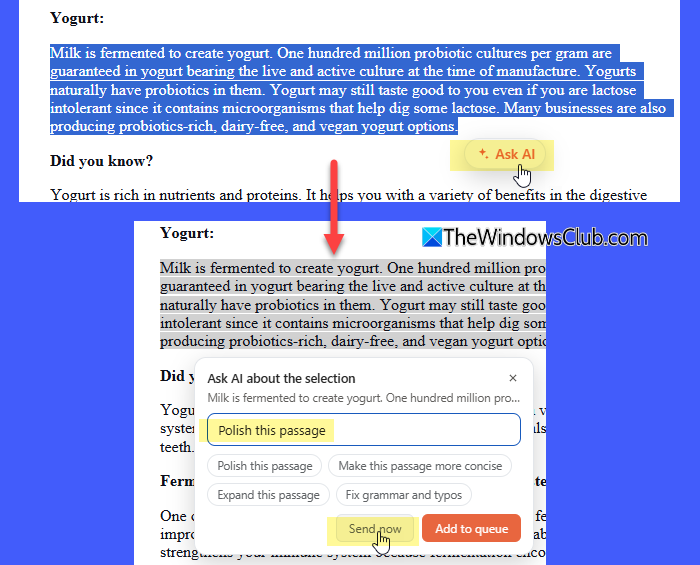
For example, I opened an existing Word document about fermented foods, selected a passage about Yogurt, and asked GenOffice to polish it. The AI rewrote the passage to improve its flow and clarity while retaining the key information about milk fermentation, live and active cultures, etc. It applied the revised text directly to the document and displayed a summary of the changes in the AI panel.
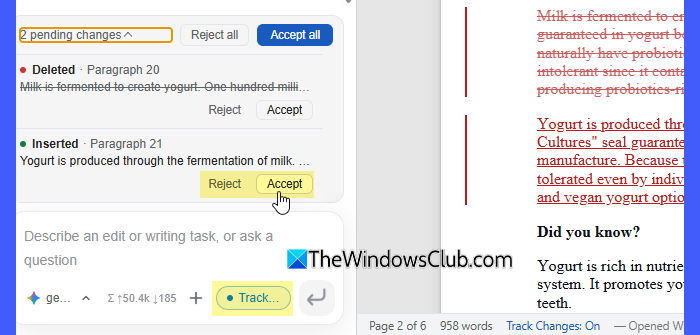
While editing the document with AI, I noticed two different behaviours. When Track Changes is enabled, the editor highlights inserted and deleted text, allowing you to accept or reject individual changes or all pending changes at once. If Track Changes is disabled, the AI applies its modifications directly to the document instead of displaying them as revisions.
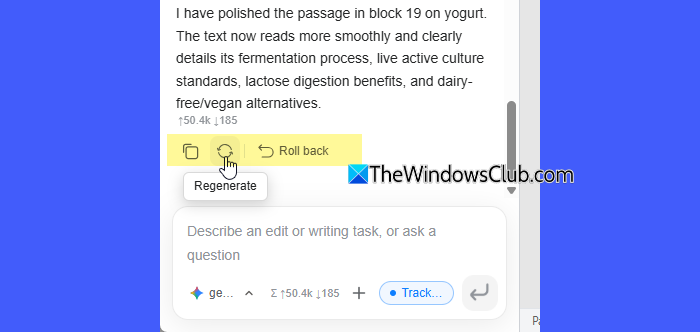
GenOffice also maintains snapshots of AI editing sessions. You can use the Roll back option below an AI response to undo the changes made during that session.
Another useful feature of GenOffice Docs is AI Mind Map, which creates an interactive visual representation of the document. You can explore its branches, zoom in or out, and use individual nodes to ask follow-up questions.
The Docs editor also includes a Mailings tab for mail merge. You can import recipient details from an Excel or CSV file, insert merge fields, preview records, and generate either a single combined document or separate Word files for each recipient.
GenOffice Sheets
GenOffice Sheets goes beyond basic spreadsheet editing by allowing AI to build summaries and analyse workbook data. For example, you can ask it to create a Summary sheet with revenue breakdowns by region and category, using actual SUMIF formulas, and generate a column chart. You can also ask questions about your workbook, such as which region generated the highest revenue in a particular quarter. The AI provides an answer with clickable cell citations, so you can trace the figures back to the original data.
GenOffice Slides
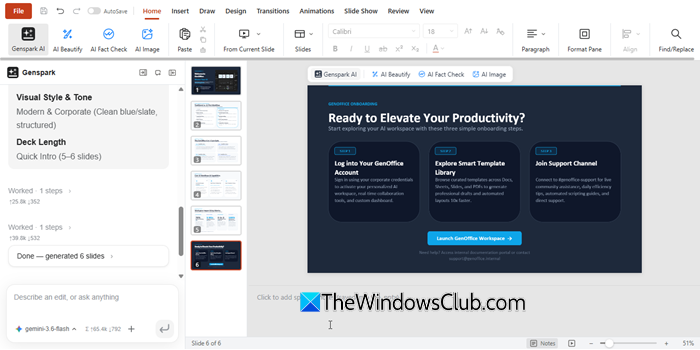
GenOffice Slides lets you create an entire PowerPoint presentation from a simple text prompt. You can describe the topic and purpose of your presentation, and the AI plans the storyline, researches relevant information, and generates the slides with text, images, and consistent styling. You can then edit, rearrange, or restyle the slides using the built-in tools or AI assistant. It also includes a Slide Show → Record feature that lets you narrate your presentation slide by slide, with the narration and automatic slide timings saved directly into the .pptx file.
Additional tools beyond a traditional office suite
Apart from conventional office productivity tools, GenOffice also includes a PDF editor, an HTML page builder, and a Markdown editor. These tools extend its functionality beyond document, spreadsheet, and presentation editing, bringing document conversion, web page creation, and technical writing capabilities into the same workspace.
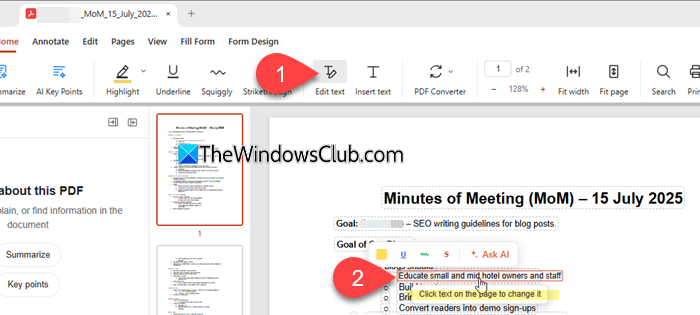
- GenOffice PDF: Its PDF editor lets you modify text directly within a PDF using the Edit Text mode. You can also ask the AI questions about lengthy PDF documents and get answers with page citations. Additionally, its built-in converter can convert PDF files into editable Word, Excel, and PowerPoint formats locally on your device.
- GenOffice HTML: This is an AI-powered web page and UI builder. You can describe the page you want, and the AI first prepares a design brief covering the layout, colour palette, typography, and visual style before generating a self-contained HTML file. You can edit individual elements, modify the source code, or ask the AI to restyle the page. It also supports live previews and exporting your work as PDF or Word documents.
- GenOffice Markdown: This tool provides a block-based editor for creating and editing Markdown files (.md). You can select text and ask the AI to polish, expand, shorten, or correct it. It supports headings, lists, tables, images, code blocks, and Mermaid diagrams. It also includes wiki-style links between notes, a Backlinks panel, and a Graph view to explore connections between documents.
Other notable features of GenOffice
- Byte-preserving file editing: GenOffice is designed to rewrite only the parts of a file you edit while preserving the remaining content and formatting byte-for-byte. This helps maintain compatibility with Microsoft Word, Excel, and PowerPoint.
- Bring Your Own Key (BYOK): Connect supported AI providers, including Gemini, OpenAI, Claude, and DeepSeek, using your own API key.
- Local file processing: Core document editing and conversion operations run locally on your device, reducing the need to upload files to external services.
- Cross-platform availability: Available for Windows, macOS, and Linux.
Overall, GenOffice is a promising AI-first office suite that offers a fresh approach to creating and editing documents, spreadsheets, and presentations. While it may not yet replace Microsoft Office for advanced workflows, it is worth exploring if you want AI-powered productivity tools with support for popular Office file formats.
Read: Microsoft Office vs OpenOffice vs LibreOffice: Which one is better?
Is GenOffice free to use?
Yes, GenOffice is free to download and use, and its source code is available under the Apache 2.0 licence. However, using its AI features requires Genspark credits or your own API key from a supported AI provider.
What is GenOffice?
GenOffice is a free, open-source desktop office suite developed by Genspark. It combines six productivity tools for creating and editing documents, spreadsheets, presentations, PDFs, Markdown files, and HTML pages.
Read Next: History & Evolution of Microsoft Office Software.
