
A virus scan protects PCs; however, it can sometimes slow the system down or cause it to hang while it checks thousands of files. This usually happens when the scan places a heavy load on the processor, memory, or storage. It can also happen due to conflicts with other software or system settings. If this is the case, check out the solutions mentioned in this article to address the core issue. In this post, we will see what you can do if your Windows computer freezes when running a virus scan.
Why does my PC suddenly freeze during an antivirus scan?
A PC can suddenly freeze when critical system resources such as the CPU, RAM, or storage are overwhelmed or when software conflicts prevent Windows from responding properly. If the freezing happens specifically while running a virus scan, keep reading to learn the possible causes and the most effective ways to fix the problem. Your computer may freeze if the antivirus scanner hits a corrupted system file, a massive compressed archive, a failing hard drive, or a severe malware infection that actively blocks the security software.
Computer freezes when running a virus scan
If Windows 11/10 becomes unresponsive or extremely slow while a virus scan runs, try the solutions below.
- Preliminary suggestions
- Exclude the antivirus’ own working directories and quarantine vault
- Disable scanning inside archives and tweak I/O priority
- Move the Windows pagefile to a separate physical drive
- Configure Microsoft Defender to use lower CPU resources
- Remove other antivirus or anti-malware software
- Restrict the scanner to even-numbered CPU cores
- Perform the scan at Boot-time or Safe Mode.
1] Preliminary suggestions
Before you begin:
- Close other apps and unwanted background processes to reduce CPU load.
- Run chkdsk on all the drives
- Update antivirus definitions
- Run Disk Cleanup to remove unwanted files.
2] Exclude the antivirus’ own working directories and quarantine vault
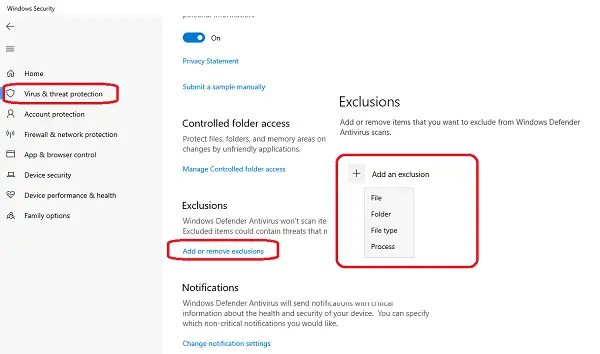
The antivirus can place unnecessary load on the CPU if it repeatedly scans its own quarantine folder, log files, or working directories, increasing disk usage. Excluding the antivirus’ internal working folders can prevent this recursive scanning and keep the rest of the system protected. However, add exclusions carefully and only for folders officially recommended by the antivirus vendor. For Microsoft Defender antivirus, you need to follow a universal process to add an exclusion.
For a third-party antivirus, follow the steps below.
- Launch the antivirus application Settings or Preferences and navigate to Exclusions, Exceptions or Trusted Items.
- Next, locate the antivirus documentation to identify its quarantine folder and working directories, and add only those specific folders to the exclusion list.
- Save the changes and restart the computer if prompted.
Run another full virus scan and monitor whether Windows remains responsive. Continue with the next solution if the system still freezes.
Read: Windows files and folders you may exclude from Antivirus scans
3] Disable scanning inside archives and tweak I/O priority
Archive files such as ZIP, RAR, ISO, and 7Z contain thousands of compressed files that must be extracted and scanned individually, which slows down the PC. If the scan runs at normal speed, it fights with Windows for hard drive power. Therefore, disable Archiving scanning for trusted environments and lower the scanner’s I/O Priority to reduce disk contention and keep Windows responsive.
- Launch the antivirus software, and go to Settings or Advanced Settings.
- Locate the Scan inside archives or Compressed files option, and disable the feature.
- Next, look for a setting such as Scan Priority, Resource Usage, or I/O Priority, and set the scan priority to Background or Low.
Save the settings and restart the scan. If performance does not improve, move on to the next section.
4] Move the Windows pagefile to a separate physical drive
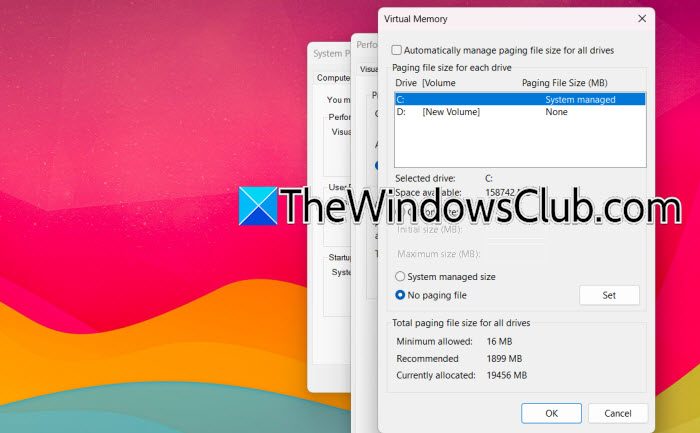
Another reason why the PC can freeze during a virus scan can be due to antivirus and Windows Page File fighting for the same hard drive. Moving the pagefile to a separate physical drive splits the work and prevents slowdowns. Here’s how to do the same.
- Click Win + R to open the Run dialog box, type sysdm.cpl, and press Enter to open the System Properties window.
- Go to the Advanced tab, and click on Settings under the Performance section.
- Open the Advanced tab again, go to the Virtual Memory section, click Change, and clear Automatically manage paging file size for all drives.
- Select the current system drive, choose No paging file option, and then click the Set button.
- Select another physical drive, choose System Managed size, or specify a custom size and click Set, then OK.
Reboot the system, and run another virus scan. Once verified, move on to the next solution if the issue persists.
5] Configure Microsoft Defender to use lower CPU resources
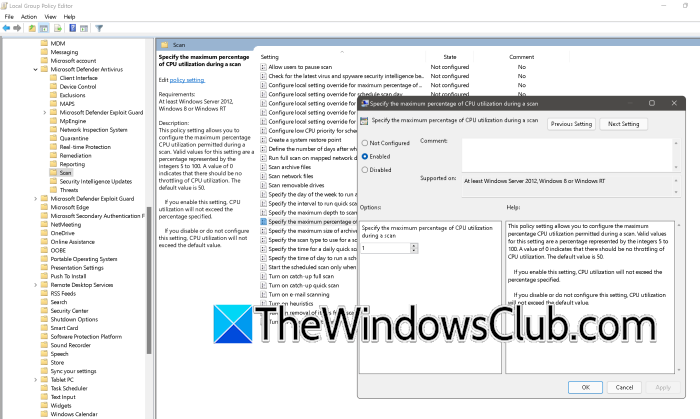
Microsoft Defender lets administrators reduce the average CPU it uses during scheduled scans. This lets it use less CPU so Windows and other applications continue to respond while the scan runs. However, doing this may increase the time required to complete a full scan.
- Open the Run dialog box, type gpedit.msc, and press Enter to open the Group Policy Editor.
- Go to the following location:
Computer Configuration > Administrative Templates > Windows Components > Microsoft Defender Antivirus > Scan. - Double-click Specify the maximum percentage of CPU utilisation during a scan option and select Enabled.
- Enter a value such as 30 or 50, click Apply, and click the OK button.
Alternatively, Windows Home users can try doing the same using Registry Editor. Before doing the same, take a backup of the registry.
Then, go to:
HKEY_LOCAL_MACHINE\SOFTWARE\Policies\Microsoft\Windows Defender\Scan
If the Scan key does not exist, right-click Windows Defender, select New > Key, and name it Scan. In the right pane, right-click and select New > DWORD (32-bit) Value. Name it AvgCPULoadFactor. Double-click the value and choose Decimal. Enter a value between 5 and 100 (for example, 30 or 50) to specify the maximum CPU percentage Microsoft Defender can use during a scan. Click OK, close Registry Editor, and restart the computer or restart the Microsoft Defender Antivirus Service for the change to take effect.
Once done, run another scheduled scan to verify whether Windows remains unresponsive. If it does, check the next solution.
6] Remove other antivirus or anti-malware software
Running multiple antivirus or real-time anti-malware programs at the same time often causes both applications to inspect the same files simultaneously. This duplicate scanning increases CPU usage, disk activity and memory consumption, which slows down Windows and can cause it to freeze. We will remove unnecessary software to eliminate these conflicts and allow a single antivirus software to manage system protection.
- Launch the Run dialog box, type appwiz.cpl, and press Enter.
- Review the list of installed programs, and identify any antivirus or anti-malware software that is no longer in use.
- Select the app, click Uninstall, and follow the removal wizard. Restart the device and confirm that only one real-time antivirus software is active.
Run another scan and go to the next solution if Windows still freezes during the scan.
7] Restrict the scanner to even-numbered CPU cores
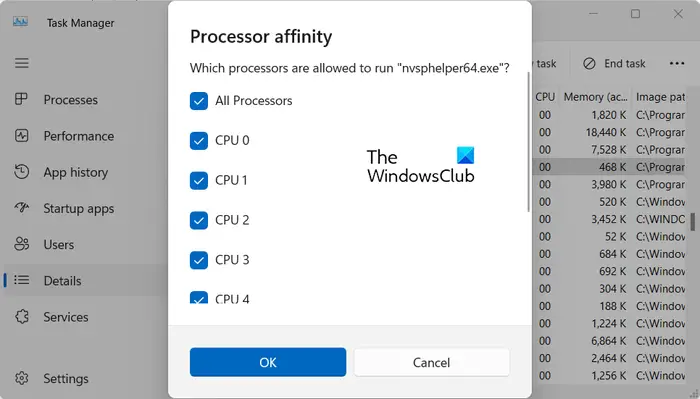
Some antivirus software allows users to control processor affinity and limit the scanner to a specific set of CPU cores. To prevent the computer from lagging during long scans, we are going to assign the scan to only even-numbered cores, leaving odd-numbered cores free for Windows and daily apps.
- Start the antivirus scan, and press Ctrl + Shift + Esc to open Task Manager.
- Click on the Details tab and locate the antivirus scanning process.
- Right-click the process, select Set affinity options and clear all CPU selections.
- Select only the even-numbered CPU cores, such as CPU 0, CPU 2, CPU4, depending on the processor, and click OK.
Continue the scan and monitor system performance. Hopefully, there won’t be any more slowdown.
8] Perform the scan at Boot-time or Safe Mode
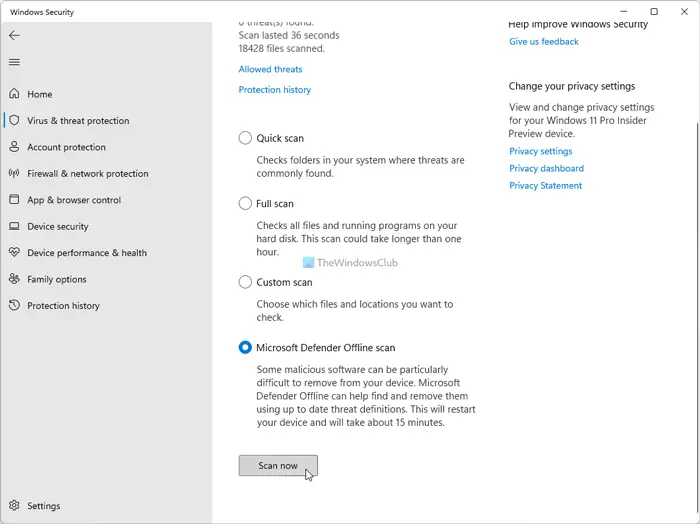
If nothing helps, perform an offline or a boot-time scan.
Alternatively, you can run an antivirus scan in Safe Mode. This is recommended when your system freezes during normal scans. Boot your Windows in Safe Mode and then run the scan. Safe Mode loads only essential drivers and services, which makes it easier for the antivirus to scan without interference.
That’s it!
Read: Windows Security closes immediately after opening or crashes
Can bad RAM cause freezing?
Yes, it can. Bad RAM can frequently cause system freezes by corrupting active data. A failed memory cell can feed the CPU incorrect data and crash the OS kernel, leading to a hard lock. Unlike a simple app crash, this halts all processes and forces an involuntary reboot.
Also Read: Windows Defender History Crashes; Can’t Delete detections.log.
