
If you see There is not enough memory to complete this operation error while copying or moving files in Excel, Word, Power BI, Photoshop, Outlook or during Printer Sharing or Disk Management operations, this guide will help you fix the issue.
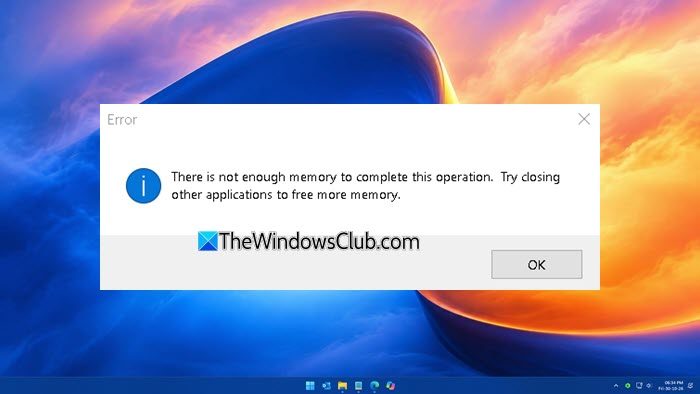
What does There is not enough memory to complete this operation error mean?
The There is not enough memory to complete this operation error is typically seen when there is insufficient RAM or memory available for the app to carry out the operation. The memory may be in use by other programs. This error is usually seen while copying or moving files in Office apps, Photoshop, or during Printer Sharing or Disk Management operations
Fix There is not enough memory to complete this operation in Windows 11
When you see the “There is not enough memory to complete this operation” error on your Windows 11 PC, follow these fixes.
- Close unwanted open programs
- Run Microsoft PC Manager
- Increase Virtual Memory
- Repair or reset the program
- Delete files related to the program.
Before you proceed, update Windows and the program causing the issue.
1] Close unwanted open programs
Look for programs you don’t use but that consume a lot of memory, and end their processes or uninstall them completely. You should also close open program windows and reduce open browser tabs if possible.
Now restart the application and see if it helps.
2] Run Microsoft PC Manager
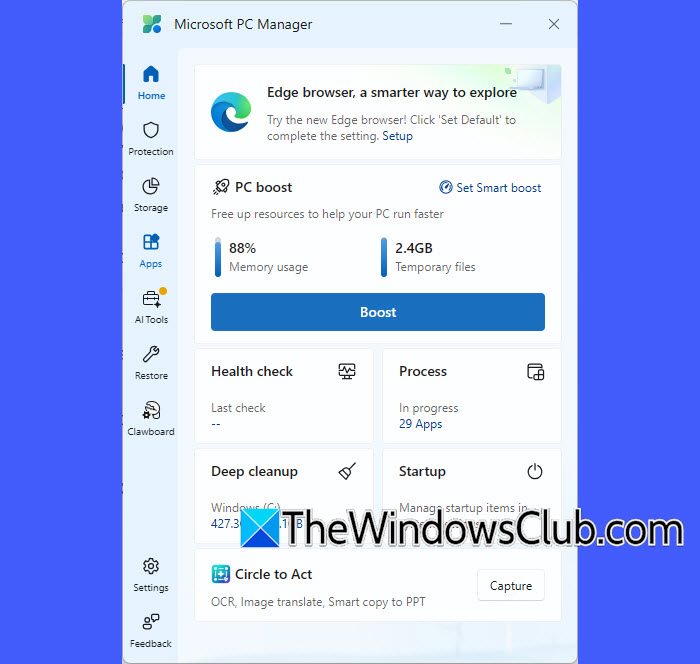
Microsoft provides the Microsoft PC Manager program on Windows 11. Use it to improve and optimize your PC. Open the Microsoft PC Manager app on your PC. Click Boost to free up memory and clear temporary files.
Then click the Process tab and end any processes you’re not currently using. Then click Startup and remove apps you don’t want to open automatically at startup. Now, try opening the program that you were trying to open and see if the error is fixed.
Read: There is insufficient disk space to complete operation
3] Increase Virtual Memory
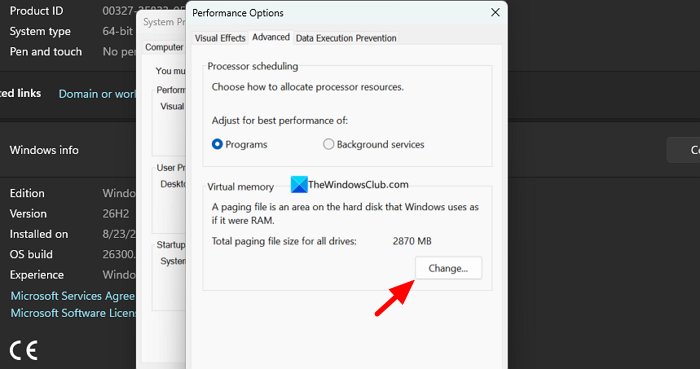
We see “There is not enough memory to complete this operation” because of low memory. You can fix this by increasing the virtual memory on your PC. Windows 11 lets you increase virtual memory. Open Windows Settings, click System, then go to the About tab. Then, click Advanced system settings.

It opens System Properties. Click the Advanced tab. Then, click Settings under Performance. It opens the Performance Options window. Click the Advanced tab and click Change under Virtual memory.
It opens the Virtual Memory window. Uncheck the button beside Automatically manage paging file size for all drives. Then, check the button beside Custom size. Enter values that are higher than the recommended values (you can see them at the bottom of the Virtual Memory window) to let you open the programs.
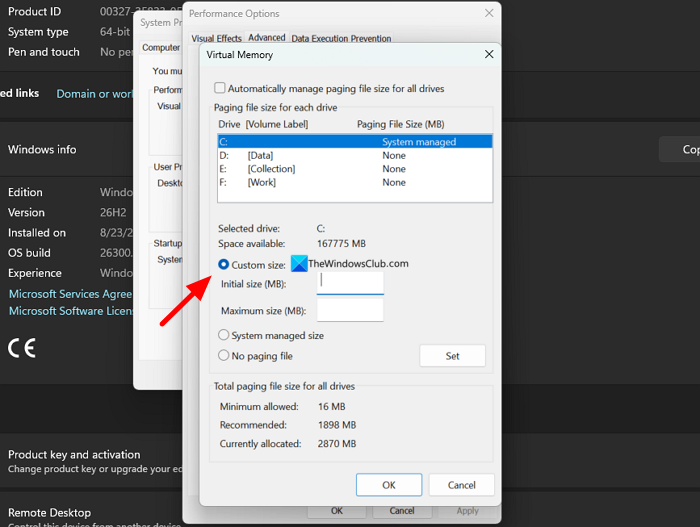
After entering the values, click OK to save the changes. Then, restart your PC and use the programs without any errors.
Related read: Pagefile.sys too big in Windows 11
4] Repair or reset the program
If you still see the error in any Microsoft 365 or Microsoft program, you can repair or reset it to fix the issue. Open the Settings app on your PC and go to Apps. Then, click the Installed apps tab. Find the app you are having issues with and click the three-dot icon next to it. Then, select Advanced options.
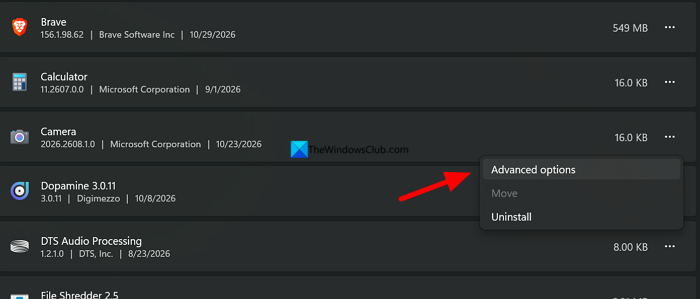
It shows additional options to tweak the app. Scroll down to Reset options and click Repair. It repairs the app in a few seconds. Try opening it. If you are still seeing the error, click Reset. Resetting may cause you to lose all data.
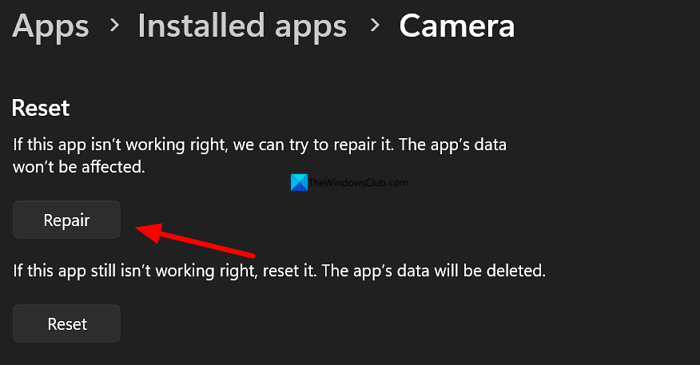
You might not see Advanced options for third-party apps. If you see the error with a third-party option, uninstall it and reinstall it from an official source.
Read: There is not enough space available on the disk(s) to complete this operation
5] Delete cache files related to the program
When you open and use programs, they store data temporarily in your user profile. If you see an error related to Microsoft 365 or Microsoft Office apps like Word, Excel, PowerPoint, etc., you can fix it by deleting the temporary data stored in your user profile. Open File Explorer on your PC and navigate to the following path. Replace “hello” in the path with your PC username.
C:\Users\<username>\AppData\Roaming
Then find the folder related to the app you’re having issues with and open it.
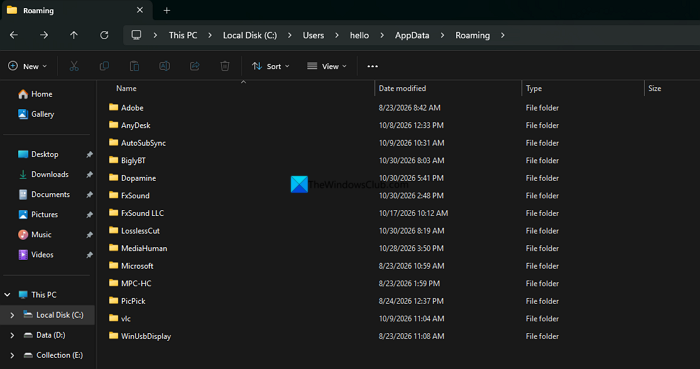
Delete the data inside. The program will recreate the data when you open and use it.
This will fix the error you are seeing and let you use the program without any issues.
Related: Fix Out of memory error while copying files on Windows 11
How do I fix the “Not enough memory to perform the operation” error in PowerPoint?
If you see the “There is not enough memory to perform this operation” error while opening PowerPoint on your Windows PC, you can fix it by ending programs that you do not use, increasing Virtual memory, deleting temporary data created by PowerPoint in your user profile data, repairing or resetting the PowerPoint program, etc. If nothing works, you may have to reinstall the Microsoft 365 package.
Read: Office cannot open this file because some parts are missing.
