
When trying to create a new partition or shrink a volume or extend a volume using the Disk Management Utility, you may encounter an error that says – There is not enough space available on the disk(s) to complete this operation.
Although the ability to adjust a volume’s size without reinstalling the operating system is an excellent feature, this is where the downsides begin. This error is caused by the MBR Partition Limit. This means you cannot create more than four partitions. Other causes include having less unallocated space than needed and, lastly, the Disk Management utility not detecting changes to the partitions.
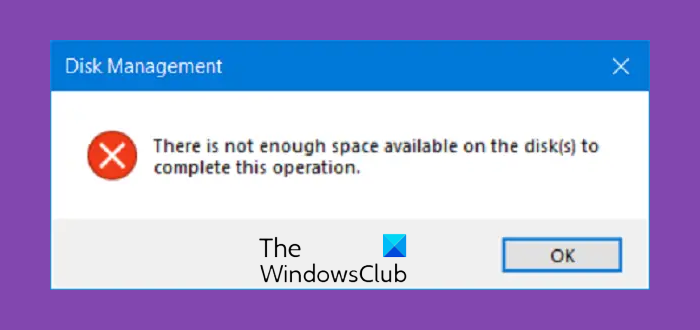
Why does this error occur?
The usual causes are:
- Insufficient unallocated space for the requested operation.
- Trying to extend a partition when free space is not adjacent.
- Disk fragmentation or hidden recovery partitions are blocking the resize.
- Using MBR disks with partition number limits (max 4 primary).
- Corrupted partition table or metadata.
There is not enough space available on the disk to complete this operation
We will be taking a look at the following fixes to get rid of this error on Windows 11/10:
- Use third-party software.
- Rescan the disks.
- Monitor your current made partitions.
1] Use third-party software
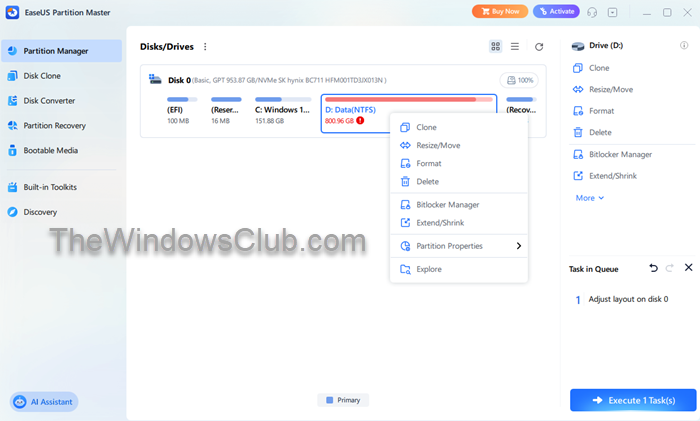
You can use any third-party free partition manager software like EaseUS to manage your partitions and manipulate their properties.
2] Rescan the disks
Hit WINKEY + R to launch the Run box and type in diskmgmt.msc to launch the Disk Management utility.
On the Menu ribbon, select Action.
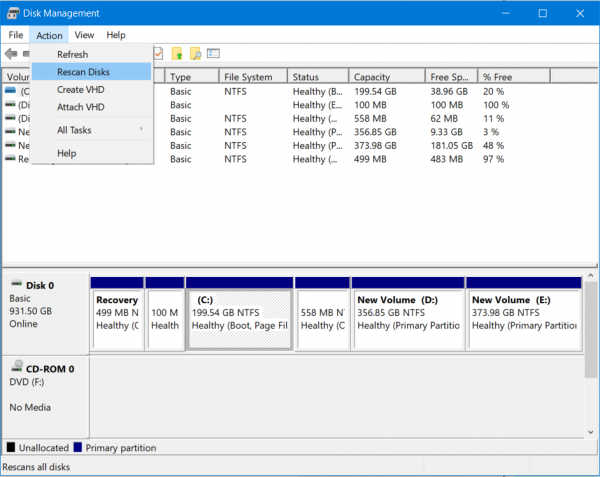
From the drop-down menu, select Rescan Disks.
Wait for the process to finish.
And now check if that fixes your issues.
3] Monitor your current made partitions
Another reason for this issue, as mentioned above, could be that you are using the MBR partition scheme. This is an older partition system and is succeeded by the GPT Partition System.
The MBR Partition System supports only a maximum of 4 partitions. So, if you already have four partitions, you may need to change your Partition System to GPT to carry on your task ahead.
However, this can delete all the content on your hard drive. But if you wish to proceed anyway by converting MBR to GPT.
How do I fix Not enough space available on the disk?
To fix this issue, try the following suggestions:
- Use Rescan Disks in Disk Management to detect recent changes.
- Ensure unallocated space is next to the partition you want to extend.
- Convert MBR to GPT if you’ve hit partition limits.
- Run chkdsk /f to repair file system errors.
I hope something helps!
