
Microsoft PC Manager is a 1-click optimizer from Microsoft that provides Optimization, Junk removal, Virus removal, and other services to make your computer faster. This tool is available as a free download from the Microsoft website.
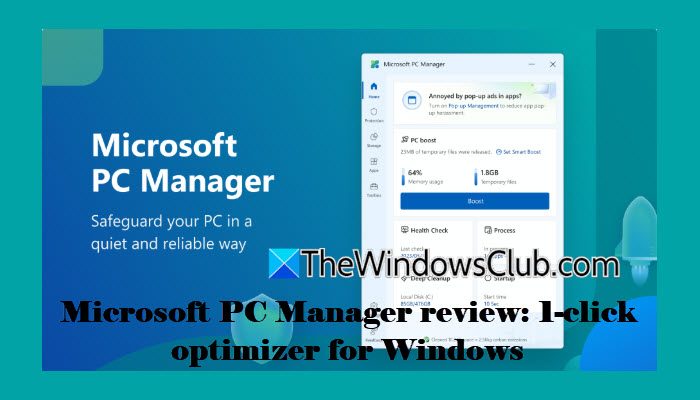
A Windows PC may start slowing down over time due to accumulated cache files, unwanted startup programs, and increasing system load. To help users maintain their PCs more easily, Microsoft offers a free PC optimization and cleanup tool called Microsoft PC Manager. In this review, we will take a closer look at the tool, its key features, and whether it is worth using on a Windows 11 PC.
Microsoft PC Manager review: 1-click optimizer for Windows 11
Unlike many third-party tools that often include unnecessary features, ads, or bundled software, Microsoft PC Manager focuses on simplifying essential Windows maintenance tasks through a clean, beginner-friendly interface. Some of its notable features include:
- 1-click PC Boost to free RAM and clear temporary files
- Health Check to detect junk files and common system issues
- Deep Cleanup for removing unnecessary system and cache files
- Storage Management with large file and duplicate file cleanup tools
- Startup App Management to improve boot speed and reduce background load
- Virus & Threat Protection integration powered by Windows Security
- Pop-up Management to block unwanted app pop-ups and interruptions
- AI Toolbox featuring OCR, translation, screenshots, captions, and recorder tools
- Quick access to Windows maintenance and repair tools from a single dashboard
Download and Install Microsoft PC Manager
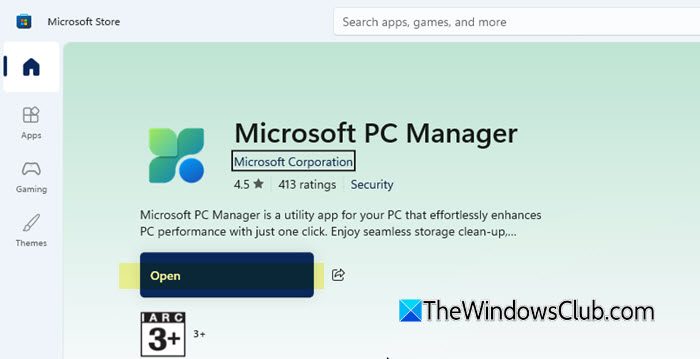
To download Microsoft PC Manager for free, visit Microsoft’s official website and click the Download button. You will then be redirected to the app’s page in the Microsoft Store.
Click the Get button and wait for the app to download and install automatically. Once the installation is complete, click the Open button to launch the app.
Getting started with Microsoft PC Manager
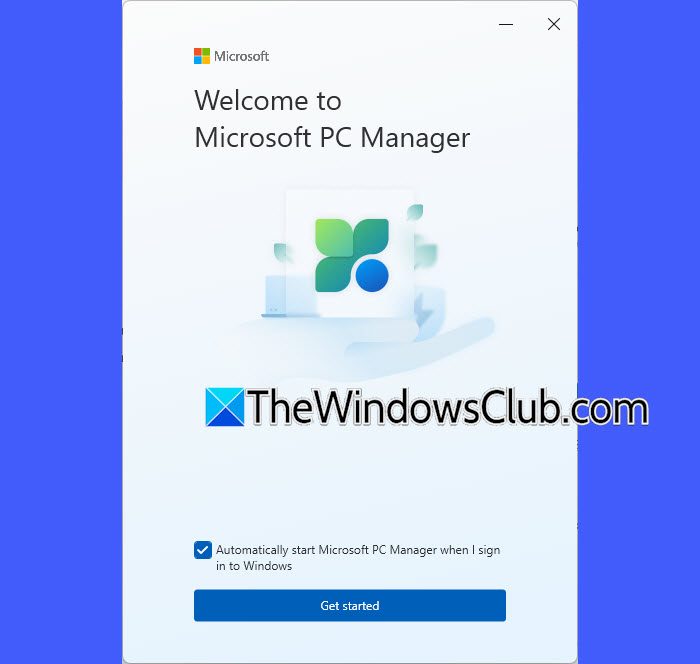
On the welcome screen, you will see an option to automatically start Microsoft PC Manager when you sign in to Windows. If you do not want the app to launch automatically at startup, uncheck the option and click Get started to continue.
User experience and features
Microsoft PC Manager features a clean and modern interface that blends well with the overall design of Windows 11. One unusual design choice is its compact window size. By default, the app opens in a smaller, centered window that feels more like a quick-access utility rather than a complete system management tool. While some users may appreciate the minimalist and lightweight design, others may find it slightly restrictive since certain sections feel cramped at once.
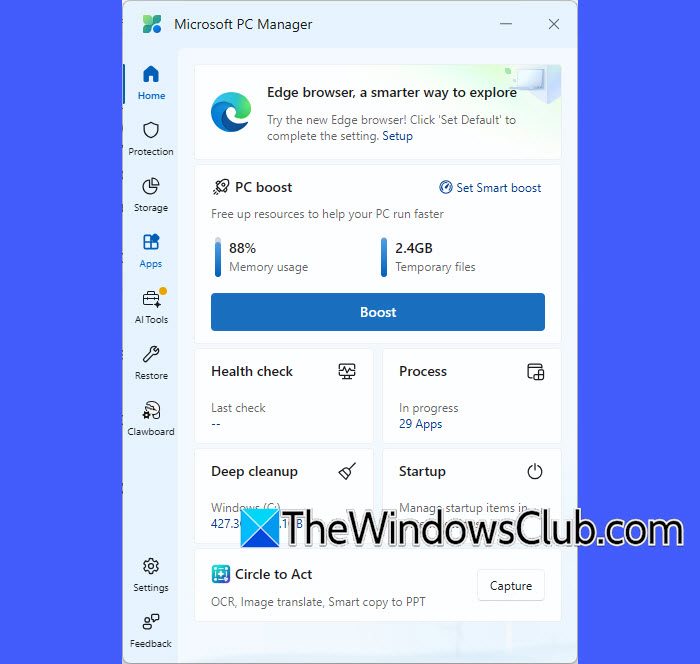
Navigation is straightforward, with features organized into sections such as Cleanup, Security, Storage, Apps, and AI Toolbox. Most tools are easy to use, making the app suitable even for non-technical users.
1] PC Boost
The main highlight of the app is the large Boost button placed prominently on the home screen. With a single click, it clears temporary memory and removes unnecessary data to help improve system responsiveness.
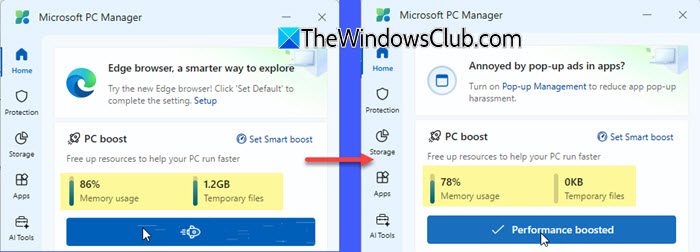
The app also includes a Smart Boost feature that can automatically optimize the PC when memory usage becomes high or when temporary files exceed a certain limit. This helps reduce lag and keeps the system running smoothly without requiring manual cleanup every time.
2] Health Check
The Health Check feature is one of the most comprehensive tools included in the app. Unlike the compact main dashboard, Health Check opens in a separate full-screen window and provides a more detailed overview of the system’s condition.
When launched, the tool scans the PC for network status, storage space, resource usage, etc.
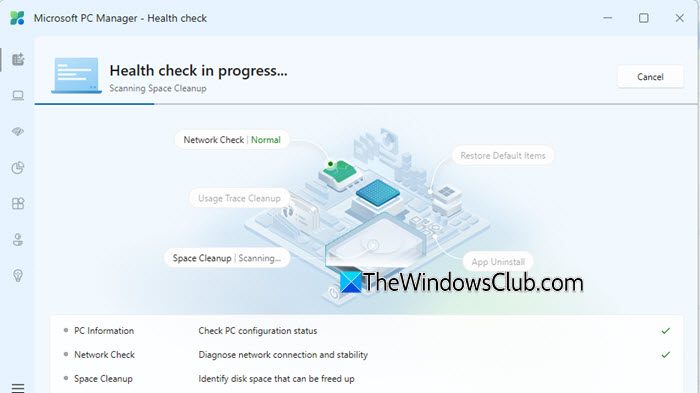
It then generates a detailed report showing identified issues and suggested improvements. The report consists of a Summary at the top and separate sections for:
- Network Check
- Space Check
- App Check
- Security Check
- Usage Advice
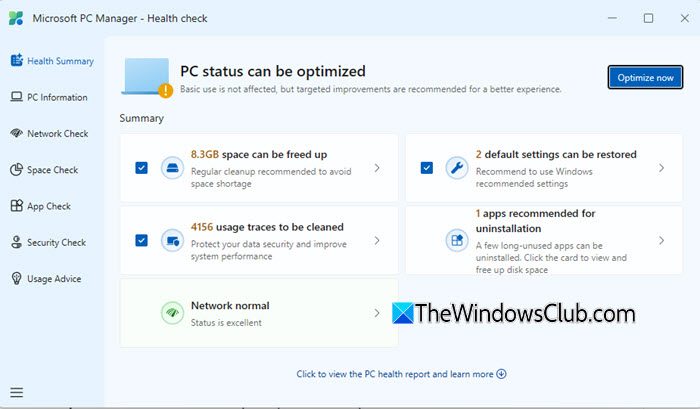
These sections can be accessed individually from the left navigation pane. You can either click the Optimize now button at the top for quick 1-click optimization or review each category individually before taking action.
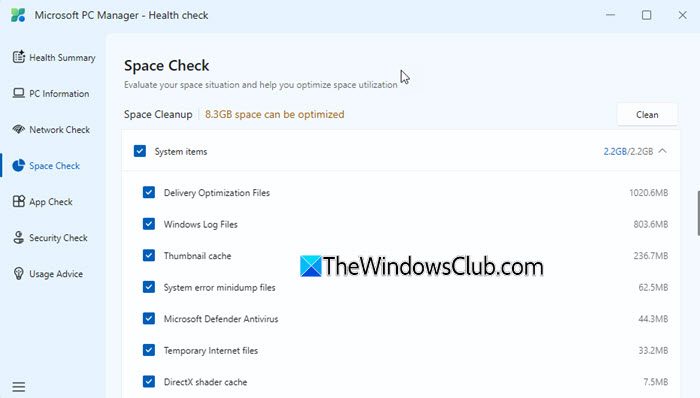
For example, you can visit the Space Check section, select or deselect specific items, and click the Clean button to improve storage utilization on your Windows 11 PC.
3] System Protection
The System Protection section focuses on security, system repair, updates, and basic troubleshooting tools.
One of the main options here is Virus & threat protection, which redirects users to the built-in Windows Security settings for malware scanning and protection management. The section also includes a Windows Update checker that scans the system for updates, including driver updates. Users can review available updates and install them directly from within the app.
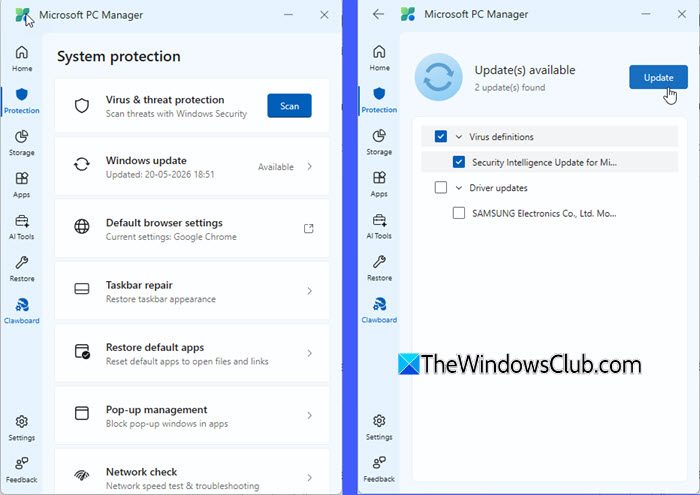
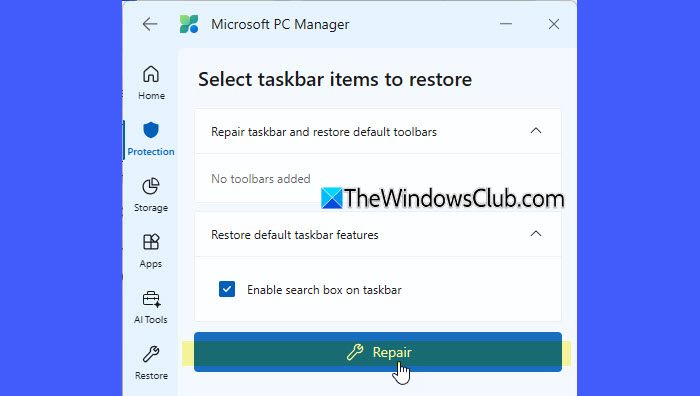
Another useful feature is Taskbar Repair, which helps restore missing or modified taskbar items and default taskbar settings. For example, users can re-enable the Windows Search box or repair toolbar-related changes with a single click.
The app also provides a Restore default apps tool that helps reset default applications for webpages, PDFs, and office documents. This can be useful when file associations are unexpectedly changed by third-party software.
4] Storage Management
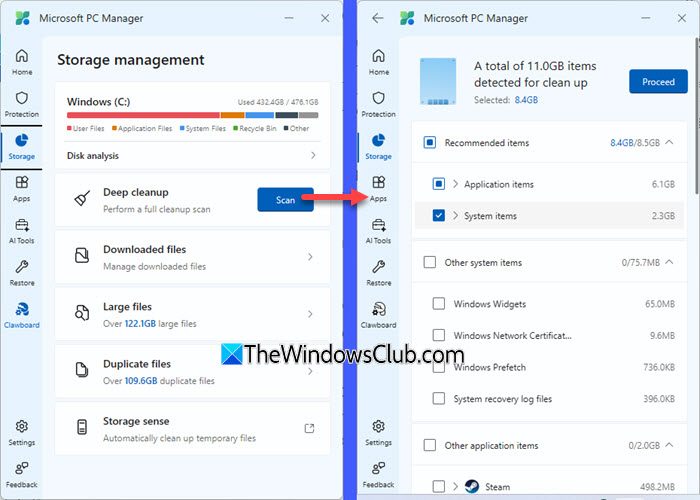
The Storage Management section runs a scan on the system drive and provides a quick overview of disk usage along with shortcuts to cleanup-related tools. These tools open in a separate full-screen window and provide a more detailed view of how storage space is being used on the system.
Apart from that, there’s an option to perform a Deep Cleanup scan for unnecessary files, leftover application data, temporary cache, and other reclaimable items that may be occupying disk space unnecessarily.
The Downloaded Files tool scans the Downloads folder and displays files in a detailed list view with filters for documents, pictures, videos, compressed files, audio, and more. Users can sort files by size or modification date and remove unnecessary items directly from the interface.
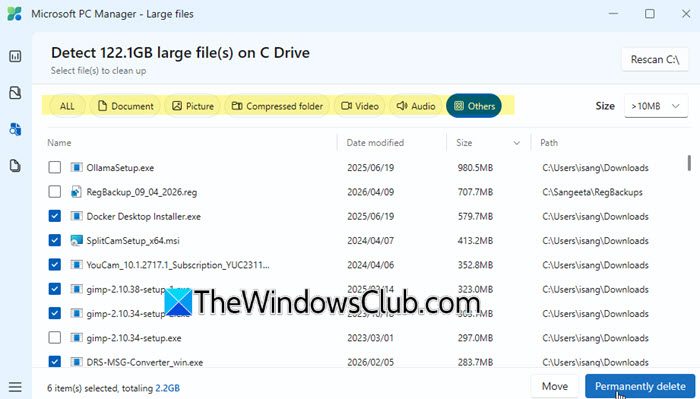
The Large Files tool helps identify files consuming significant disk space across the drive. It supports filtering by file type and size, making it easier to locate old installers, large videos, archives, and other storage-heavy files.
The Duplicate Files tool scans the system for duplicate copies of files and groups them together for easier review. Users can manually select duplicates for deletion, which can help free up substantial storage space on cluttered systems.
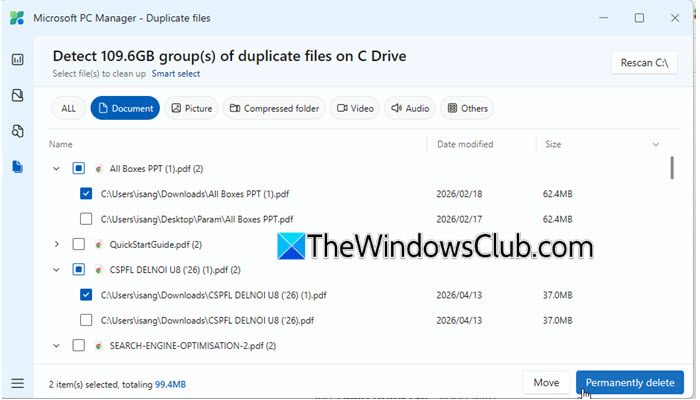
The section also includes a Storage Sense shortcut, although this simply redirects to the built-in Windows Storage settings instead of offering controls directly inside Microsoft PC Manager.
5] App and Process Management
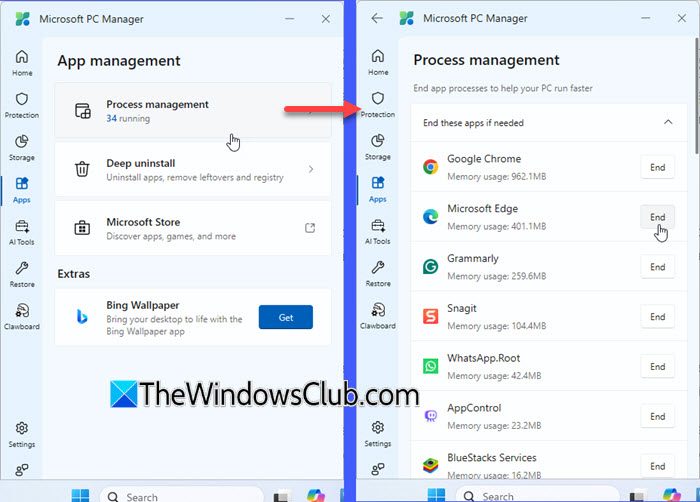
The Apps section focuses on managing running applications and uninstalling unwanted software. It includes tools for Process management and Deep uninstall, along with quick access to the Microsoft Store.
The Process management tool displays currently running apps along with their memory usage. From here, you can end unnecessary background processes with a single click to free up memory and improve responsiveness.
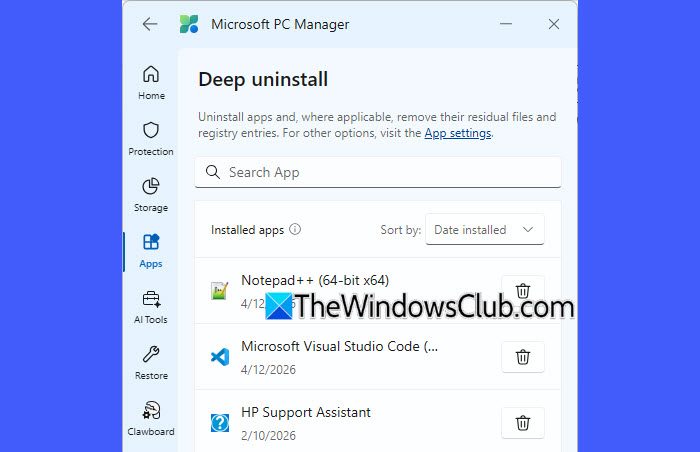
Another useful feature is Deep uninstall, which helps remove installed applications from the system. Microsoft PC Manager claims to remove leftover files and registry traces during uninstallation, although the cleanup capabilities may not be as advanced as dedicated third-party uninstallers.
6] AI Toolbox
The AI Toolbox section brings together several AI-powered and productivity-focused tools, including:
- Circle to Act
- Translate
- OCR text & table
- Recorder
- Captions
- Screenshot folder
- Notepad
- Calculator
- Edge Quick Links
- Currency Converter
- and Weather
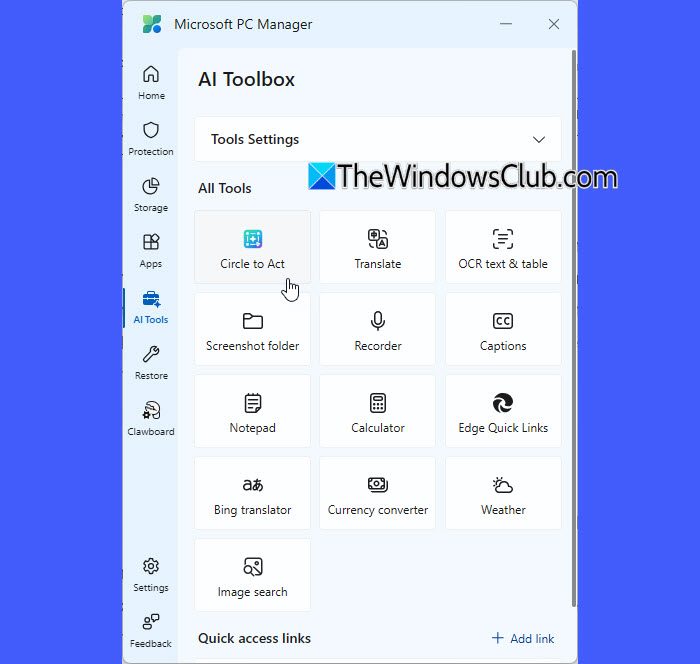
The standout feature here is Circle to Act, which works as an advanced screenshot-taking tool. It supports three capture modes: Auto-detect window, Auto-detect element, and Manual selection.
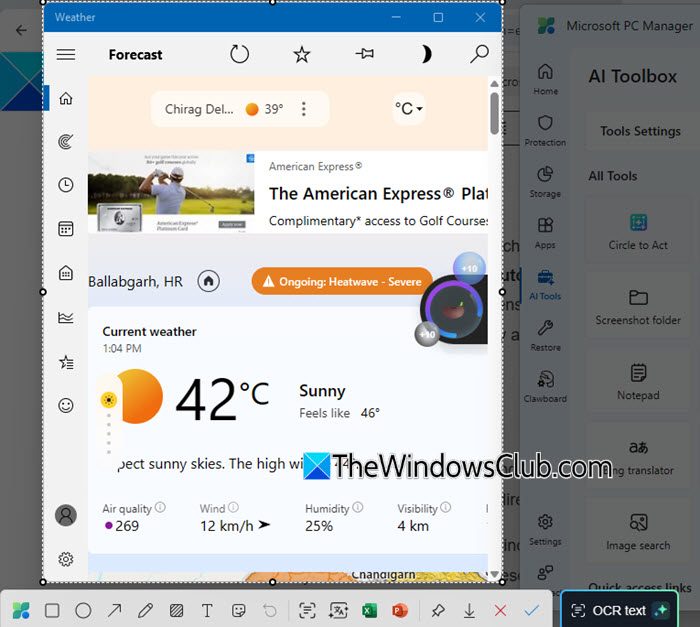
Once a screenshot is captured, Microsoft PC Manager displays a floating toolbar that lets you instantly annotate screenshots and perform additional tasks, such as:
- extract text from screenshots,
- detect and copy tables,
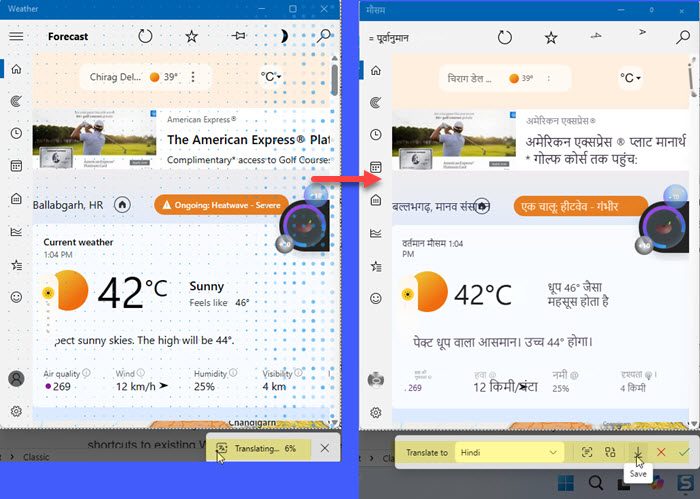
- translate text appearing inside images, and
- save screenshots locally or export them directly to Excel or PowerPoint.
Apart from the AI-powered utilities, the toolbox includes quick shortcuts for Notepad
Calculator, Currency Converter, etc. Most of these are lightweight integrations or shortcuts to existing Windows and Microsoft services.
Apart from its core optimization tools, Microsoft PC Manager includes a few smaller utility sections, such as Restore, Clawboard, and Settings for basic system recommendations, experimental AI-agent management features, and app customization options.
Overall, Microsoft PC Manager turns out to be a surprisingly useful multitasking utility for Windows 11. While it may not replace advanced system optimization tools for power users, it combines cleanup, storage management, security shortcuts, AI-powered productivity features, and basic troubleshooting tools into a clean and beginner-friendly package that most everyday users will genuinely find helpful.
Read: Microsoft PC Manager not working or installing.
Trivia: Microsoft once offered its own registry cleaners like RegClean, and RegMaid, which were discontinued from Windows XP onwards. Later on, its Windows Live OneCare too offered a registry cleaning feature, which was also discontinued. Starting with Windows Vista, the Registry has been Virtualized, and hence, unlike Windows XP or earlier versions, it does not tend to suffer from bloat. Due to Virtualization, applications are prevented from writing to System Folders and the ‘machine-wide keys’ in the registry. You may be interested in knowing that, generally speaking, Microsoft does not support using Registry Cleaners in Windows now.
Is PC Manager better than CCleaner?
Microsoft PC Manager is generally safer and simpler than CCleaner because it comes directly from Microsoft and mainly uses built-in Windows maintenance features. It is lightweight, ad-free, and easier to use. However, CCleaner still offers more advanced cleanup, monitoring, and customization options for power users.
What is Microsoft PC Manager used for?
Microsoft PC Manager is used to optimize PC performance by providing quick storage clean-up, efficient file management, and other features. This utility app helps enhance system speed and efficiency, ensuring that your PC runs smoothly.
This free software for Windows users offers the following features:
- One-click acceleration: Cleans up system debris, releases occupied system resources and promises to make your Windows as fast as new
- System space management: Deep cleans system storage space, helps you manage large files, helps you turn on Disk Sense, and free up your computer storage space.
- Comprehensive physical examination: It quickly detects computer problems and abnormalities, cleans up garbage, detects viruses, and solves system risks & issues with one click.
- Professional virus removal: Microsoft PC Manager embeds Windows Defender definitions to protect your computer.
What is the best system cleaner for PC?
For basic cleanup and safety, Microsoft PC Manager is a good choice for Windows 11 users. Advanced users may prefer tools like CCleaner or BleachBit for deeper cleanup and customization, while many users may find Windows’ built-in tools like Storage Sense sufficient for regular maintenance.
How much does Microsoft PC Manager cost?
Microsoft PC Manager is available for free. Windows users can download and use it without any cost, as it is included as a native solution for system optimization. This allows users to enhance their PC performance without incurring additional expenses.
Read: Microsoft PC Manager not working or installing
Can I delete my PC Manager?
Yes, you can remove PC Manager. To uninstall it, open the Control Panel, navigate to ‘Programs and Features’, find ‘PC Manager’ in the list, select it, and click ‘Uninstall’. This will remove the program from your computer.
How do I speed up Windows and make it run faster?
You can speed up Windows 11 by carrying out the following suggestions:
- Restrict the number of start-ups
- Remove pre-installed Crapware
- Turn on Fast Startup
- Reduce Visual Effects
- Delete Junk Files, Clean Registry & optimize Windows
- Use High-Performance Power Plan
- Restart PC regularly
- Use SSD.
What is the best way to optimize Windows 11?
There are multiple ways to optimize a Windows 11 computer. However, you can follow these basic suggestions, and you will have a tuned-up & optimized computer running fast.
- Uninstall unwanted and unused software
- Disable Startup programs you don’t need
- Reduce visual effects for best performance
- Use a good security suite.
- Restart PC regularly
- Occasionally run SFC, Defrag and ChkDsk
I hope you find the post useful.
