
Some users report that their computer restarts a few minutes after they sign in to Windows. Sometimes, the issue happens immediately after you log in. This can happen for several reasons, including corrupt system image files, a corrupt user profile, faulty hardware, or a conflicting background application or service. This article guides you on what you can do if your Windows computer restarts after logging in.
Windows 11 reboots after login
If your Windows computer restarts after logging in, follow these suggestions to fix this issue:
- Uninstall a recent Windows Update (if applicable)
- Run Automatic Repair
- Troubleshoot in a Clean Boot state
- Test your RAM
- View the reports in Reliability Monitor
- Create a new user profile
- Restore your system
- Reset your PC
- Hardware fault
Computer restarts after logging in
1] Uninstall a recent Windows Update (if applicable)
If the issue has started occurring after installing a Windows Update, that update might be the problem. Sometimes, Windows Updates cause issues. That’s why Microsoft provided an option to uninstall the problematic Windows Update. Since you cannot use your computer, you have to uninstall the update in the Windows Recovery Environment.
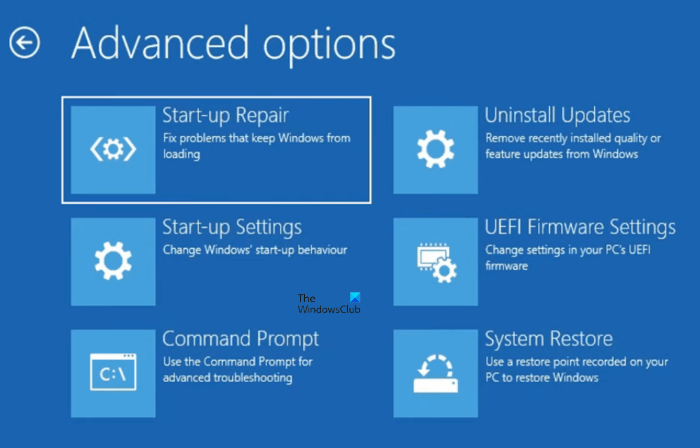
On the login screen, do not sign in to Windows. Instead, click the Power icon in the bottom-right corner of the lock screen. Now, press and hold the Shift key and click Restart. This will boot Windows into the Recovery Environment. When you are in the Windows Recovery Environment, navigate to Advanced Options > Troubleshoot > Advanced Options > Uninstall Updates. Based on the recently installed update, you can uninstall the quality or feature update.
If you cannot enter the Recovery Environment from the lock screen, you’ll need to interrupt Windows’ normal boot process. For this, use the following instructions:
- Shut down your computer.
- Turn it on. When the Windows or manufacturer’s logo appears, press and hold the power button to force-shut down your PC.
Repeat the above steps until you see the Preparing Automatic Repair screen.
2] Run Automatic Repair
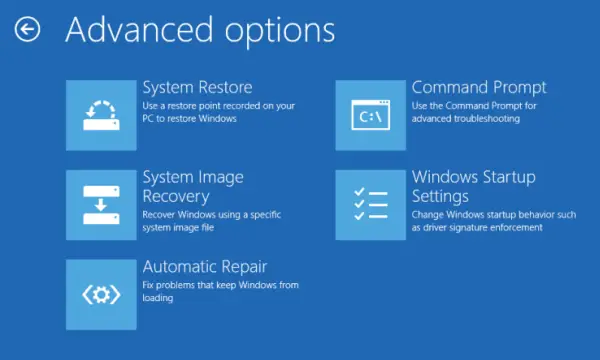
Automatic Startup Repair is a built-in tool that helps fix boot issues and startup problems on a Windows computer. Run this tool and see if it helps. To use it, enter the Windows Recovery Environment and go to Advanced Options > Troubleshoot > Advanced Options > Automatic Repair. The repair will take time. After the repair completes, boot into Windows and see if the issue persists.
Read: Windows is stuck at the Lock Screen before login
3] Troubleshoot in a Clean Boot state
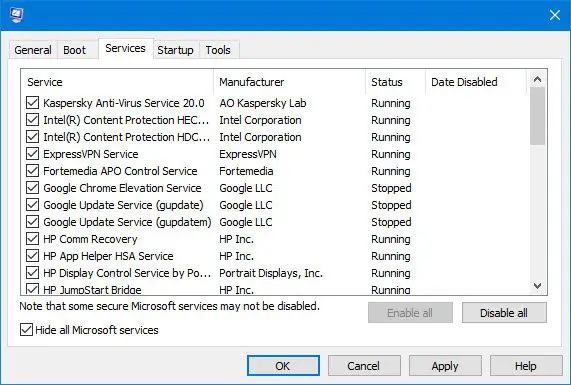
If your system restarts a few minutes after signing into Windows, a third-party application or service may be responsible. To confirm this, you need to enter Clean Boot State. See if you can use MSConfig after signing into Windows to boot into WinRE. You have to do this quickly before your system restarts. Be careful while performing this action. If you disable all the services, your system will become unstable, and you will have to reinstall Windows.
If your system restarts before you apply Clean Boot settings in MSConfig, you need to use another method. First, boot into the Windows Recovery Environment, then navigate to Advanced Options > Troubleshoot > Advanced Options > Startup Settings > Restart. When your system restarts, you will see different options on the screen. Press the F5 key to enter Safe Mode with Networking.
Once you are in Safe Mode, launch MSConfig, go to the Boot tab, and uncheck the Safe Boot option. Now, go to the Services tab and select the Hide all Microsoft services checkbox. After that, click Apply and then click OK. Click Restart Now.
After the restart, your system will be in the Clean Boot state. If the issue doesn’t appear in the Clean Boot state, a third-party application or service is the culprit.
4] Test your RAM
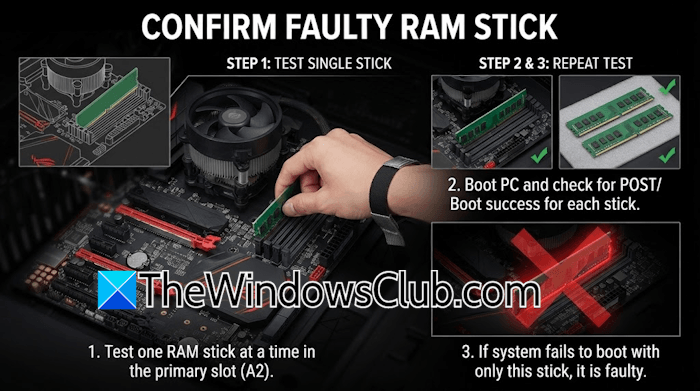
Your system may have a faulty RAM stick. To check this, test each RAM stick manually. For this, boot your system with only one RAM stick. When the issue appears, the RAM stick you have installed is faulty. Replace that faulty RAM stick with a new one.
5] View the reports in Reliability Monitor
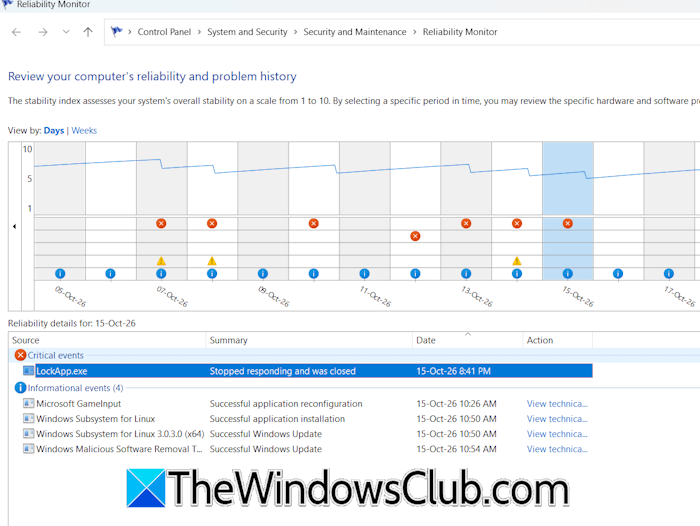
The Reliability Monitor is a built-in Windows troubleshooting tool that tracks computer stability, application crashes, hardware errors, and system changes over time. Click Windows Search and type View reliability history. Select it from the search results. You can also launch Reliability Monitor in Safe Mode. When the Reliability Monitor opens up, you will see red crosses for critical events and yellow triangles for warning messages, along with the date on which Windows recorded these events. Click the Red cross first and read the description below. If it was caused by an application, the Reliability Monitor shows its name. Double-click on the critical event to open a detailed report. The detailed report will show the exact underlying cause, so you can troubleshoot accordingly.
6] Create a new user profile
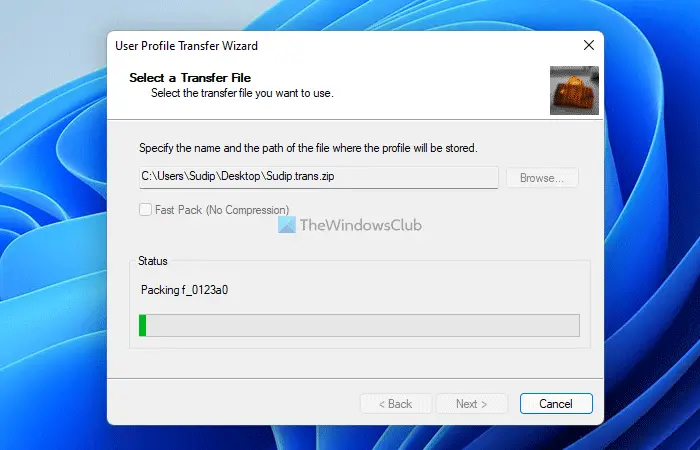
A corrupted user profile may be causing this issue. Since your computer restarts after logging in, creating a new user profile via Windows 11 Settings is not possible.
In such a case, you can use Command Prompt to create a new user profile. After creating the user profile, sign in to that profile and see if the issue persists. If not, your previous user profile has been corrupted.
You can use a third-party tool, such as Transwiz, to transfer the user profile data from the previous profile to the new one.
7] Restore your system
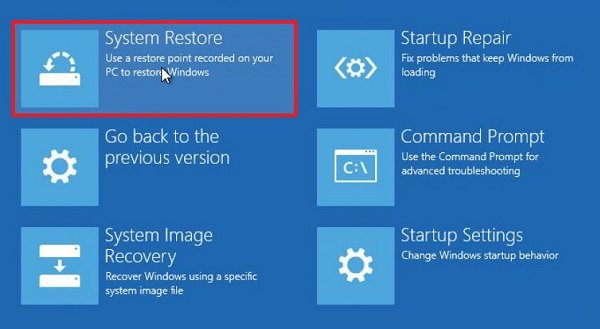
You can restore your system to the previous working state using System Restore. Enter the Windows Recovery Environment and navigate to Advanced Options > Troubleshoot > Advanced Options > System Restore. Select a restore point created before the issue started, when your system was working properly, and follow the on-screen instructions to complete the restoration process.
8] Reset your PC
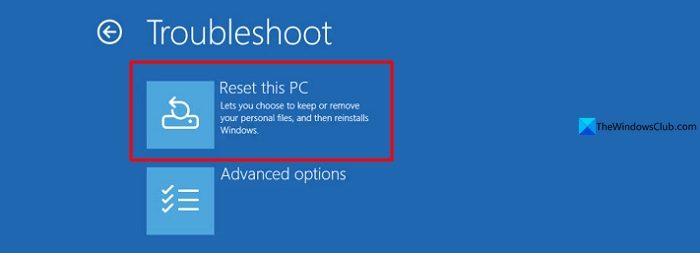
If nothing helps, the last resort is to reset your system to the factory defaults. While performing this action, select the Cloud download option instead of Local reinstall. The Cloud download option downloads Windows from the Microsoft server and installs it. Therefore, you need an active internet connection. If you do not want Windows to erase your personal files during the factory reset, select the Keep my files option. When you are in WinRE, select Advanced Options > Troubleshoot > Reset this PC.
9] Hardware fault
If the issue persists, your system may have a hardware fault. The problem may be with the CPU or the PSU. Take your system to a professional computer repair shop for further assistance.
That’s it.
Why does my computer randomly restart after I log in?
If your computer restarts after you sign into Windows, a startup program or third-party service may be causing this issue. Apart from that, the problem may also be with your system hardware. Get professional help for further assistance.
Read: Windows computer stuck restarting in an endless reboot loop
Why does my Windows PC crash after I log in?
If your Windows PC crashes after you log in, your system may have bad drivers. In most cases, it is the graphics card driver. Boot into Safe Mode with networking and download the latest GPU driver. Now, use DDU to perform a clean installation of the GPU driver. Another possible cause is hardware failure.
Read next: Integrated GPU is showing as Removable on Windows.
