
Is your Windows computer continuously restarting? Is your Windows 11 laptop restarting again and again? If your Windows 11/10 computer is stuck restarting in a continuous endless reboot loop problem after an Upgrade, a Windows Update, Reset, or a Blue Screen, then this post gives you some ideas on how to deal with the problem.
Windows computer stuck restarting in an endless reboot loop
Why is my computer stuck restarting?
Before your computer restarts, it may or may not display any message; and if it does, it could be any of the following:
- Failure configuring Windows updates, Reverting changes
- We couldn’t complete the updates, Undoing changes
- Automatic Repair fails, stuck in reboot loop
- Your PC will automatically restart in one minute.
So if your Windows computer restarts without warning and goes into a reboot loop here are a few things you could try. Please review all posts and the links provided, and determine which situation applies to you.
How do I get out of endless reboot loop in Windows 11?
Whatever the reason, your priority should be to try entering Safe Mode. If you can get into Safe Mode, great; else, you will have to use your Windows Installation Media.
First, let it reboot a couple of times and see if it resolves itself. At times, Windows may automatically display the Repair Windows option or start Automatic Repair automatically after 3 restarts. But if it continues to reboot, try these suggestions.
1] Rebooting continuously after installing Windows Update, Driver or Program
If you are on a dual-boot system, things are a bit easy. In the dual-boot OS selection screen where you select the OS to boot into, you will see a Change defaults or choose other options.
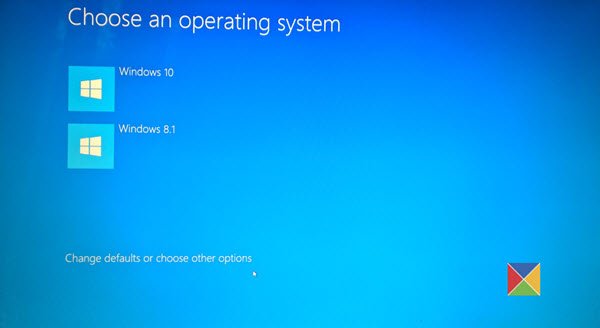
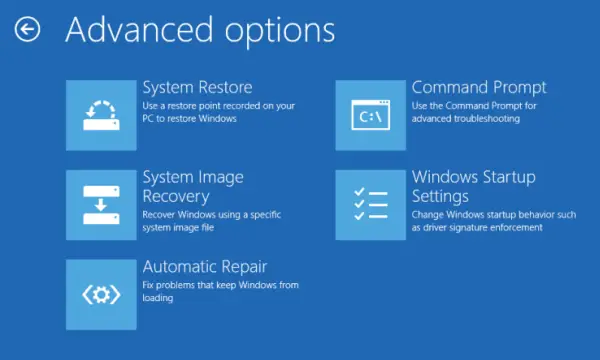
Select it, then Troubleshoot > Advanced options > Windows Startup Settings.
When Startup Settings open, press 4 on your keyboard to select the Enable Safe Mode option.
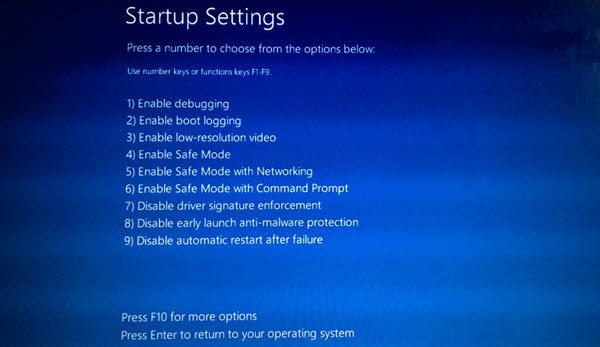
This will reboot your PC into Safe Mode.
If you have only a single operating system installed on your computer, then you need to find a way to boot Windows in Safe Mode. The options include:
- Press Shift and click Restart to boot you into the Advanced startup options screen
- Open Settings > Update & Security > Recovery > Advanced startup > Restart now.
- Type
shutdown /r /oin an elevated CMD prompt to reboot your computer into Advanced Boot options or Recovery console.
If you had already enabled the F8 key earlier, things are easier as you press F8 while booting, to enter Safe Mode.
If you cannot enter Safe Mode, then you may then have to boot into Windows 11/10 with your Windows Installation Media or Recovery Drive and select Repair your computer to enter Troubleshoot > Advanced Startup Options > Command Prompt. You can now use CMD to run commands. You may use a Windows 11/10 DVD or a bootable USB drive, or you can burn Windows ISO to a USB drive using another computer.
Well, in either case, once you have got out of the reboot loop and entered Safe Mode or accessed the Advanced Options, you have the following options:
If you entered Safe Mode you may:
- Open Control Panel > Programs and Features > View installed updates. Here you may uninstall the offending update (including the feature upgrade) which you may have installed recently, just before your problem started. If you installed any program, you may uninstall it too.
- You can use the Command Prompt and execute
wusa /uninstall /kb:1234567 /quiet /norestart. This will uninstall the Windows Update KB number. - If you recently updated your device drivers and now find that your Windows restarts continuously, you might want to troubleshoot your Driver problems or consider rolling back your driver to the earlier version.
The following options are available to you if you have entered Safe Mode or accessed Advanced Startup options:
- Run Command Prompt as administrator. In the CMD box that appears on the computer screen, enter the following strings of text, one at a time, and hit Enter.
net stop wuauservnet stop bits- Now browse to the C:\Windows\SoftwareDistribution folder and delete all the files and folders inside.
- Restart your computer. It should be able to boot to the Desktop.
- Windows 11/10 users may perform an Automatic Startup Repair.
- Use System Restore to restore your computer back to a prior good point.
- Repair MBR using the CMD prompt and
bootrec. - Reinstall Windows.
If you wish, you can also prevent Windows from restarting after Windows Updates by using the Group Policy or Registry Editor.
2] Continuous restart due to Hardware failure
Hardware failure or system instability can cause the computer to reboot continuously. The problem could be the RAM, Hard Drive, Power Supply, Graphics Card or External devices: – or it could be an overheating or BIOS issue. This post will help you if your computer freezes or reboots due to Hardware issues. You will need to be in Safe Mode to make changes.
TIP: This post will show you Reset Windows 11 using Advanced Startup Options when PC won’t boot.
3] Reboot after Blue Screen or Stop Error
To prevent a software or driver issue from restarting your computer repeatedly after a Stop Error, do the following. You need to do this so you can read the error code, which can help you troubleshoot the issue. You will need to be in Safe Mode to make changes.
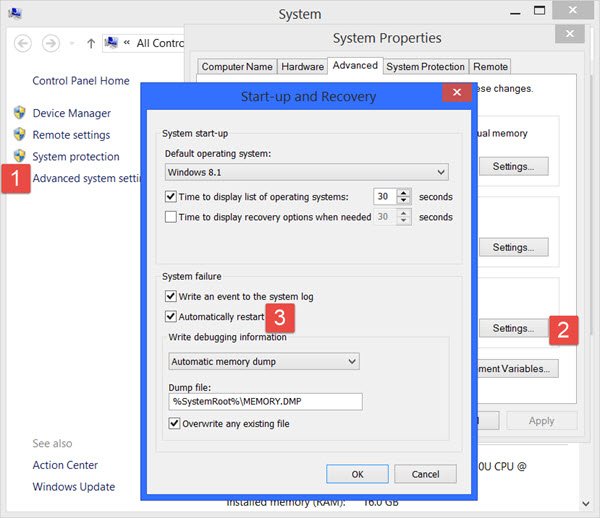
Using the WinX Menu of Windows 11/10, open System. Next click on Advanced system settings > Advanced tab > Startup and Recovery > Settings. Uncheck the Automatically restart box. Click Apply / OK and Exit.
Alternatively, open Registry Editor and navigate to the following key:
HKEY_LOCAL_MACHINE\SYSTEM\CurrentControlSet\ControlCrashControl
Here create or edit a DWORD named AutoReboot, and set its value as 0.
Now if your Windows were to crash due to a Stop Error, it will not restart the computer but will display the error message, which can help you troubleshoot the Blue Screen.
Read: Windows PC stuck in boot loop after BIOS update
4] Reboot loop after an Upgrade
This post will help you if Windows Upgrade fails and goes into a restart loop.
5] PC stuck in boot loop after Factory Reset
If Windows is stuck in a boot loop after a factory reset, enter Advanced Startup Options and select Automatic Startup Repair. If this does not help, Hard reset your PC, Reset your BIOS or use the Factory Reset option again. If nothing helps, you will have to perform a clean install of Windows from a bootable USB drive.
Malware or virus infection could also be a possible cause for your computer restarts. Deep scan your computer with your antivirus software. You may want to also use a second-opinion on-demand antivirus software to scan your Windows, just to be doubly sure.
Useful read: This post shows you how to access Safe Mode or Advanced Startup Options when Windows is stuck on loading some screen with the spinning dots animation moving endlessly, welcome mode, login screen, starting Windows, or will not boot.
My PC is restarting again and again Windows 11
If your Windows 11 PC is restarting again and again, check for Overheating and ensure that the fans are working fine. Make sure there is enough air circulation around your device. Check your Power Supply Unit (PSU) for any issues. Check the RAM. Disable Automatic Restart on System Failure to identify the error. Run the System File Checker and update device drivers. You need to check if this happens in Clean Boot State or Safe Mode. If it does not, then manually identify the offending process and disable it. You may also perform a Hardware Clean Boot and see if the issue persists.
