
If you want to reset Windows 11/10 using Advanced Startup Options when the PC won’t boot, this guide will help you do that. There are multiple ways to access the Advanced Startup Options, but most are only available when you can sign in to your user account. However, this guide will help you open the same menu when you cannot log in to your account.
Since Windows 10, Microsoft has included a user-friendly option to reset the computer and restore factory defaults in moments. It is possible to reset Windows using Advanced Startup Options. However, you need to open Windows Settings to access the panel that displays these options. To open the Windows Settings panel, you must sign in to your user account.
All these things are possible when your computer is turning on. What if your Windows PC is not booting or starting at all? If it is going into a reboot loop instead of displaying the login screen, you cannot enter the password to sign in to your account. In such situations, you can follow this step-by-step guide to reset Windows 11 when your PC won’t boot.
Reset Windows 11 using Advanced Startup Options when PC won’t boot
To reset Windows 11/10 using Advanced Startup Options when the PC won’t boot, follow these steps:
- Shut down your computer.
- Press the power button to start.
- Re-shut down your PC.
- Repeat these steps twice or thrice.
- Select the Troubleshoot option.
- Choose Reset this PC.
- Select Keep my files or Remove everything.
- Choose Cloud download or Local reinstall.
- Select Reset option.
To learn more about these steps, continue reading.
As the Advanced Startup Options is not accessible directly, you need to use the indirect method. To do that, you must restart your computer 2 to 3 times in a row. After that, you can automatically find the Advanced Startup Options on your screen.
Then, use the up and down arrows to select the Troubleshoot option and press the Enter button.
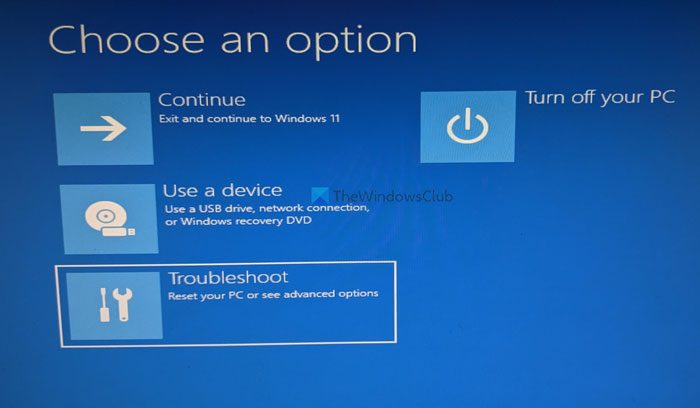
Select the Reset this PC and hit the Enter button.
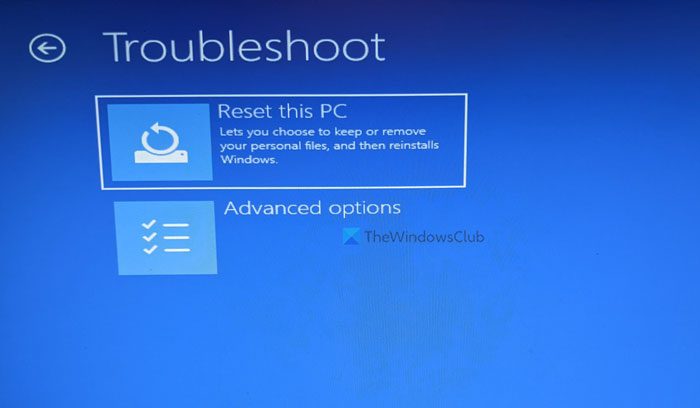
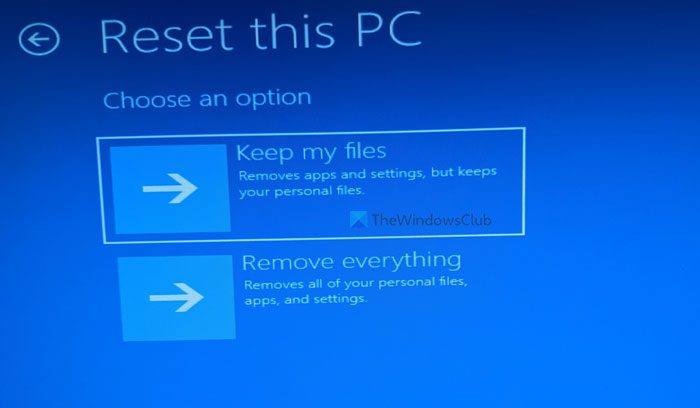
Next, you can find two options –
- Keep my files
- Remove everything.
If you want to keep your files but want to reset other settings, choose the first option. Otherwise, select the second option.
Then, you have another two options –
- Cloud download
- Local reinstall.
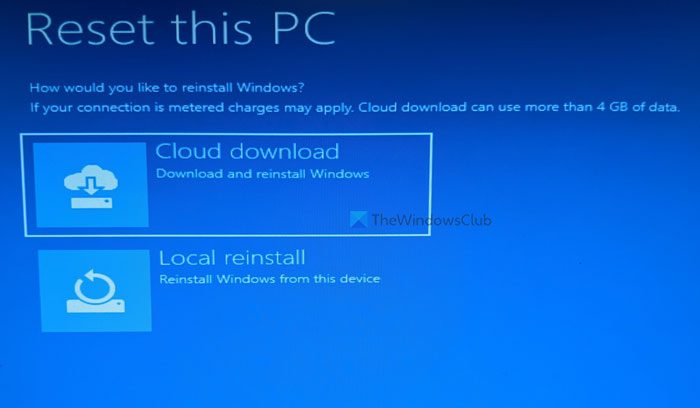
You can learn more about Cloud Reset from this article in detail.
Then, choose the desired option and select the Reset button.
Once done, your computer will take some time to reset everything as per your requirements.
Hope this guide helped.
Read: How to recover files when Windows computer won’t boot.
How do I get to Advanced Boot Options in Windows 11?
There are multiple ways to get to Advanced Boot Options in Windows 11 and Windows 10. However, the easiest method is to use the Windows Settings panel. However, if your computer does not boot up, you need to follow the aforementioned guide. That said, you can restart your computer 2 to 3 times in a row to see the Advanced Startup Options on your screen.
Read: Windows does not boot after compressing System Drive
How do I restart my computer from Advanced Startup?
If you have opened Advanced Startup Options on Windows 11/10 and want to return to the original boot screen, you need to restart your computer. Although it is possible to go back using the given options in some cases, you might not find the same all the time. At such moments, you can press the Restart button on your computer to get the job done.
Read: Windows computer won’t boot after power outage
How do I restore my computer to factory settings in Windows 11?
You can restore your computer to factory settings using the Windows Settings panel. For that, open Windows Settings go to System > Recovery > Reset this PC. Click the Reset PC button and choose the options according to your requirements.
