
If your Windows computer does not boot normally but instead displays a red warning box saying Secure Boot Violation, Invalid signature detected, Check Secure Boot Policy in Setup then this post will help you.
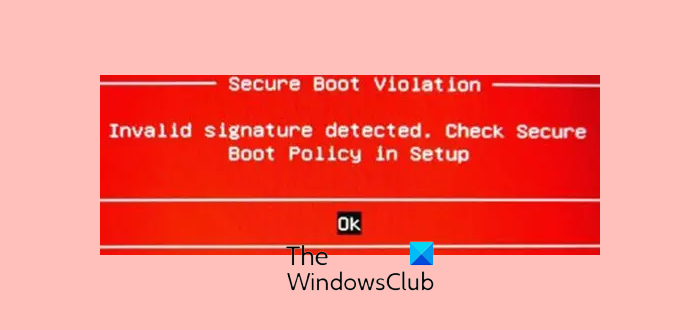
The SECURE_BOOT_VIOLATION error has a value of 0x00000145. This indicates that the secure Boot policy enforcement could not be started due to an invalid policy or a required operation not being completed.
What does Invalid Signature mean?
This problem occurs when you install non-OEM signed boot software, which starts at boot time. If you installed a custom OS, dual-boot setup, or modified bootloader (like GRUB), Secure Boot may reject it. In plain terms, Secure Boot is blocking a driver, bootloader, or operating system file because it doesn’t look “trusted.” Many people have faced this issue on various laptops from MSI, Dell, HP, Lenovo, ASUS, Samsung and others.
Secure Boot Violation, Invalid signature detected in Windows 11
To resolve this Secure Boot Violation, Invalid signature detected, Check Secure Boot Policy in Setup error, you need to check or disable Secure Boot, disable Driver Signature enforcement and update BIOS/UEFI. These suggestions have been explained in detail.
1] Check or Disable Secure Boot
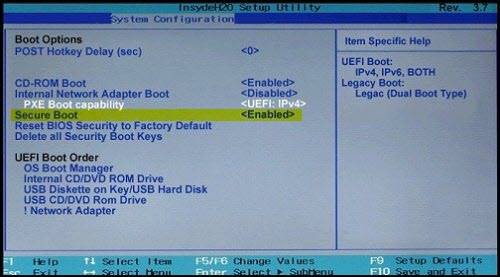
Secure Boot is an essential security layer that blocks non-OEM signed boot software from running at the startup.
First, check Secure Boot Mode settings. If it’s set to Custom, switch to Standard or Default. If keys are missing, use the option to “Restore Factory Keys.”
However, if you know what you are doing with the non-signed software, you can disable Secure Boot. You can find an option in the BIOS.
Do note that disabling Secure Boot makes the computer that much ‘less secure’, so use it only as a temporary measure.
Also note that after disabling Secure Boot and installing other software and hardware, it may be difficult to re-activate Secure Boot without restoring your PC to the factory state.
Read: The system found unauthorized changes on the firmware, operating system or UEFI drivers.
2] Disable Driver Signature enforcement
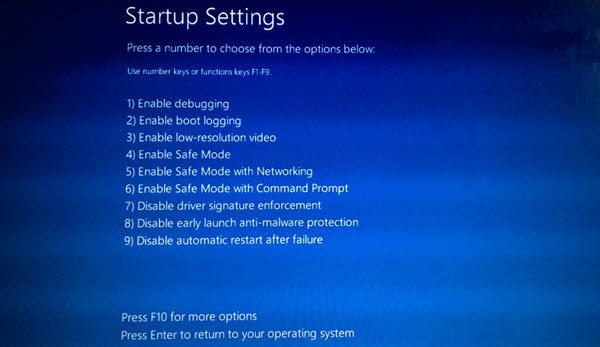
If you have installed a non-digitally verified driver, you may see this warning message on your Windows computer.
The solution is to disable Driver Signature enforcement and check whether the issue persists. You can disable it from Advanced Boot Menu or use a Command Prompt.
3] Update BIOS/UEFI
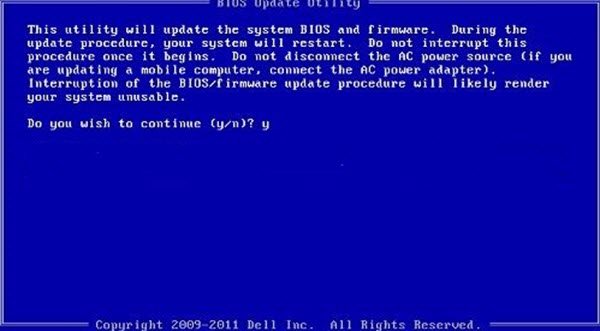
You should update your firmware and see if that helps.
If the problem remains, you should contact the motherboard’s manufacturer for further assistance.
