
The old Secure Boot Certificates expired in June 2026. Microsoft is installing the new certificates through Windows Updates. Regular users just have to keep installing timely Windows Updates released by Microsoft to get the new certificates. There are multiple ways to check whether the latest certificates are installed on your Windows system. One of these ways is via the UEFI2023Status in Registry Editor. For some users, the UEFI2023Status key is not showing status as Updated. Instead, it shows the status as In Progress or Not Started. If the UEFI2023Status registry value is stuck at In Progress or Not Started, this guide will walk you through the necessary troubleshooting steps.
UEFI2023Status stuck at In Progress or Not Started
The Registry key UEFI2023Status shows the status of the Secure Boot Certificates. If the UEFI2023Status key is stuck at In Progress or Not Started in Registry Editor, follow the suggestions provided in this article to resolve the issue.
The following instructions will help you understand this issue and the ways to fix it.
- Checking the Event Logs
- Understanding the Registry value UEFICA2023Status
- Checking the Windows Security Messages
All these steps are explained in detail below.
1] Checking the Event Logs
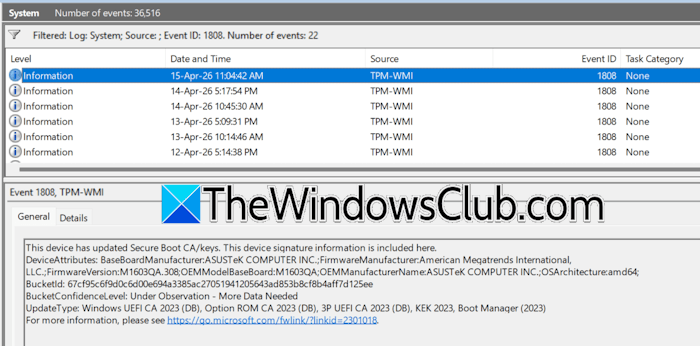
Windows 11 records different events, including errors, warnings, and updates, as logs. You can view all these logs in the built-in tool, Event Viewer. Event ID 1808 is recorded for the updated Secure Boot Certificates. This Event ID states that the device has the latest Secure Boot Certificates. Follow the steps provided below:
- Launch Event Viewer.
- Expand Windows Logs and select System.
- Click Filter Current Log on the right side.
- A new pop-up window will appear on your screen. Enter 1808 in the field that says <All Event IDs>.
- Click OK.
If the Event Viewer shows results for Event ID 1808, it means Windows has downloaded the latest Secure Boot Certificates on your system. However, the certificates have not yet been applied or installed.
2] Understanding the Registry value UEFICA2023Status
Now, let’s understand the Registry value UEFICA2023Status. Copy the following path, open the Registry Editor, and paste it into the address bar of the Registry Editor. After that, press Enter.
Computer\HKEY_LOCAL_MACHINE\SYSTEM\CurrentControlSet\Control\SecureBoot\Servicing
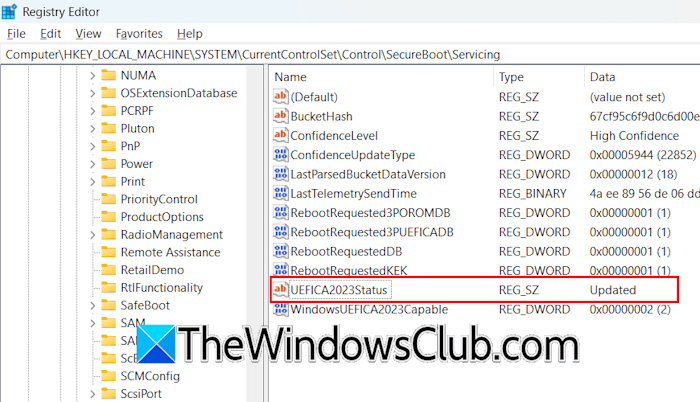
Make sure that the Servicing key is selected on the left side. Now, look for the value UEFICA2023Status on the right side. Its data should show Updated. If so, you do not need to worry anymore. However, if its Data shows any of the following messages, you need to troubleshoot further to know the underlying cause stopping Windows from installing the new Secure Boot Certificates.
- NotStarted
- InProgress
The NotStarted Data indicates that the update has not yet run, whereas the Data InProgress means that the update is actively in progress. If the UEFICA2023Status value shows InProgress, you do not need to take any action, as the update process is ongoing and its status will soon change to Updated. However, if you see NotStarted, initially, wait for a few days and see if it changes to Updated. If not, step into further troubleshooting.
Look for another value in the same Servicing key in the Registry Editor, WindowsUEFICA2023Capable. The Data of this value will show you the exact picture. The Registry Value WindowsUEFICA2023Capable shows any of the following three results:
- 0 or missing: Windows UEFI CA 2023 certificate is not in the DB (data base).
- 1: Windows UEFI CA 2023 certificate is in the DB (data base).
- 2: Windows UEFI CA 2023 certificate is in the DB (data base), and the system is starting from the 2023 signed boot manager.
The value 2 means that the system is using the new Secure Boot Certificates. Therefore, no action is required by the user. If the value is 1, the latest certificates are available in the database but have not yet been installed by Windows. Something might be preventing Windows from installing the new certificates. In this case, you can wait for a few days and see if the value changes from 1 to 2. If not, then further troubleshooting is required.
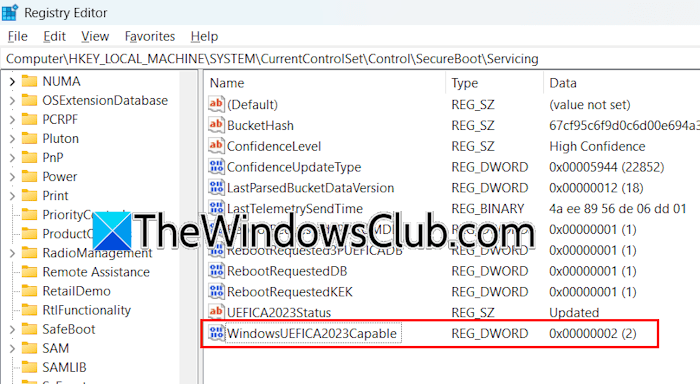
If the WindowsUEFICA2023Capable value shows 0 or is missing, it means the latest Secure Boot Certificates are not available in your system’s database. Now, one thing has been confirmed: Windows has not downloaded the new certificates yet. Further troubleshooting is required.
Now, check the Registry Value UEFICA2023Error. If everything is fine on your system, it should not exist or show 0 (if it exists). If the UEFICA2023Error value exists and shows a value other than 0, this means that your system has an underlying issue preventing Windows from downloading or installing the new Secure Boot Certificates.
3] Checking the Windows Security Messages
The last step is to check the messages displayed in Windows Security. Since the UEFI2023Status registry value is stuck at In Progress or Not Started, something might be preventing Windows from downloading or installing the new certificates. To confirm the exact underlying cause, open Windows Security and navigate to Device Security. Read the message displayed there. You may see one of the following messages there. Each message requires a different fix.
A] Secure Boot is on, but your device is affected by a known issue
The complete message is:
Secure Boot is on, but your device is affected by a known issue. To reduce risk, Secure Boot certificate updates are temporarily paused while Microsoft and partners work toward a supported resolution. The update will resume automatically once resolved.
If you see this message in Windows Security, the issue is not from your end. Microsoft has paused the download or installation of the Secure Boot Certificates for your device. Once Microsoft resolves the issue, the updates will be downloaded and installed automatically.
B] Secure Boot is on, but your device is using an older boot trust configuration
The complete message is:
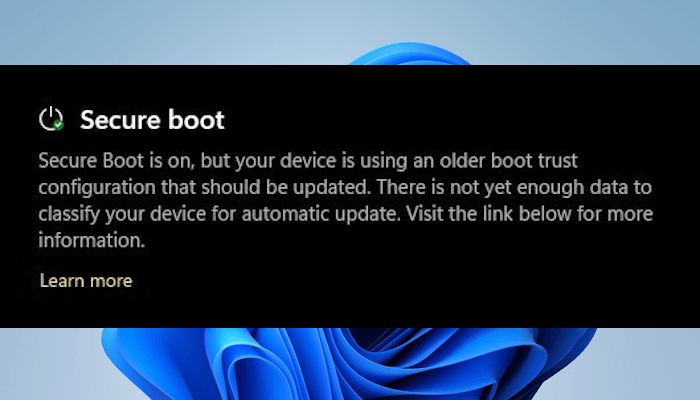
This message indicates that your device might need additional validation before the update can proceed automatically. In this case, you do not need to take any action. Wait for a few days and keep installing all the Windows Updates released by Microsoft. The new certificates will be automatically installed on your device, and the message in Windows Security will be updated accordingly. However, if the issue persists, you may need to contact your device manufacturer or check for a new BIOS version.
C] Your device does not support the automated Secure Boot certificate update
The complete message is:
Secure Boot is on, but your device does not support the automated Secure Boot certificate update due to hardware or firmware limitations. Contact your device manufacturer for assistance.
This is the issue where Windows cannot install new certificates due to hardware or firmware limitations. Either your firmware version is too old to support the new certificates, or your device has unsupported hardware. In this case, you have no option left but to contact your device manufacturer.
D] This device can no longer receive required updates
The complete message is:
Secure Boot is on, but this device can no longer receive required updates for the Windows boot experience.
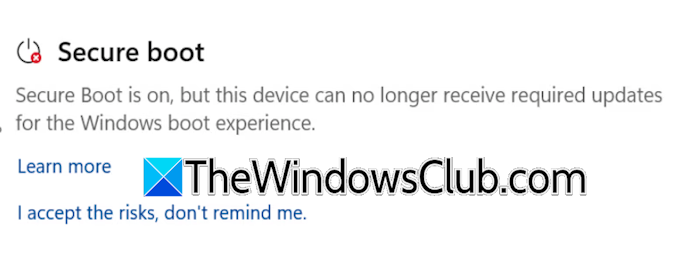
This message indicates that your device is using older certificates, and the new ones cannot be installed. This usually happens when your device’s firmware does not support new certificates. In this case, contact your device’s manufacturer to get BIOS updates. If your device manufacturer does not release a BIOS update, your device will unfortunately not receive the new certificates.
That’s it. I hope this helps.
How to ensure UEFI mode is active?
To ensure your BIOS is set to UEFI, open System Information and select System Summary on the left. You will see your BIOS mode on the right side. If it says “Legacy,” change it to “UEFI” in the BIOS settings. Before proceeding, make sure that your disk has the GPT partition style.
Why will my PC not boot in UEFI mode?
If your PC supports UEFI mode but is booting in legacy mode, the UEFI mode is not enabled in BIOS. Enter your BIOS settings and switch from legacy mode to UEFI, but before doing this, make sure that your hard disk has the GPT partition style. If it is MBR, convert it into GPT first.
Read next: What happens to older devices when Secure Boot Certificates expire?
