
The current set of Secure Boot Certificates will expire in June 2026. After that, users whose computers have the older certificates may encounter boot issues. Also, their devices will become vulnerable to Rootkits. That’s why Microsoft is installing the latest Secure Boot Certificates through Windows Updates. However, some users encountered the “Secure boot is on, but your device is using an older boot trust configuration” message in Windows Security. If you see this message in Windows Security, this article will guide you on what steps to follow.
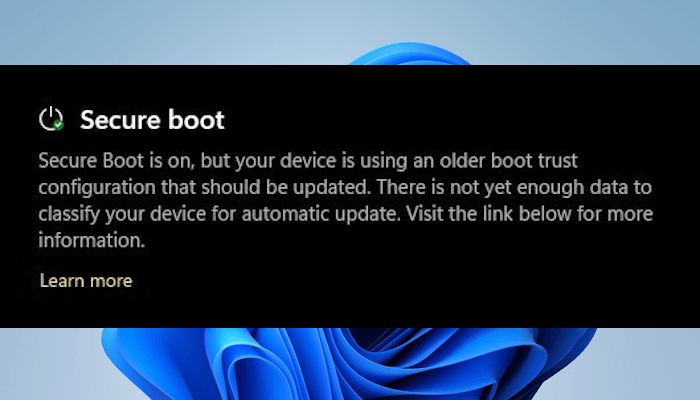
The complete message is:
Secure Boot is on, but your device is using an older boot trust configuration that should be updated. There is not yet enough data to classify your device for automatic update. Visit the link below for more information.
Secure Boot is on, but your device is using an older boot trust configuration that should be updated
Microsoft is installing Secure Boot Update Certificates on users’ computers through Windows Updates. There are multiple ways to check the Secure Boot Certificate Update status. These include running a script in the Administrator PowerShell window, searching for event ID 1808 in Windows Event Viewer, and using the Windows Security app. Some users, when checking the Secure Boot Certificate installation status in Windows Security, saw the “Secure Boot is on, but your device is using an older boot trust configuration that should be updated” message. What this message means, we will discuss in this article.
Most commonly, Windows Security displays one of the following messages regarding the Secure Boot Certificates:
- Secure Boot is on, and all required certificate updates have been applied. No further certificate changes are needed.
- Secure Boot is on, but your device does not support the automated Secure Boot certificate update due to hardware or firmware limitations. Contact your device manufacturer for assistance.
- Secure Boot is on, but this device can no longer receive required updates for the Windows boot experience.
Apart from the three common messages above, some users are seeing this message in Windows Security, stating that their device is using an older boot trust configuration and should be updated.
What does this message mean?
According to Microsoft, this message means your device needs additional validation before the update can proceed automatically. Hence, you need to wait for Microsoft to roll out certificate updates for your system. The Windows Security app relies on Microsoft’s cloud-side validation process to classify individual devices based on hardware model and firmware version. When the backend validation is finalized, Microsoft will install the Secure Boot Certificates on your device automatically, and the status for the same will be displayed in Windows Security.
It is also possible that the Secure Boot Certificates are available on your device but have not yet been applied to the firmware. If you launch Event Viewer and search for the Event ID 1808, you will see the following message:
Hence, no immediate action or a manual fix is required in such a case. Keep Windows up to date, and the message should disappear automatically after some time.
What steps should you take?
If you see the message “Secure Boot is on, but your device is using an older boot trust configuration” in Windows Security, you don’t need to take any action initially. Wait for a few days and keep installing Windows Updates. Check the status in Windows Security after a few days. If the new Secure Boot certificates are applied to your device, the message should be updated. However, if you still see the same message, you should install the latest firmware updates (if released by your computer’s manufacturer).

Open System Information and check the currently installed BIOS version. Now, visit your computer manufacturer’s official website and check for the latest BIOS version. If a BIOS update is available, download and install it. Ensure that the power supply is not interrupted during the BIOS update; otherwise, your motherboard may be damaged. After installing the BIOS update, check for and install the Windows Update.
For Windows 10 users, enrolling in the ESU program is mandatory. If you cannot enroll in the ESU program, you will not get the latest Secure Boot Certificates. In such a case, you will have only one option left: upgrade your system to Windows 11.
The following requirements apply to both Windows 10 and Windows 11 users to get the latest Secure Boot Certificates:
- Your device should be sending Diagnostic Data to Microsoft.
- Secure Boot is turned on in the BIOS.
- Enrolled in the ESU program (for Windows 10 users).
The last resort
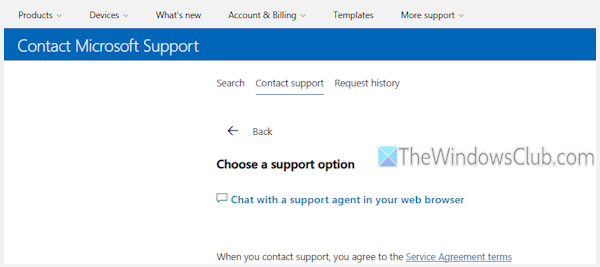
If you have tried everything explained in this article but Windows Security still does not show the updated message, your last resort is to contact your device manufacturer for further assistance. You can also contact Microsoft Support through Live Chat.
That’s it. I hope this helps.
How to fix Secure Boot being unsupported?
The Secure Boot Unsupported message means your system’s BIOS mode is set to Legacy. Check this in System Information. If it shows Legacy BIOS mode, switch it to UEFI.
Is TPM 2.0 the same as Secure Boot?
No, TPM 2.0 is not the same as Secure Boot. TPM 2.0 (Trusted Platform Module) is a hardware chip on a computer’s motherboard that securely stores cryptographic keys used for encryption and decryption. Secure Boot is a security standard designed to ensure a device boots only with software trusted by the OEM.
Read next: Event ID 1034 or 1036: Secure Boot DBX update applied successfully.
