
In this post, we will show you how to fix the error message, “Something went wrong, We can’t enroll you in Extended Security Updates right now“.
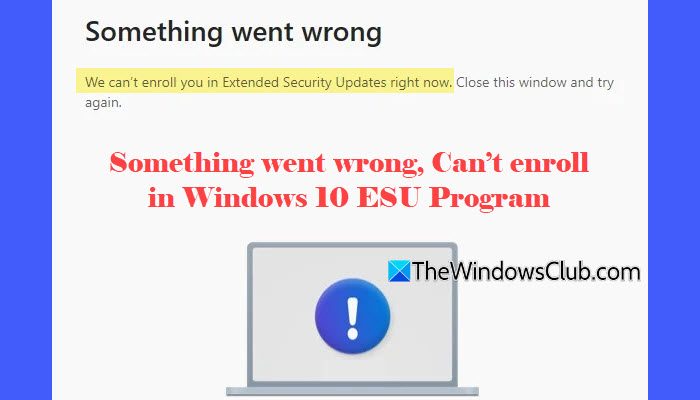
Microsoft has started rolling out ESU (Extended Security Updates) availability in Windows 10, allowing eligible Home and Pro users to continue receiving security updates after support ends. The enrolment option is now appearing in Windows Update for many people. However, some users are still unable to join the program. When they click the Enroll button, they see the following error message:
Something went wrong
We can’t enroll you in Extended Security Updates right now. Close this window and try again.
Even users who meet all the requirements are facing this issue, leading to confusion about what is causing the failure.
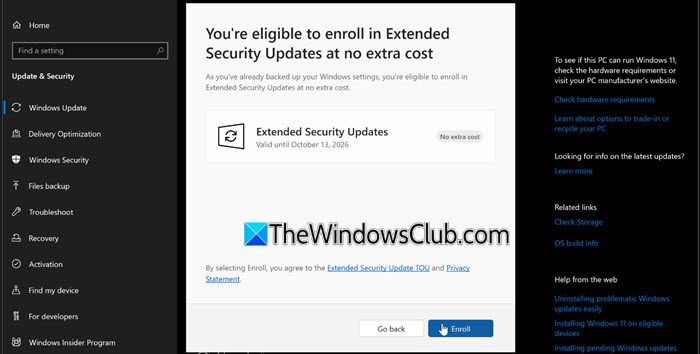
We can’t enroll you in Extended Security Updates right now
You may see this message for a few common reasons. Microsoft is rolling out ESU availability in stages across the European Economic Area. If you live in one of these regions, ESU may not be accessible to you right now. Windows may also treat your device as a work or school PC if it was ever linked to such an account. This blocks the consumer ESU path. Using a local account or an outdated Windows 10 build can also lead to the error.
Something went wrong, Can’t enroll in Windows 10 ESU Program
To fix the error message, “We can’t enroll you in Extended Security Updates right now” on your Windows 10 system, use these fixes:
- Install the out-of-band Microsoft patch (KB5071959)
- Enable “Find my device” in Settings
- Sign in with a Microsoft Account
- Make sure required Microsoft services are running
- Remove any Work or School accounts
- Create a new user account and link your MSA
Let us see this in detail.
Note: Before trying the fixes below, make sure your Windows 10 build and account setup meet all the required conditions for ESU enrollment listed here.
1] Install the out-of-band Microsoft patch (KB5071959)
Microsoft officially acknowledged that a bug in the ESU enrollment wizard was preventing eligible Windows 10 devices from joining the program. To fix this, they released an out-of-band update (KB5071959) on November 11, 2025. This update repairs the enrollment component that was causing the “Something went wrong” error. Many users confirmed that ESU enrollment started working after installing it.
Note: Before installing KB5071959, make sure your PC has the latest Servicing Stack Update (SSU). The SSU updates the component that installs Windows updates. If the latest SSU is missing, KB5071959 may not appear in Windows Update or may fail to install.
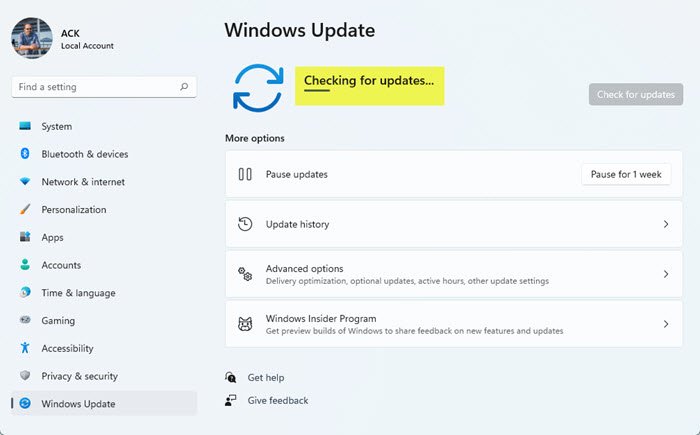
Press Win + I to open the Settings app. Go to Windows Update. Click Check for updates. If KB5071959 appears, download and install it.
Restart your PC and try the Enroll now option again.
2] Enable “Find my device” in Settings
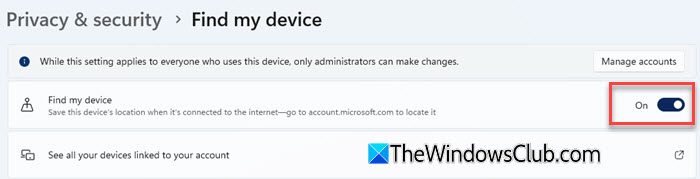
Some users found that ESU enrollment started working immediately after they turned on Find my device. This feature registers your device with your Microsoft Account (MSA), and enabling it forces Windows to refresh that cloud link. If the device isn’t fully registered with your MSA, the ESU wizard may fail with errors like “Something went wrong”.
Open Settings. Go to Privacy & security. Click Find my device. Turn the toggle ON.
Restart your PC and try the ESU enrollment again.
3] Sign in with a Microsoft Account
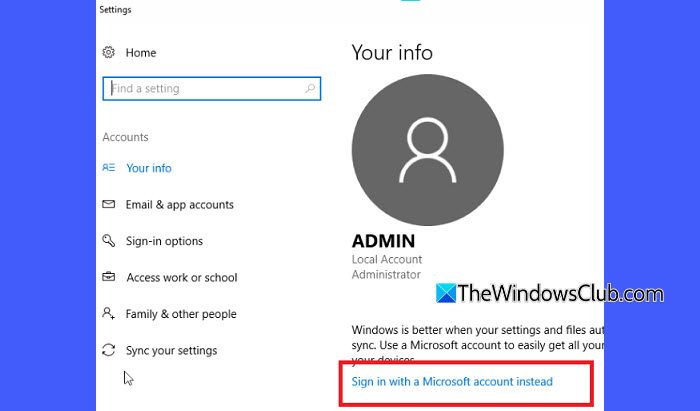
This fix works for many users who were unknowingly using a local account.
ESU enrollment only works when you are signed in with a Microsoft Account. If you use a local account, Windows cannot complete the device verification needed for ESU. Switching to an MSA ensures your device is properly linked in the cloud and eligible for enrollment.
Go to Settings > Accounts. Click Your info. Select Sign in with a Microsoft account instead.
Enter your Microsoft Account email and password. Restart your PC and try the Enroll now option again.
4] Make sure required Microsoft services are running
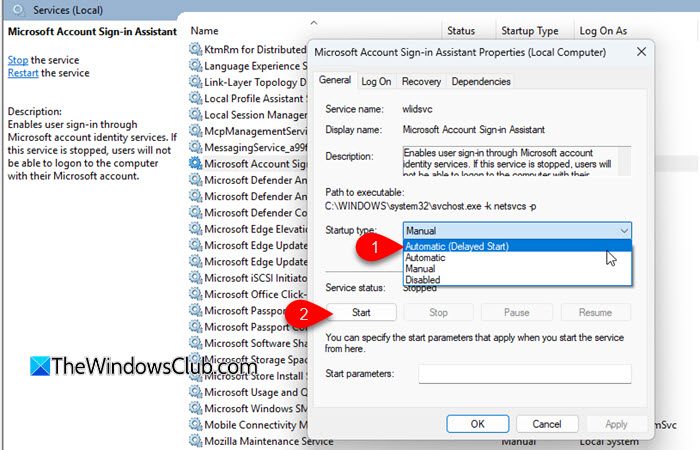
ESU enrollment may fail if certain account-related services are disabled. Two services in particular must be enabled for your device to verify your Microsoft Account correctly:
- Microsoft Account Sign-in Assistant
- Credential Manager
Press Win + R, type services.msc, and press Enter.
Find each service in the list. Right-click select Properties. Set Startup type to Automatic (Delayed Start). Click Start if the service is stopped.
Restart your PC and try enrolling again.
5] Remove any Work or School accounts
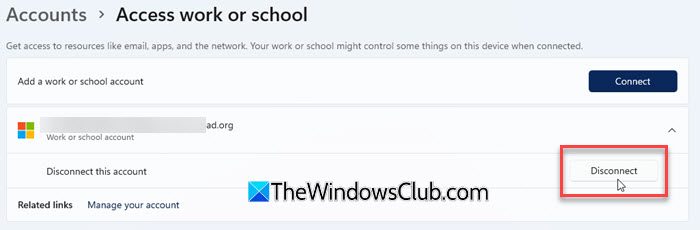
This fix worked for users whose devices were previously connected to a workplace, school, or even an educational email account.
ESU is meant for home users, so if your PC is linked to a Work or School account, Windows may treat it as a managed or enterprise device. When this happens, the Consumer ESU option is blocked, and the enrollment wizard may fail. Removing these accounts ensures Windows recognises your device as a personal/home PC.
Go to Settings > Accounts. Scroll down and select Access work or school.
If you see any organizational account listed, click it. Click Disconnect and confirm.
Restart your PC and try the ESU enrollment again.
6] Create a new user account and link your MSA
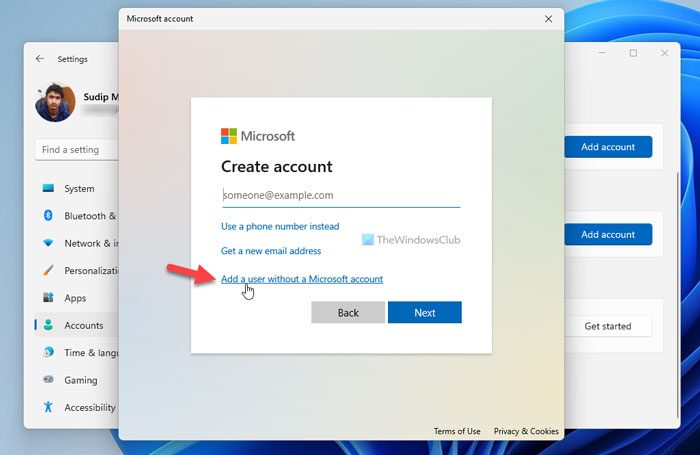
If none of the above fixes work, the issue may be caused by a corrupted user profile or incorrect account settings on the current Windows account. Creating a new local user account and then signing in with your Microsoft Account can reset these settings, enabling ESU enrollment to work correctly.
Note: While you can create a new Microsoft Account user directly, creating a local user first and then linking your MSA prevents carrying over any hidden profile data, cached tokens, or account settings from your old profile.
Open Settings > Accounts > Family & other users. Click Add someone else to this PC. Choose I don’t have this person’s sign-in information. Select Add a user without a Microsoft account and create a new local user.
Sign in to this new account.
Go to Settings > Accounts > Your info and sign in with your Microsoft Account.
Try the Enroll now option again.
I hope this helps.
Read: Windows 10 End of Support and Life – What you need to know.
How to enroll in ESU Windows 10?
To enroll in Windows 10 ESU, go to Settings > Windows Update and check for updates. If your device is eligible, you will see an Enroll now option. Sign in with your Microsoft Account and follow the on-screen steps to complete the registration.
Why can’t I get Windows 10 ESU?
If you can’t get Windows 10 ESU, it may not be available in your region yet, or your device may be tagged as a work or school PC. In some cases, the required Microsoft services or account permissions may not be enabled, which can also prevent enrollment. This post will help you fix the missing Enroll Now option in Windows 10.
Read Next: The risks of staying with Windows 10 after End Of Life.
