
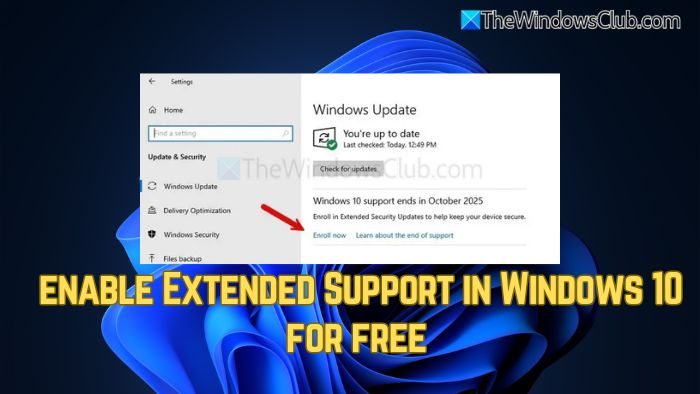
As a Windows 10 user, you probably already know that Microsoft is officially ending support for Windows 10 on October 14, 2025. So, to be on the safer side, you must upgrade to Windows 11. However, if your PC doesn’t support the Windows 11 requirements, then you must opt for Extended support. Although the extended support for Windows 10 is not free for commercial or business users, if you do have a personal computer, then here’s how you can enable and get Extended Security Updates (ESU) for Windows 10 free in Windows 10 for free. We will also show you how to purchase Extended Security Updates ESU program for Windows 10.
How to get Extended Security Updates ESU for Windows 10
The option to sign up for an ESU subscription is available to any PC running Windows 10, version 22H2, Home, Professional, Pro Education, and Workstation editions, with the latest update installed. However, Enterprise and Education editions are not eligible.
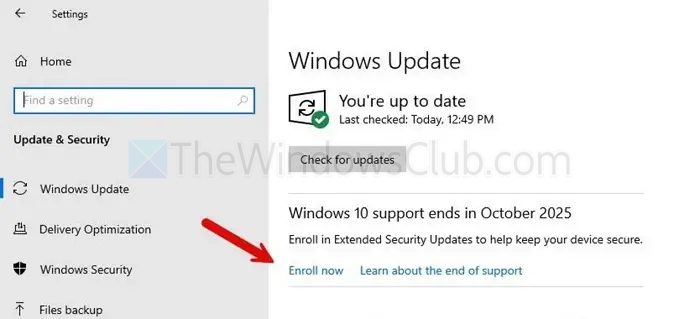
- First, press Windows Key + I to open Settings.
- Go to Windows Update and update your Windows if not already updated.
- Once updated, you should see an Enroll now option. Click on it.
- You will see the following options:
-
- Windows Backup (free)
- Microsoft Rewards points,
- Paid plan starting at $30/year for personal use.

- Select Microsoft Rewards Points to get the free subscription.
- Once done, you have successfully enrolled for the Windows 10 extended support
So, that was a straightforward way to enable extended support in Windows 10 for free. In case your PC isn’t eligible for the free subscription, you will be required to pay a one-time fee of $30 or upgrade your hardware to support Windows 11.
TIP: There is a free tool called Consumer ESU available on GitHub that automates this process. It is a PowerShell script that enrolls you in the Windows 10 Consumer Extended Security Updates (ESU) program via the free Backup option, with or without a Microsoft Account. Take a look at it in detail before you decide to use it.
What is the Windows 10 Extended Security Updates cost?
For personal computers, Windows 10 Extended Security Updates cost $30 USD (or local equivalent) plus tax for one year. However, you may be eligible to receive them for free by enrolling through the Windows Backup sync feature or by redeeming 1,000 Microsoft Rewards points.
How to purchase Extended Security Updates ESU program for Windows 10
To purchase the Extended Security Updates ESU program for Windows 10 for a commercial or business, reach out to a Cloud Solution Provider (CSP) partner. They will guide you through the CSP On-Premise purchasing process, which involves providing details such as your company name and the primary domain of your Microsoft 365 account. After the purchase is complete, an ESU enrollment link will become available in your Microsoft 365 Admin Center. Note that the updates themselves are not downloaded directly from the portal; instead, they are installed manually using tools like DISM, once you receive the activation key from your CSP.
This post will show you how to get Extended Security Updates (ESU) for Windows Server.
Windows 10 Extended Security Updates ESU FAQ
What is the Windows 10 Extended Security Updates eligibility?
To qualify for Windows 10 Extended Security Updates (ESU), your device must be running Windows 10, version 22H2, with all the latest updates installed. Additionally, you must be signed in using a local administrator account.
Will Extended Support provide new features or just security updates?
The extended support will strictly focus on maintaining system security and stability. It does not include any new features, interface changes, or performance enhancements. Instead, it provides essential security patches and critical updates that protect the device from vulnerabilities and malware.
When is the availability of Windows 10 Extended Security Updates in EEA?
Windows 10 users in the European Economic Area (EEA) can receive free Extended Security Updates (ESU) starting now until October 14, 2026. UPDATE: Microsoft has extended the Windows 10 Extended Security Updates program by one more year. It will now end in October 2027 for consumers.
Why might I not see the “Enroll Now” option and what should I do?
If the Enroll now option doesn’t appear after updating to Windows 10 version 22H2, first check that your PC is running a supported edition—Home, Professional, Pro Education, or Workstation. Make sure all updates are fully installed. If the option still doesn’t show, try checking for updates again or restarting your PC. Sometimes the option may not appear due to regional settings or temporary server issues. If the problem continues, visit Microsoft’s support site for help.
If I enroll in ESU, can I still upgrade my PC to Windows 11?
You can upgrade your PC to Windows 11 even if you have enrolled in the ESU program. Enrolling in an ESU program does not prevent users from upgrading their computers to Windows 11. However, your system should meet hardware requirements for Windows 11. There is a way to install Windows 11 on PCs with unsupported hardware but you will encounter issues if you do so.
When will I start receiving critical security updates with ESU?
Microsoft will start delivering critical security updates for all Windows 10 PCs enrolled in the ESU program after the last day of support for Windows 10. These security updates will be delivered through Windows Update once they are made available. If you do not get these updates, you can check for updates manually on the Windows Update page in Windows 10 Settings.
If I purchase ESU, how can I cancel my order or get a refund?
If you enrolled in the ESU program using a one-time purchase, you can cancel your order any time before 14th October 2025, the last day of Windows 10 support. After 14th October 2025, refunds will be processed in accordance with Microsoft’s digital purchase refund policy for your country. To learn more about refunds for eligible products, visit the Microsoft website.
Microsoft reward points are not eligible for return or exchange. Therefore, if you have enrolled in Windows 10 ESU by redeeming your Microsoft Reward Points, your reward points will not be returned.
Is ESU needed for all users on a single device?
ESU delivers critical security updates to an enrolled Windows 10 PC, regardless of the number of user accounts on that PC. Therefore, once a user on a Windows 10 PC enrolls in ESU, no additional users on the same PC need to enroll in ESU.
Do I need to purchase ESU for all my Windows 10 PCs?
One ESU license can be used on 10 different Windows 10 devices. To enroll a different PC, open Windows 10 Settings and go to Update & Security > Windows Update, and click Enroll now. Follow the on-screen prompts to add the device to ESU.
Can I enroll my child’s Windows 10 PC in ESU?
If your child’s device shows a message that it cannot be enrolled in ESU, his/her device is not eligible to be enrolled in ESU. In this case, you need to add a different user to your child’s computer. Open the Accounts page in Windows 10 Settings on your child’s device and add a new user with a Microsoft account. The account should be the administrator account, not a local account. You can also add your Microsoft account to your child’s computer. Now, log in to the new user account on your child’s device and follow the steps to enroll in ESU.
Are there any regional variations to the ESU program?
The ESU program may vary slightly by region. For example, people in the European Economic Area (EEA) may have different enrollment options or timing. However, the security updates are applied consistently across all the supported areas.
If the ESU program is not available in a particular region, what can users do to stay protected?
If the ESU is unavailable in your region, the best way to stay protected is to upgrade to Windows 11. However, if your system’s hardware is not compatible with Windows 11, you can purchase a new Windows 11 PC.
