
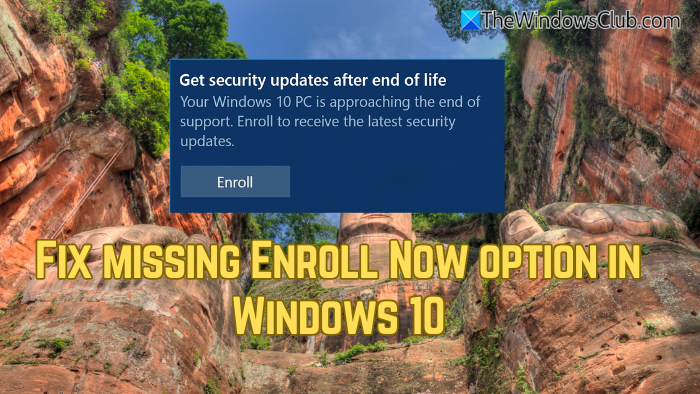
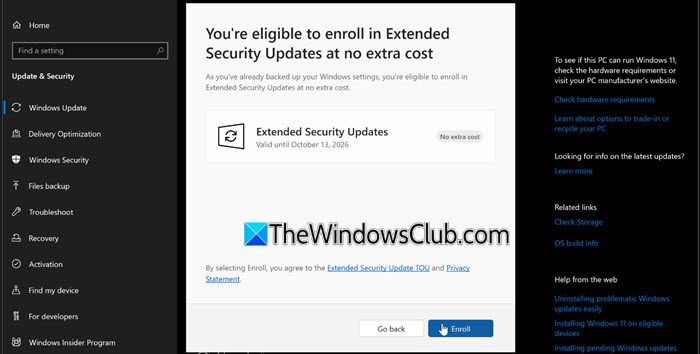
If you are using Windows 10, you should be aware that support for this operating system officially ended on October 14, 2025. This means Microsoft has already stopped providing essential security patches or bug fixes. But as there are many users who don’t want to upgrade to Windows 11 or whose PCs don’t support it, Microsoft is offering the ESU program to extend critical security updates until October 13, 2026, which you need to enroll in. But what if the Enroll Now option is missing or not showing in Windows 10? Well, we have discussed the solution below.
Windows 10 ESU enrollment requirements
First, you must ensure that you meet the enrollment requirements:
- Edition: Windows 10 Home, Professional, Pro Education, or Workstation.
- Version: Windows 10 22H2 with the latest updates installed.
- Profile: Microsoft account profile configured as an administrator. In case you are using a local account, you will be asked to sign in with a Microsoft account.
If you do not meet these requirements, you will not see the Enroll now button.
How to fix missing Enroll now option in Windows 10
If the Enroll Now button is missing or not showing in Windows 10, you can force Enroll now in Windows 10 ESU. Follow the suggestions below:
- Install the latest updates
- Force Enroll now in Windows 10 ESU manually
- Compatible Windows 11 PCs may not be eligible for ESU.
1] Install the latest updates
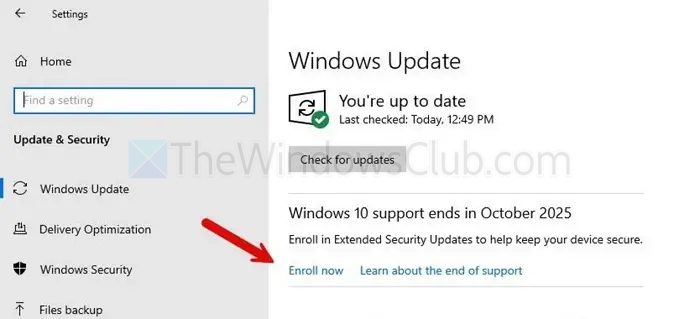
Microsoft is making the ESU available automatically to devices running Windows 10 22H2 with the latest cumulative update installed. All you have to do is update your Windows, and you should be able to see the option.
- Press Windows key + I to open Settings.
- Go to Updates & Security > Windows Update.
- Over here, toggle on Get the latest updates as soon as they’re available.
- Finally, click on the Check for updates button to download available updates.
2] Force Enroll now in Windows 10 ESU manually
If you are still not getting the enrollment option, you can force it. Here’s how:
- Go to Windows search, type CMD, right-click on it, and select Run as administrator.
- In CMD, run the following command to set the Connected User Experiences and Telemetry service to start automatically and press Enter:
sc.exe config DiagTrack start= auto
- Next, enable the DiagTrack service by running this command:
sc.exe start DiagTrack
- Now, run this command to add the following Registry key:
reg.exe add "HKLM\SYSTEM\CurrentControlSet\Policies\Microsoft\FeatureManagement\Overrides" /v 4011992206 /t REG_DWORD /d 2 /f
- Once done, restart your computer.
- Then open CMD as before.
Run the following command to enable the Extended Security Updates program:
cmd /c ClipESUConsumer.exe -evaluateEligibility reg.exe query "HKCU\SOFTWARE\Microsoft\Windows NT\CurrentVersion\Windows\ConsumerESU"
- Reboot your computer.
- Once done, check if you can spot the enrollment option or not.
3] Compatible Windows 11 PCs may not be eligible for ESU
According to some users, PCs that are compatible with Windows 11 may not be able to enroll in ESU. If your PC supports Windows 11, upgrading to it would be a good idea.
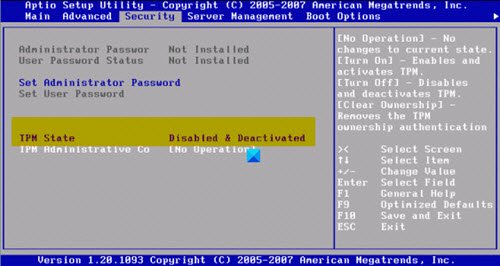
However, if you must use Windows 10 only, consider disabling TPM 2.0 in the BIOS. Do the following:
- Boot into BIOS (if unable, see Windows computer won’t boot to BIOS).
- Select the Security tab.
- Select the TPM option (if not available, see TPM missing or not showing in BIOS) and hit Enter.
- Now, select Disabled as the case may be.
- Press F10 to Save and Exit.
- Reboot your computer.
Restart your PC, check for updates and see whether you receive the enrollment option.
So those were a few ways to fix the missing Enroll Now option in Windows 10. To be on the safer side, upgrading to Windows 11 makes good sense. But if you’re only using Windows 10, the above methods should help you out.
Read: Can’t enroll in Windows 10 ESU, Something went wrong
Will Windows 10 devices enrolled in ESU still receive feature updates or quality-of-life improvements?
ESU (Extended Security Updates) only provides critical and important security patches. You will not receive new features, UI changes, or non-security improvements.Regular cumulative updates that include feature tweaks or non-security bug fixes will no longer be delivered after mainstream support ends.
Can organizations manage ESU enrollment using tools like Intune or Group Policy?
Yes, but with limitations. Businesses using Intune or Group Policy can deploy ESU-related configuration policies, monitor device eligibility, and confirm update compliance.
However, individual enrollment still requires each device to meet basic prerequisites, including a proper Windows version, Microsoft account sign-in (for consumers), and the required system services enabled.
