
If you are getting the “No Input Devices found” error or all your input devices have stopped working in Windows 11, here’s what you can do to troubleshoot the problem. Whether only one input device or all of them have stopped working, you can go through these solutions to fix the issue.
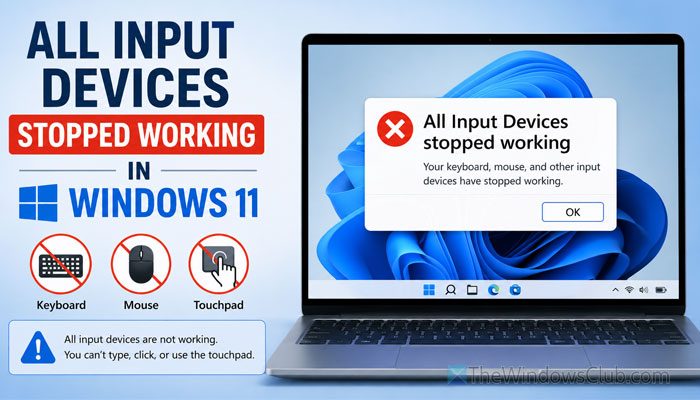
Why have all Input devices stopped working in Windows 11?
If all input devices have stopped working in Windows 11, one of these could be the reason:
- You have some issues with your USB hub or additional adapter.
- Your computer is attacked by malware/adware/ransomware.
- Some important services have stopped working, or they are not running in the background.
- BIOS has stopped working, or it is corrupt.
- Your motherboard has some issues detecting input devices.
Note: If you cannot access your external mouse or keyboard, try using the On-screen keyboard and built-in touchpad in case you are using a laptop. However, if you are using a desktop computer, it is better to contact the service center of your motherboard, as there is almost nothing you can do without a keyboard and mouse.
All Input Devices stopped working in Windows 11
If all input devices have stopped working in Windows 11, and you see No Input Devices found message, follow these solutions:
- Check your USB hub
- Check each hardware and reinstall drivers
- Verify Services
- Check BIOS settings
- Run PC in Clean Boot state and check if anything is working
- Run SFC and DISM
- Scan for malware.
No input devices found in Windows 11
1] Check your USB hub
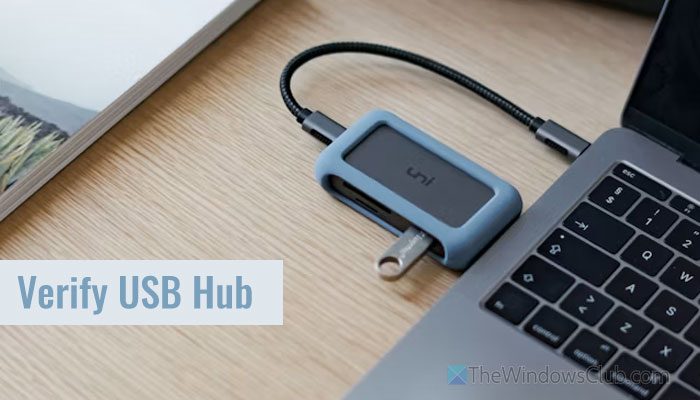
If you are using a USB hub and all your USB devices are connected to your computer through that hub, it is highly recommended to check whether the USB hub is working. There are countless cheap USB hubs available in the market that stop working after a few days. Even if you have a quality product, it is recommended to verify whether the external device is working.
You can simply connect it to another computer and use a USB device via that. If it is not working, it is time to change your USB hub. However, if it is working with another device, the rest of the solutions are for you.
Read: Generic USB Hub missing or not showing in Windows 11
2] Check each hardware and reinstall drivers
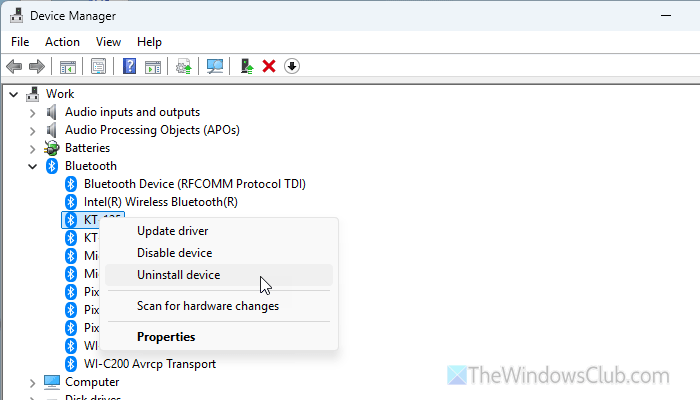
At times, this problem may belong to the actual hardware you are using. For example, if you are using a printer and the printer has some issues, you might not be able to connect it to your computer via USB. Similarly, the same problem may arise with a keyboard, mouse, or any other input devices. That is why it is suggested to check your hardware.
3] Verify Services
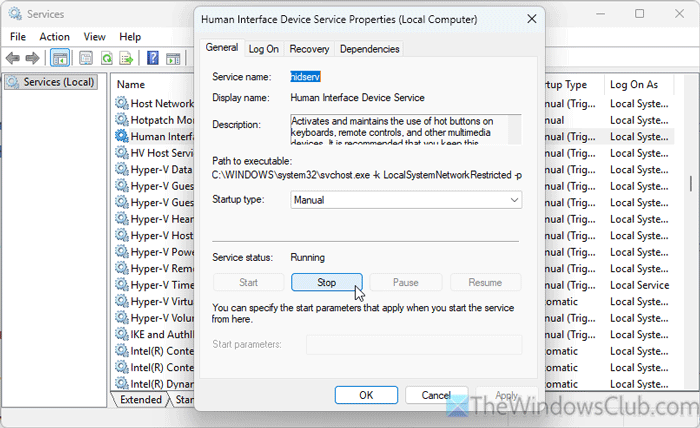
To have a smooth and error-free experience, some background services must be running all the time. Here are three services that are mandatory for every computer:
- Device Setup Manager
- Device Install Service
- Human Interface Device Service
All three of these services manage all the input and output devices and their connections with your computer. If any of these services is not running, you will encounter similar problems while using any hardware.
Therefore, follow these steps to verify whether these services are running. For that, press Win+R, type services.msc, and hit the Enter button.
Find those three services and check their status. If any of them are not running, double-click on it and click the Start button.
You can also restart those services. To do that, double-click a service and click the Stop button. Then, choose the Manual option from the drop-down list and click on the Start button.
Although it is not mandatory, it is suggested to restart your computer after restarting those services.
Read: Media Keys not working in Windows 11
4] Check BIOS settings
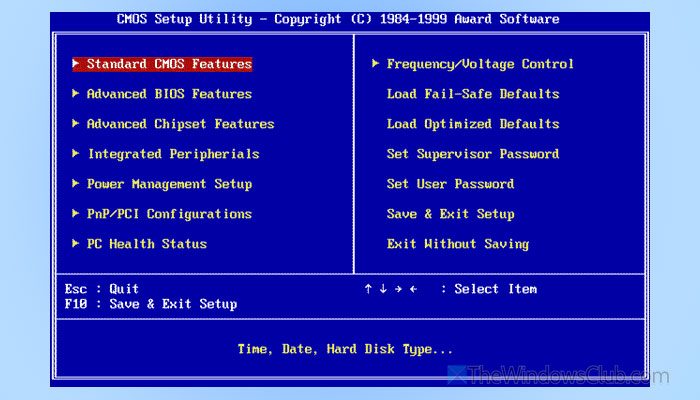
It is important to check your BIOS settings and input-output workflow in the BIOS. BIOS is the first thing you come across when you start your computer, though it is generally hidden. That is why it is suggested to check whether USB Legacy support, Fast Boot, etc. are disabled or not.
Also, it is very important to check if you use your keyboard and mouse in the BIOS or not. If not, you must visit the motherboard service center.
5] Run PC in Clean Boot state and check if anything is working
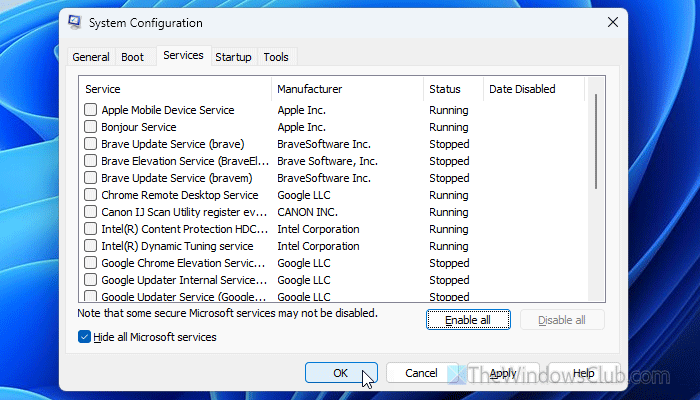
At times, this problem may arise due to corrupt drivers and some services. You can perform a Clean Boot and check whether you can use your input devices there or not. If yes, enable one service at a time to find out the culprit.
6] Run SFC and DISM
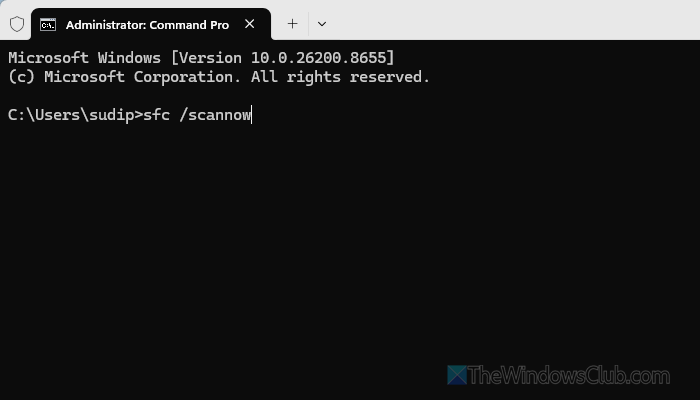
Although these take a lot of time, they are necessary since this problem may happen when there are corrupt system files. At such a point, your computer won’t be able to establish a connection with your input devices.
That is why you can simply run the System File Checker and DISM tool to fix this issue.
7] Scan for malware
There are many instances of having input devices blocked by ransomware on the internet. If the same thing happens to you, you may not be able to access your computer with standard input devices. That is why it is suggested to scan your computer for early instances of ransomware using these anti-ransomware tools. However, it is also recommended to scan your PC for adware.
Finally, if none of these aforementioned solutions worked for you, you can always use the Get Help app to run the respective troubleshooter.
Read: No audio input device found on Windows 11
How do I fix No input devices found in Windows 11?
To fix the No input devices found error in Windows 11, ensure that your Microphone is working. Check the privacy settings and verify the driver if you are using an external microphone.
Why is Windows 11 not detecting USB devices?
If Windows 11 is not detecting USB devices, there might be some driver-related issues. Also, if the HID service has stopped working, you will find the same problem. In that case, you can try reinstalling the driver and corresponding services.
