
Some users encounter the “Detected ATA/ATAPI Devices” error screen on system startup. This issue halts the boot process, preventing the computer from loading Windows and leaving users stuck at the POST screen. This error can result from a hardware upgrade, cleaning a PC, or a loose or faulty hardware component. If you encounter this error, use the fixes provided in this article.
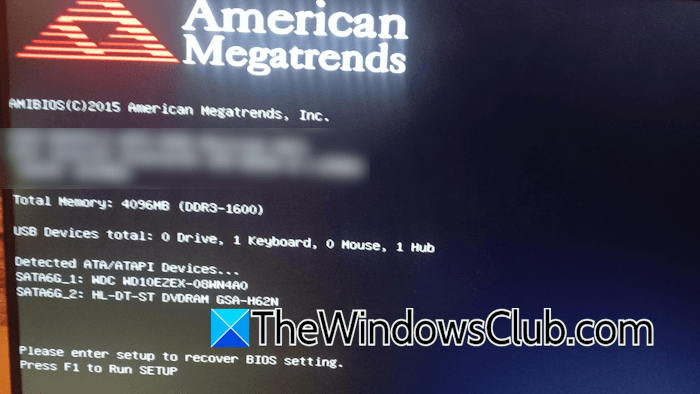
Detected ATA/ATAPI Devices on system startup
Use the following fixes if you are stuck at the “Detected ATA/ATAPI Devices” screen on Windows startup:
- Perform a hard reset
- Disconnect external hardware
- Check the SATA cable
- Replace the CMOS battery
- Disable overclocking (if applicable)
- Did you manually change the RAM speed?
- Test your RAM sticks manually
- Flash BIOS
All these fixes are explained in detail below.
1] Perform a hard reset
A hard reset usually helps with these types of issues. Try this and see if it works for you. The following steps will help you with that:
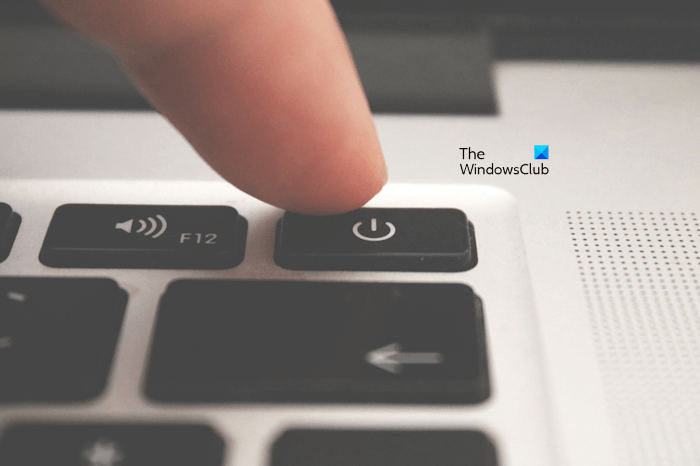
- Force shut down your computer by pressing and holding the power button. Release the power button.
- When your computer is off, disconnect all peripherals and the laptop charger.
- Remove the battery. If your laptop has a non-removable battery, skip this step.
- Press and hold the power button for up to 30 seconds.
Install the battery and turn on your laptop.
2] Disconnect external hardware
In some cases, a peripheral device may trigger this error. To verify this, disconnect all external hardware devices connected to your system and restart it. If the error doesn’t occur, one of the connected devices is causing the issue. The problem may also be related to a specific USB port.
3] Check the SATA cable
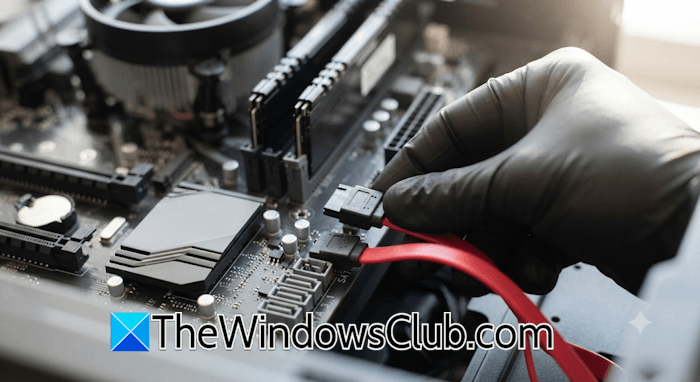
Another common cause of this error is a faulty SATA cable. To check this, you will need to open your PC case. First, make sure the SATA cable is securely connected. If the connection is fine, try replace the cable with a new one and check if the issue persists. You can also try connecting your hard drive to another available port.
4] Replace the CMOS battery
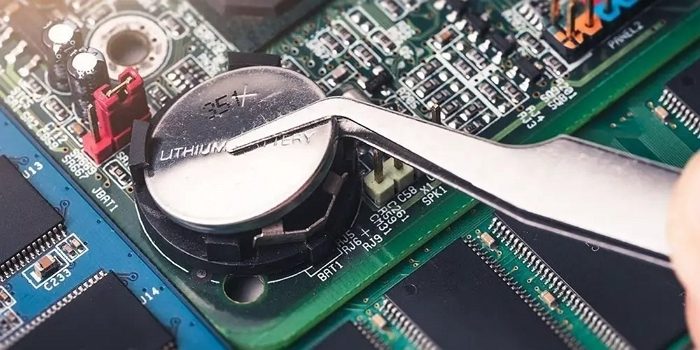
Your CMOS battery may be weak. However, this is less likely to cause this issue. A weak CMOS battery prevents the motherboard from saving BIOS settings, which can affect the boot order and other configuration settings. Open your computer case and locate the CMOS battery. Gently pull it out from the socket and install a new one. This step will reset your BIOS settings to the default. Before doing this, note your current BIOS settings so you can restore them if this fix doesn’t work.
5] Disable overclocking (if applicable)
If you have overclocked your CPU or RAM, that might be triggering this error. Overclocking a CPU or RAM can cause system instability and prevent the computer from completing the POST process successfully. To verify this, disable overclocking. If this works, you likely made a mistake while overclocking your RAM or CPU. Refer to your motherboard user manual and follow the instructions carefully to overclock your CPU or RAM.
6] Did you manually change the RAM speed?
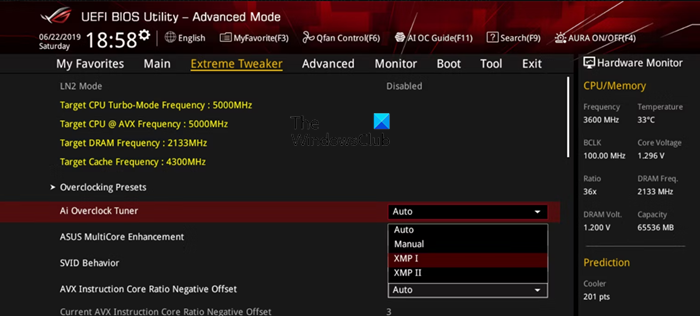
This is another mistake that some users make when overclocking their RAM. Manually setting the RAM speed can cause hardware instability and startup errors. The best practice for overclocking RAM is to always select the pre-built memory profiles. First, check whether the error occurred because you manually changed the RAM speed by reverting the changes in the BIOS. If that works, use the memory profiles to overclock your RAM.
7] Test your RAM sticks manually
Another possibility is a failing RAM stick. You can verify this by testing your RAM. Windows has a built-in tool to test the RAM, Windows Memory Diagnostic. However, you cannot use this tool in this case because you are stuck at the POST screen. Therefore, you need to test each RAM stick manually. For this, shut down your computer and unplug its power cable. If it is a laptop, disconnect its charger.
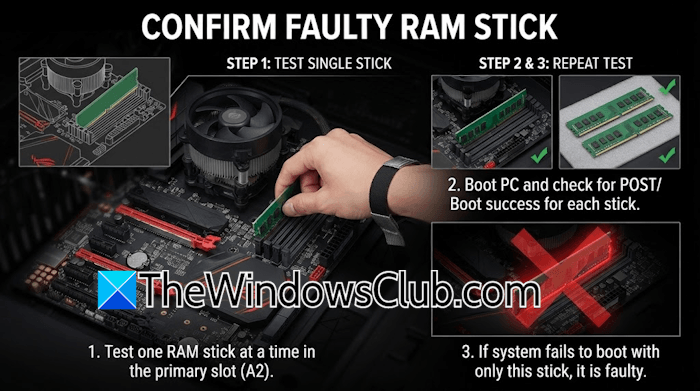
Open the computer case and remove all RAM sticks, leaving only one RAM stick installed. Turn on your computer. If the POST error does not occur this time, one of the RAM sticks may be faulty. Then test each RAM stick individually. When the POST error screen appears again, the RAM stick you have installed is faulty. Once you find the faulty RAM stick, consider replacing it.
8] Flash BIOS
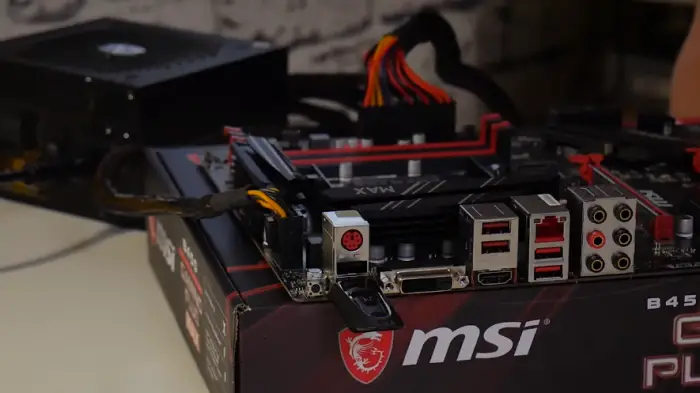
If the error occurred after upgrading a hardware component, it is suggested to update or flash the BIOS. If your motherboard supports BIOS flashing, this could fix the error. You will need a working computer to create a USB flash drive with the BIOS file. Refer to your motherboard user manual for the correct instructions to flash your BIOS.
That’s it. I hope this helps.
Why is my ATAPI device not found in Windows 11/10?
There can be many reasons why your Valid ATAPI Device cannot be found. Your system may have corrupted ATA/ATAPI drivers, making it difficult for Windows to detect the ATAPI devices. Sometimes, the issue occurs after a particular Windows Update. If that is the case with you, uninstalling that update can fix the problem.
How to fix ATA/SATA hard drive not detected in BIOS?
If your hard drive is not detected in BIOS, check for a loose connection. A loose connection is the most common cause. Misconfigured BIOS settings for ATA/SATA drives can also cause this problem.
Read next: M.2 SSD is not showing in Windows.
