
Some HP users encounter the “System has detected that a cooling fan is not operating correctly” error on system startup. The error appears during the Power-On Self-Test (POST) and may prevent the system from booting into Windows. In some cases, the laptop boots into Windows after several restarts but crashes a few minutes later, showing the same error message. If you encounter this error and cannot boot into Windows, the solutions provided in this article will help.
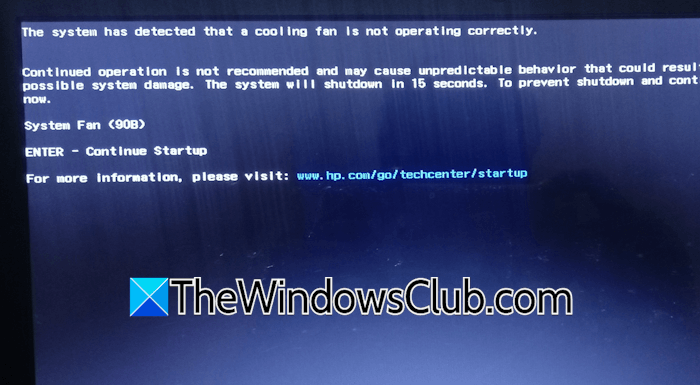
What does the error message “The system detected that the cooling fan is not operating correctly” mean?
The error message “The system has detected that the cooling fan is not operating correctly” means your system’s cooling fan has a problem. It may be stuck due to dust buildup or not spinning because a cable is loose or faulty.
System has detected that a cooling fan is not operating correctly
The “System has detected that a cooling fan is not operating correctly” message is a hardware error and indicates a problem with the computer fan. HP recommends not using the computer until it is fixed. If you encounter this error during system startup, use the following fixes:
- Perform a hard reset
- Clean your PC or laptop
- Check the cable connections
- Check your BIOS settings
- Reset BIOS
- Replace the fan
- Take your system for repair
All these fixes are explained in detail below.
1] Perform a hard reset
Since the error suggests a cooling fan issue, you need to check the fan manually. But before you open your laptop or computer case, perform a hard reset and see if it helps. A hard reset helps fix temporary power-related issues. Therefore, if the error is occurring due to power issues, it may help.
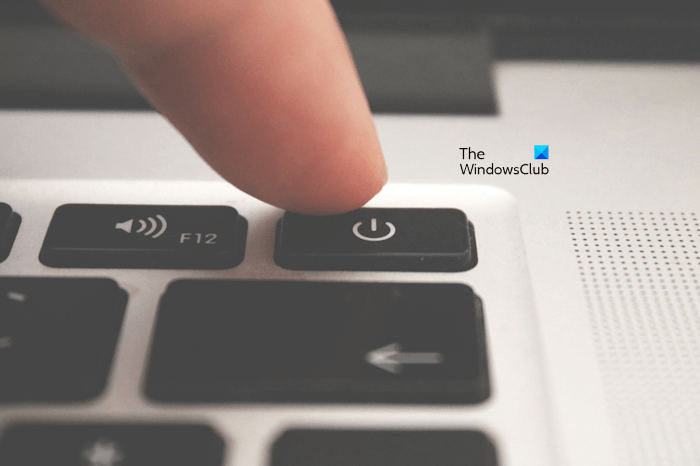
Follow these steps:
- Completely turn off your laptop or PC.
- Disconnect all peripherals, your PC power cord, and laptop charger.
- Remove your laptop battery. If it has a non-removable battery, skip this step.
- Now, press and hold the power button for 30 seconds.
- Connect the power cord or charger and turn on your system.
If that doesn’t help, the next step is to manually check the cooling fan.
2] Clean your PC or laptop
The error message indicates that your cooling fan is not operating properly. Therefore, you need to examine it manually. Over time, dust can accumulate inside your computer and obstruct airflow, making it harder for the cooling system to dissipate heat. Clean the air vents and cooling components periodically. Excessive dust buildup can also restrict the fan blades’ movement, potentially causing the fan to slow down or stop working altogether.
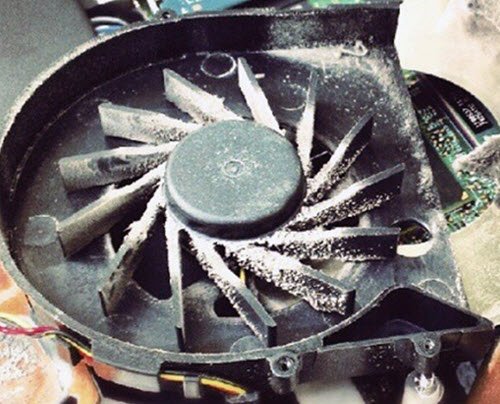
Open your computer case or laptop and clean it properly. You may need to disconnect the cooling fan to clean it properly. After cleaning it, install it correctly and turn on your system. If you are not good at this, it is better to get professional help.
3] Check the cable connections
If there is no dust buildup inside your computer, the cable connecting your fan to the motherboard may be faulty or loosely connected. Disconnect the cable and reconnect it. If possible, remove the fan and reinstall it. Now, turn on your system and see if the error occurs. If so, the cable might be faulty. To confirm this, use another cable to connect your cooling fan to the motherboard.
4] Check your BIOS settings
The BIOS has a setting that lets you enable or disable the cooling fan. By default, the cooling fan is set to remain ON always. If your cooling fan cable is not faulty and you have cleaned the system but the error still persists, check your cooling fan configuration in the BIOS. Use the right BIOS key to enter your HP BIOS and navigate to the page showing your cooling fan settings. If you do not know where it is, refer to your system’s user manual. You can download the user manual from the official HP website.
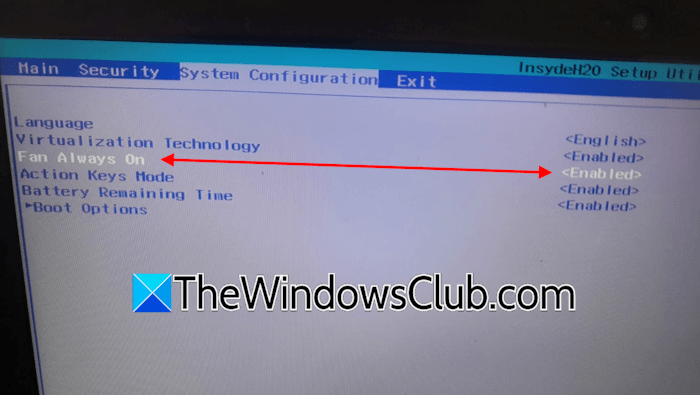
If the “Fan Always On” setting is disabled in your BIOS, enable it. In my HP BIOS, I found this setting on the System Configuration page. The steps may be different in your case.
5] Reset BIOS
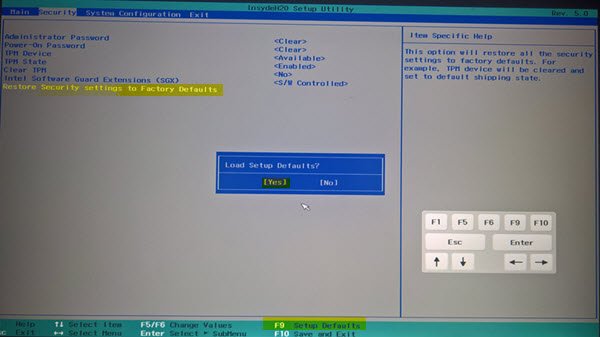
If the issue persists, some settings in your BIOS might have been changed. Resetting the BIOS to the factory defaults can fix the problem. Before proceeding, write down all the current BIOS settings, so you can restore them if resetting the BIOS does not help.
6] Replace the fan
As a last resort, replace the cooling fan. Purchase a new cooling fan compatible with your computer’s motherboard and install it. If you do not know how to do that, seek professional help.
7] Take your system for repair
If the error persists despite trying all the fixes above, another underlying hardware issue may be causing it. Take it to a professional computer repair shop for further assistance. If your laptop is currently under warranty, contact HP support.
I hope this helps.
Can a laptop survive without a fan?
No, a laptop cannot survive without a cooling fan. A fan is an important hardware component in all PCs and laptops because it helps dissipate heat generated inside the system. Without a cooling fan, heat doesn’t dissipate properly, leading to overheating.
Read next: How to clean and protect your Motherboard.
