
Today we will discuss some of the things you can do to protect your computer’s motherboard, which in turn, protects the components attached to it.
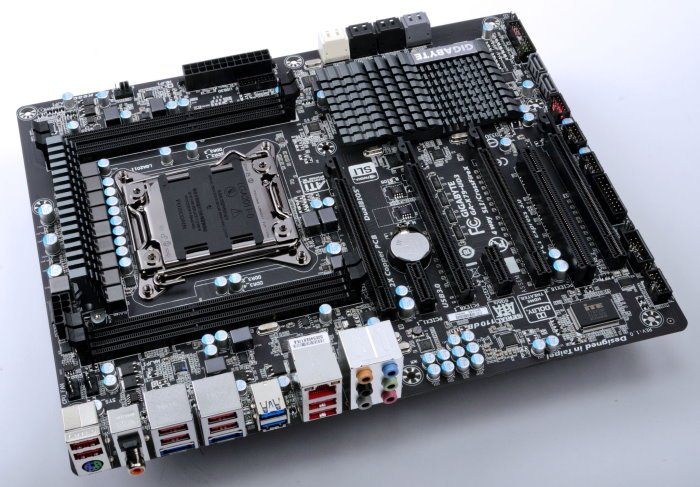
A damaged motherboard likely means the end of your computer in most instances; therefore, folks must always take precautions to make sure the motherboard stays safe at all times. Don’t forget that while the processor is the computer’s brain, the motherboard is the heart of it all. From our experience, most motherboards are sturdy and can take a beating. However, that doesn’t mean we can do whatever we want because several aspects of the motherboard are flimsy and should be treated with care.
How to clean and protect your Computer Motherboard
Protecting your motherboard should be a task of great importance; therefore, we suggest reading this article to learn a few tips to help you protect your computer motherboard. We also show you how to check for problems with your motherboard.
- Dust the ventilators
- Get a surge protector
- Look for short circuits
Let us talk about this in more detail.
1] Dust the ventilators
Laptops and desktop computers all come packed with ventilators for airflow. However, one should keep in mind that dust tends to get into these spaces, and when that happens, air no longer flows properly.
The best option is to clean the ventilation outlets thoroughly. If you have the means to pull apart the laptop, then take a look at the fan and clean that as well. The same goes if you own a desktop.
Once the vents are cleaned, we expect the heat to dissipate much better than before, which is a boon for your motherboard.
2] Get a surge protector
The motherboard is home to the power supply and everything else that makes your computer tick. Should a power surge take place, then chances are the motherboard will suffer some form of damage, and thus end the life of your computer.
Now, the only option would be to replace the motherboard with a new one, and in extreme cases, the processor and GPU as well.
If you want to learn how to protect your computer from outages and power surges, then read here to learn more.
Read: When should I upgrade my Motherboard?
3] Look for short circuits
You may not have known this, but short circuits do happen in computers, more so in desktops than in laptops. So, whenever you purchase a desktop computer or build your own, please check if the wires are wired properly.
Additionally, check if the motherboard is coming in contact with any exposed metal. Bear in mind that electricity passes through the motherboard each time it’s turned on, which means if exposed metal touches the device, then things could go haywire really fast.
Read: How to protect your Computer from Power Outages and Surges?
How to check for problems with your motherboard
Knowing if your motherboard is affected by an issue isn’t a straightforward affair, but we can guide you down the right path in hopes you’ll figure it out.
1] Greenlight
Did you know many motherboards come with a green light that can tell if there are problems? All you need to do is turn on the power supply, or PSU for short, and check if there’s a green light on the board. If not, then chances are something has gone wrong.
In some instances, the PSU might be the affected component, so check with a different PSU to make sure you’re on the right track.
If the green light is actually on yet you are still having problems, check components such as the CPU, GPU, and others. From there, boot the computer and attempt to fire up the BIOS.
If you are still facing a dilemma, we suggest checking the CMOS battery on the motherboard. If you have an old motherboard, the battery may need replacing. In some instances, you may even need to purchase a new motherboard altogether.
Read: Laptop Motherboard Repair
2] Beeping
Motherboards are smart because they come packed with a built-in self-diagnostic tool. Should an error occur, the motherboard will relay a series of beeps. To understand what they mean, please visit the manufacturer’s website for more information.
In short:
- Power down and unplug before touching anything
- Use compressed air to blow away dust gently
- Clean stubborn spots with a soft brush, never liquids
- Wear an anti‑static wrist strap to avoid shocks
- Keep your PC in a dust‑free, cool environment
- Avoid smoking or eating near your setup
- Regularly check for loose screws or cables
- Ensure proper airflow with clean fans and filters
- Handle components by the edges, not the circuits
- Schedule routine maintenance every few months.
I hope this helps!
