
When a laptop overheats, its performance suffers. It becomes slow, sluggish, and unbearable to work on. In this post, we address this issue and guide on how to fix an Overheating Windows Laptop.
What causes a laptop to overheat?
There are several reasons a laptop overheats, but the most common is improper ventilation. If your laptop is placed on a cushion, airflow will be hindered, which can cause it to run hot. Next, ensure that no redundant apps are running in the background. They will eat your resources and, as a result, heat your system.
How to fix an Overheating Laptop?
If you’re experiencing overheating on your laptop and want to resolve it, follow the tips, workarounds, and solutions outlined below.
- Keep your laptop clean and dust and debris-free
- Do not use unauthorized charge
- Kill redundant programs
- Buy a Laptop Stand or keep your laptop on a hard and flat surface
- Avoid using your laptop in a hot room
- Get a Laptop Cooler or Cooling Pad
- Update your BIOS
- Use Laptop Cooling Software
Before you begin, make sure that your Windows OS and all the installed programs and apps are update to their latest version.
1] Keep your laptop clean and dust and debris free
If your laptop constantly overheats, the first thing you need to do is clean it. You need to clean the vent and, if possible, the fan as well. The dirt can be easily cleaned using a thin brush. Make sure that you don’t damage your laptop in the process. Once it is clean, please take steps to maintain its cleanliness. This includes keeping it away from the window, not placing it on a dirty table, and more.
Related read: CPU Fan runs at full speed always.
2] Do not use unauthorized charger
If a laptop charger’s jack fits your port, it doesn’t necessarily mean that you can plug it in. Do not use a third-party charger to charge your laptop, this also includes not getting a charger from an unknown vendor. Doing so will not just damage your battery in the long run, but can also cause overheating.
3] Kill redundant programs
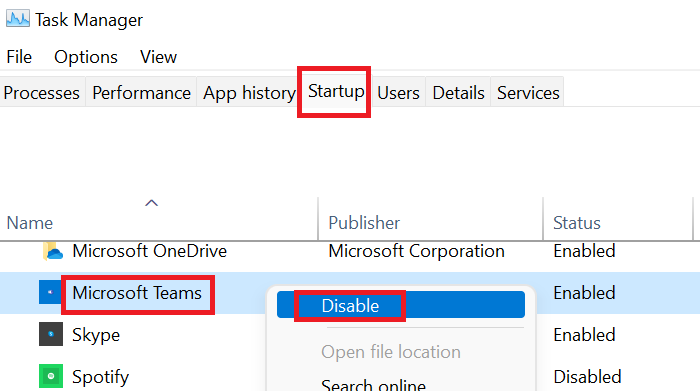
You need to ensure that no unnecessary applications are running in the background. For that, open Task Manager, and look for processes running in the background. If it is not essential and you do not need it, right-click on it and select Restart. Also, go to the Startup apps, go to the apps that will high impact, and then disable them. This way, they won’t launch at startup and keep your system clean.
4] Buy a Laptop Stand or keep your laptop on a hard and flat surface
It is recommended to purchase a laptop stand for your device and use it whenever possible. Laptop stands keep your device at the ideal angle, allowing your fan to run without hindrance. If you prefer not to use a stand, place your laptop on a hard, flat surface. Placing your laptop on a cushioned surface prevents proper ventilation.
Read: Tips to physically clean your computer, mouse, and keyboard.
5] Avoid using your laptop in a hot room
Understandably, using your laptop in a hot room will cause overheating. That is why you see most offices and even computer labs fully air-conditioned. Even if you have to work in a hot room, try to make your room a little cooler or sit at a slightly cooler place.
6] Get a Laptop Cooler or Cooling Pad

Laptop Coolers and Cooling pads are used to keep your device at optimal condition especially when running intensive tasks such as playing games, compiling graphic-intensive codes, or editing videos. You need to invest in a good-quality cooler, do not skip the quality, getting a bad one will be counterintuitive.
Read: How to check the GPU Temperature in Windows
7] Update your BIOS
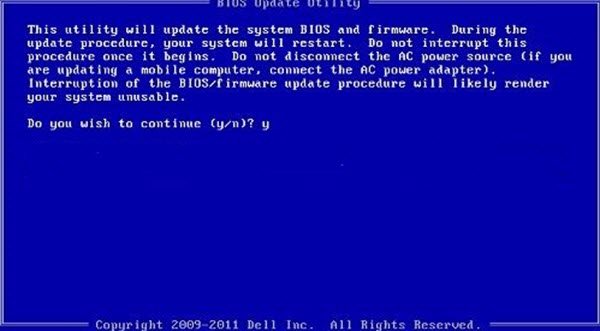
Keeping your BIOS up to date will not only eliminate overheating issues but also resolve any other BIOS-related problems. When you update your BIOS, the fans run more efficiently, reduce CPU load, and handle other system tasks more effectively.
Read: Windows Laptop overheats in Sleep Mode
8] Use Laptop Cooling Software
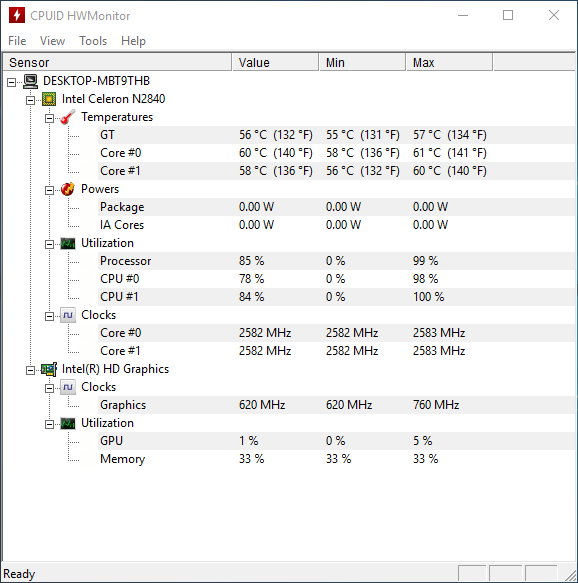
We have a list of some of the best cooling software that you can install and deploy to keep your device’s temperature in check. They will control your fan and other background processes to do this job.
Hopefully, you can keep your device cool with these tips.
Read: System Cooling Policy missing in Power Options of Windows
Windows laptop overheating and shutting down
If your Windows laptop is overheating and shutting down, clean the vents and fans using compressed air to remove dust that may be blocking airflow. Change the Power settings to limit the maximum processor state to 70–80%. If the issue persists, consider using a cooling pad. Apart from following the suggestions in the post, you may also have to check your RAM and Motherboard, as any fault in them can cause a laptop to overheat and shut down.
Read: Laptop is overheating when charging.
Laptop overheating after replacing thermal paste
If your laptop is overheating after replacing the thermal paste, it could be due to improper application or poor contact between the heatsink and CPU/GPU. Using too much or too little paste can hinder, rather than improve, heat transfer. Make sure the surfaces are cleaned thoroughly before reapplying. Also, check if the cooling fans are functioning properly and the airflow isn’t obstructed.
Can you fix an overheated laptop?
If your laptop is overheating, the best you can do is shut down your system. This will allow it to rest and cool down. If you frequently experience overheating issues, follow the suggestions outlined in this post. Using these tips, you can resolve the overheating issue.
Laptop overheating after Windows Update
If your Windows laptop is overheating after a Windows Update, it could be because of the Update. So the first thing you should do is uninstall the update, then hide it – or opt to Pause Updates for a week or so, until Microsoft fixes the issue. If this does not help, try the following suggestions:
- Outdated or incompatible drivers can disrupt thermal management. Updating drivers and BIOS from your laptop manufacturer’s website may help.
- Updates sometimes reset power plans to “Balanced” or “High Performance,” which can keep your CPU running at higher speeds. Switch to “Power Saver” or customize your plan to reduce heat.
- Ensure your cooling fans are working properly and vents are clean. You can also use third-party fan control software to optimize cooling.
Windows laptop overheating when connected to Docking Station
If your Windows laptop overheats when connected to a docking station, ensure the docking station is placed in a well‑ventilated area and is not blocking airflow and then check that the laptop’s vents are clear of dust and the fans are working properly. You should also update the BIOS, drivers, and docking station firmware to resolve any power or thermal management issues and disable high‑power peripherals connected via the dock. If this does not help, use a cooling pad.
Laptop overheating when connected to printer
If your laptop overheats when connected to a printer, first check that the printer’s USB or network connection isn’t drawing excess power or causing driver conflicts. Also ensure the laptop is on a hard, ventilated surface with its cooling vents unobstructed. You could also update printer drivers and disconnect unnecessary peripherals while printing to reduce load.If overheating continues, use a cooling pad or adjust power settings to balance performance and temperature.
Related: Fix Computer Overheating and Noisy Laptop Fan issues.
