
If you keep getting the Select an app to open this file popup in Windows 11, the error is usually associated with missing file associations, corrupted system files, or background processes trying to access files without assigned handlers.
However, fixing the issue isn’t as complicated as it might sound. Here are several effective methods to help you disable the popup permanently.
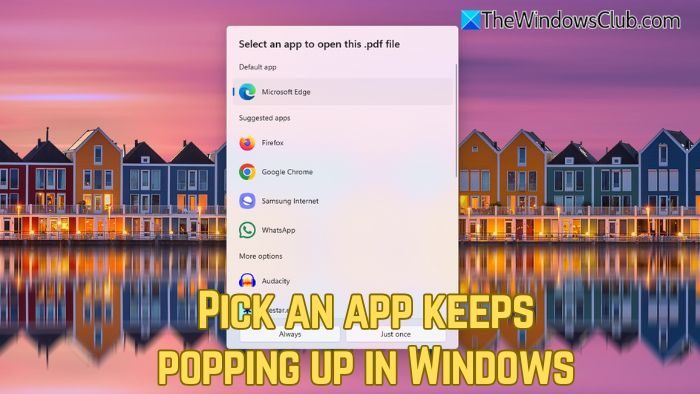
Select an app to open this file
Follow these solutions to fix the issue where “Select an app to open this file” keeps popping up in Windows 11.
- Registry fix
- Via command line
- Reset file associations.
How to disable Select an app to open this file prompt in Windows 11?
1] Registry fix
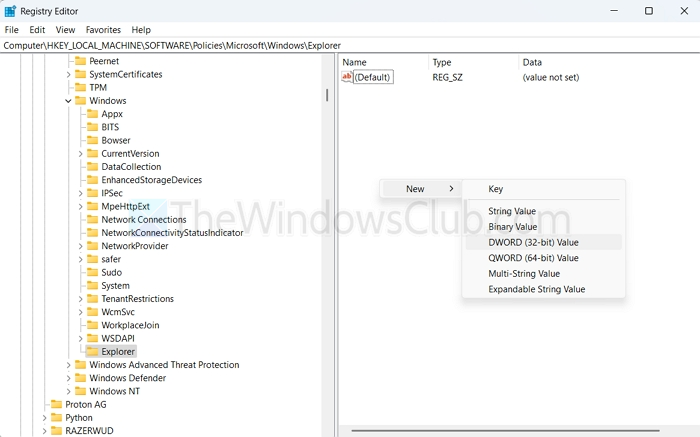
One of the quickest ways to resolve the issue is via the registry. Simply add a registry entry that disables the “new app” notification system completely.
- Press Windows key + R, type regedit, and press Enter.
- Navigate to the following path:
HKEY_LOCAL_MACHINE\SOFTWARE\Policies\Microsoft\Windows\Explorer - If you don’t find the Explorer key, create it by right-clicking on Windows and selecting New > Key.
- In the right pane, create a new DWORD (32-bit) value named NoNewAppAlert.
- Set its value to 1 to disable the popup.
- Finally, restart your computer and see if you are still getting the same error.
2] Via command line
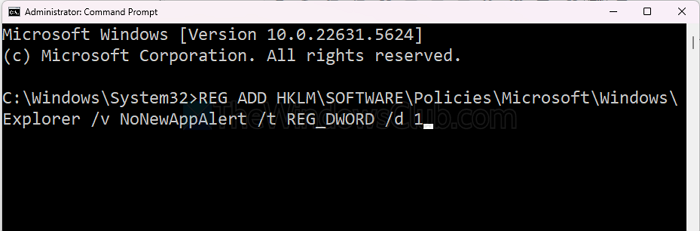
You can also disable the same through the Command Prompt. Here’s how:
- Go to the Windows Search, type “CMD”, right-click on it, and select “Run as administrator”.
- In CMD, execute the following command:
REG ADD HKLM\SOFTWARE\Policies\Microsoft\Windows\Explorer /v NoNewAppAlert /t REG_DWORD /d 1
3] Reset file associations
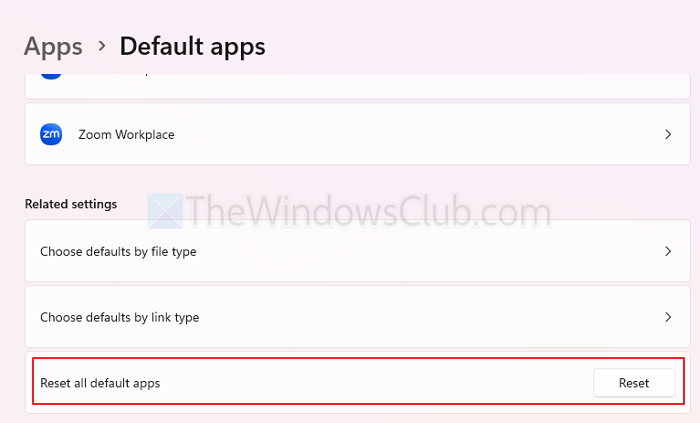
If you are still getting the error, you can try resetting file associations by following the steps below:
- Press Windows Key + I to open Settings.
- Go to Apps > Default apps.
- Scroll down and click the Reset button next to Reset all default apps.
- Click OK to confirm, and then restart your computer.
These were some quick solutions to get rid of the “Select an app to open this file” pop-up. If you still encounter the same error after applying the fixes, it would be a good idea to repair Windows using DISM, or consider reinstalling Windows.
Related: How do you want to open this file keeps popping up in Windows11
Select an app to open keeps popping up in Windows 11
The “Select an app to open” pop-up in Windows 11 usually appears when Windows doesn’t know which program to use for opening a file, link, or action. The most common reason is that no default app has been set, so Windows keeps asking what to use.
- Press Win + I to open Settings, then go to Apps > Default apps.
- Search for the app type (e.g., “PDF”, “Web browser”, “Music player”).
- Select your preferred app as the default.
You can also scroll down and use “Choose defaults by file type” to assign apps to specific extensions.
Why does the “Pick an app” popup appear even when I already set a default app?
The “Pick an app” popup may still appear in Windows 11 even after you have set a default app because of corrupted user profile settings, third-party applications overriding file associations, or pending Windows updates that interfere with default choices. In such cases, creating a new user profile can help determine if the problem is tied to your current account.
Will disabling the “Pick an app” popup affect future app installations?
Disabling the “Pick an app” popup using the registry or command line will not prevent you from installing or using new applications. The main difference is that new apps will no longer automatically prompt you to set them as the default when installed. Instead, you will need to manually assign them through the Settings menu under Apps > Default apps.
