
If the How do you want to open this file window keeps popping up in Windows 11/10, the solutions provided in this article will help you fix this problem. Different users experienced different scenarios regarding this window. For some users, Windows 11/10 displays this window when opening a file, whereas for others, it opens automatically every time they turn on their computers. Some users also reported that this window keeps appearing at random times while working on the system.
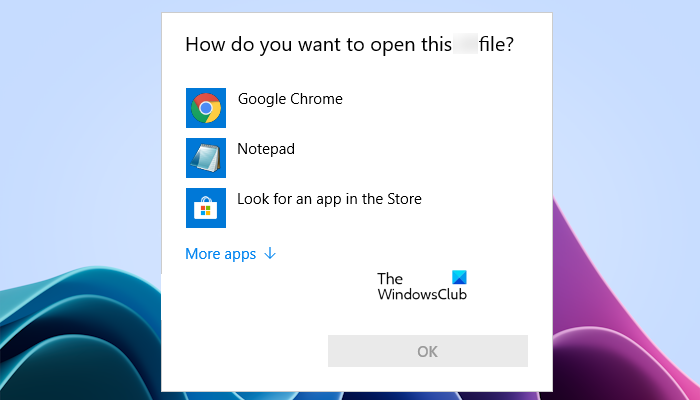
How do you want to open this file keeps popping up in Windows11
If the “How do you want to open this file” window keeps popping up in Windows 11/10, follow the suggestions laid down in this article. Before proceeding, ensure you have installed the latest version of Windows 11/10. Check for Windows Update manually and install the same (if available). For some users, the issue was fixed by restarting the computer. See if this works for you.
- Set the default program for your file(s)
- Reset the app
- Run antimalware and antivirus scans
- Create a new user account
- Reset all the apps and file type associations to default
- Troubleshoot in a Clean Boot state
- Check your Users folder
- Check the Startup folder and Task Scheduler
- Restore your system
Let’s see all these fixes in detail.
1] Set the default program for your file(s)
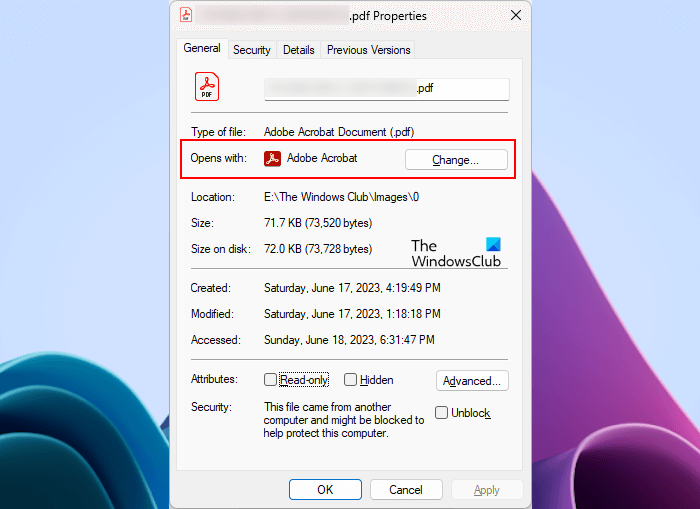
Check your file properties. When you open a new file in a new format, Windows asks you to select an app to open it. When you select an app, Windows marks it as default. Windows automatically opens that file in the default app the next time you open it. You can also view which app is set as default for a particular file type by opening its properties. Open the file properties and navigate to the General tab. You will see the default app set for that file type there (see the screenshot above).
If no app or program is set as default for the file type, select the default app via Windows Settings.
2] Reset the app
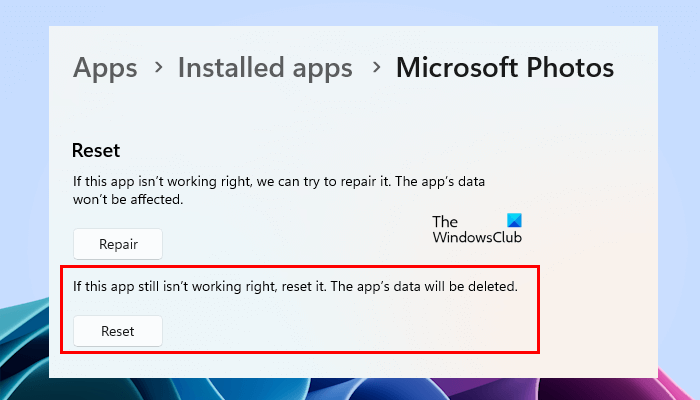
Some users reported that Windows keeps showing the popup window when they open images, even if they set the Photos app as default. If you are in such a situation, resetting the Photos app will help.
3] Run antimalware and antivirus scans
If the “How do you want to open this file” window appears randomly at any time while working on your system, your system might have been infected. We suggest you scan your system with a good antivirus or antimalware.
4] Create a new user account
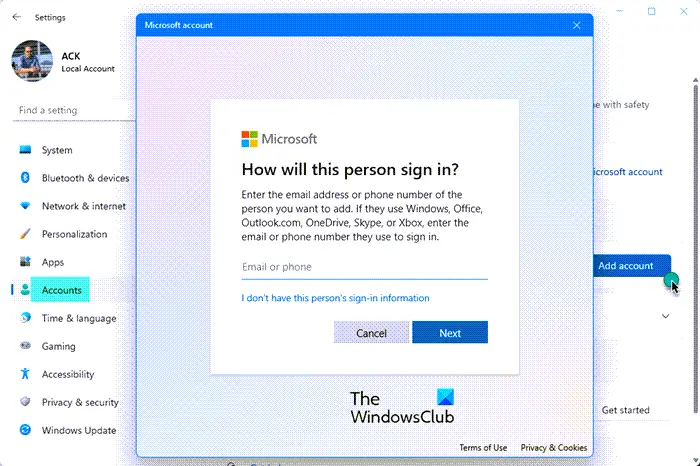
If your antivirus does not detect any threats on your system, the problem lies elsewhere. Maybe your user account has been corrupted. We suggest you create a new user account and see if the problem persists.
5] Reset all the apps and file type associations to default
You can also try this. Reset all your apps and file type associations to default and see if it works. This trick worked for some users. Hence, it may help you too.
6] Troubleshoot in a Clean Boot state
According to some users, the popup appears every time they start their systems. In that case, a startup app may be causing this problem. To confirm this, start your computer in a Clean Boot state. In the Clean Boot state, all the startup apps and third-party services remain disabled. If the issue does not occur in the Clean Boot state, your next step is to identify the problematic startup app. Now exit Clean Boot and restart your computer in normal mode.
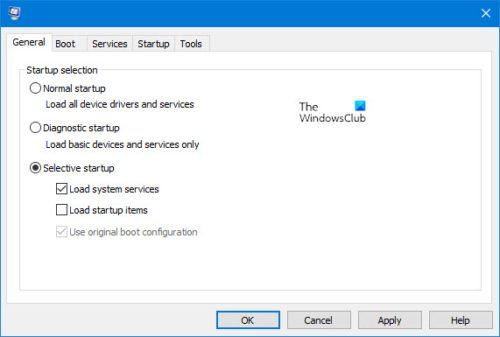
Now, open the Task Manager and disable the startup apps one by one. Restart your computer every time you disable a startup app. This process will take time but you will be able to identify the problematic startup program. Once you find it, uninstall it.
Related: Select an app to open this file keeps popping up
7] Check your Users folder
According to the reports, the pop-up window with the “How do you want to open this file” message appears on system startup if a file with a name identical to the user profile exists in the Users folder. The Users folder is located at the following location:
C:\Users
The Users folder contains only the folders for all user accounts created on a system. Go to the location above and check whether there is a file named the same as your profile. If yes, delete that file and restart your computer. This should fix the issue.
8] Check the Startup folder and Task Scheduler
If you place any file or program shortcut in the Startup folder, Windows will open it automatically every time you turn on your PC. It is possible that a file is placed in this folder and Windows does not know which app to open it with. In this case, Windows asks you to select an app when you turn on your system.
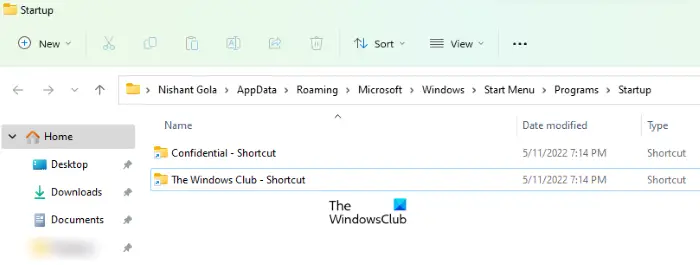
To open the Startup folder, open the Run command box and type the following command. After that, click OK.
shell:startup
The next thing that you can do is open the Task Scheduler and check if you have created any custom task to open a file on system startup. If you have a shared computer, it is possible that someone else has created a task using the Task Scheduler.
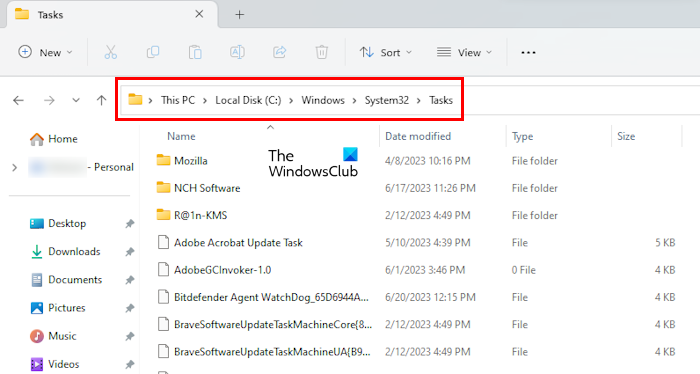
All the tasks created in Task Scheduler remain available in the Tasks folder on the C drive at the following location:
C:\Windows\System32\Tasks
Go to the location above and check whether there is any custom task. If yes, disable it in the Task Scheduler. To open the Tasks folder, you need to sign in to Windows as an administrator.
9] Restore your system
System Restore is a tool that helps users restore their system to the previous working state. By default, it is enabled and keeps creating restore points whenever you install a software or a change in Registry is detected. Using these restore points, you can restore your system.
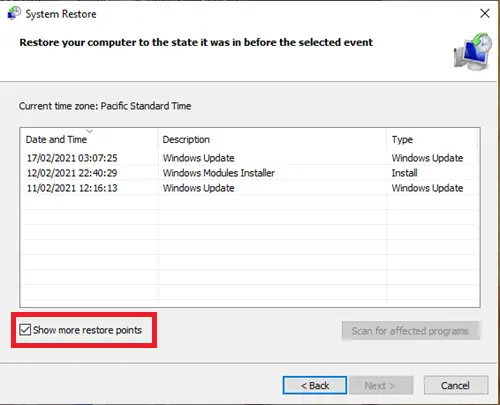
While restoring your system, Windows will show you all the restore points along with the date. Select the restore point created before the problem started occurring on your system.
Related: Outlook keeps asking How do you want to open this file
Why does my computer say How do you want to open this file?
Windows asks “How do you want to open this file?” when it does not know which program to use to open that file. This usually happens when no default app is set to open a particular file, or when more than one program can open it.
Read: Undo or reset Always use this app to open files option in Windows
How do you change How do you want to open this file?
When Windows displays this message, you have to select an app. After that, Windows marks that app as default for that file type. If you have selected the wrong app, you can change this in Windows 11/10 Settings. Open Settings and go to “Apps > Default apps.”
Read next: Quick Access pinned folders missing or disappeared in Windows.
