
When you install Dropbox on your Windows computer, an icon is automatically added to the Navigation Pane of File Explorer. If you want to remove Dropbox from Explorer Navigation Pane on Windows PC, you can follow this tutorial. There is no need to install any third-party software since the Registry Editor can do the job within moments.
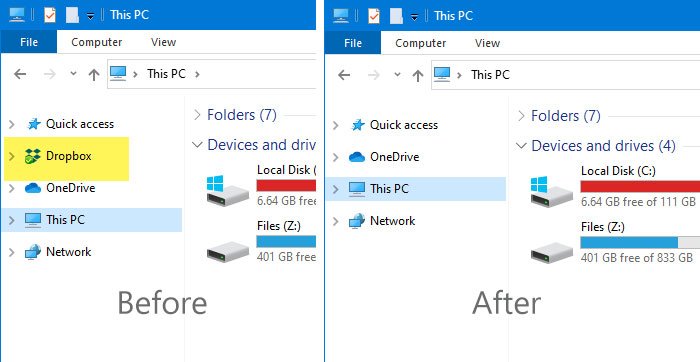
Dropbox is an excellent cloud storage service where you can store any file, including image, video, documents, etc. Thanks to the desktop app, it is effortless to access data on Dropbox without opening any browser. Like OneDrive, Dropbox also adds an icon to the File Explorer navigation pane so users can quickly access their Dropbox account and files. However, if you do not want this additional icon, you can remove it here.
Read: How to add Google Drive to File Explorer.
Remove Dropbox from Explorer Navigation Pane
To remove Dropbox from the File Explorer navigation pane, follow these steps-
- Press Win+R to open Run prompt.
- Type regedit and hit the Enter button.
- Select Yes in the UAC prompt.
- Navigate to the {E31EA727-12ED-4702-820C-4B6445F28E1A} key.
- Double-click on System.IsPinnedToNamespaceTree.
- Set the value to 0.
Before getting started, you should backup Registry files and create a System Restore point.
At first, you need to open the Registry Editor. For that, you can press Win+R to open the Run prompt, type regedit, and hit the Enter button. Alternatively, you can search for it in the Taskbar search box. After opening the Registry Editor window on your PC, navigate to this path-
HKEY_CLASSES_ROOT\CLSID\{E31EA727-12ED-4702-820C-4B6445F28E1A}
On your right-hand side, you will find DWORD (32-bit) Value named System.IsPinnedToNamespaceTree.
By default, the value data of the System.IsPinnedToNamespaceTree is set to 1. You need to double-click on this REG_DWORD and set the value as 0.
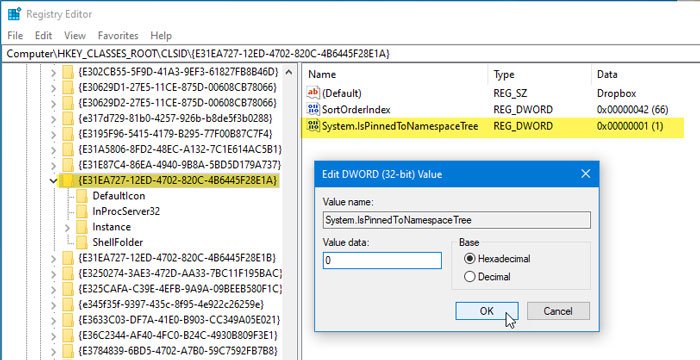
After saving the change, you will no longer see the Dropbox icon in the File Explorer navigation pane.
Although it removes the Dropbox icon immediately, it might reappear due to the auto-refresh of this value. Therefore, you need to block Dropbox from changing this specific value in the Registry Editor. To do that, follow these steps.
You need to right-click on the {E31EA727-12ED-4702-820C-4B6445F28E1A} key and select the Permissions option.
After that, click the Advanced button in the next window. Now, click the Add and Select a principal buttons, respectively.
In the Enter the object name to select box, write down Everyone, and click the Check Names button.
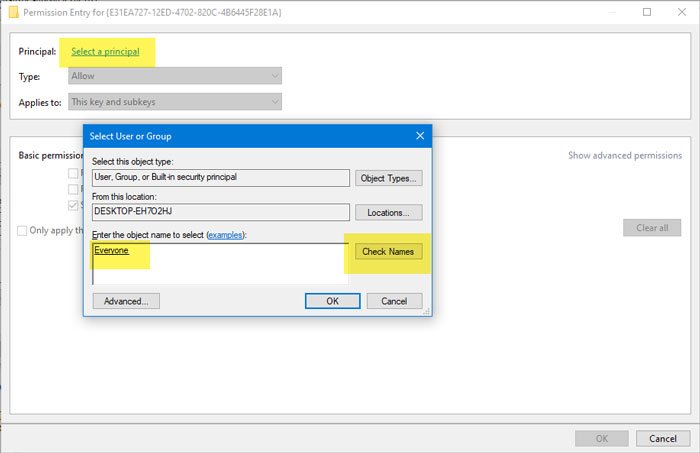
After that, click the OK button. In the next window, you need to select Deny from the Type drop-down menu, and This key only from the Applies to the drop-down menu.
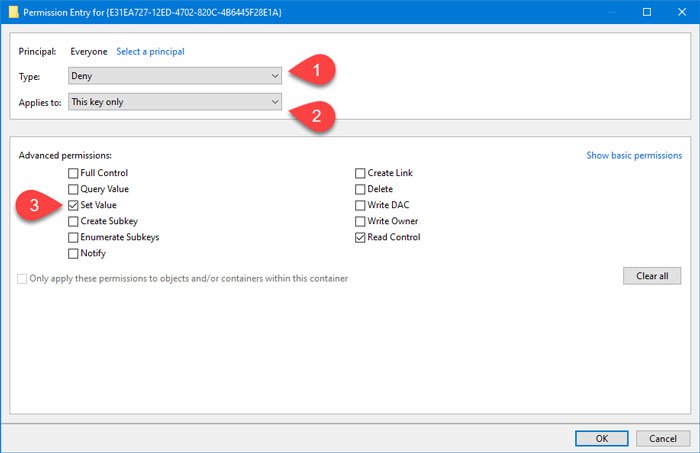
Now, click on the Show advanced permissions option and make a tick in the Set Value checkbox.
After that, click the OK buttons a couple of times to save the changes.
From now on, Dropbox won’t be able to revert the value to its original state, and you won’t find the Dropbox icon in File Explorer.
That’s it!
