
Windows 11 allows users to mount an ISO to upgrade Windows. However, this feature is not working for some users. According to reports, when they perform this action, File Explorer stops responding. If File Explorer freezes when mounting an ISO on your Windows 11/10 computer, the solutions in this article will help.
This issue can be caused by conflicts over drive letters, corrupted file associations or errors in system components. The quickest fixes are to unmount stuck virtual drives, repair system files with DISM/SFC, and ensure the ISO file is valid and not locked.
File Explorer freezes when mounting ISO in Windows 11
Use the following fixes if File Explorer freezes when mounting an ISO in Windows 11:
- Search for Windows Update
- Unblock the file
- Disable Reputation-based protection and Smart Scan
- Disable your third-party antivirus
- Reset ISO File Association
- Clear stuck Virtual Drives
- Disable all third-party extensions
- Check the issue in a Clean Boot state
- Use PowerShell for mounting.
All these fixes are explained in detail below:
1] Search for Windows Update
Windows Updates help improve a system’s stability by fixing glitches in the operating system. Before you try advanced troubleshooting fixes, it is better to search for Windows Update and install it (if available).
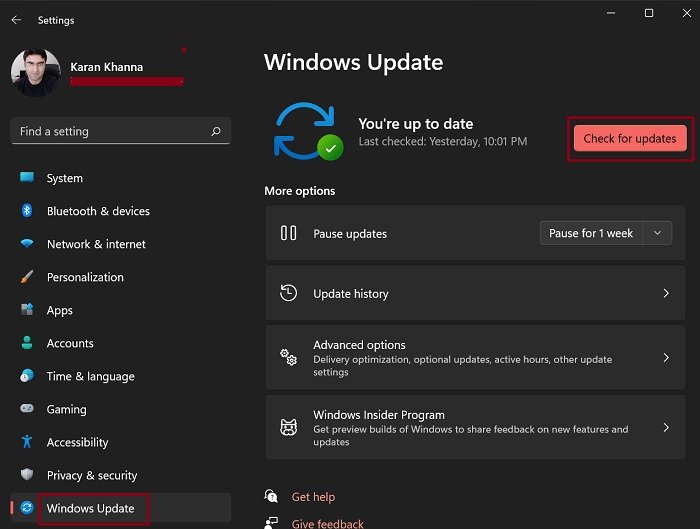
The majority of these issue reports are coming from users who have enrolled in the Windows Insider Program. If you want to leave the Windows Insider Program immediately, you have to perform a clean installation of Windows. Therefore, if you have enrolled in Windows Insider and encountered this issue, the easiest way to fix it is to check for Windows Updates.
2] Unblock the file
If the issue persists, you can try unblocking the ISO file. Follow these instructions:
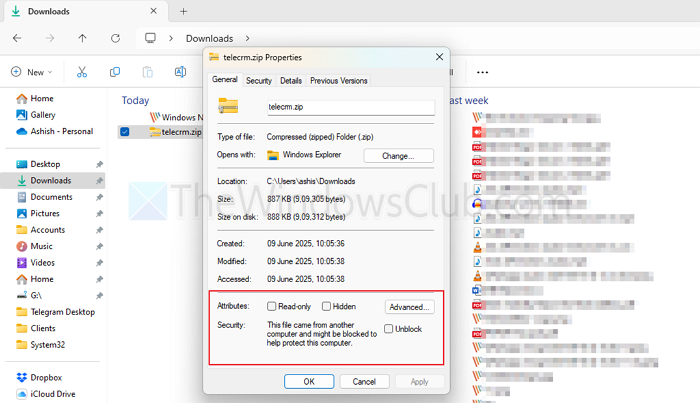
- Right-click on the ISO file.
- Select Properties.
- Click Unblock under the General tab.
- Click Apply and then click OK.
Now, check if you can mount the ISO file.
3] Disable Reputation-based protection and Smart Scan
The Reputation-based protection feature of Windows Security protects your device from malicious or potentially unwanted apps, files, and websites. Sometimes, it may interfere with legit applications or files. In such a case, you can disable this feature. Try this and see if it helps.
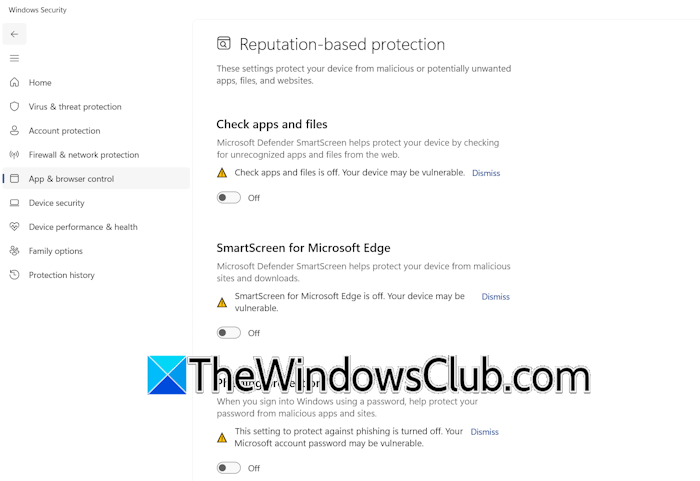
Follow these steps to disable the Reputation-based protection in Windows Security.
- Open Windows Security.
- Navigate to App & browser control.
- Click the Reputation-based protection settings link.
- Turn off all the options.
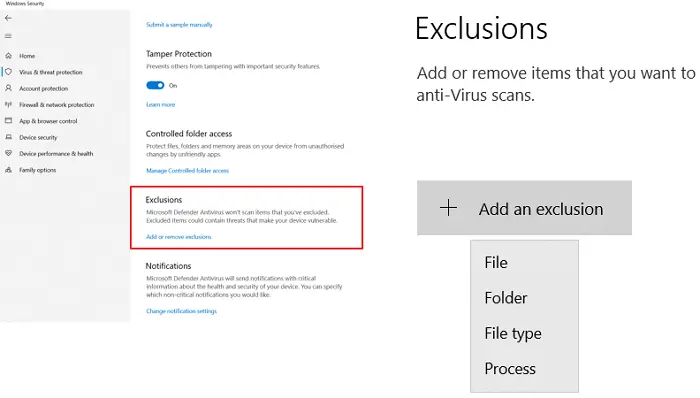
After disabling the Reputation-based protection in Windows Security, check if the issue persists. Do not forget to enable this setting again. If this does not work, add the ISO file to Windows Security’s exclusion list.
If the Check apps and files option is greyed out or you see the “Some of these settings are managed by your organization” message, click the Smart App Control Settings link on the App & browser control page in Windows Security. Now, turn off the Smart App Control and relaunch Windows Security.
4] Disable your third-party antivirus
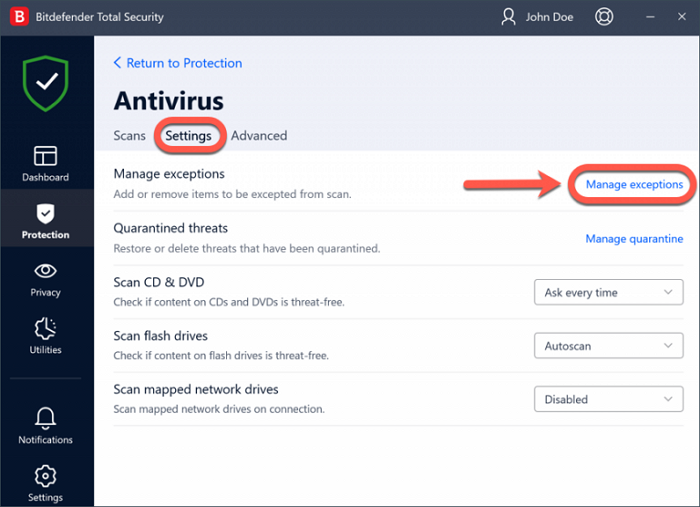
Your third-party antivirus might be causing this issue. To verify this, temporarily disable the antivirus and mount the ISO file. If the issue disappears, add the ISO file to your antivirus exception list.
5] Reset ISO File Associations
Make sure that the ISO file association to Explorer is still intact. To do so, open Windows Settings > Apps > Default Apps and search for .iso.
Now set Windows Explorer as the default.
6] Clear stuck Virtual Drives
Drive letter conflicts can cause this issue. USB drives, card readers, or previously mounted virtual drives may block the letter Windows wants to assign.
To resolve this, open Disk Management and unmount or remove ghost drives that may be blocking letters.
Restart your computer and check.
7] Disable all third-party extensions
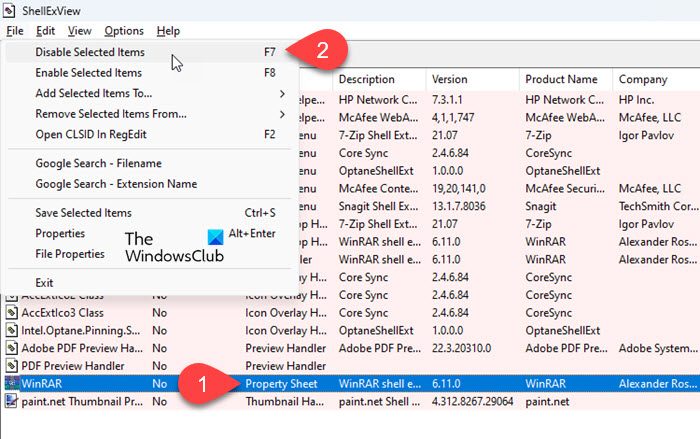
Some programs add extra options to the right-click context menu. These extra options are usually called Shell Extensions. Sometimes, these shell extensions cause issues with File Explorer. If you have installed such programs, the shell extensions they add might be causing this issue. To verify this, disable all the third-party shell extensions and check if the issue persists.
For this, you have to use third-party tools, such as ShellExView. After running this tool, first, hide all Microsoft Extensions. After that, you will be able to view all the third-party shell extensions installed on your system.
Read: Couldn’t Mount file, Sorry, there was a problem mounting the file
8] Check the issue in a Clean Boot state
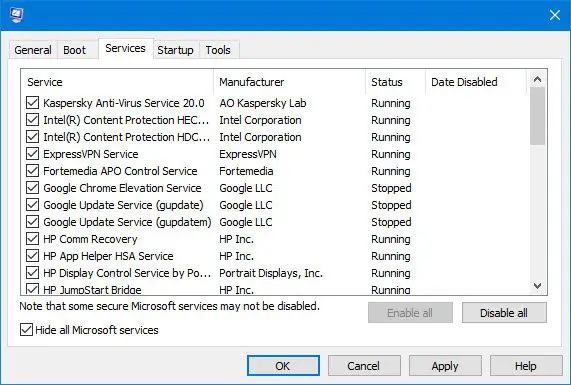
If the issue persists even after trying all the above-mentioned solutions, a third-party service could be responsible for this. To check this, use MSConfig and enter the Clean Boot State. In that state, all the third-party services remain disabled. If the issue occurs due to a third-party service, you should be able to mount the ISO file in Clean Boot State. After successfully mounting the ISO file, you can exit the Clean Boot State.
Read: Slow mounting of ISO Image Files on Windows 11
9] Use PowerShell for mounting
If nothing helps, you can use PowerShell to get the job done by executing this command:
Mount-DiskImage -ImagePath "C:\path-to-your-file.iso"
That’s it. I hope this helps.
How do I stop File Explorer from freezing?
If File Explorer keeps crashing or freezing on your Windows 11 PC, you can try some fixes, like disabling the thumbnails, disabling the Preview Pane, or repairing the system image files. If these fixes do not help, troubleshoot in a Clean Boot State to find the problematic third-party service.
How to mount an ISO file in Windows 11?
When you select an ISO file in Windows 11, the Mount option becomes visible on the Command Bar. Click on that option to mount the ISO file. Another simple way to mount an ISO file in Windows 11 is to double-click on it. This will mount and open it.
Read next: File Explorer freezes when renaming files or folders.
