
In this guide, we will show you how to disable popular third-party antivirus software in Windows 11, like McAfee, Norton, Avast, AVG, Quick Heal, Avira, Bitdefender, Kaspersky, Eset, Trend Micro, Malwarebytes and K7 Computing.
Antivirus protection is essential for protecting your computer from malware, ransomware, and other online threats. However, antivirus software may sometimes flag a legitimate process as unsafe or prevent files from being downloaded from a trusted source. Temporarily disabling an antivirus pauses its protection features for a limited period, allowing you to continue with installations or troubleshooting tasks without interruption.
How to disable third-party antivirus in Windows 11
To disable most third-party antivirus software in Windows, you have to locate the program’s icon in the bottom-right System Tray area, right-click on its icon and select Disable or Pause protection.
However, we do not recommend keeping your antivirus disabled for extended periods, as it can leave your computer vulnerable to malware and other security threats. Once your task is complete, make sure to re-enable the antivirus protection to keep your system secure.
Note: Most antivirus programs require administrator privileges to disable or pause real-time protection in Windows 11.
Disable Kaspersky antivirus in Windows 11
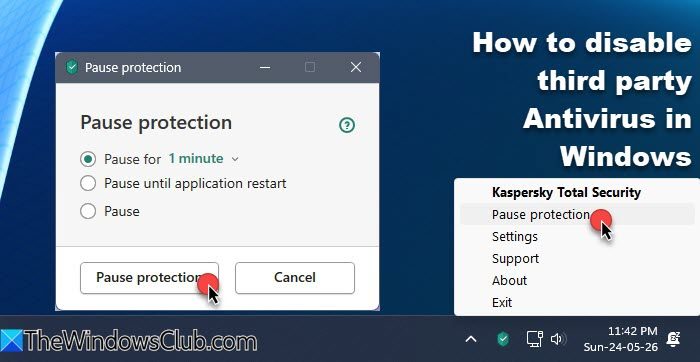
To disable Kaspersky Antivirus in Windows 11, follow these steps:
- Right-click on the Kaspersky icon in the system tray
- Select Pause protection
- You will see a box appear asking you to select:
- Pause for X minutes
- Pause until application restart
- Pause
- Select one option and click on the Pause protection button.
- Click Yes when you are asked again, “Are you sure?”
Kaspersky protection will be disabled.
Disable McAfee antivirus in Windows 11
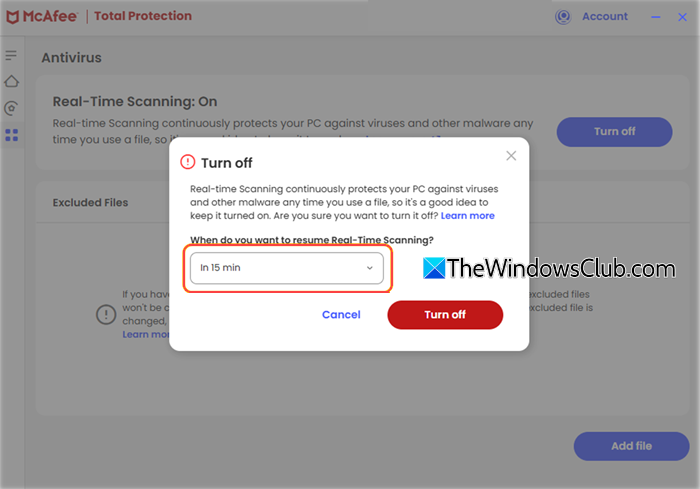
To disable McAfee antivirus in Windows 11, follow these steps:
- Open the McAfee app from the Start menu or system tray.
- On the left, click the My Protection tab.
- Under Device, click Real-Time Scanning.
- Click the Turn Off button.
- From the dropdown, select your preferred time to resume Real-Time Scanning (in 15 minutes, 30 minutes, when I restart my PC, etc.)
- Click Turn Off again to confirm.
McAfee Real-Time Protection will be disabled temporarily and resume when the period you selected in step 5 has passed.
Disable Norton antivirus in Windows 11
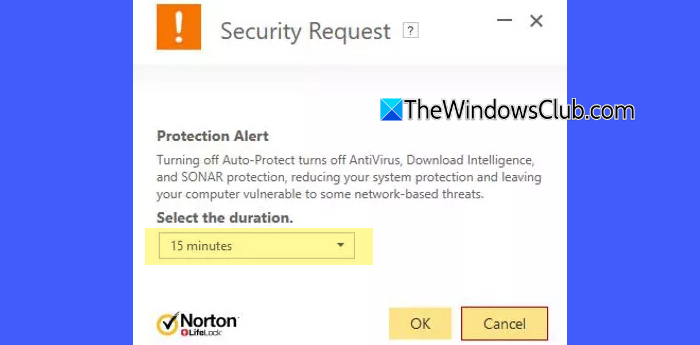
To disable Norton antivirus in Windows 11, follow these steps:
- Right-click the Norton icon in the taskbar notification area.
- Select Disable Auto-Protect.
- A Security Request dialog will appear. Select the duration for which you want to turn off protection.
- Click OK.
Auto-protect will automatically resume after the specified duration.
Disable Avast antivirus in Windows 11
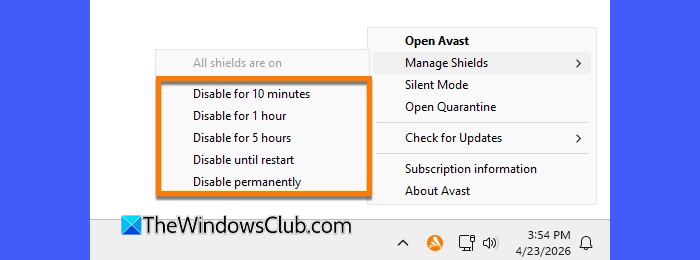
To disable Avast antivirus in Windows 11, follow these steps:
- Right-click the Avast icon in the taskbar notification area.
- Select Manage Shields.
- Choose how long you want to disable Avast protection:
- Disable for 10 minutes
- Disable for 1 hour
- Disable for 5 hours
- Disable until restart
- Disable permanently
- Click OK, STOP to confirm.
All Avast shields will now be disabled. Avast protection will automatically turn back on after the specified period.
Disable AVG antivirus in Windows 11
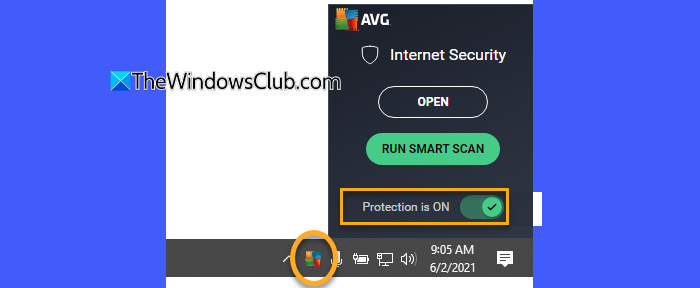
To disable AVG antivirus in Windows 11, follow these steps:
- Right-click the AVG icon in the notification area of the Windows taskbar.
- In the menu that appears, click the green slider next to Protection is ON.
- Click OK, STOP to confirm.
The slider will turn red, and all AVG security components will stop running temporarily. They will automatically re-enable after you restart your PC.
Disable individual AVG components
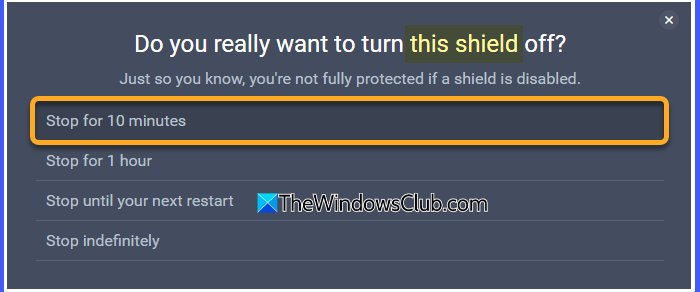
To disable specific AVG protection modules, follow these steps:
- Open AVG Antivirus.
- Select the protection category you want to manage:
- Computer for File Shield, Behavior Shield, or Ransomware Protection
- Web & Email for Web Shield or Email Shield
- Hacker Attacks for Firewall or Password Protection
- Privacy for Webcam Protection or Sensitive Data Shield
- Payments for Fake Website Shield
- Click the green ON slider next to the component you want to disable.
- Select how long you want the component to remain disabled.
- Click OK, STOP to confirm.
The selected AVG component will now remain disabled for the chosen time period and then automatically turn back on.
Disable Quick Heal antivirus in Windows 11
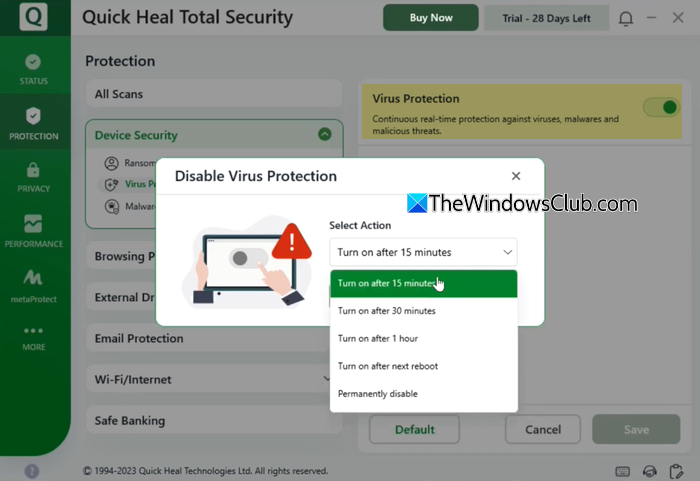
To disable Quick Heal antivirus in Windows 11, follow these steps:
- Open Quick Heal Total Security.
- In the left pane, go to Protection > Virus Protection.
- Turn off Virus Protection using the available toggle.
- In the Disable Virus Protection dialog, select one of the following options:
- Turn on after 15 minutes
- Turn on after 30 minutes
- Turn on after 1 hour
- Turn on after next reboot
- Permanently disable
- Click OK to save the changes.
Quick Heal Virus Protection will now be disabled.
Disable ESET antivirus in Windows 11
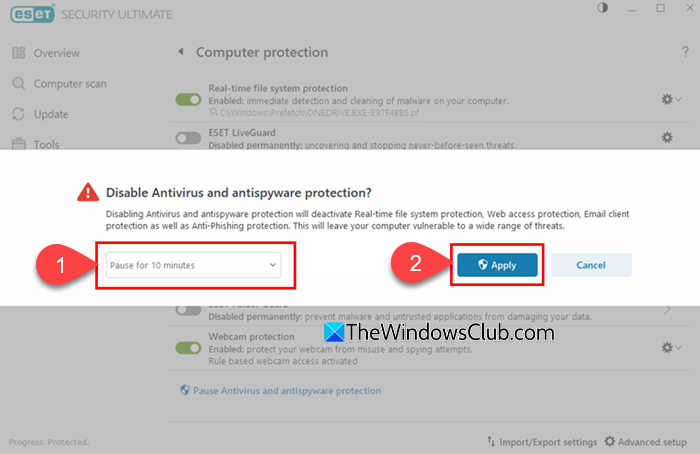
To disable ESET antivirus in Windows 11, follow these steps:
- Open the main ESET program window.
- Click Setup.
- Select Computer protection.
- Click Pause Antivirus and antispyware protection.
- Choose how long you want to disable protection (e.g., Pause for 10 minutes).
- Click Apply to confirm.
ESET Antivirus protection will now be disabled temporarily and will automatically turn back on after the selected time period.
Disable K7 antivirus in Windows 11
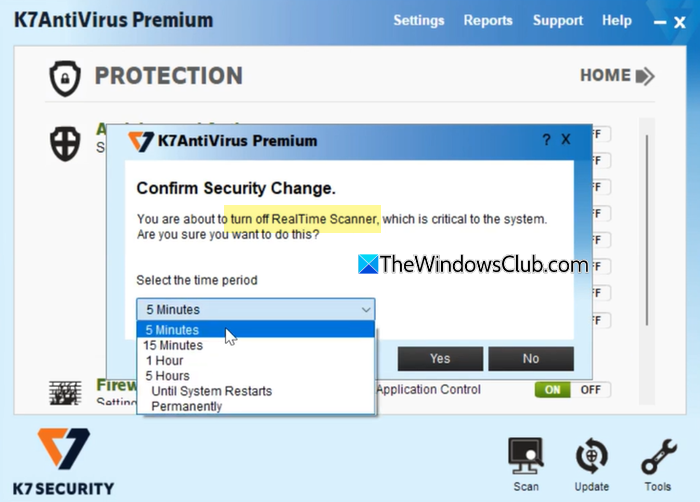
To disable K7 antivirus in Windows 11, follow these steps:
- Open K7 Total Security or K7 Antivirus.
- Click the Settings icon.
- Go to Antivirus and Antispyware.
- Click the toggle button next to RealTime Scanning.
- Select the time period to disable protection.
- Click Yes to save the changes.
K7 antivirus protection will be disabled temporarily.
Disable Bitdefender antivirus in Windows 11
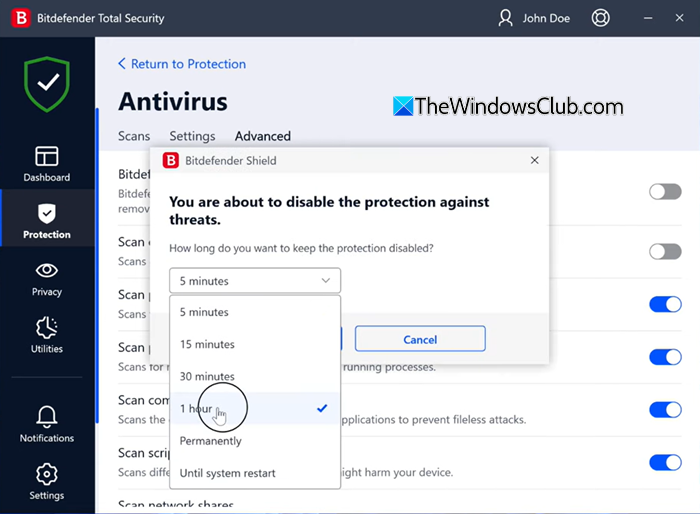
To disable Bitdefender antivirus in Windows 11, follow these steps:
- Open Bitdefender.
- Click Protection in the left-side menu.
- Click Open in the Antivirus pane.
- Go to the Advanced tab.
- Toggle Bitdefender Shield to the off position.
- Click Yes if prompted by the User Account Control dialog.
- Select how long you want to keep the protection disabled.
- Click OK to confirm.
Once the selected time elapses, Bitdefender will automatically reactivate the protection shield.
Read: You’re using other antivirus providers in Windows 11
Disable Malwarebytes antivirus in Windows 11
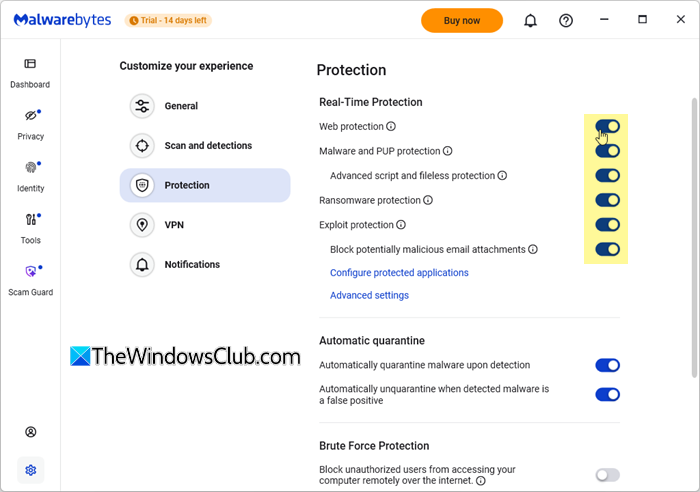
To disable Malwarebytes antivirus in Windows 11, follow these steps:
- Open Malwarebytes.
- Click the Settings icon on the main dashboard.
- Go to the Protection section.
- Under Real-Time Protection, turn off the following options:
- Web protection
- Malware and PUP protection
- Ransomware protection
- Exploit protection
Malwarebytes protection will now be disabled temporarily. You can turn the protection modules back on manually whenever required.
Disable Trend Micro antivirus in Windows 11
To disable Trend Micro antivirus in Windows 11, follow these steps:
Disable Trend Micro from the System Tray
- Right-click the Trend Micro icon in the system tray.
- Select Exit.
- Wait for the Trend Micro icon to disappear from the system tray.
Disable Trend Micro using the Diagnostic Toolkit
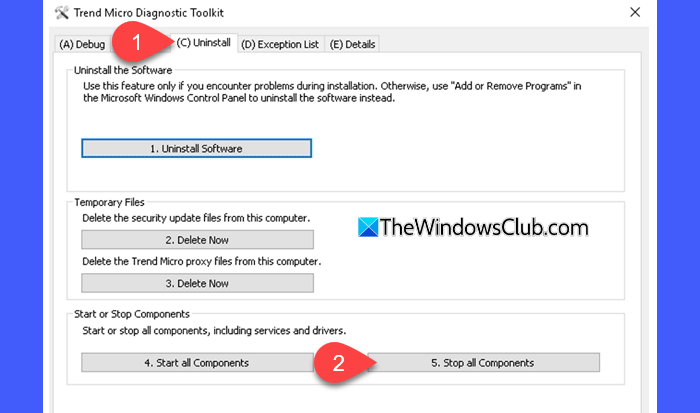
- Press Win + R to open the Run dialog.
- Type supporttool.exe and click OK.
- Click Yes on the User Account Control prompt.
- In the Diagnostic Toolkit window, go to the (C) Uninstall tab.
- Select 5. Stop all components.
- Wait for the Trend Micro icon to disappear from the notification area.
Disable Avira antivirus in Windows 11
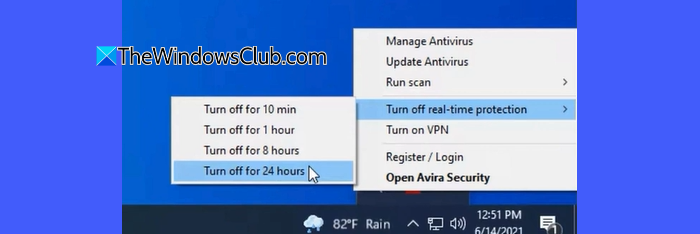
To disable Avira antivirus in Windows 11, follow these steps:
- Right-click the Avira icon in the notification area of the taskbar.
- Select Turn off real-time protection.
- Choose how long you want to disable protection:
- Turn off for 10 minutes
- Turn off for 1 hour
- Turn off for 8 hours
- Turn off for 24 hours
- Click the preferred option to confirm.
Avira Real-Time Protection will now be disabled temporarily and will automatically turn back on after the selected time period.
I hope you find this useful.
Read: How to disable Windows Defender in Windows 11
How to disable 3rd party firewalls?
Most third-party firewall programs can be disabled from their system tray icon or settings panel, provided you have administrator permissions. Open the firewall software, go to its Protection or Firewall settings, and turn off the firewall temporarily or until restart. This post will show you how to disable Windows Firewall.
How to disable anti-virus permanently?
To disable an antivirus permanently, turn off all protection modules and disable automatic startup in the antivirus settings. Some antivirus programs may automatically re-enable protection after a restart. In such cases, uninstalling the software is the only permanent solution.
Read Next: How to disable Windows Security in Windows 11.
