
The free version of the AVG antivirus tool is quite popular among Windows 11/10 users, something we have no problems with. It’s a competent tool that has been around for a very long time, and we doubt this will change as soon as we dig deeper into peak internet usage.
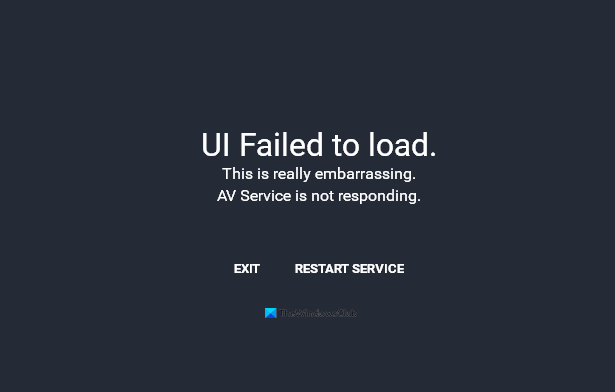
AVG UI failed to load, AV Service is not responding
More threats will make their presence known in the future, which means we will need all the help we can get to keep Windows secure. Yes, we know that the operating system comes with Microsoft Defender as the default antivirus, but it is not for everyone.
You see, there are those out there who prefer third-party anti-virus tools, and AVG is among the most used.
Recently, we’ve been hearing about issues with the AVG user interface not working as intended. Apparently, the UI fails to load, and no one can figure out how to stop it.
- Automatically turn on Remote Desktop Services
- Make sure AVG is running in Services
- Update and Repair AVG
Let us discuss this in more detail.
1] Automatically turn on Remote Desktop Services
From our point of view, the first thing you should do in a situation like this is to have Remote Desktop Services enable themselves automatically. To do this, you must first open the Run dialog box by pressing Windows key + R.
From there, we must launch the Services area by typing services.msc into the Run dialog box, then press Enter or click OK.
Once the Services window has opened, folks must now navigate to Remote Desktop Service, and right-click on it.
From there, select Properties. From there, go to Startup Type and change it from Manual to Automatic.
Finally, click on the Start button, then hit Apply > OK to complete the process.
You’ll be required to restart your computer, so please get that done promptly then check if AVG is working as it should.
Similar: Avast UI fails to load.
2] Make sure AVG is running in Services
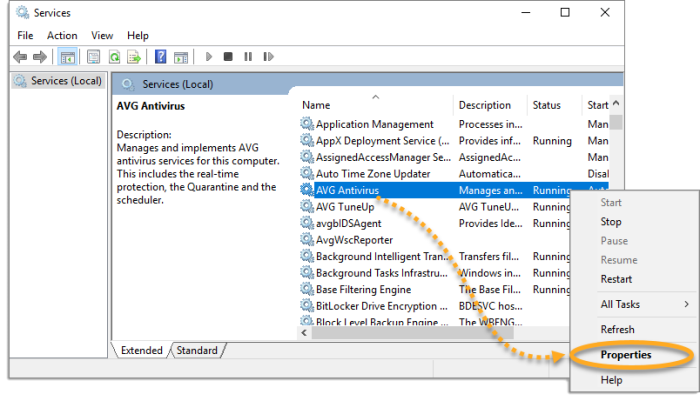
One thing note. We need to make sure AVG is running properly in the Services window. To check on this, please follow the steps above to open Serivces, then search for AVG. When that is done, right-click on it and select Properties.
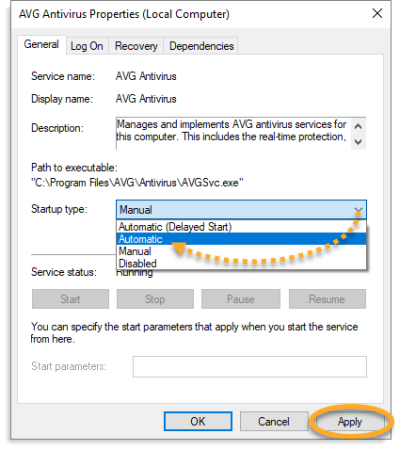
From there, ensure the General tab is selected. Go to Startup Type and change it from Manual to Automatic, then finish off by hitting Apply > OK.
Restart your computer right away, then fire up AVG to see if things are
3] Update and Repair AVG
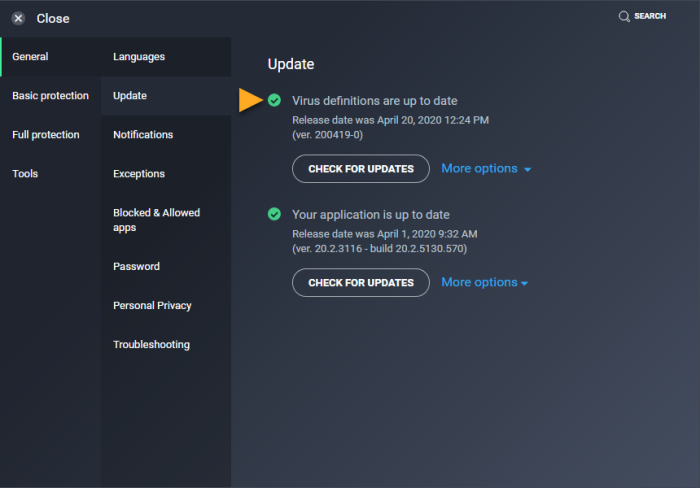
The final step to take if everything above fails to fix the issue, is to update your version of AVG to the latest.
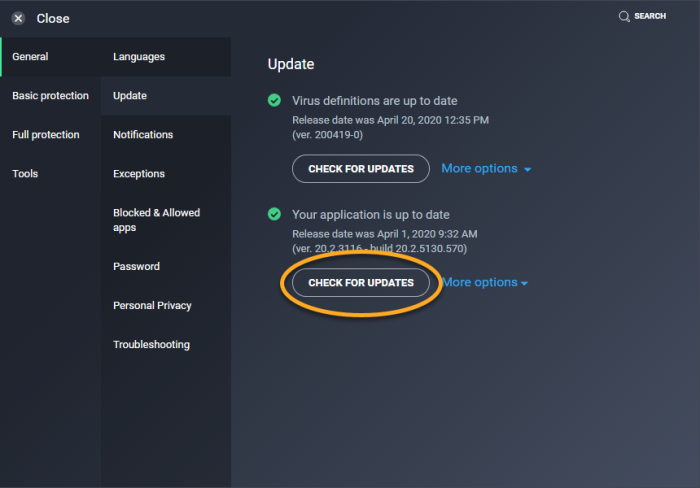
From the user interface, please click on the Menu button, then select Settings. After that, navigate to General, then click on Update > Check For Updates. AVG will now check for any available updates. If that is the case, it will automatically download and install the update.
Repairing AVG is a simple task as well. Just right-click on the Start menu button and select Apps and Features. From there, search for AVG via the Settings menu, and when you find it, click on Uninstall.
You will need to wait for the AVG window to appear. Once that has happened, go on ahead and click on Repair, and that’s it.
Read: Completely uninstall AVG antivirus using AVG Clear & AVG Remover
