
Some users cannot rename files or folders on their Windows 11 computer. Doing so immediately freezes File Explorer. There can be multiple causes of this problem, such as a conflicting background application, a third-party shell extension, or corrupted system image files. If File Explorer freezes when renaming files or folders on your Windows 11 computer, the fixes in this article will help.
Windows 11 File Explorer freezes when renaming files or folders
Use the following fixes if File Explorer freezes when renaming files on your system. Before proceeding, check for Windows Update. Install the update (if available) and see if this fixes the issue.
- Repair your system image files
- Run a chkdsk scan
- Clear File Explorer cache
- Disable third-party shell extensions
- Unlink OneDrive
- Troubleshoot in a Clean Boot state
- Create a new user profile
- Restore or reset your PC
All these fixes are explained in detail below.
1] Repair your system image files

The issue might be occurring due to the corrupt system image files. Use Windows built-in tools, such as System File Checker and DISM, to repair the corrupt system image files. Do not interrupt the scan. It will take time.
2] Run a chkdsk scan
If the problem persists after repairing your system image files, or the tools did not detect any image corruption, there may be logical errors or bad sectors on your hard drive. Chkdsk is a built-in tool on Windows computers that scans hard drives for logical errors and bad sectors and fixes them.
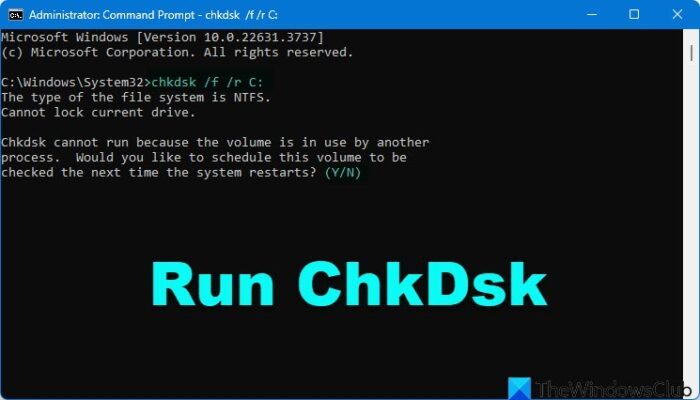
Run the Chkdsk scan and see if it helps.
3] Clear File Explorer cache
As we use File Explorer, it starts building cache files to process data faster. These cache files can sometimes cause issues with File Explorer. This might be the case with you. Clear the File Explorer cache files and see if it helps.
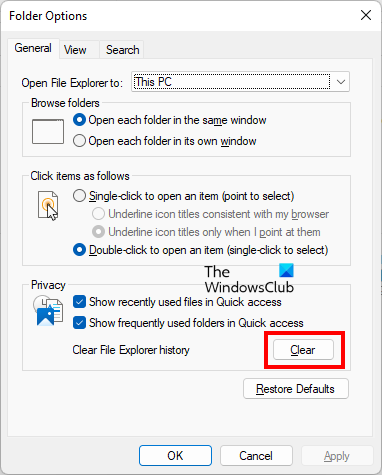
In File Explorer, click on the three dots and select Options. The Folder Options dialog box will appear. Click Clear under the General tab.
4] Disable third-party shell extensions
Many programs install extensions on the right-click context menu. These extensions are called Shell extensions. Sometimes, they can cause issues with File Explorer. To check this, disable all third-party shell extensions and then try renaming your files or folders. For this, you can use a third-party tool, such as ShellExView.
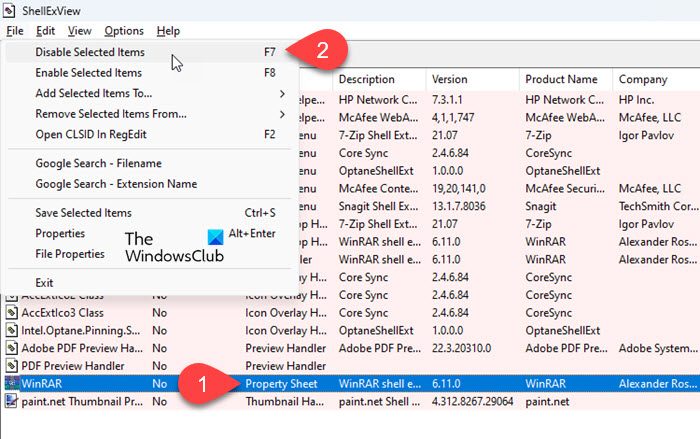
If the issue does not occur, you have to find the problematic shell extension. Now, you can use the hit-and-trial method to spot the culprit program. Enable the third-party shell extensions one by one and rename your files or folders every time you enable an extension. In this way, you can find the problematic extension. Once you find the problematic extension, uninstall the respective program.
5] Unlink OneDrive
Unlink OneDrive by following these steps:
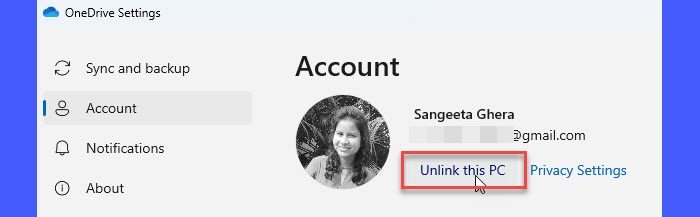
- Click on the OneDrive cloud icon on the Taskbar.
- Open its settings.
- Select Account and click Unlink this PC.
Now, check if you can rename files or folders. If yes, OneDrive is causing this problem. Uninstalling and reinstalling OneDrive can help.
6] Troubleshoot in a Clean Boot state
If the issue persists, a third-party background application or service may be interfering with File Explorer, causing it to crash whenever you rename a file or folder. First, open the Task Manager and disable all startup apps. Restart your computer and check if you can rename files or folders. If the problem disappears, you can find the problematic startup app. However, if the issue continues, enter the Clean Boot state to troubleshoot further.
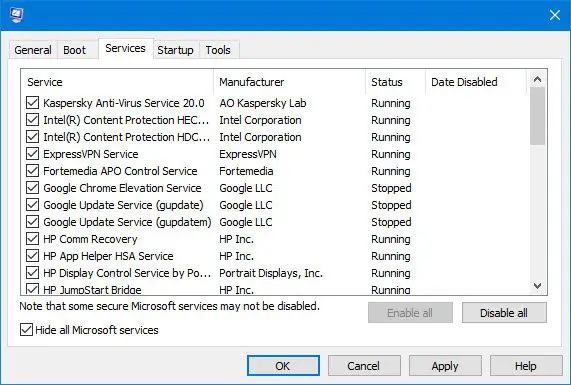
Disable only the third-party services, as disabling all the services by mistake will make your system unstable and put you in trouble. Once you are in the Clean Boot state, open File Explorer and rename files and folders. If the issue disappears, it indicates a third-party service is causing it. Now identify the problematic third-party service and uninstall its associated application.
7] Create a new user profile
Your user profile might have been corrupted. To check this, create a new user profile. After creating a new user profile, log in to that profile and rename your files or folders. If File Explorer does not crash this time, it indicates that your previous user profile is corrupted.
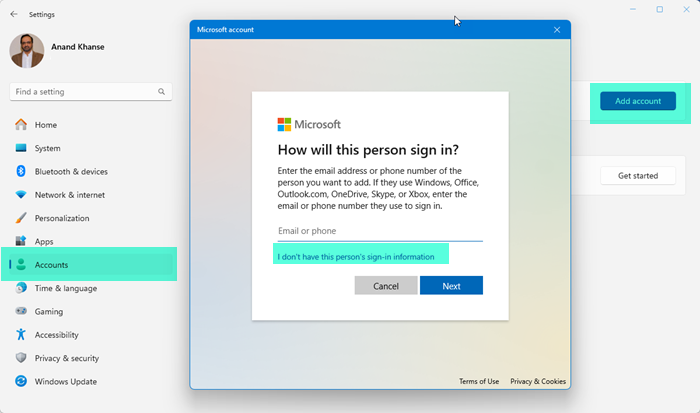
Now, you can try to repair the corrupted user profile. If you cannot do so, you can use a third-party tool, such as Transwiz, to transfer all your user profile data to a new profile. Once you have transferred all your user data to the new profile, you can delete the old profile and continue using the new one.
8] Restore or reset your PC
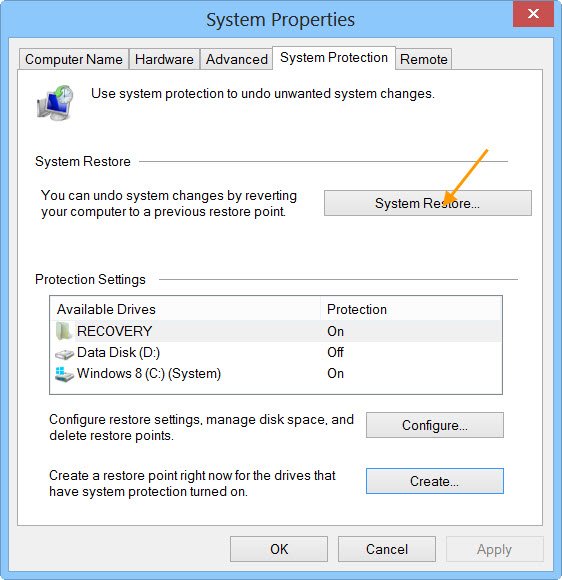
If nothing works, you have to reset your PC to the factory default settings. But before doing that, perform a System Restore. This action will restore your system to the previous working state. Select the correct restore point while restoring your system.
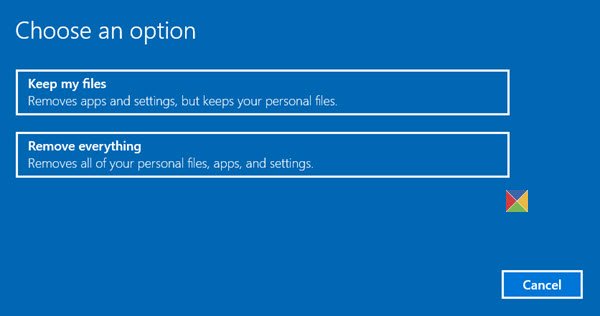
If no restore points exist on your system, resetting your PC is the last resort. Select the Keep my file option during the Factory Reset to prevent Windows from wiping out your data.
That’s it. I hope this helps.
Why is File Explorer not letting me rename files?
If you cannot rename files in File Explorer, there might be permission issues. Open the file properties and check its permissions. Grant the file the required permissions and try again.
Why is the F2 rename not working?
If you are using a laptop, pressing the F2 key alone may not rename your files. This is because in laptops, two different operations are assigned to the Function keys. Press and hold the Fn key, and then press the F2 key to rename your files on a laptop. If you are a desktop user and the F2 key is not working, try another keyboard.
Read next: File Explorer is not opening on Windows.
