
The Secure Boot Certificates will expire in June 2026. That’s why it is mandatory to get the latest Secure Boot Certificates update. Ignoring this update may lead to severe consequences, as it will make your device vulnerable to bootkits and malware. Additionally, you may also encounter boot issues with your system. Microsoft has released a Secure Boot Playbook, outlining a roadmap for the Secure Boot Certificate Update for Windows Client. In this article, we will see how to update the secure boot certificates.
Understanding Secure Boot Certificate Update 2026
Secure Boot is a security standard developed by members of the PC industry to help make sure that a device boots using only software trusted by the Original Equipment Manufacturer (OEM). The Secure Boot Certificates always have an expiration date. New certificates ensure that your devices stay up to date with the latest security protections. Here, we will discuss the Secure Boot Certificate Update 2026.
How to update Windows Secure Boot Certificates
While Windows computers manufactured since 2024 already have the latest certificates, all older devices must be updated manually. To get the latest certificates, Microsoft outlined the following steps:
- Inventory and prepare your environment
- Monitor and check your devices for Secure Boot status
- Apply OEM firmware updates before Microsoft Updates
- Deploy secure boot certificates
Let’s start.
1] Inventory and prepare your environment
The first step is to validate your existing environment. Before deployment, it is crucial to prepare your devices. For most devices in your organization, Microsoft will automatically update the high-confidence devices through Windows Update. Microsoft advises creating a representative sample for pilot testing, with a focus on less common or legacy devices. By testing the update on these low-confidence devices, IT admins can identify potential boot issues early and ensure a smoother mass deployment of updates.
2] Monitor and check your devices for Secure Boot status
Microsoft recommends checking the Secure Boot update status before and after deployment. Administrators can leverage the new secure boot status reports in Windows Autopatch, registry keys, or Windows Event logs to identify the devices that still need attention.
To check the status using Windows Autopatch, navigate to Reports > Windows quality updates in Microsoft Intune Admin Center. Now, select the Secure Boot Status in the Reports tab. Successful deployments are marked up to date in the Certificate status column.
Audit the Windows System Event log for the Event ID 1808. This informational event indicates that the new secure boot certificate update has been applied to the device’s firmware. The following steps will guide you on this:
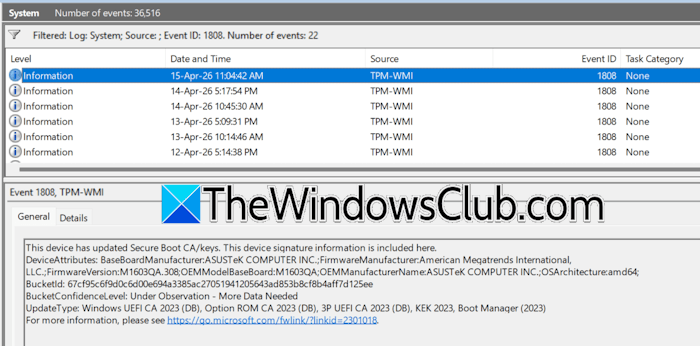
- Launch Windows Event Viewer.
- Expand Windows Logs and select System.
- Click Filter Current Log and type 1808 in the Event ID section.
- Click OK.
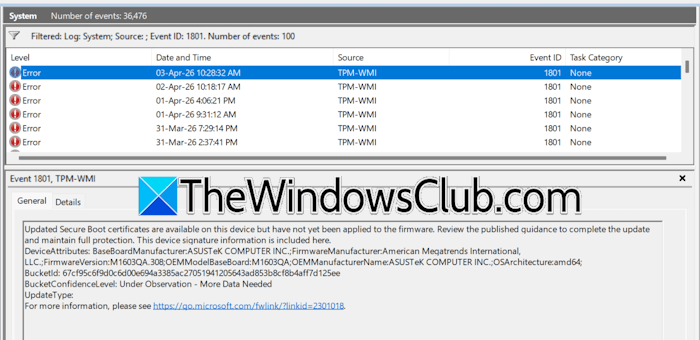
If the Event ID 1808 is not present in the Event logs, search for the Event ID 1801. This error event indicates that the updated certificates have not been applied to the device.
Audit the UEFICA2023Error key in the Registry. This key indicates an error with the secure boot certificate update process. Hence, it should not exist in the Registry. Instead, the key UEFICA2023 should be present in the Registry and show the value as Updated.
All the secure boot registry keys are located at the following paths:
HKEY_LOCAL_MACHINE\SYSTEM\CurrentControlSet\Control\SecureBoot

HKEY_LOCAL_MACHINE\SYSTEM\CurrentControlSet\Control\SecureBoot
3] Apply OEM firmware updates before Microsoft Updates
Microsoft strongly recommends applying OEM firmware updates before applying the Microsoft Updates. Updated firmware can help prevent compatibility problems and ensure new Secure Boot certificates are accepted. If your organization has identified Secure Boot update issues or your OEM recommends a firmware update, apply the latest BIOS/UEFI update before installing Secure Boot–related Windows updates.
4] Deploy secure boot certificates
If you enable diagnostic data, Microsoft will automatically install the Secure Boot certificates through Windows Update. However, you can also do this manually. Microsoft shared the following four methods to do this:
- Using Microsoft Intune
- Through Registry Keys
- Via Windows Configuration System (WinCS)
- Using Group Policy
Deploying certificates using Microsoft Intune
You can deploy, manage, and monitor secure boot certificate updates in Microsoft Intune. For this, the following three settings are available. However, these settings are disabled by default.
- Enable Secure Boot Certificate Updates
- Configure Microsoft Update Managed Opt In
- Configure high Confidence Opt Out
Go through the following instructions to deploy the latest certificates through Microsoft Intune:
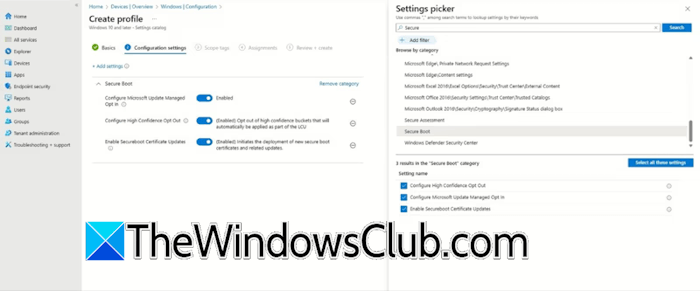
- Navigate to Devices > Manage Devices.
- Select Configuration.
- Select Create and select New Policy.
- Go to Create a profile and select Windows 10 and later in the Platform drop-down.
- Select Settings Catalog under the Profile Type.
- Give a name to your profile and click Next.
- Under Configuration settings, select Add settings and use the Settings picker to find the Secure Boot settings by searching for Secure Boot.
- Enable the Secureboot Certificate Updates setting. The other two settings can be configured to suit your environment and deployment needs.
- Finish the profile for the devices that will use this setting.
Deploying certificates through Registry Keys
Navigate to the following path in the Registry Editor:
HKEY_LOCAL_MACHINE\SYSTEM\CurrentControlSet\Control\SecureBoot
Look for the AvailableUpdates key on the right side. Set its value to 0x5944 to deploy all needed certificates and updates to the Windows UEFI CA 2023 signed boot manager.
Deploying certificates via Windows Configuration System (WinCS)
Microsoft has provided new command-line tools for the domain-joined clients on Windows 11, 25H2, 24H2, and 23H2. These tools include both a traditional executable and a PowerShell module for querying and applying secure boot configurations.
Deploying certificates using Group Policy
To deploy the latest certificates through Group Policy, open the Group Policy settings and navigate to Computer Configuration > Administrative Templates > Windows Components > Secure Boot. Now, set the Enable Secure Boot certificate deployment policy to Enabled. This lets Windows automatically begin the certificate deployment process.
Microsoft also shared the ways to troubleshoot and remediate common issues. You can get more information on the official website.
Read: What happens to older devices when Secure Boot Certificates expire
Requirements for getting the latest certificates through Windows Updates
For both Windows Clients and Home PCs, Microsoft recommends sending the Diagnostic Data to get the latest certificates through Windows Updates. If this option is turned off, turn it on in Settings.
Windows 10 users must enroll in the ESU program to get the latest secure boot certificates through Windows Updates.
How to check Secure Boot Status on Windows 11 Home
You can check the secure boot certificate status by running the following command in Elevated Windows PowerShell:
[System.Text.Encoding]::ASCII.GetString((Get-SecureBootUEFI db).bytes) -match 'Windows UEFI CA 2023'
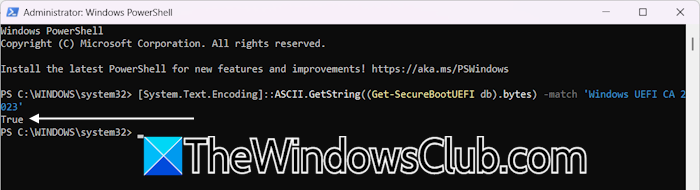
If you get True as an output, your system has the latest secure boot certificates.
You can also check the same in Windows 11 Settings. Follow these steps:
- Open Windows 11 Settings.
- Go to Windows Update > Update History.
- Expand the Other Updates tab.
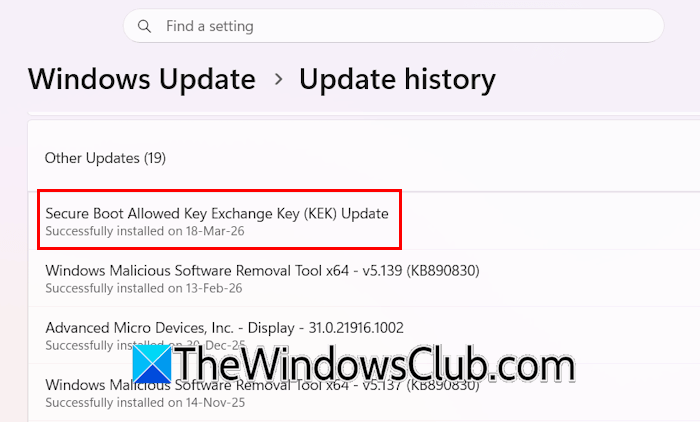
If the Secure Boot Certificates are installed, you will see the Secure Boot Allowed Key (KEK) Update there.
That’s it. I hope this helps.
Secure Boot Certificate update messages in Windows Security explained
Open Windows Security > Device security > Secure Boot. There, a green, yellow, or red badge attached to the Secure Boot icon will indicate your current Secure Boot status.
- A green icon means your device is sufficiently protected and there are no recommended actions.
- A yellow icon indicates a safety recommendation for you.
- A red icon indicates something that needs your immediate attention.
In addition to the badges in different colors, depending on your device’s configuration, you can see one of the following messages in the Secure Boot section.
| If you see this message in the Secure Boot section | What you should do |
|---|---|
| Secure Boot is on and all required certificate updates have been applied. No further certificate changes are needed. | No action is needed. |
| Secure Boot is on, but your device is using an older boot trust configuration that should be updated. | Make sure your device has the latest Windows updates installed. Restart if prompted. |
| Secure Boot is on, but your device is affected by a known issue. To reduce risk, Secure Boot certificate updates are temporarily paused while Microsoft and partners work toward a supported resolution. The update will resume automatically once resolved. | No action is needed. The certificates update will resume automatically once the issue is resolved. |
| Secure Boot is on, but your device is using an older boot trust configuration that should be updated. There is not yet enough data to classify your device for automatic update. Visit the link below for more information. | Your device might need additional validation before the update can proceed automatically. |
| Secure Boot is on, but your device does not support the automated Secure Boot certificate update due to hardware or firmware limitations. Contact your device manufacturer for assistance. | Contact your device manufacturer for assistance. |
| Secure Boot is on, but this device can no longer receive required updates for the Windows boot experience. | Your device is still using an old certificate after the expiration date. |
Updated Secure Boot Certificates are available on this device but have not yet been applied
If you see the message “Updated Secure Boot Certificates are available on this device but have not yet been applied”, it means your system has new security certificates to strengthen protection against firmware-level threats.
A Full restart (not just a shutdown and start) is required to trigger the firmware write process. You may have to restart your device twice. You should open Windows Update or Settings > Update & Security to check for pending updates. Apply the Secure Boot update promptly to ensure your device remains protected against known vulnerabilities. Restart your computer after installation so the new certificates take effect. You should also check for BIOS/Firmware updates
Are Secure Boot Certificates expiring?
Yes, the older Secure Boot Certificates are expiring in June 2026. Windows PCs manufactured in 2024 or later already have the latest secure boot certificates. However, if you have an older PC, you need to update the certificates. The easiest way to update the certificates is to keep your Windows OS up to date.
Does Windows 11 really need a Secure Boot?
Yes, Windows 11 requires Secure Boot. Your device should be UEFI- and Secure Boot-capable. If Secure Boot is disabled, enable it in the BIOS before installing Windows 11. It is also possible to install Windows 11 on devices without Secure Boot by bypassing the hardware requirements through a third-party tool, like Rufus. However, Microsoft does not recommend it.
Read next: Event ID 1801, Secure Boot CA/keys need to be updated.
