
In this tutorial, we will show you how to use Cloud Rebuild in Windows 11. Starting with Windows 11 version 26H2 (build 26300.8772), Microsoft has introduced a new recovery option named Cloud Rebuild in Windows Recovery Environment (WinRE), as highlighted in the image below. This feature helps to restore a Windows 11 device to a clean, known-good state, with a full Windows reinstall, even if Windows won’t boot. As the name indicates, you can use it to install Windows on your PC from the cloud using Windows Update.
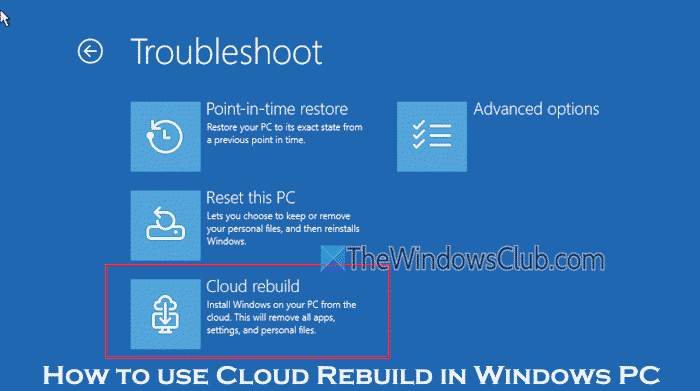
Unlike the Reset this PC recovery option, this recovery option downloads the entire Windows image and essential device drivers from Windows Update to help your device become fully functional again. You don’t need to rely on OS health or a bootable installation media to perform a complete OS reinstall. If traditional recovery methods aren’t available, Cloud Rebuild can be handy for getting your Windows 11 PC back to a working state.
As of now, the Cloud Rebuild option is in preview and is gradually rolling out to devices. We need to wait for this feature to become generally available.
Prerequisites and important points for Cloud Rebuild
Before trying the Cloud Rebuild recovery feature, you should also have a look at the prerequisites and some important points:
- Your device must meet Windows 11 minimum hardware requirements to access and use this feature
- Your Windows 11 PC must have a healthy Windows Recovery Environment (WinRE). If WinRE is disabled, you need to enable it first
- A compatible networking driver is required in WinRE
- An active internet connection is required to use Cloud Rebuild in WinRE. Only a personal (WPA-Personal network) WiFi connection or a wired Ethernet connection is supported now. If the connection is lost or interrupted, the Cloud Rebuild process may fail, and the Windows Recovery Environment UX will display an error code
- Cloud Rebuild will reformat your system disk, and all the local data, apps, settings, and accounts will be removed. However, data stored in OneDrive and other cloud storage services remains intact
- You should keep your PC connected to power until the Cloud Rebuild process is finished. Interrupting the process may result in Windows being unable to boot
- For managed devices (registered with Windows Autopilot), IT admins can use Microsoft Intune to use Cloud Rebuild
- As the feature is in preview, you should use it on non-production devices, and keep a backup of your PC (local files and other user data).
How to use Cloud Rebuild in Windows 11
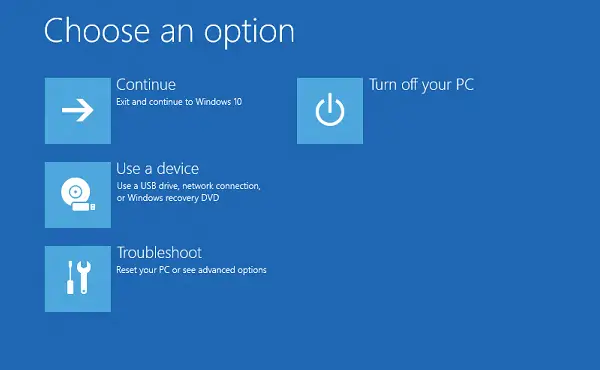
Here are the steps to use the Cloud Rebuild recovery option in Windows 11:
- Enter or boot into Windows Recovery Environment (WinRE). On repeated boot failures, your device will automatically boot into WinRE. Otherwise, you can do it manually. For this, open the Settings app (Win+I) > System > Recovery > and press the Restart now button available next to Advanced startup option. If you can’t boot into Windows Recovery Environment, check the status of WinRE, and make sure that the Windows Recovery Partition is not deleted. Otherwise, you need to perform an In-Place Upgrade or a clean Windows installation first
- A Choose an option screen will appear
- Select the Troubleshoot option
- Select the Cloud rebuild option (highlighted in the first image)
- Cloud Rebuild will try to connect to the internet. An Ethernet connection is completed automatically, but for a personal WiFi connection, you need to enter the password (or passkey) to proceed further

- After finishing the preparation process, Cloud rebuild will use Windows Update to download the networking drivers and determine the target OS build
- Now the configuration screen will appear to show the target Windows build, edition (Enterprise, Home Single language, etc.), and language (say English (United States))
- After reviewing the configuration, press the Continue button.

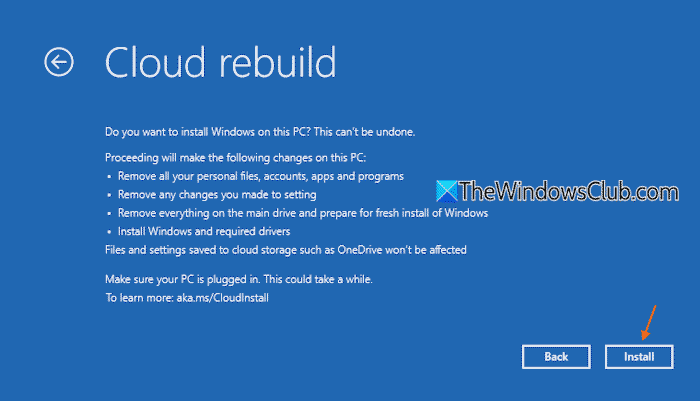
- A data loss warning screen will appear. If you acknowledge, press the Install button to continue. Now the preparation, download, and install phases will start, and you can see the progress on your screen. This will take some time, and your device will restart multiple times. Let the process continue, and do not turn off your device manually
- After finishing the rebuild process, your PC will boot into Windows out-of-box experience (OOBE) that you can complete by yourself.

- For Intune-managed PCs, the PC will automatically reconnect to Microsoft Intune, where assigned policies and apps are redeployed to the user.
That’s all.
Related: How to enable and configure Point-In-Time Restore in Windows PC
Cloud Rebuild failed with error code 0xc1900200
An error code 0xc1900200 is displayed during the Cloud Rebuild process if a required driver is missing or your PC doesn’t meet the minimum hardware requirements for Windows 11. To fix this problem, first check and confirm that the Trusted Platform Module (TPM) is enabled. If the problem continues, download and install the missing drivers (networking and storage drivers). Otherwise, you should contact the device manufacturer to ensure that all essential drivers for your device are available through Windows Update.
Read: How to perform a Point-In-Time Restore in Windows PC
Cloud Rebuild error code 0x800704C6
If Cloud Rebuild fails and the failure screen displays an error code 0x800704C6, this indicates that your PC has no network connection. An active internet connection is required to use Cloud Rebuild to download the required drivers and the target Windows image from Windows Update. To resolve this error, press Cancel on the failure screen. After that, go to Troubleshoot > Cloud rebuild. Now you must connect to a WPA -2 Personal WiFi connection or an Ethernet connection in Windows Recovery Environment.
Also read: Cloud Reset lets you reinstall or reset a Windows PC via the Cloud download option
How do I perform a Cloud Reset on Windows 11?
To perform a cloud reset or Cloud download on Windows 11, open the Settings app. Select the System category and access the Recovery page. Under the Recovery options section, press the Reset PC (next to the Reset this PC option) button. Now you need to select the Keep my files option or the Remove everything option for resetting your PC. After this, press the Cloud download option to download and reinstall Windows.
How to rebuild a Windows 11 PC?
There are multiple ways to rebuild or reinstall a Windows 11 PC. For example, you can use the Reset this PC feature, the Point-in-time restore option in Recovery options, or reinstall Windows 11 using Windows Update, which reinstalls the current version of Windows, and your user settings, apps, and files are preserved. Alternatively, you can use the new Cloud Rebuild feature in Windows Recovery Environment to perform a full Windows reinstall without any need for a USB media or custom image. This option doesn’t depend on the integrity or health of the currently installed operating system.
Read next: Reset vs Clean install vs In-place Upgrade in Windows PC.
