
Joining a Windows 11 computer to a domain should be straightforward, but it can sometimes fail with frustratingly vague errors. These issues often stem from network configuration problems, permission errors, or even the version of Windows you’re running. In this post, we are going to see what you can do if you are unable to join or connect to a domain in Windows 11.

Fix Unable to join domain in Windows 11
The most common reason for domain join failures is incorrect DNS configuration. For your computer to find the domain controller, its network settings must point to a DNS server that can resolve your domain’s name. Other typical culprits include time synchronization mismatches, Kerberos authentication requires the client and server times to be within five minutes of each other, firewalls blocking necessary ports like LDAP (389) and Kerberos (88), and permission issues where your account lacks the right to join computers to the domain. Occasionally, the problem is that you are trying to join from an unsupported Windows 11 Home edition, which lacks this feature. In some cases, a hidden, disabled, or orphaned computer account in Active Directory with the same name can also block the join.
If you are unable to join or connect to a domain in Windows 11, follow the solutions mentioned below.
- Verify and correct DNS Settings
- Synchronize the System Time
- Confirm you are using Windows 11 Pro or Enterprise
- Use an alternative join method
- Check for an Existing Computer Account in Active Directory
Let us talk about them in detail.
1] Verify and correct DNS Settings
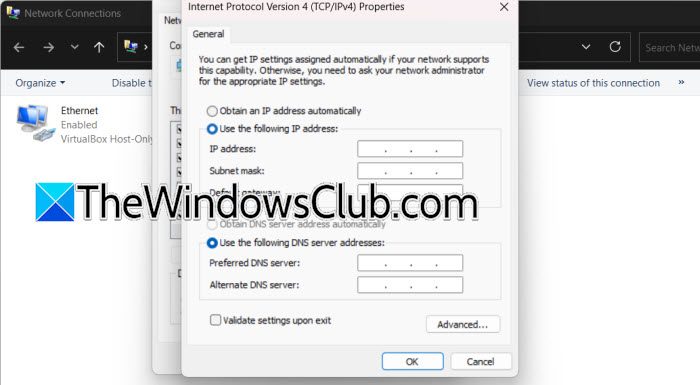
A misconfigured DNS is the primary reason Windows can’t find the domain. This solution forces your computer to use the correct DNS server that knows where the domain controller is. To verify and correct DNS settings, follow the steps mentioned below.
- Open the Control Panel and go to Network and Sharing Center > Change adapter settings.
- Right-click your active network adapter and select Properties.
- Select Internet Protocol Version 4 (TCP/IPv4) and click Properties.
- Select Use the following DNS server addresses and enter the IP address of your domain controller as the Preferred DNS server.
- Click OK to save.
- Open Command Prompt as an administrator and run ipconfig /flushdns to clear the DNS cache.
Finally, check if the issue persists.
2] Synchronize the System Time
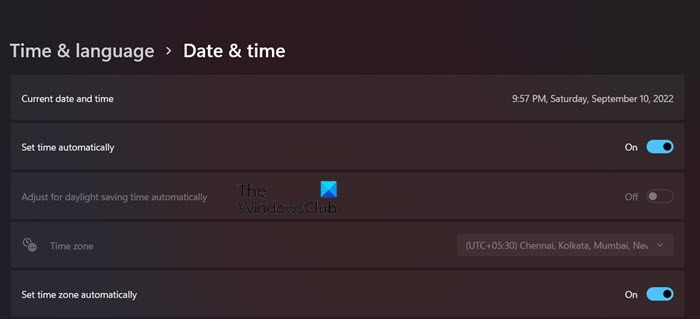
Domain authentication relies on Kerberos, which is highly sensitive to time differences. If your computer’s clock is not in sync with the domain controller’s, the authentication will fail. To do so, follow the steps mentioned below.
- Open the Settings app (Win + I) and go to Time & Language > Date & time.
- Ensure Set time automatically and Set time zone automatically are turned On.
- If the time is still wrong, click Sync now.
- For a more forceful sync, open an elevated Command Prompt and run the following commands:
w32tm /resync
Now, try connecting to your Domain Controller and see if that helps.
3] Confirm you are using Windows 11 Pro or Enterprise
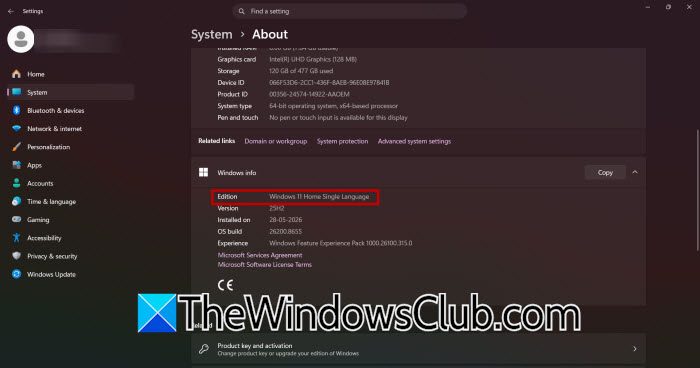
The domain join feature is not available in Windows 11 Home. Attempting to join a domain from the Home edition consistently fails because the option is either missing or grayed out. You need to open Settings, then go to System > About. Now, go to Windows Specifications > Edition. If it says Windows 11 Home, you will have to upgrade to Windows 11 Pro or Enterprise to join a domain controller.
4] Use an alternative join method
Sometimes, the graphical interface (GUI) can be buggy or have options grayed out. Using a different method, like the classic Control Panel or PowerShell, can bypass these GUI-specific issues.
You can open the Control Panel and go to System and Security > System. Now, go to Change settings next to the computer name. On the Computer Name tab, click on Change… Select Domain, enter your domain name, and provide the required credentials.
You can even use PowerShell. Launch it as an administrator and run the following command replacing “YourDomainName” with your actual domain.
Add-Computer -DomainName "YourDomainName" -Credential (Get-Credential) -Restart
Enter your domain admin credentials when prompted.
5] Check for an Existing Computer Account in Active Directory
If a computer with the same name already exists in Active Directory, even if it’s disabled or hidden, it can prevent a new computer from joining. This is especially common when reusing a hostname.
Hopefully, with these solutions, your issue will be resolved.
How do I manually join a domain in Windows 11?
You can manually join a domain in Windows 11 by opening Settings, going to Accounts and selecting Access work or school. Click Connect, choose the option to join a domain, then enter your organization’s domain name when prompted, and provide admin credentials with permission to add computers. You can use the Control Panel under System Properties. After you submit the correct info, Windows authenticates you and prompts you to restart.
What are the three common causes of a failed domain connection?
The three common causes are incorrect DNS settings that prevent your computer from locating the domain controller, time synchronization mismatches that break Kerberos authentication, and insufficient user permissions to add a new machine to the domain. These issues arise from network misconfiguration, clock drift, or restrictive Active Directory policies. Checking your DNS server address, syncing your system clock, and verifying your account privileges will directly address these primary failure points.
Read: Active Directory Domain Controller for the domain could not be contacted.
