
Some users have complained that Task View keeps popping up randomly on their Windows 11 PCs, even when they haven’t pressed the Win+Tab hotkey or clicked the Task View button on the Taskbar. For some users, it happened after updating Windows. When they click anywhere on the desktop or Taskbar, Task View opens randomly or switches to virtual desktops. Thankfully, this post includes some working solutions to fix this issue.
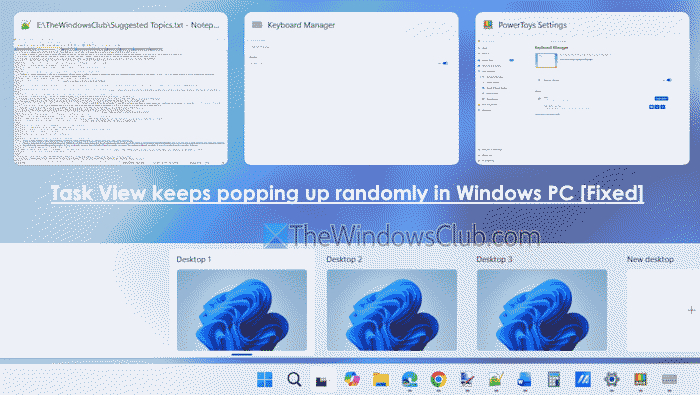
Why does Task View keep popping up?
Task View may keep popping up if Touchpad gesture settings are configured to open it, and you are using the gesture accidentally or unknowingly. Additionally, if you are using a controller connected to your PC, this can also cause Task View to open up randomly. Apart from this, the latest Windows update and using third-party Taskbar customization software can also cause this issue.
Task View keeps popping up randomly in Windows 11
If Task View keeps popping up randomly on your Windows 11 PC, use these fixes:
- Check your keyboard
- Check Touchpad gesture settings
- Unplug your controller or dongle
- Disable or remap the Task View shortcut key
- Uninstall ExplorerPatcher or third-party tools.
Let’s check these solutions.
1] Check your keyboard
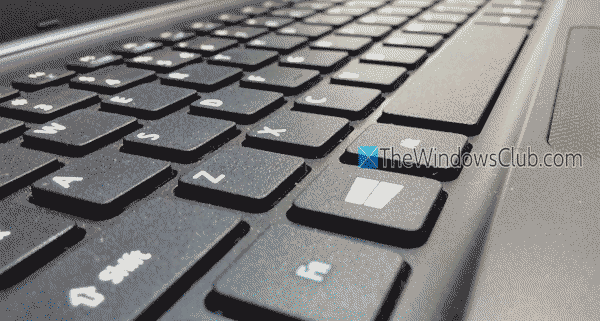
If a keyboard key is stuck or keeps getting stuck randomly, your PC performs the same action or keeps typing the same letter repeatedly or at random. This could be why Task View keeps opening or switching virtual desktops. So, you should test your keyboard. Check all the keys (specially Win key) to make sure your keyboard is working fine.
2] Check Touchpad gesture settings
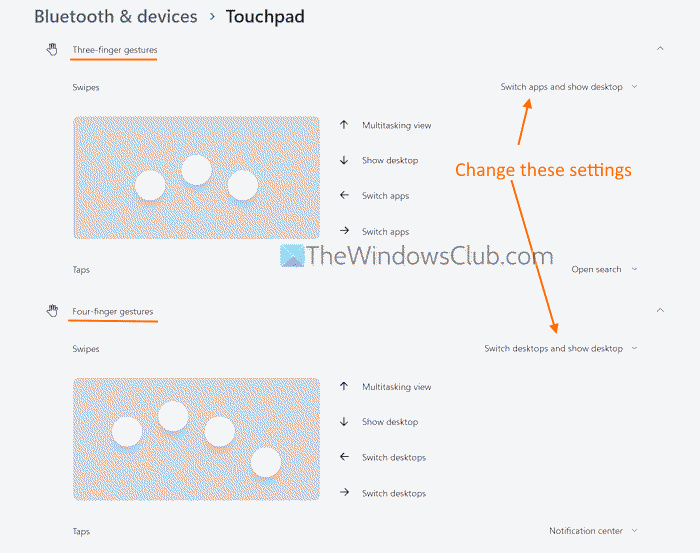
If you are on a laptop, your Touchpad gesture settings may be configured to open Multitask view with Three-finger and Four-finger gestures, which can accidentally open Task View mode. In this case, you need to check your Touchpad gestures and change them if necessary. Here are the steps:
- Open the Settings app (Win+I)
- Navigate to Bluetooth & devices > Touchpad
- Expand the Three-finger gestures section
- If the swipe with three fingers up on the touchpad setting is set to Multitask view (Switch apps and show desktop or Switch desktops and show desktop), change Three-finger swipe gestures to Nothing or another setting
- Now expand the Four-finger gestures section and repeat the above step for swiping with four fingers up on the touchpad setting
- Access the Advanced gestures section (under Related settings in Touchpad)
- Expand the Configure three-finger gestures section and the Configure four-finger gestures section one by one and check all the tap and swipe actions (Swipe up, Swipe left, Swipe down, and Swipe right). If these are set to Task view mode or Switch desktops, change them to Nothing or some other preferred setting.
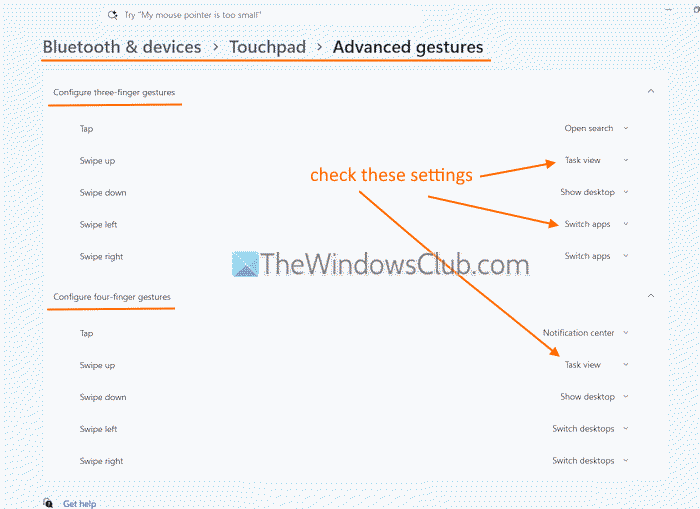
This should fix your problem immediately.
Related: Task View not working or opening in Windows PC
3] Unplug your controller or dongle
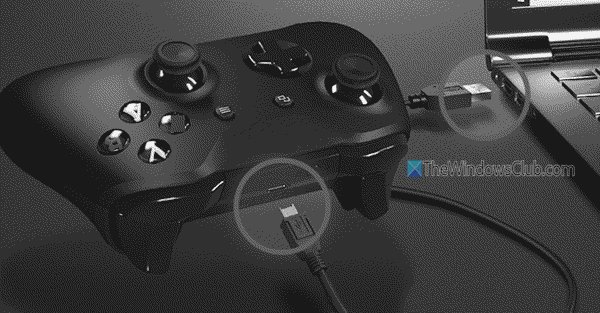
This is a simple and effective solution to this problem, as it has helped some users. Users found that when they unplugged the dongle or the controller they were using (say, a Razer controller dongle or Razer Fire TV gaming controller, an OEM controller, a Gamepad USB dongle, etc.), the problem was gone instantly. So, unplug any controller you’re using and other USB devices or peripherals. This should help.
4] Disable or remap the Task View shortcut key
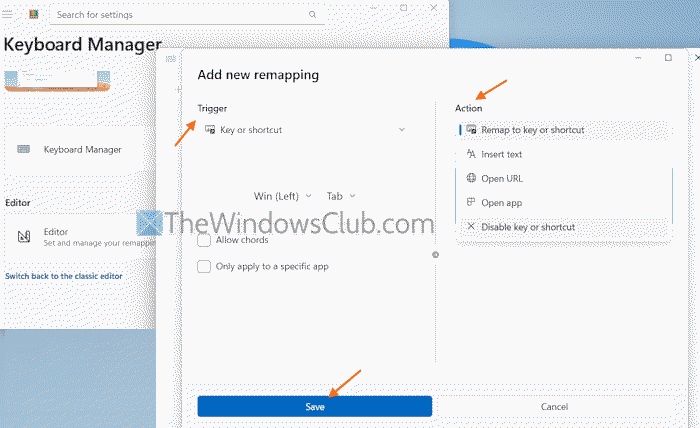
If this is the reason that Task View keeps opening randomly, you can disable or remap the Task View shortcut key (Win+Tab) with some other key combination or hotkey. You can do the same for creating a virtual desktop shortcut (Win+Ctrl+D). To do so, you can use PowerToys to remap hotkeys or shortcuts. Here are the steps:
- In PowerToys Settings, access the Keyboard Manager, turn it on, and press the Open editor button
- Press the Add new remapping button
- Enter the Trigger (Task View shortcut)
- Enter the Action (Disable key or shortcut and Remap to key or shortcut)
- Press the Save button.
5] Uninstall ExplorerPatcher or third-party tools
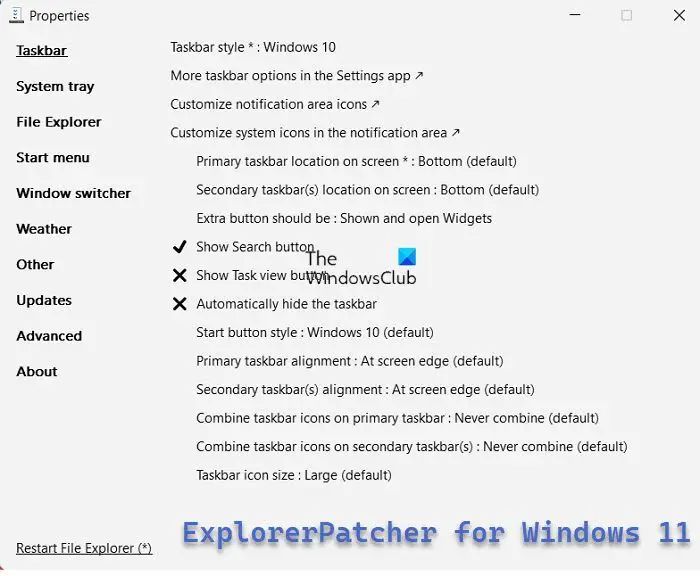
ExplorerPatcher is an open-source tool with tons of Start menu, File Explorer, and Taskbar customization options, etc. Some users found that this problem started after using this tool. So, in this case, you should uninstall ExplorerPatcher or other third-party Taskbar customization tools you’re using. Once done, restart your PC, and this problem should be gone.
Hope this helps.
Now read: How to remove the Task View button from Windows 11 Taskbar
Why does my Taskbar keep popping up in Windows 11?
If the Taskbar keeps popping up while playing games on Windows 11, first, restart File Explorer, and turn on the Automatically hide the Taskbar setting. If the problem persists, disable Xbox mode (or Game mode), disable notifications, and repair your system files. If nothing works, you may need to troubleshoot in Clean Boot State or reset your PC.
Read next: How to Create, Delete, and Use Virtual Desktops in Windows PC.
