
Some users have reported that Task View is not working or opening in their Windows 11 PCs. They are unable to use the hotkey (Win+Tab) or the Task View button on the Taskbar to open Task View to create, close, and use virtual desktops. Thankfully, this post covers some working fixes to solve this problem.
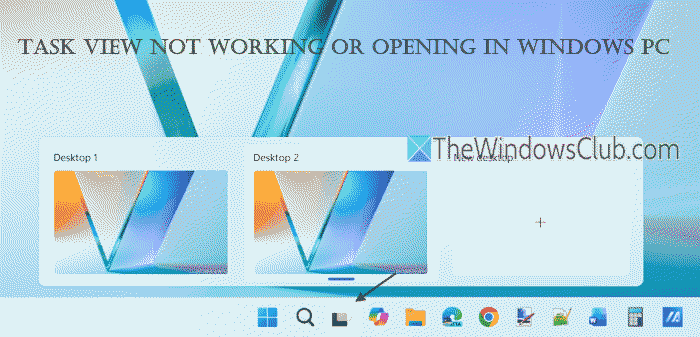
Task View not working or opening in Windows 11
If Task View is not working or opening in Windows 11, use these fixes:
- Check for Windows Update
- Restart File Explorer
- Use the hotkey to close virtual desktops
- Use the PowerShell script to close all virtual desktops at once
- Run System File Checker and DISM tool
- Re-enable the Task View button
- Uninstall third-party Taskbar customization tools.
1] Check for Windows Update
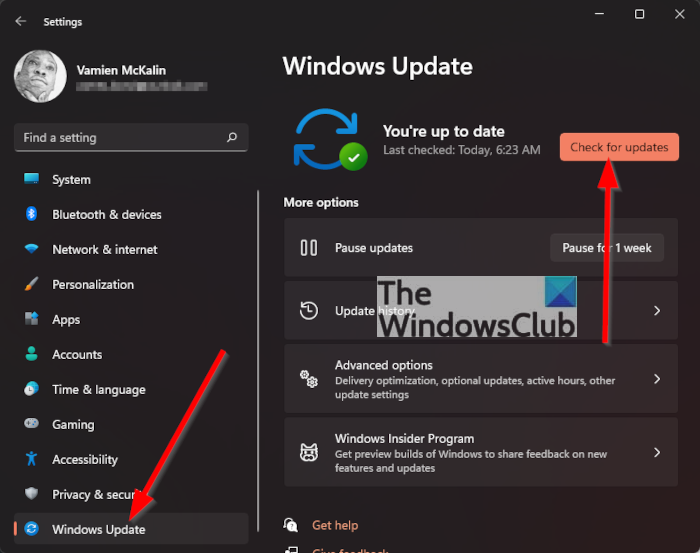
Windows Update delivers security updates and the latest fixes to help your device run smoothly. So, you should check for Windows Updates and see if this helps. If you have paused updates, resume updates, download and install them, and restart your PC.
2] Restart File Explorer
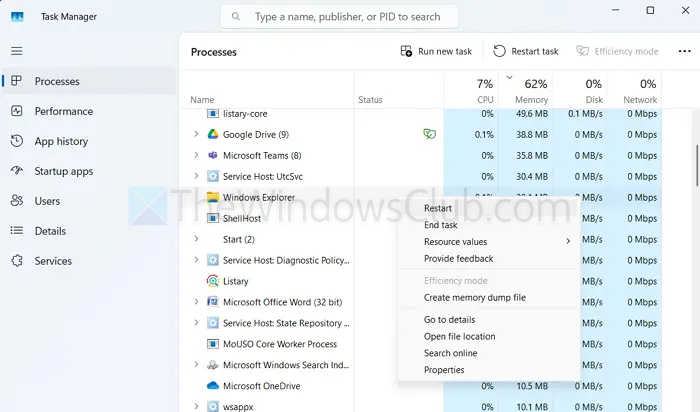
If your Windows is already updated, you can restart File Explorer to get rid of this problem.
3] Use the hotkey to close virtual desktops
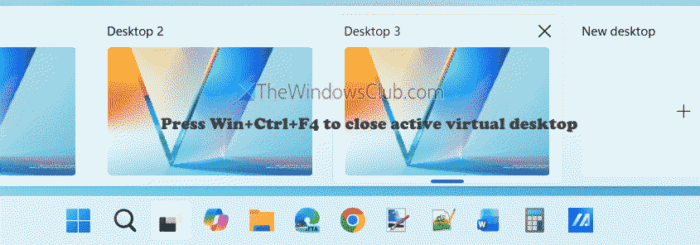
If dozens of virtual desktops are opened, these may use resources, so you can’t use the Task View button or its hotkey. In this case, you can use the hotkey to close virtual desktops one by one. Press Win+Ctrl+F4 hotkey to close the currently active virtual desktop and repeat this process. This should work.
4] Use a PowerShell script to close all virtual desktops at once
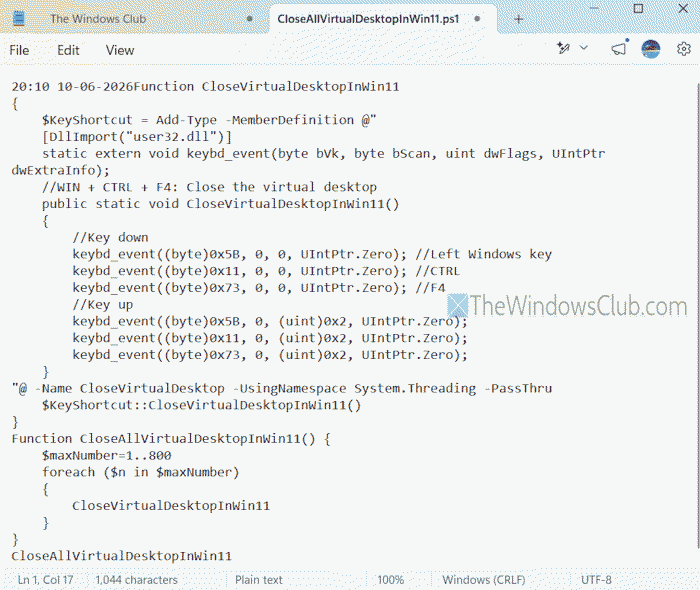
This is one of the best fixes as it helped some users. If there are hundreds of virtual desktops open, Task View won’t work or open. Also, the hotkey (Win+Ctrl+F4) won’t be of much help. In this case, you can use a PowerShell script to close all virtual desktops at once. This will release the resources quickly and also make the Task View feature work again.
To do this, copy and paste the following script into Notepad:
Function CloseVirtualDesktopInWin11
{
$KeyShortcut = Add-Type -MemberDefinition @"
[DllImport("user32.dll")]
static extern void keybd_event(byte bVk, byte bScan, uint dwFlags, UIntPtr dwExtraInfo);
//WIN + CTRL + F4: Close the virtual desktop
public static void CloseVirtualDesktopInWin11()
{
//Key down
keybd_event((byte)0x5B, 0, 0, UIntPtr.Zero); //Left Windows key
keybd_event((byte)0x11, 0, 0, UIntPtr.Zero); //CTRL
keybd_event((byte)0x73, 0, 0, UIntPtr.Zero); //F4
//Key up
keybd_event((byte)0x5B, 0, (uint)0x2, UIntPtr.Zero);
keybd_event((byte)0x11, 0, (uint)0x2, UIntPtr.Zero);
keybd_event((byte)0x73, 0, (uint)0x2, UIntPtr.Zero);
}
"@ -Name CloseVirtualDesktop -UsingNamespace System.Threading -PassThru
$KeyShortcut::CloseVirtualDesktopInWin11()
}
Function CloseAllVirtualDesktopInWin11() {
$maxNumber=1..800
foreach ($n in $maxNumber)
{
CloseVirtualDesktopInWin11
}
}
CloseAllVirtualDesktopInWin11
After this, save the script as *.ps1 (say CloseAllVirtualDesktopInWin11.ps1).
Right-click on the saved script and select the Run with PowerShell option. This will take only a few seconds to run the script and close all the virtual desktops.
Restart PC (if needed), and the Task View feature will be active.
Read: How to create Task View shortcut in Windows PC
5] Run System File Checker and DISM tool
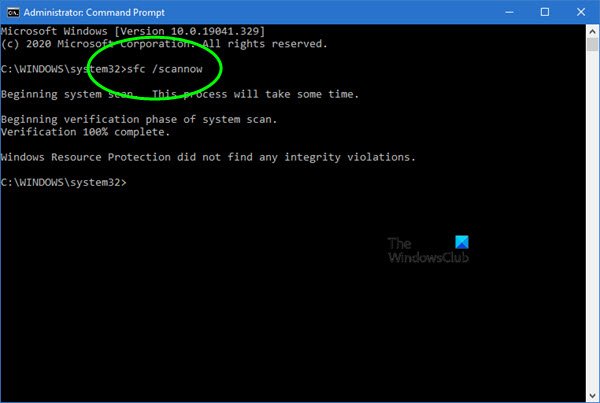
This solution worked for a user. Whenever he tried to click on the Task View button on the Taskbar or hover over it, his computer crashed. After running the built-in System File Checker (sfc /scannow) and DISM tool, the problem was solved. If you’re facing the same issue, use this solution.
6] Re-enable the Task View button
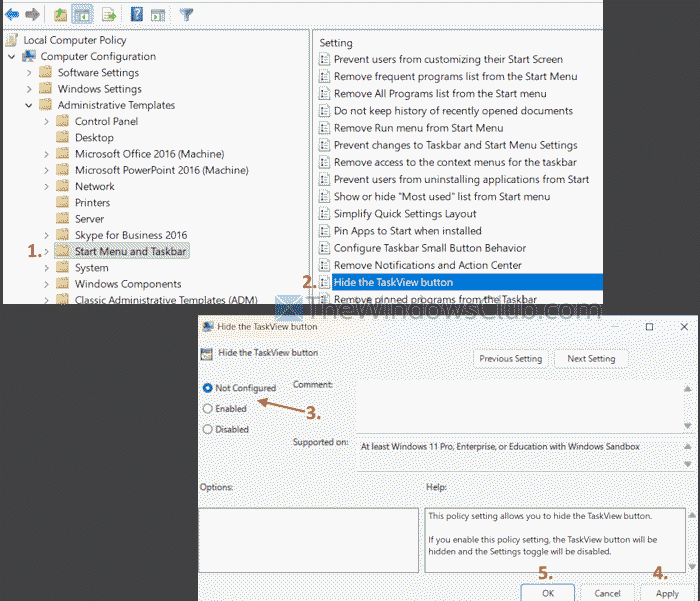
If the Task View button is removed from the Taskbar and you can’t add it using the Settings app because it is greyed out or disabled, this can happen if a Group Policy setting or Registry setting is enabled or configured. In such a case, you can re-enable the Task View button. Here are the steps to enable it using the Group Policy Editor:
- Open the Group Policy Editor window. Type gpedit.msc in the Search box and press Enter to open it
- Navigate to the following folder:
Computer Configuration > Administrative Templates > Start Menu and Taskbar
- Double-click on the Hide the TaskView button. A new window will open
- Select Not Configured in that window
- Press the Apply button and the OK button.
This will bring back the Task View button on the Taskbar.
Alternatively, you can also hide or show the Task View button on the Taskbar using the Registry Editor.
7] Uninstall third-party Taskbar customization tools
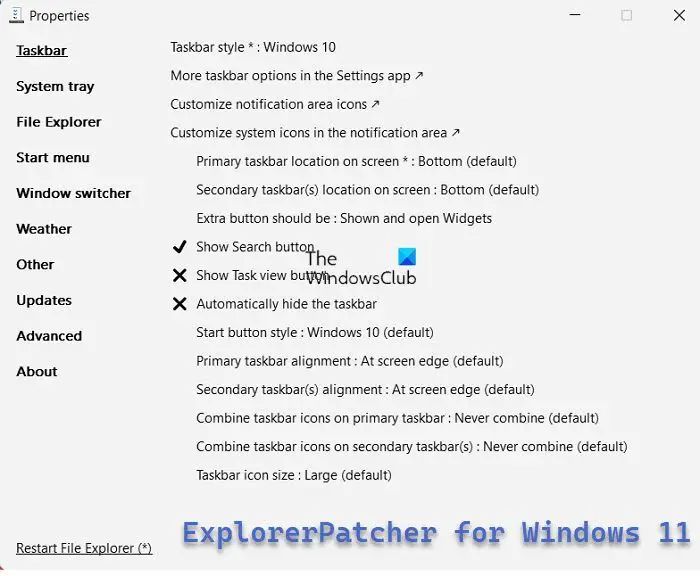
If you use third-party Taskbar customization tools, they can conflict with Taskbar settings and prevent Task View from working or opening. If this is the case, you should uninstall such a tool and restart your PC. You can also try updating your Taskbar customization tool to see if it works.
Hope this helps.
Now read: How to Manage Virtual Desktop in Windows PC
How to fix the Windows 11 Taskbar not working?
If your Windows 11 Taskbar is not working, frozen, unresponsive, or not showing, restart File Explorer. If that doesn’t help, troubleshoot in Clean Boot State, or re-register the Taskbar using Windows PowerShell. You can also use a BAT file to reset the Taskbar and solve the issue.
How to fix Task Manager not opening in Windows 11?
If the Task Manager is not opening, responding, or is disabled by an administrator in Windows 11, you can enable it via Group Policy. In the Group Policy Editor, navigate to User Configuration > Administrative Templates > System > Ctrl+Alt+Del Options > Remove Task Manager. Select Not Configured > OK. You can also use Registry Editor or our FixWin 11 tool if Task Manager is not opening.
Read next: Virtual Desktop Tips and Tricks for Windows PC.
