
Sometimes, users might face intermittent issues with Windows System UI components. These issues can create a poor user experience. One such UI element is the Taskbar. If you are also facing any issues where your Windows Taskbar is not working properly or freezes, is unresponsive, is unclickable or stops working randomly, then this article can help you troubleshoot & fix the issue.
Taskbar unresponsive, frozen, not showing or loading in Windows 11
Several methods can fix a non-functioning taskbar. If your Windows 11/10 Taskbar isn’t working, isn’t responsive, or freezes, these suggestions can help you fix the problem.
1] Restart Windows Explorer
This simple fix can help restore your taskbar to working order. If the taskbar issue isn’t critical, this method should do the job. You won’t need to play or manipulate with other system settings. Here’s what you need to do:
1. Press Windows Key + R combination on your keyboard to launch Run prompt. Enter taskmgr.exe and hit Enter to open Task Manager.
2. Now, under Processes tab, scroll down and look for Windows Explorer over there.
![[Fix] Taskbar Not Working In Windows 10](https://www.thewindowsclub.com/wp-content/uploads/2016/06/Windows-Explorer-Process-Task-Manager-600x405.png)
3. Select Windows Explorer and click on Restart button in the bottom right corner.
4. This should simply kill the Windows Explorer process and restart it in a little while.
Check if this method resolves the issue for you.
Read: How to Restart or Reset Windows Taskbar.
2] Check for bad Explorer add-ons
Boot your Windows 11/10 computer in Clean Boot State and try to locate the offender by trial and error method. Maybe some File Explorer addon is interfering with the smooth functioning of explorer.exe. If you can identify if, disable or remove that addon and see.
Related: Windows 11 Taskbar not working.
3] Re-register the Taskbar
If the issue resurfaces, then try this method to fix it using Windows Powershell. PowerShell is a command-line tool for configuring system settings and automating Windows tasks.
First, create a system restore point and then follow these steps to use Windows Powershell for fixing taskbar issues:
1. Press Windows Key on your keyboard and type in powershell. Right-click Windows Powershell (Desktop App) and select Run as administrator. Select Yes in the UAC window that pops up.
2. Now paste the following command, in the PowerShell window and hit Enter:
Get-AppXPackage -AllUsers | Foreach {Add-AppxPackage -DisableDevelopmentMode -Register “$($_.InstallLocation)\AppXManifest.xml”}
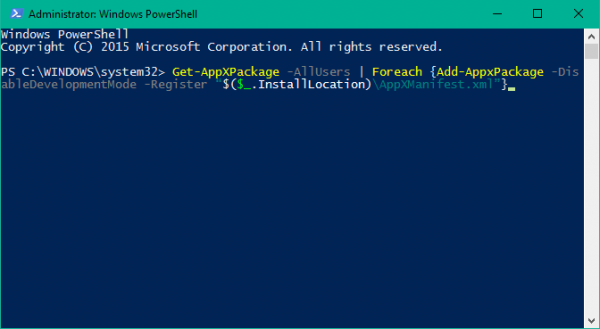
3. Once the command is executed successfully, navigate to the following directory in Explorer where name is your Account Username. Make sure you have enabled the showing of hidden items in Explorer.
C:/Users/name/AppData/Local/
![[Fix] Taskbar Not Working In Windows 10](https://www.thewindowsclub.com/wp-content/uploads/2016/06/Locate-TileDataLayer-Folder-600x372.png)
4. Scroll down to locate the folder named TileDataLayer and delete this folder.
If you are unable to delete this folder, Run services.msc to open the Services Manager, scroll down to Tile Data model server service and stop it. Now try to delete the folder again.
5. Now check if your taskbar is working as expected.
Read: Task Manager not updating in Windows 11
One of these fixes should work just fine for you. Let us know in the comments if any of these methods worked for you, or if you are facing another issue with the taskbar on Windows 11/10.
See this post if your Windows Start Menu is not working and this one if Taskbar icons or buttons not working.
