
The humble Notepad in Windows is one of the most used programs. It is a very basic text editor you can use for simple documents. Let us have a look at some Notepad tips and tricks that will help you get the best out of it.
Notepad Tips and Tricks for Windows PC

Most of us don’t even bother to see what it offers, preferring instead to use it in its default state. Here are a few very basic tips to help you get the maximum out of it!
1) To add a date and time stamp to an open Notepad, simply hit F5.
You will see it displayed as: 23:37 10-05-2010
2) At the first line of a Notepad file, type: .LOG
This will put a timestamp at the end of the file, every time you open it.
3) To change the font used in Notepad, click Format > Font and select the font and style you prefer!
4) To customize the Page setup, size & side margins, click on File > page Setup to see the options.
5) The Status Bar appears at the bottom of Notepad and gives information like the number of Lines and the number of columns the text is occupying. See how to enable Status Bar in Notepad.
6) You can remove or change Notepad headers and footers. If you open Notepad > File > Page Setup, you will see that the default header and footer settings are:
- Headers: &f
- Footers: Page &p
These commands will display the title of the document on the top & page number at the bottom.
To change headers and footers, you can use the following commands in the Header & Footer fields given in the Page Setup box:
- &l Left-align the characters that follow
- &c Center the characters that follow
- &r Right-align the characters that follow
- &d Print the current date
- &t Print the current time
- &f Print the name of the document
- &p Print the page number
If you leave the Header or Footer text box empty, no header or footer will print. You can also insert words into the Header and Footer text box and they will print in their appropriate position. All header and footer settings must be entered manually each time you want to print a document. These settings cannot be saved.
Read: How to change the default Character Encoding in Notepad.
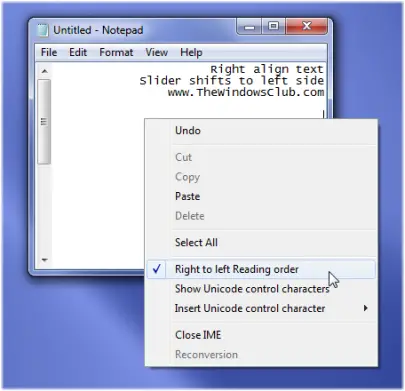
7) To make the text align to the right side, right-click inside Notepad and select Right-to-left reading order.
Read: How to restore the Classic Notepad in Windows 11
8) You can make Notepad behave like a log file:
- Open a blank Notepad file
- Write .LOG (in uppercase) in the first line of the file, followed by Enter. Save the file and close it.
- Double-click the file to open it and notice that Notepad appends the current date and time to the end of the file and places the cursor on the line after.
- Type your notes and then save and close the file.
- Each time you open the file, Notepad repeats the process, appending the date and time to the end of the file and placing the cursor below them.
9) Add “Open with Notepad” to the Context Menu for ALL Files
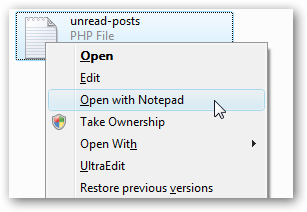
Open regedit.exe through the start menu search or run box, and then browse down to the following key:
HKEY_CLASSES_ROOT\*\shell
Right-click on “shell” and choose to create a new key, calling it “Open with Notepad”. Create a new key below that one called “command”. Double-click on the (Default) value in the right-hand pane and enter in the following:
notepad.exe %1
The change should take effect immediately… just right-click on any file and you’ll see the next menu entry.
You can also use this registry fix to do it with a click. Just download, extract and double-click on the Open With Notepad Fix.reg file to enter the information into the registry.
You may also use Ultimate Windows Tweaker.
10) Quickly jump to a Line.
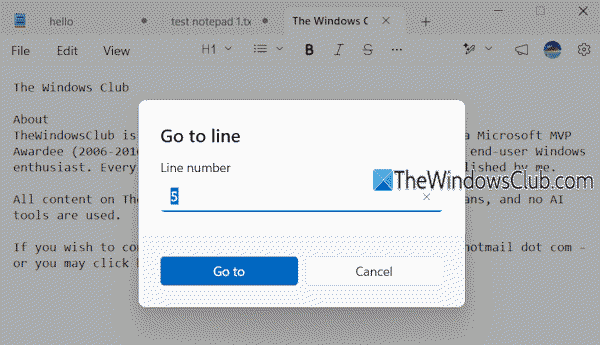
To quickly jump to a particular line in a text document in Notepad, press Ctrl+G hotkey, and enter the line number. It’s very helpful when you have a document with hundreds or thousands of lines.
11) Use Word Wrap in Notepad.
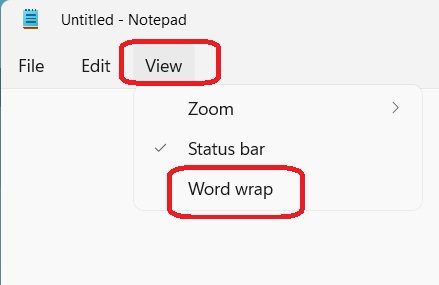
To always fit the text within the Notepad window, you can enable and use Word Wrap in Notepad. Access the View menu and select the Word wrap option to enable/disable it.
12) Insert Emojis in Notepad
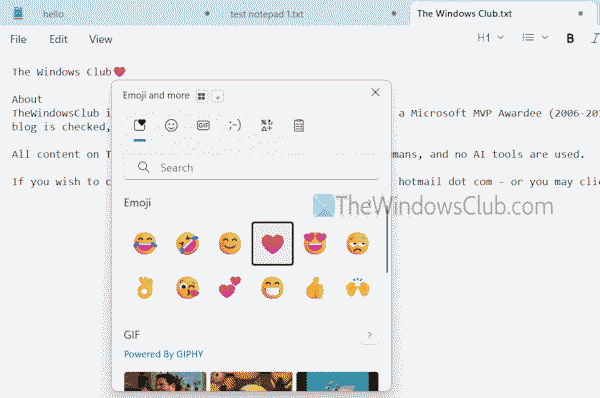
With the native Emoji Panel in Windows 11, we can insert emojis and special characters in Notepad. Press Win+. Hotkey to open the Emoji Panel and use the Emoji section, Kaomoji, and Symbols. GIFs are not supported yet.
13) Spell check and Autocorrect.
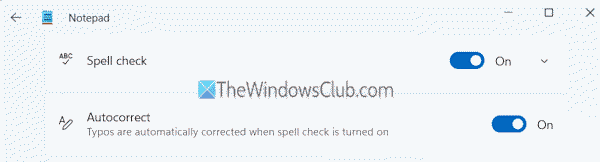
Notepad can highlight spelling mistakes and provide suggestions to correct them. Supported file formats are MD, TXT, SRT, LIC, and LRC. In addition, it can also correct typos automatically. Open Notepad Settings and access the Spelling section. Turn on the Spell check and Autocorrect buttons.
14) Change the default Font and size.
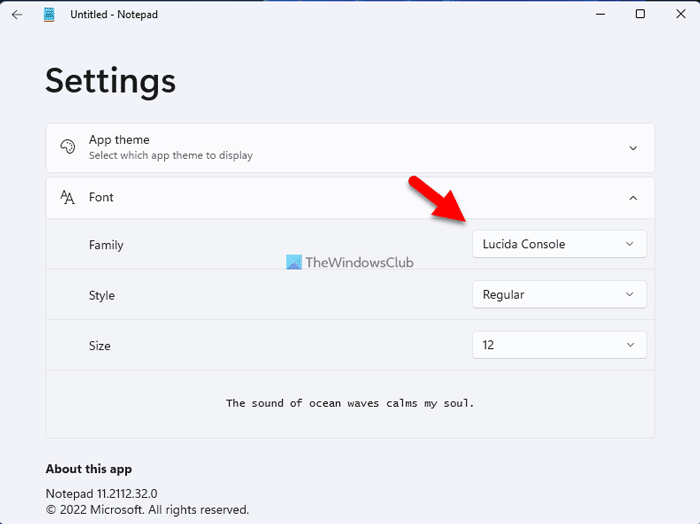
If you are bored with the default font in Notepad, you can change the font and size via its Settings (or Edit > Font). A variety of font families and styles are available. Font size can also be changed between 8 and 72.
15) Save a TXT file as PDF or HTML.
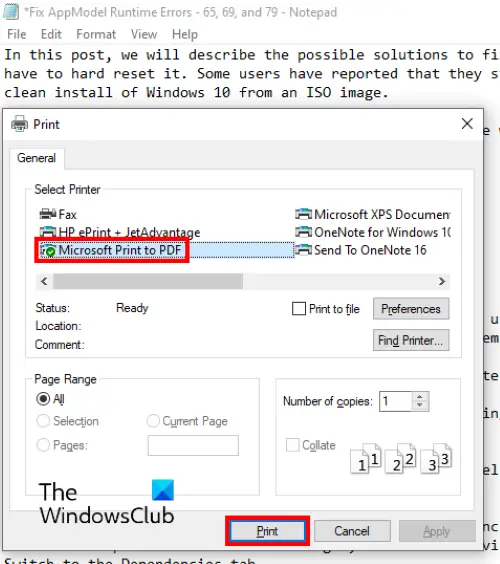
You can convert or save a TXT file as PDF or HTML with a few mouse clicks. Use the Print option in the File menu and select your Printer as Microsoft Print to PDF. The same trick can be used to create a new PDF file in Notepad.
17) Select text and words.
We already know how to select text and words (by clicking and dragging and using the Shift key combination) in Notepad or any other text editor software. However, there are a few other tricks like:
- Triple-click to select an entire line
- Ctrl+Shift+Right/Left arrow keys to select whole words
- Ctrl+Right/Left arrow keys to move the cursor word by word
- Ctrl+Backspace to remove the previous words.
18) Restore files without saving.
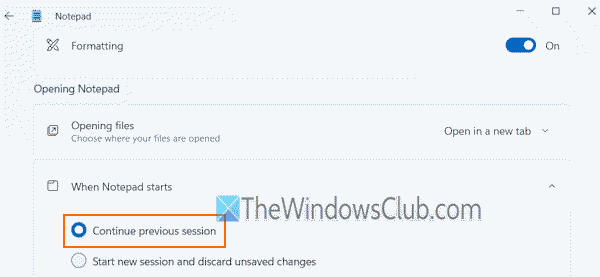
Accidentally closed Notepad and lost all the unsaved work? This won’t happen again, as you can restore the previous session of Notepad. Thus, your files will be restored with all the content, even if you haven’t saved them. In Notepad settings, expand the When Notepad starts section, and select the Continue previous session option.
19) If your Notepad is not working properly, this is how you can reset Notepad to default settings.
20) Check this post if you are looking for a Dark Mode Black Notepad.
21) This Notepad post may also interest you – Hide data in a secret Notepad file
That’s all.
Now read: What are Batch files in Windows? Fun and cool Batch files tricks
You might want to also take a look at the new features in Notepad in Windows.
How to maximize a Notepad window?
To quickly maximize a Notepad window, double-click on the title bar of Notepad. Alternatively, you can use Win+Up arrow key to maximize it, and pressing Win+Down arrow key will restore it. You can also use the maximize icon or square icon (just next to the “–” icon) on the top-right corner to maximize a Notepad window.
What can I do with Windows Notepad?
Windows Notepad isn’t just a basic text editor anymore. The new revamped Windows Notepad app has so many interesting and advanced features. You can use its tabbed interface to work with multiple files, create and edit Markdown files in Notepad, use AI tools to rewrite, write, summarize text, make text shorter or longer, change tone, format, and much more.
