
The humble but very useful Notepad is a built-in text editor in the Windows operating system, and it is also used to save certain file formats such as Registry files, Batch files, Script files, NFO files and DIZ files. Over a period of time, we often customize its settings to suit our requirements. We might change its default font, its style and size, the window position, word wrap, status bar settings, etc. While you can revert each one, if you want to reset all Notepad settings to their default values, this post shows you how.
Reset Notepad to default settings
The default font in Notepad in Windows 11/10, is Consolas with Regular style, and font size 11. Word Wrap and Status Bar are disabled.
Use Windows Registry
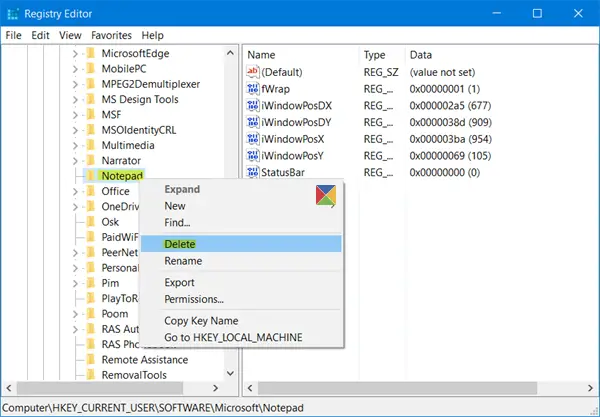
To reset all Notepad settings, from the WinX Menu, open Run box, type regedit and hit Enter to open the Registry Editor.
But before you begin, you may want to create a system restore point and/or backup your Registry.
Next, navigate to the following key:
HKEY_CURRENT_USER\Software\Microsoft\Notepad
Now in the left pane itself, right-click on Notepad and select Delete.
This will delete all saved settings for Notepad, as shown in the right pane.
Use Command Prompt
You can also use the CMD to do this. Open Command Prompt as Administrator and execute the following command:
reg delete HKCU\Software\Microsoft\Notepad /f
Restart Notepad
Use File Explorer
In recent Windows 11 builds, Microsoft has changed how Notepad stores settings. So if the registry key is missing, the settings may be stored in AppData configuration files. In this case, try deleting the Notepad configuration folder in the following location, restart PC and see if it helps:
C:\Users\<username>\AppData\Local\Packages\Microsoft.WindowsNotepad_8wekyb3d8bbwe
Having done this, your Notepad will be reset to its default settings.
This post can be useful if Notepad is not opening or if it keeps closing automatically.
Love the Notepad? Then these Notepad tips & tricks are sure to interest you.
