
If the Status Bar option under View is always greyed out or disabled, you can enable it. In this post, we will see why and how you can disable or enable the Status Bar in Notepad – via the Notepad UI itself or with a registry tweak.
The Status Bar appears at the bottom of Notepad and gives information like the number of Lines and columns the text occupies. Now, if you click on View, you will see that the Status Bar option is greyed out. Click on Format and then uncheck the Word Wrap option. Now go back, and you will see that the Status Bar option is available and you can enable it.
If you want to use the Status Bar under View or the Go To (Ctrl+G) under Edit options, you must turn off Word Wrap under Format first, since Word Wrap messes with line breaks. That is how Notepad has been programmed.
How to enable Status Bar in Notepad on Windows 11
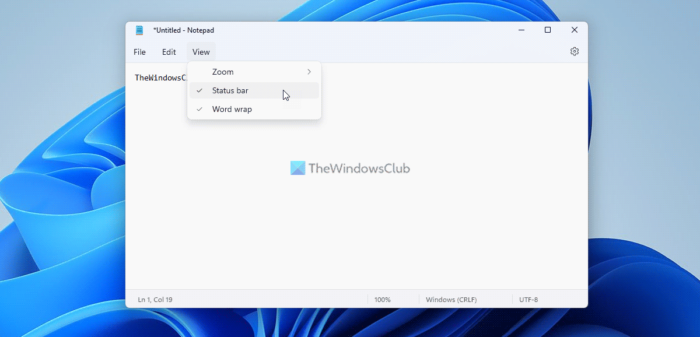
To enable Status Bar in Notepad on Windows 11, follow these steps:
- Open Notepad on your computer.
- Click on the View menu.
- Click on the Status bar option.
If you use Windows 10, follow these steps.
Enable Status bar in Notepad in Windows 11/10
You can use the Windows Registry to force Notepad always to have the Status Bar enabled.
To do this, Run regedit and navigate to the following key:
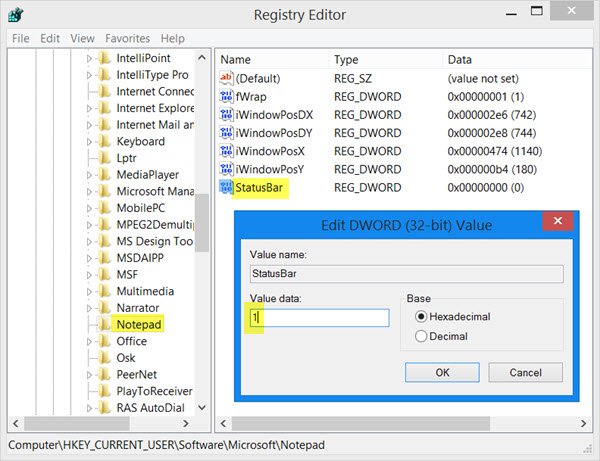
HKEY_CURRENT_USER\Software\Microsoft\Notepad
Here change the StatusBar DWORD value from 0 to 1. Press F5 to refresh the Registry.
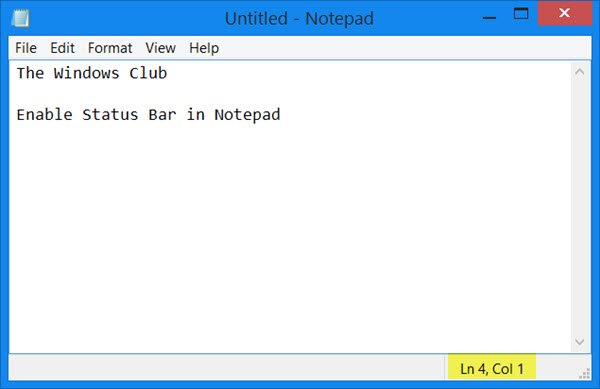
Now open Notepad. You will see the Status Bar enabled.
Hope this works for you!
How do I get the status bar back in Windows?
Although Notepad displays the Status bar by default, you can enable or disable it manually. If you disabled the Status bar earlier, you wouldn’t find it now. That is why you need to open Notepad on your computer, click on the View menu and select the Status bar option. Whether you use Windows 11 or Windows 10, the process is the same.
What is the use of Status bar option in Notepad?
The Status bar in Notepad displays several things. For example, you can find the number of lines, characters, zoom level, encoding, etc. Although these things might not be handy all the time, some people need them at times. If you are one of them, you can find your text document’s status in the Status bar.
Looking for more to get the maximum out of Notepad? Check out these Notepad Tips and Tricks.
