
The Windows operating system offers many tweaks and tricks. If you are aware of these, you can complete your tasks quickly and simply. You may never need to use any third-party software if you are good at using those tricks. Among the many Notepad tips and tricks, I will show you how to hide data in a secret text file compartment created in Notepad on Windows 11/10.
We typically store our bank account numbers, credit card numbers, important passwords, and other sensitive information in text files on our desktop for easy access. But if your system is shared with others, there is a risk of this information being compromised.
I suggest following this method: hide data whenever necessary, and remove those text files immediately once you are done with your work. Once anything is created, there are many ways to break it. This method makes use of the Alternate Data Streams of the NTFS file system, which Windows supports.
Hide data in a secret text file compartment of Notepad
First, open the command prompt in your Windows system and type the following command:
Syntax:
notepad FileName.txt:SecretWord.txt
Example Command:
notepad HideData.txt:FirstSecret.txt
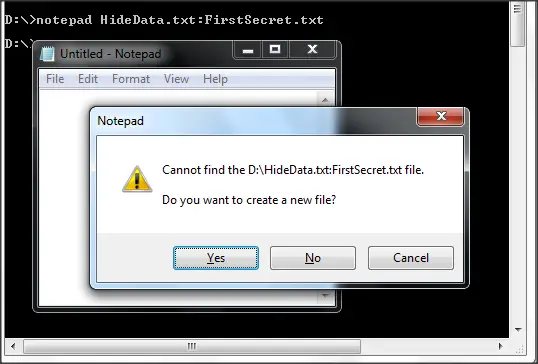
Now, when you hit Enter, it says Cannot find the file specified at the location and asks whether to create or not. Just click ‘Yes’. Start typing into the file and save it.
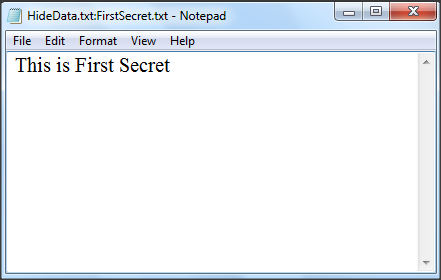
The file will be saved in your default user profile folder. The default path of the folder is:
C:\Users\username
Replace the user name in the above path with your user name. The file shows a 0 KB size and it means there is nothing in that file.
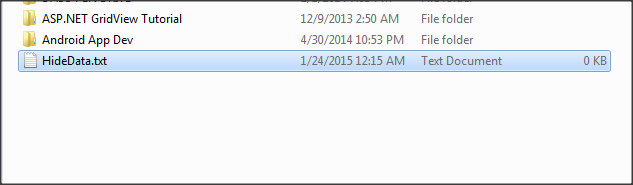
So, the text which we wrote, is hidden in this file and if you double-click the file to open it, you see nothing written in it. Even if someone opens it, they will see an empty text file and can start typing data into it. It does not affect our hidden data at all.
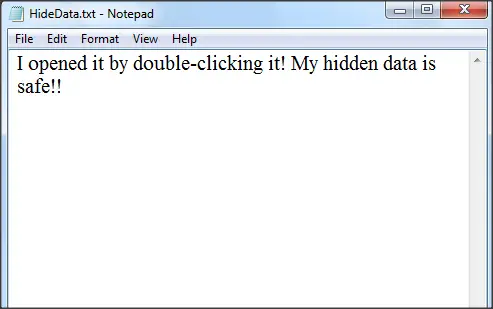
See and Edit the hidden data which was saved before
To view the hidden data, you need to run the same command. You can even add some more data in this step itself.
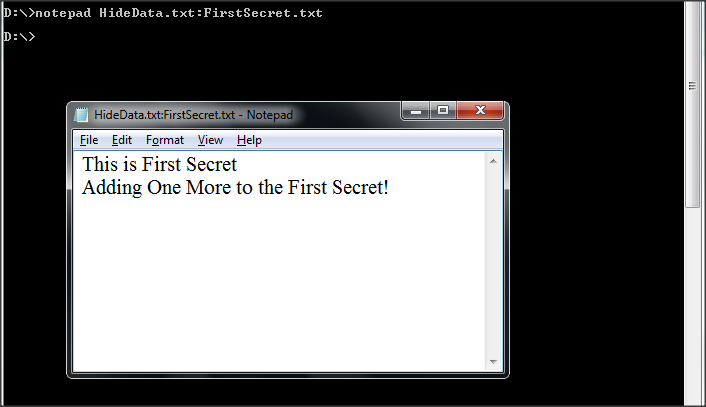
Above, we show the default file save location. You can edit the file only if the file exists in the default location. If you move the file to another location, Notepad will not find it when you run the command in Command Prompt. Hence, it will create another at the default location.
If you copy the file in your storage device to open it on another computer, you have to move that file to the same default folder on that computer, which is the user profile folder in the Users folder.
If you want to add more hidden data to the same file, you need to use a different secret word. This is not at all related to the data hidden with the first secret word.
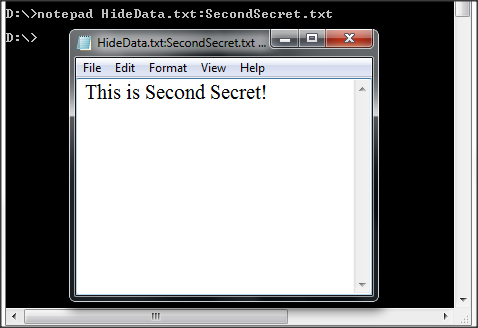
Example Command:
notepad HideData.txt:SecondSecret.txt
None of them will affect either file or the main data. One thing to remember is that you need to use Command Prompt to access hidden data.
Now, when everything is done remove that text file completely using Shift+DEL and no one knows about that file anymore.
This is a simple way to natively hide data in a text file of Windows. Use these tips whenever you need to store confidential information for that period.
That’s it.
How do I hide text files in Windows?
You can hide text and other files in Windows 11/10 easily by changing the file attributes. To do so, right-click on the file that you want to hide and select Properties. Enable the Hidden Attributes under the General tab. After that, click Apply and then click OK. To view the hidden files, open File Explorer Options and enable the Hidden Files and Folders option.
How do you make text hidden text in a document?
You can easily hide text in Microsoft Word documents. To do so, select the text that you want to hide, then right-click and select Font. When the Font window opens up, select the Hidden checkbox and click OK. This will hide the selected text in your Word document. You can unhide the text anytime in your Word document by unchecking the Hidden checkbox.
