
If the Taskbar keeps popping up while playing games on your Windows 11/10 computer, the solutions provided in this article will help. According to the reports, the issue happens when playing games in both windowed and full-screen modes. This is a frustrating issue because it ruins your gaming experience.
Taskbar keeps popping up while playing games on PC
Follow these suggestions if the Taskbar keeps popping up while playing games in Windows 11/10:
- Restart Windows Explorer
- Enable Auto Hide Taskbar
- Disable Game Mode
- Repair your system image files
- Check the issue in the Clean Boot state
- Uninstall Copilot
- Disable notifications
- Reset your PC.
All these fixes are explained in detail below.
1] Restart Windows Explorer
Such types of issues can be fixed easily by restarting Windows Explorer, as this process clears temporary UI glitches. Follow these steps:
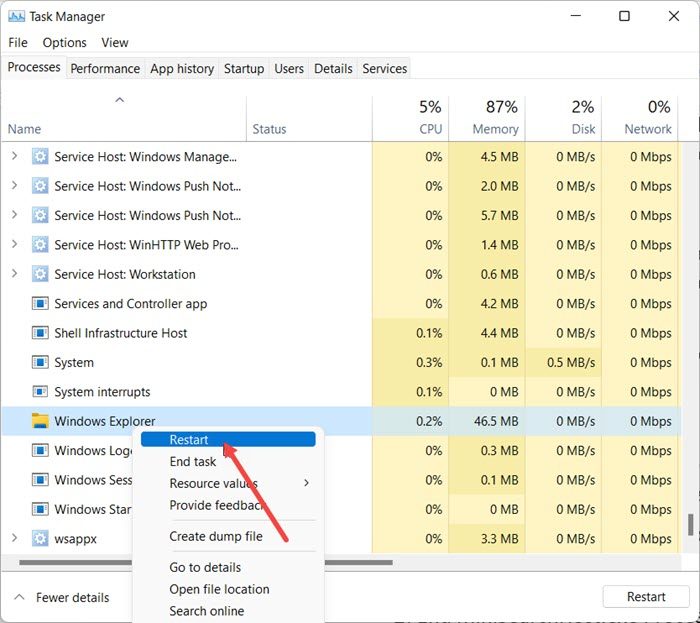
- Launch the Task Manager.
- Navigate to the Processes tab and search for Windows Explorer.
- Right-click on Windows Explorer and select Restart.
2] Enable Auto Hide Taskbar
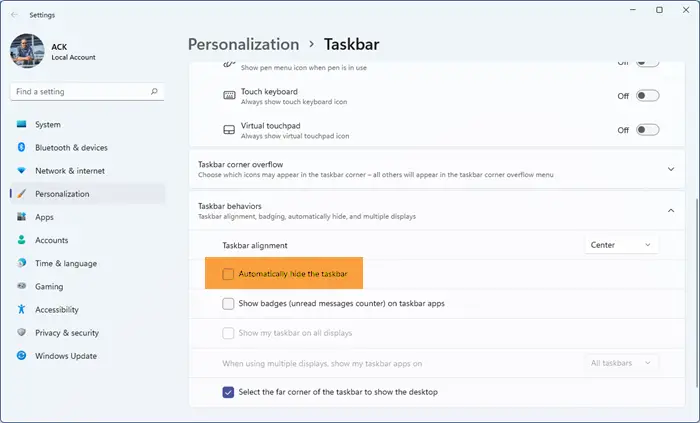
Windows 11 has a feature that automatically hides the Taskbar. You can try turning on this option and see if it helps.
3] Disable Game Mode
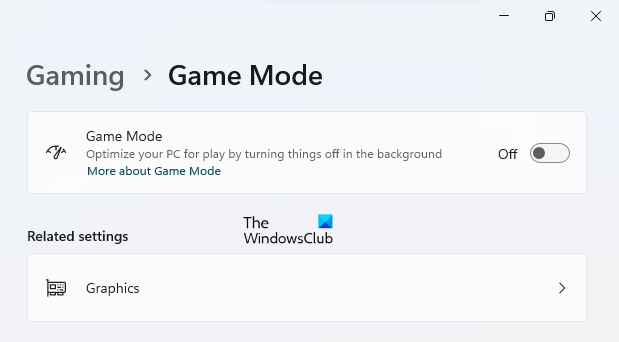
Game Mode can sometimes cause issues while playing games. To confirm whether this is the case with you, disable the Game Mode. Open Windows 11 Settings and navigate to Gaming > Game Mode. Turn it off.
Additionally, you can disable other software overlays (if you do not use them while playing games).
4] Repair your system image files

One possible cause of this issue is the corrupt system image files. Use the built-in tools, System File Checker and DISM, to scan your computer for system image file corruption. If Windows finds any corrupt system files, it will repair them. Do not interrupt the scan. This process will take time.
5] Check the issue in the Clean Boot state
A third-party background application or service might conflict with the game, causing the Taskbar to appear even in full-screen mode. To check this, enter the Clean Boot state. Before proceeding, disable all startup programs using the Task Manager and restart your computer. If the problem disappears after disabling startup programs, one of them is causing the issue. In this case, you need to find that problematic startup program. However, if the issue continues, enter Clean Boot state for further troubleshooting.
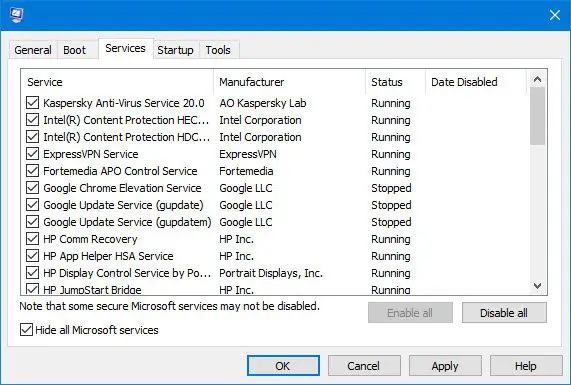
Be careful while disabling the third-party service to enter the Clean Boot state. If you disable all the services by mistake, you will put yourself in trouble, and you may have to reinstall Windows. Once you are in Clean Boot, launch the game and see if the issue persists. If the issue disappears, your next step is to find the problematic third-party service.
Enable some of the third-party services and restart your computer. Launch the game and check if the issue persists. If not, enable some more services and restart your computer. If the issue reappears, one of the services you have just enabled is the culprit. Now, proceed with further troubleshooting using the hit-and-trial method.
6] Uninstall Copilot
The Copilot app or Microsoft 365 Copilot keep running in the background and relies on WebView2 technology for their interface and web-based components. It might be triggering this issue. To check this, terminate Copilot in the Task Manager.
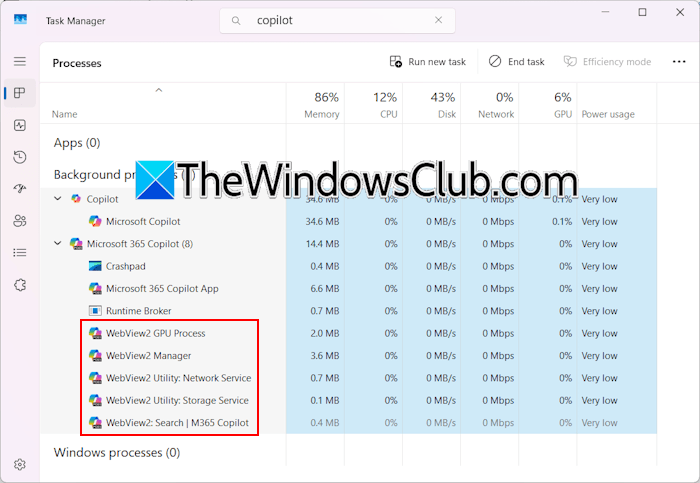
Open the Task Manager and search for Copilot. Right-click on Copilot and select End Task. Now, launch the game and see if the issue persists.
If this works, you can disable Copilot as the startup app or uninstall it (if you don’t need it anymore).
7] Disable notifications
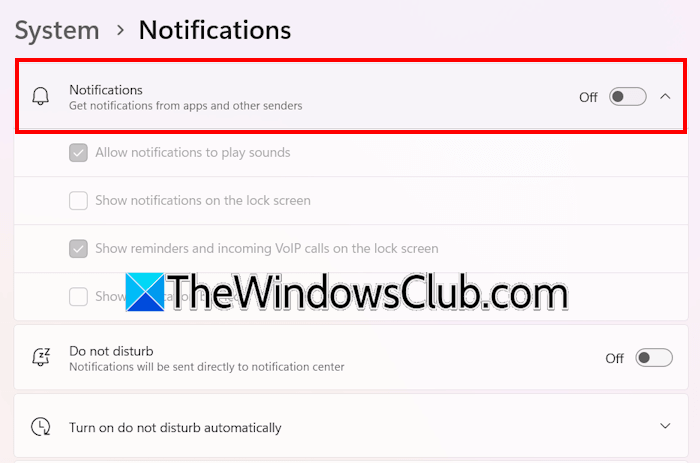
You can try disabling notifications while playing a game. Open Windows 11 Settings and go to System > Notifications. Now, turn off the Notifications switch. You can enable notifications again after playing the game. However, if you are worried about missing an important alert and do not want to disable notifications entirely, you can turn ON Do Not Disturb instead.
8] Reset your PC
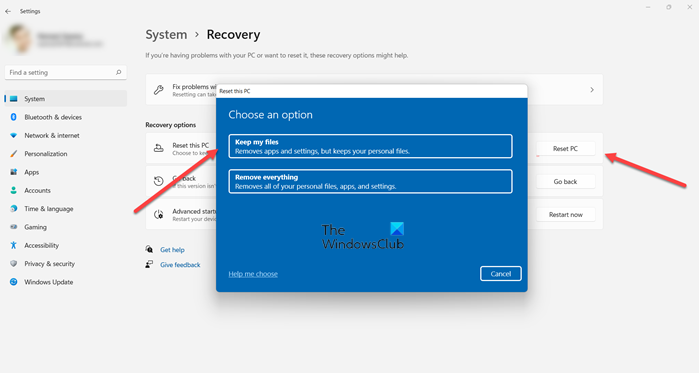
If none of these fixes worked, the last resort is to reset your PC to the factory default settings. Windows has an option to reset a PC without deleting data. However, taking a backup of important files is always recommended before proceeding. This step also removes all installed programs from your system, so you will need to reinstall them later.
That’s it. I hope this helps.
How do I get rid of the Game Bar pop-up?
If Game Bar keeps appearing on your screen while playing games or using other programs on your system, you might be pressing the shortcut key to launch Game Bar. To fix this issue, you can disable Game Bar in Windows 11 Settings.
How to stop the Taskbar from popping up when hovering?
When you hide the Taskbar, Windows displays it every time you hover your mouse to the bottom of your screen. This behaviour is by design. You cannot disable the Taskbar permanently.
Read next: Deleting files stuck at 99% on Windows.
